
File output tabular format extension overview
The file output tabular format extension exports data from steps in an agreement process to tabular format files stored in cloud storage systems. Supported file types are Excel sheets, Google sheets, and CSV files.
Use a file output tabular format extension in a workflow
After a file output to tabular format extension app has been installed and connected to a Docusign account, a workflow process builder can include a step that invokes the extension. In the example described here, a process builder defines a workflow that verifies an employee’s right to work in compliance with the United Kingdom’s Right to Work laws. The workflow steps include:
- An employee supplies their information including a Share Code in a web form and submits it.
- The employee completes identity verification.
- The extension writes the values entered by the employee and the result of their identity verification to a spreadsheet for compliance.
Expand the sections below to see how a file output tabular format extension functions during workflow configuration and execution. See File output tabular format actions and capabilities for details about the functionality.
Workflow configuration: The process builder selects the extension
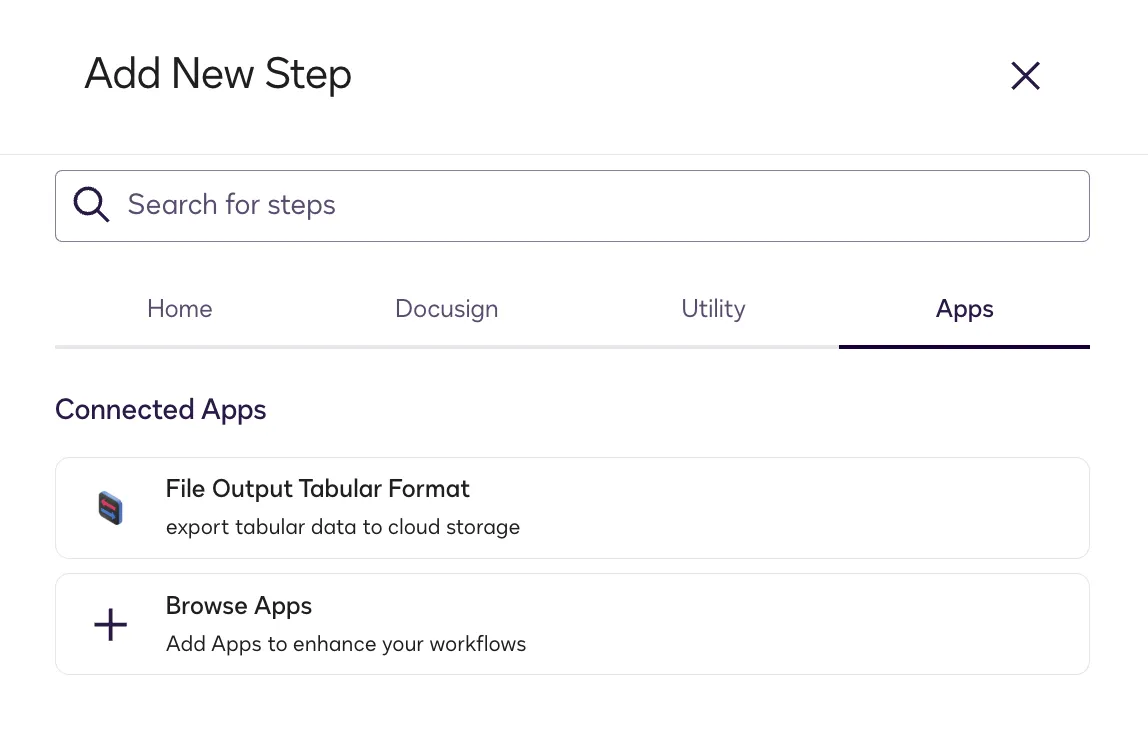
When adding a workflow step to export data to tabular format, the process builder selects the extension that has been installed to their Docusign account.
Workflow configuration: The process builder selects a drive
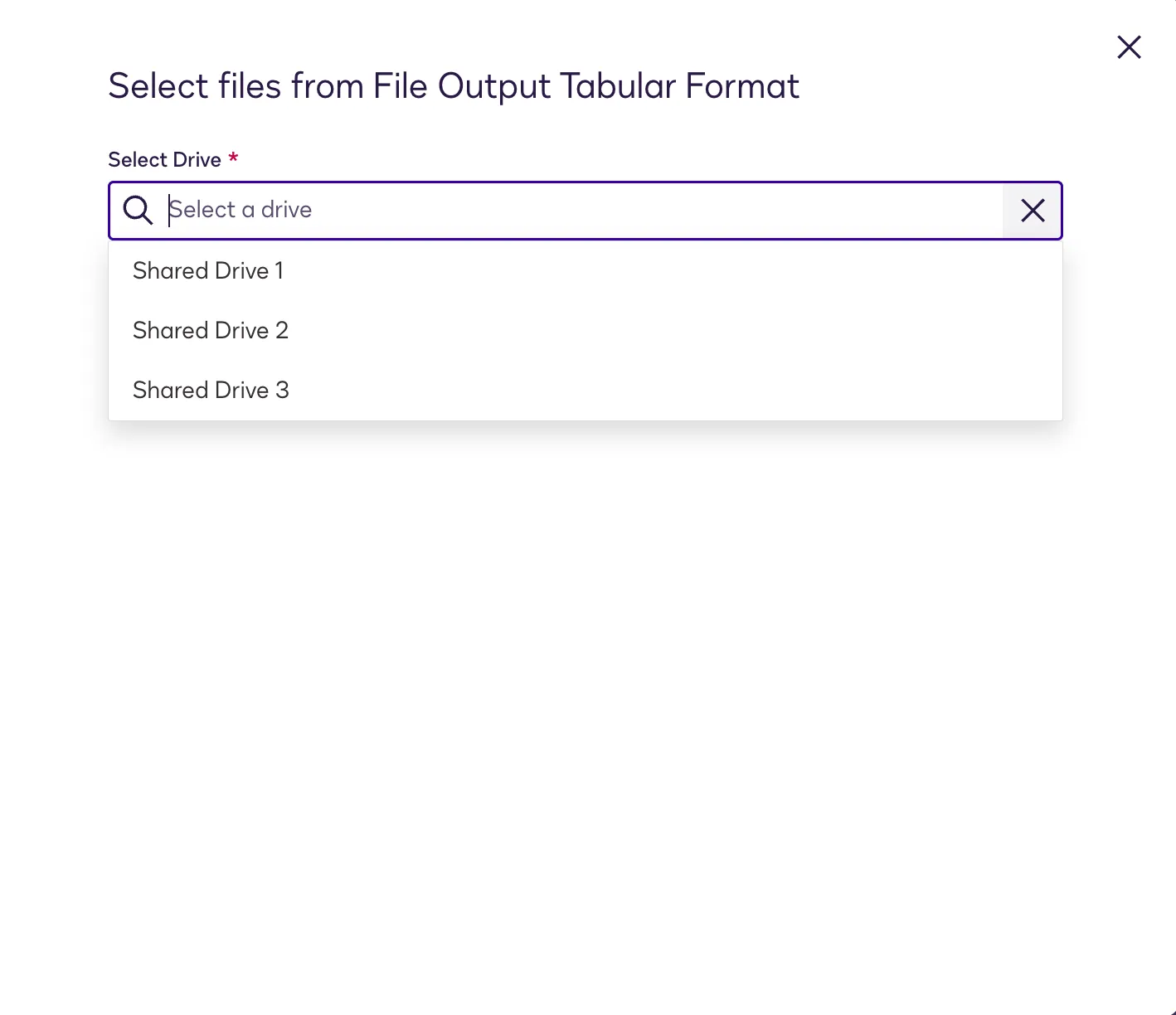
The process builder configures the file output step. During step configuration, the file output tabular format extension can be invoked to list the drives in the cloud storage system. This enables the process builder to select the destination drive where the data will be written.
Drive selection is an optional capability for file output to tabular format. If the extension does not implement this feature, process builders will not be able to select a drive.
Note: If the cloud storage system does not have the concept of drives and instead organizes folders and files under a different container type, the extension can retrieve a list of those containers instead. They will appear in the step configuration pageʼs Select Drive list.
Workflow configuration: The process builder selects a file
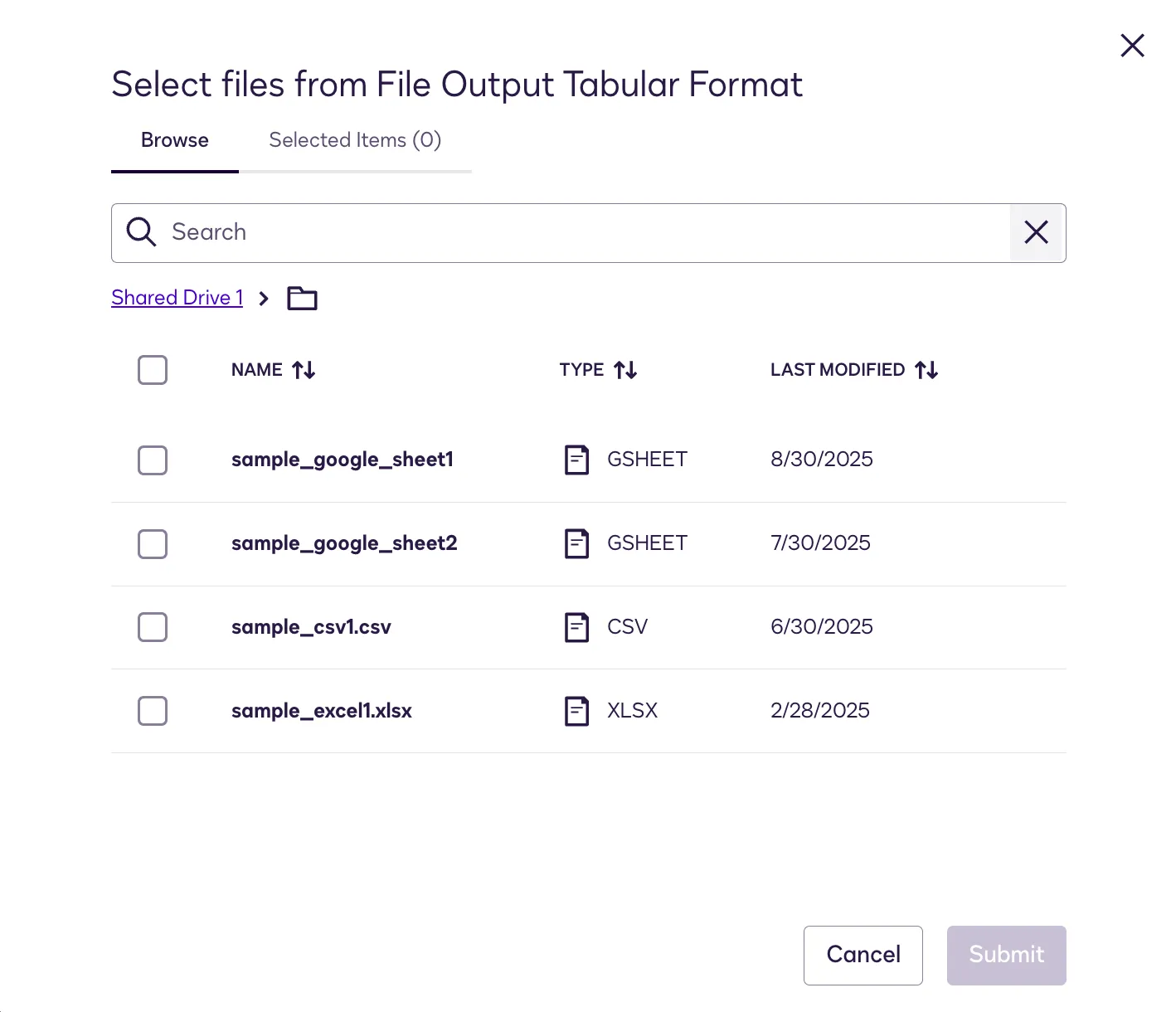
Another configuration option is the ability to select a destination file in the cloud storage system. The file output tabular format extension can be invoked to display a list of files in a drive or directory.
File selection is an optional capability for file output to tabular format. If the extension does not implement this feature, process builders will not be able to select a file.
Workflow configuration: The process builder selects the variables to be exported
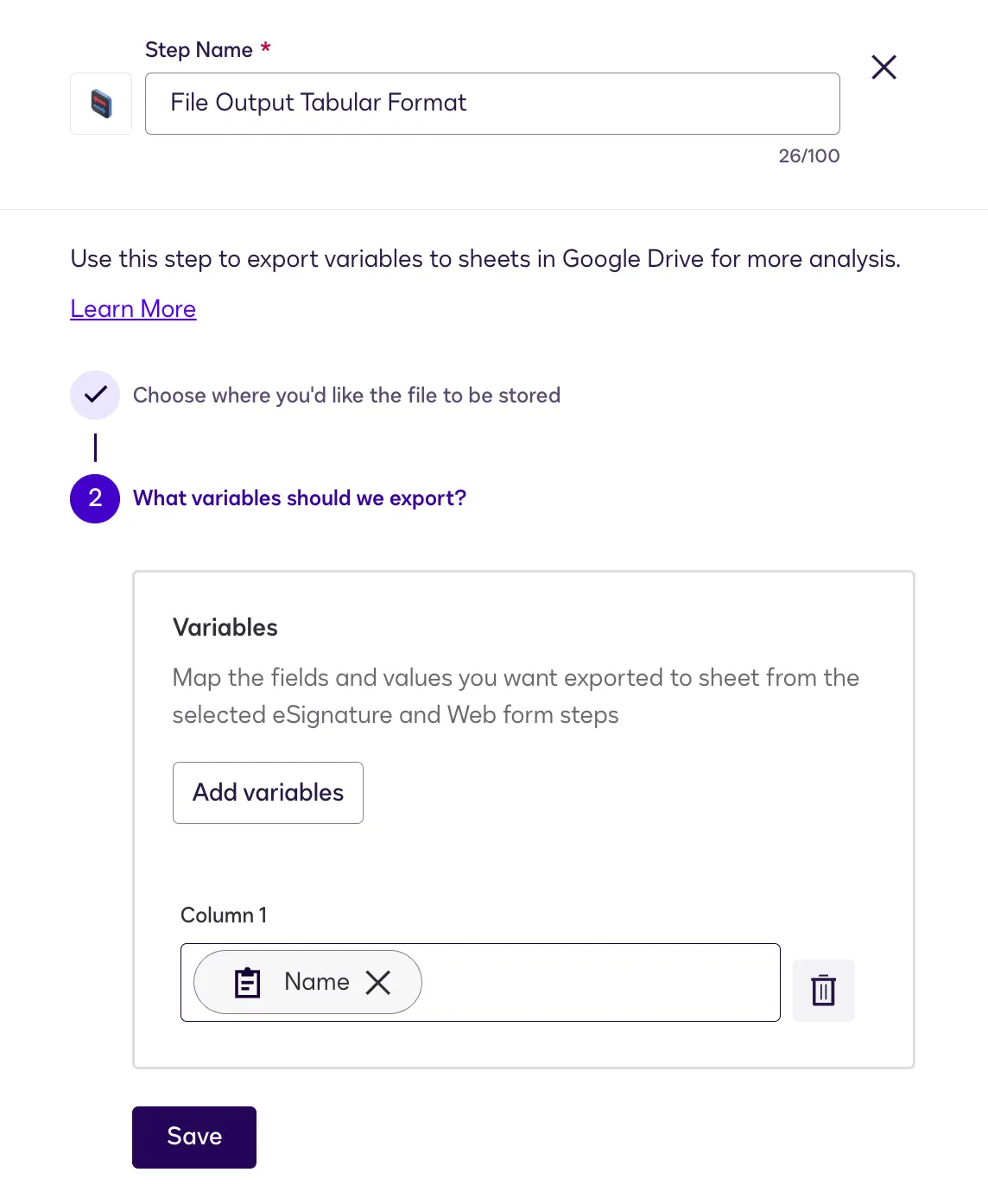
The process builder’s last configuration step is to select the variables whose values are to be exported. When writing values to an empty spreadsheet, each variable selected will be assigned a column and each column will be given a generic heading like Column 1 that can be edited directly in the destination sheet. Whenever an instance of the workflow is run, a new row will be added to the spreadsheet containing the values of that instance’s selected variables.
When writing values to a spreadsheet with existing data, the values of each instance’s variables will be written to a new row under the spreadsheet’s existing columns.
Workflow execution: The employee completes a web form
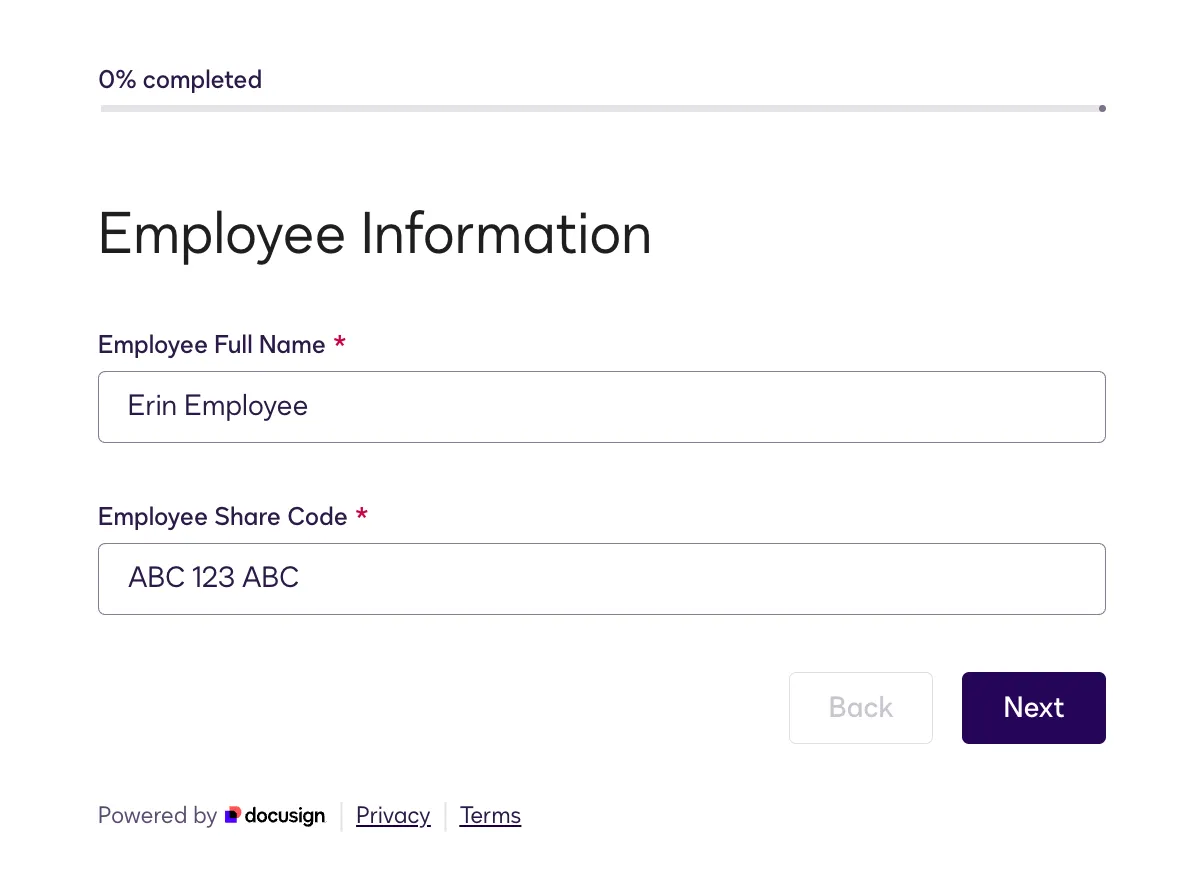
When the example workflow is executed, the employee’s first step is the completion of a web form. The employee enters information in the form fields and submits the form.
Workflow execution: The employee completes identity verification
The employee completes the identity verification step by uploading a photo of their ID document.

Workflow execution: The fields are exported to the tabular format file
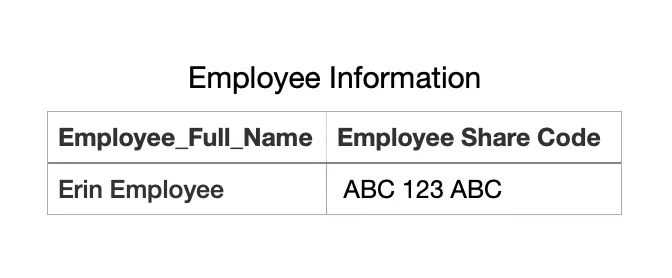
After the employee has completed the identity verification step, the workflow reaches the file output step and writes the values of the selected variables to the file that the process builder selected. The values will be written to a new row in the sheet.
File output tabular format actions and capabilities
A file output tabular format extension implements the actions and capabilities listed below. Both actions and capabilities send requests to an external API service. Actions are required and provide the core functionality for an extension. Capabilities are optional and offer additional features to enhance the core functionality.
Workflow configuration requests to the external system
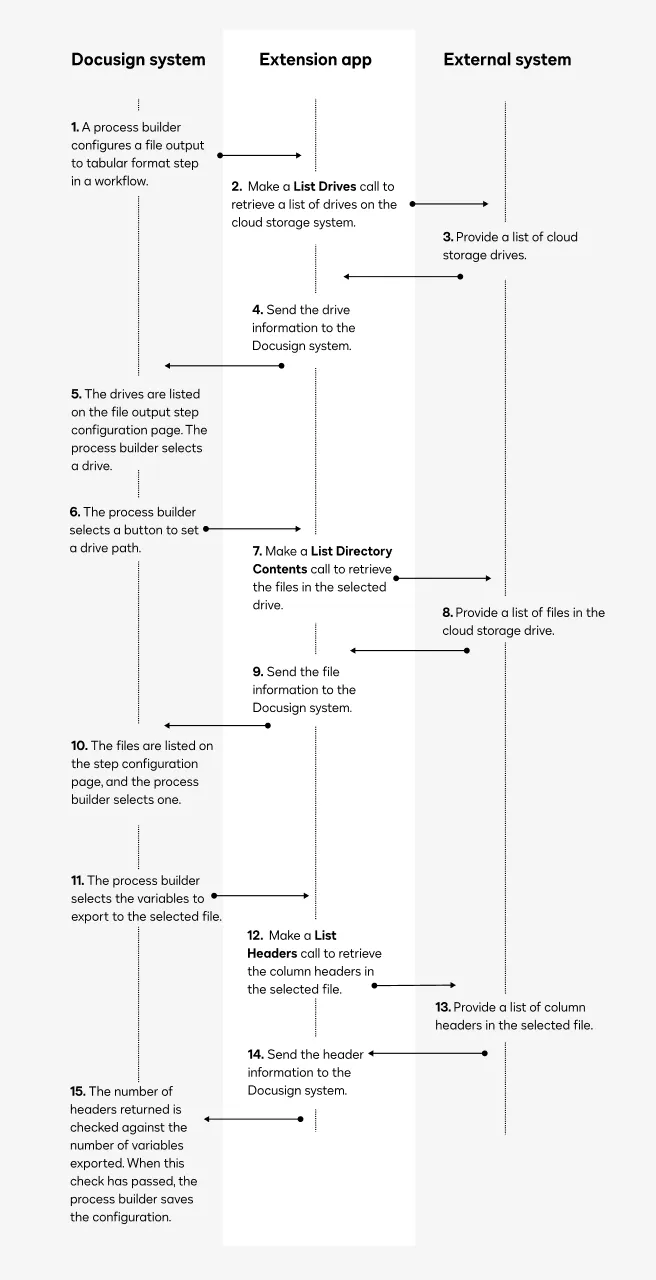
This flow shows how the file output tabular format extension’s actions and optional capabilities can be invoked during configuration of a Maestro workflow. The process builder is able to select a drive and file destination where the workflow variable values will be written.
This flow describes the sequence of calls to the external system when an extension app implements the optional List Drives and List Directory Contents capabilities. An extension app that exports values to tabular format can be implemented without these capabilities. See External system logic to return file destination options for details.
List Drives capability: When a process builder configures a file output step, Docusign sends a List Drives request to the external system to retrieve a list of drives or similar structures that contain folders and files. The file output step configuration page displays the list in a dropdown.
List Directory Contents capability: When a drive has been selected, the system launches a List Directory Contents request. The page displays the file names from the response in a list. The process builder selects the destination file to which the values will be exported.
List Headers action: After the process builder selects the variables to be written to the destination file, the system sends a List Headers request to compare the columns in the destination file to the number of variables being exported. This prevents data corruption in the destination file.
Workflow instance runtime requests to the external system
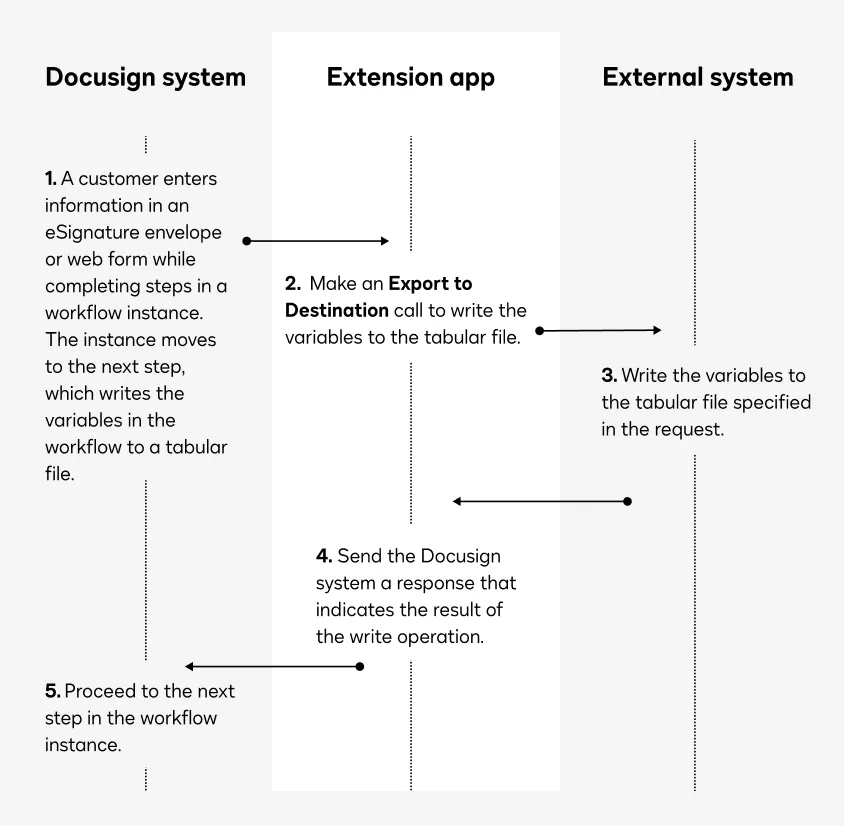
This flow shows how the file output tabular format extension is invoked during the execution of a workflow instance.
Export to Destination action: When a running workflow instance reaches a file output to tabular format step, Docusign sends an Export to Destination request to the external system. The request includes a Base64-encoded string representing the drive and file information, an array of strings representing the column header names, and a two-dimensional array of strings representing the data being written to the file.
Plan a file output to tabular format implementation
These sections describe options that should be considered when planning a file output to tabular format implementation:
- Extension implementation details
- Workflow configuration options and restrictions
- Mechanisms for starting workflow instances
Extension implementation details
Your implementation choices for the file output tabular format extension determine the details of how values are exported to files stored in cloud storage. See the next two sections for guidance.
External system logic to return file destination options
The file output tabular format extension supports capabilities that enable workflow process builders to select the file where the workflow variable values will be written. Below are the available options and the capabilities that enable each option.
If the extension enables the process builder to select a drive (or similar container type), Docusign sends the configured container and/or file path with Export to Destination requests at workflow instance runtime.
If the app does not implement capabilities to allow process builders to select a file destination, Export to Destination requests will include a file name only. The external system must implement logic to select a storage location. If the cloud storage system has a structure similar to Google Drive, Docusign recommends implementing both the List Drives and List Directory Contents capabilities.
See the file output tabular format extension contract for details about the request formats and the expected response formats. See API proxy for guidance on transforming requests and responses to the correct format.
External system logic to process Export to Destination requests
Docusign includes the workflow variables’ values, the file headers, and, optionally, a drive (or similar container type) and/or a file name in Export to Destination requests.
Some considerations for the external system logic to process these requests include:
- If the extension does not implement capabilities that enable a workflow process builder to specify a storage location, how will the external system select a location when it receives a request to write data to a file?
For details about the Export to Destination request and response formats, see the Export to Destination action contract. See API proxy for guidance on transforming requests and responses to the required format.
Workflow configuration options and restrictions
Workflow Builder workflows are highly customizable and offer many possibilities for constructing the steps in an agreement process. To export values to a tabular format, a workflow must be configured with a File output step, which invokes the file output tabular format extension. This step is available to workflows in any Docusign account that has the extension app installed and connected.
These restrictions apply when configuring a workflow to write data to tabular format files:
- The maximum number of variable values that can be exported to a tabular format from a workflow is 1,000.
- If values should be exported to multiple different files, the process builder must define a separate file output to tabular format step for each file.
- Not all variable types can be exported from a workflow. Checkboxes and radio groups are not supported in the current release.
- Values will be written to columns in the tabular format file from left to right in the order in which they are configured in the file output tabular format step. Process builders should ensure that the order in which they configure the variables matches the order of any existing columns in the destination file.
- For a file that has existing column headers, if the number of variables selected for export exceeds the number of column headers in the file, additional variable values will be written to new columns with generic headers like Column 1.
Mechanisms for starting workflow instances
Docusign supports multiple options for starting workflow instances that export variable values to tabular format files. A workflow instance is a runtime execution of workflow steps that enables a customer to complete tasks such as filling out a form and signing an agreement.
To start workflow instances manually, see How to Start a Workflow.
To start workflow instances programmatically, you can implement a Docusign Workflow Builder API integration that includes the Workflows: triggerWorkflow request. See Workflow Builder API 101 overview for an introduction to the API, and How to trigger a Workflow Builder workflow for example code and a detailed walkthrough.
Next steps
- Get an overview of the process to build an extension app.
- See File output tabular format extension contract reference for details about the action and capability requests and responses.
- Learn how to programmatically trigger workflows that write files to cloud storage.