
Integration tests
The Developer Console provides two types of integration tests:
- Connection tests: Verify that the extension app can obtain authorization from the external API service or identity provider. This test also replicates the customer experience of configuring a connection after installing the extension app in the App Center.
- Extension tests: Verify that the extension app can send requests to external API endpoints or API proxy endpoints and process the responses. The extension tests available for an extension app depend on which extensions the app uses.
See Test prerequisites for information about tasks you must complete before you can run these tests.
The tests will run against the external service environment (development, test, or production) configured when the extension app was registered. See Test against different environments for information about switching environments.
Run a connection test
This test obtains authorization from the external API service or identity provider. It uses the connection settings supplied when registering the extension app using a form or the connection object properties supplied in the extension app manifest. Running this test requires you to supply login credentials for the authorization provider.
To run a connection test:
-
Log in to the Developer Console.
-
On the My Extension Apps page, locate the row for the extension app you want to test.
-
Select the app to open the App Overview.
-
In the left navigation, select App Testing.
-
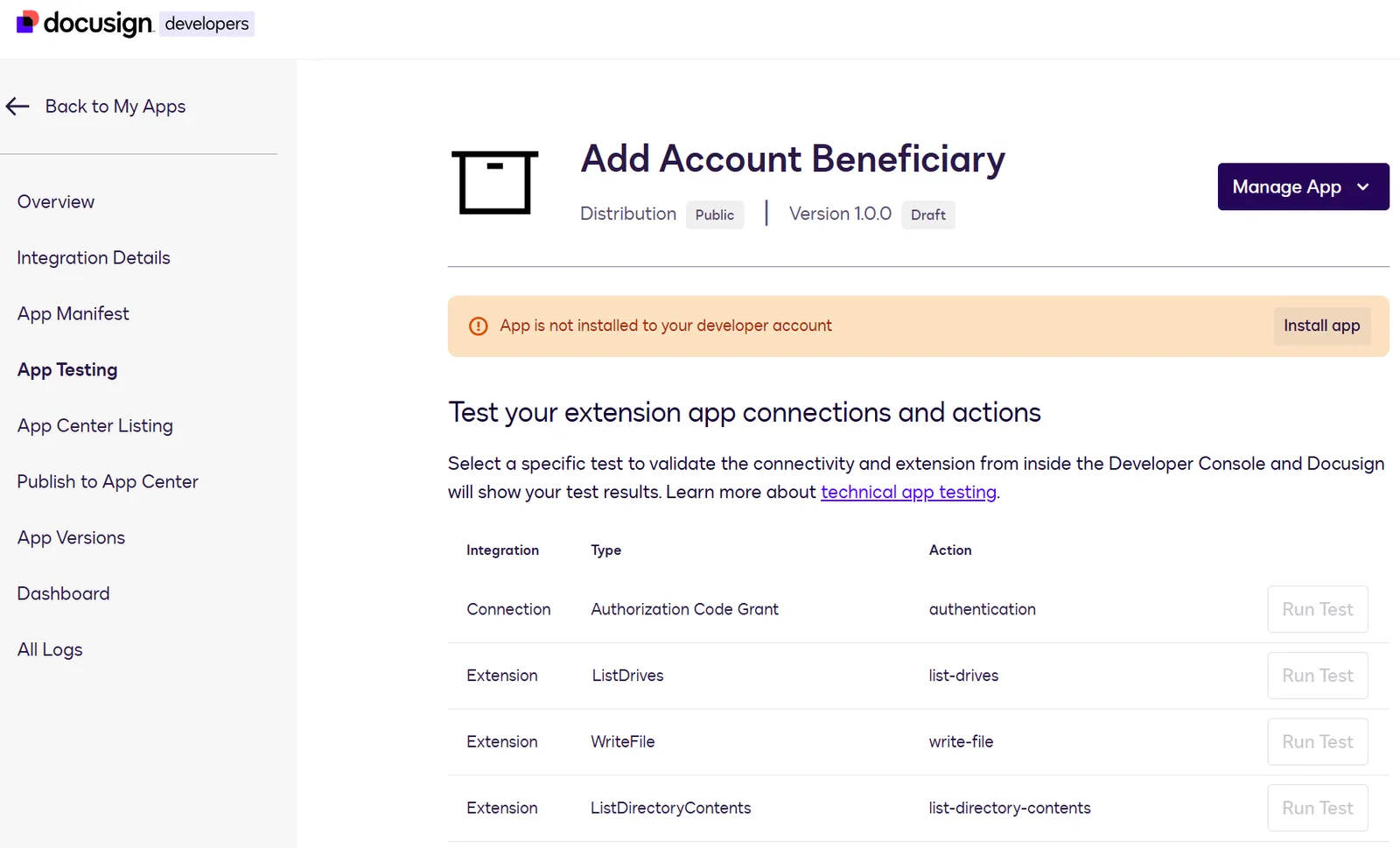
If a banner displays the message App is not installed to your developer account, as shown above, select Install app.
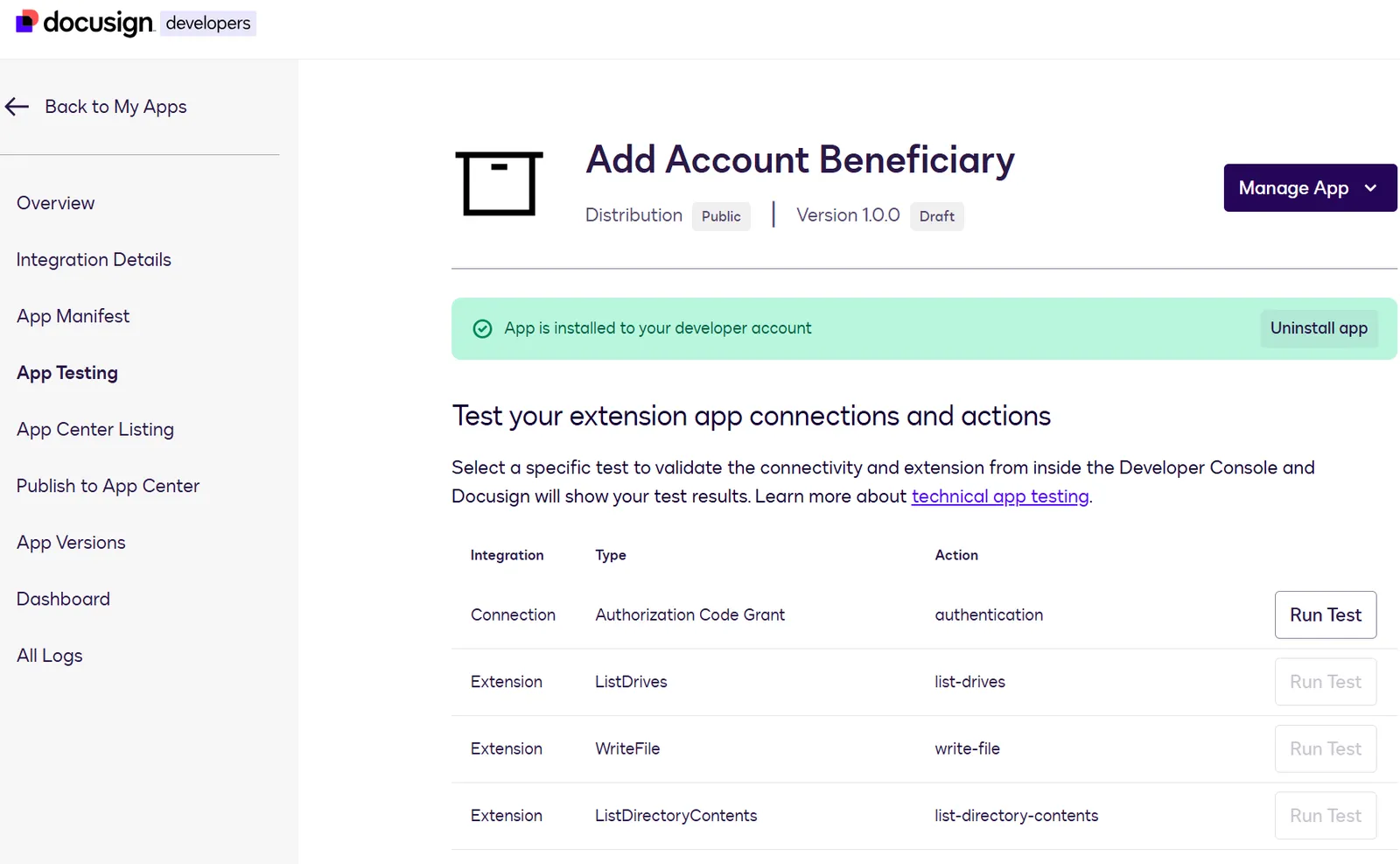
After installation, the banner displays the message App is installed to your developer account.
If you previously installed the extension app and have updated the extension app registration since then, the updates are automatically applied to your installed version. You do not need to reinstall after updating the registration.
-
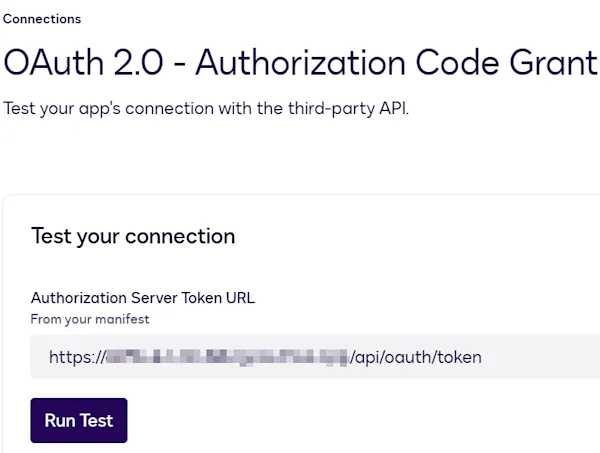
Select Run Test in the Connection row to display the test page:
-
Select Run Test.
-
When prompted, supply your credentials for the authorization provider.
-
The test executes and test results are displayed.
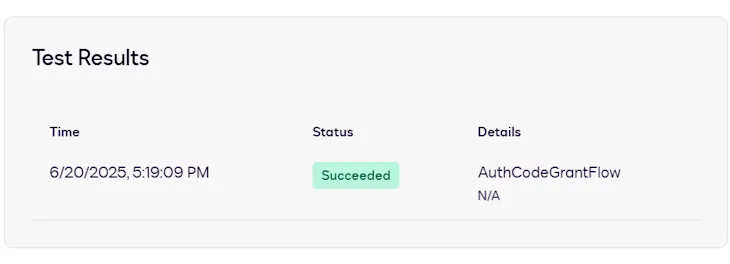
If the test fails, the results include an error message. See Connection test errors for troubleshooting tips.
Run an extension test
This test launches a request to the external API endpoint or API proxy endpoint configured for an action or capability. It uses the value from the Params URI setting in the form-based extension app registration process or the extension app manifest actions.params.uri property. The test confirms that the endpoint is reachable and that the response is in the format Docusign expects. Extension tests use the authorization obtained from a connection test.
The Developer Console extension tests include all actions and capabilities that are implemented in the extension app registration. Extension tests are executed from the Docusign platform directly to external endpoints. Running extension tests is an important step in extension app development. However, it is also important to test all of the extension app’s actions and capabilities from the extension point, such as eSignature, Agreement Builder, or Agreement Manager. See Functional tests for more information about testing from extension points.
Before you can run an extension test, you must first complete a successful connection test. If you previously installed the extension app and have updated the extension app registration since then, the updates are automatically applied to your installed version. You do not need to reinstall after updating the registration.
To run an extension test:
-
Log in to the Developer Console.
-
On the My Extension Apps page, locate the row for the extension app you want to test.
-
Select the app to open the App Overview.
-
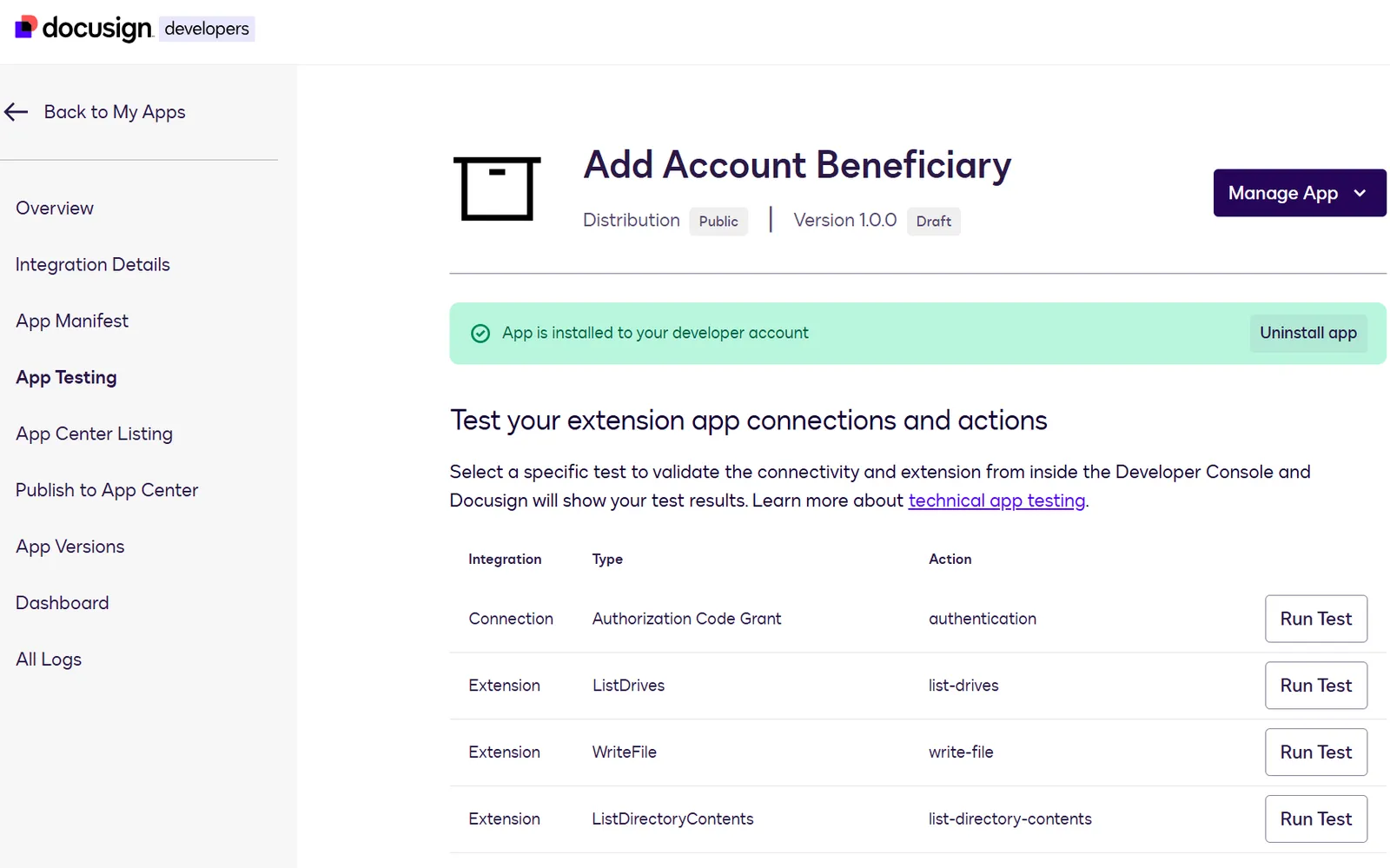
In the left navigation, select App Testing.
-
Locate the Extension row for the action or capability you want to test.
-
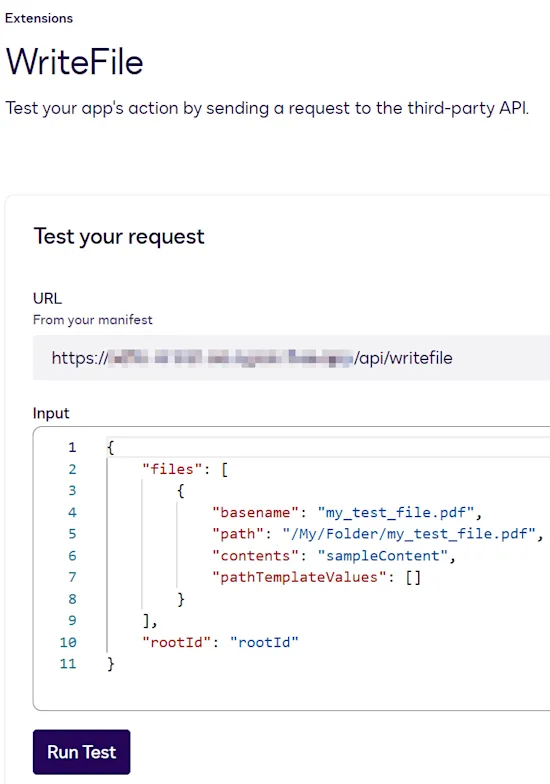
Select Run Test in the appropriate row to display the test page.
-
Confirm that the endpoint URL shown is correct. This value is populated from the Params URI setting in the form-based extension app registration process or the params.uri property in your extension app manifest and it cannot be edited on this test screen. If it’s not correct, update the extension app registration.
-
Supply request body property values to include with the request. The action contract has details about these properties. You can access action contract details for each extension from the Extension contracts page.
-
Select Run Test.
-
The test results and response from the external system are displayed.
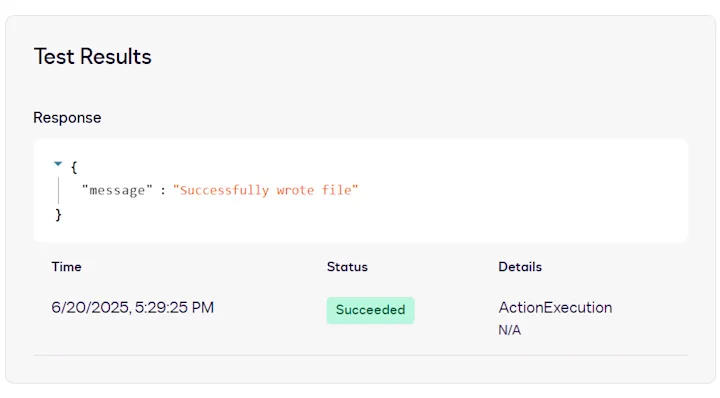
If the test fails, the results include an error message. See Extension test errors for troubleshooting tips.
Next steps
- Learn how to troubleshoot errors.
- Get details about the structure of the extension app manifest.
- Find out more about functional tests.
- See how to use the App Center preview.