
Review extension app logs
The Developer Console All Logs feature enables you to review details about installs and uninstalls of an extension app. If you request assistance with an installation issue in the Docusign Developer Community, a Docusign support representative may ask you to provide details from the log.
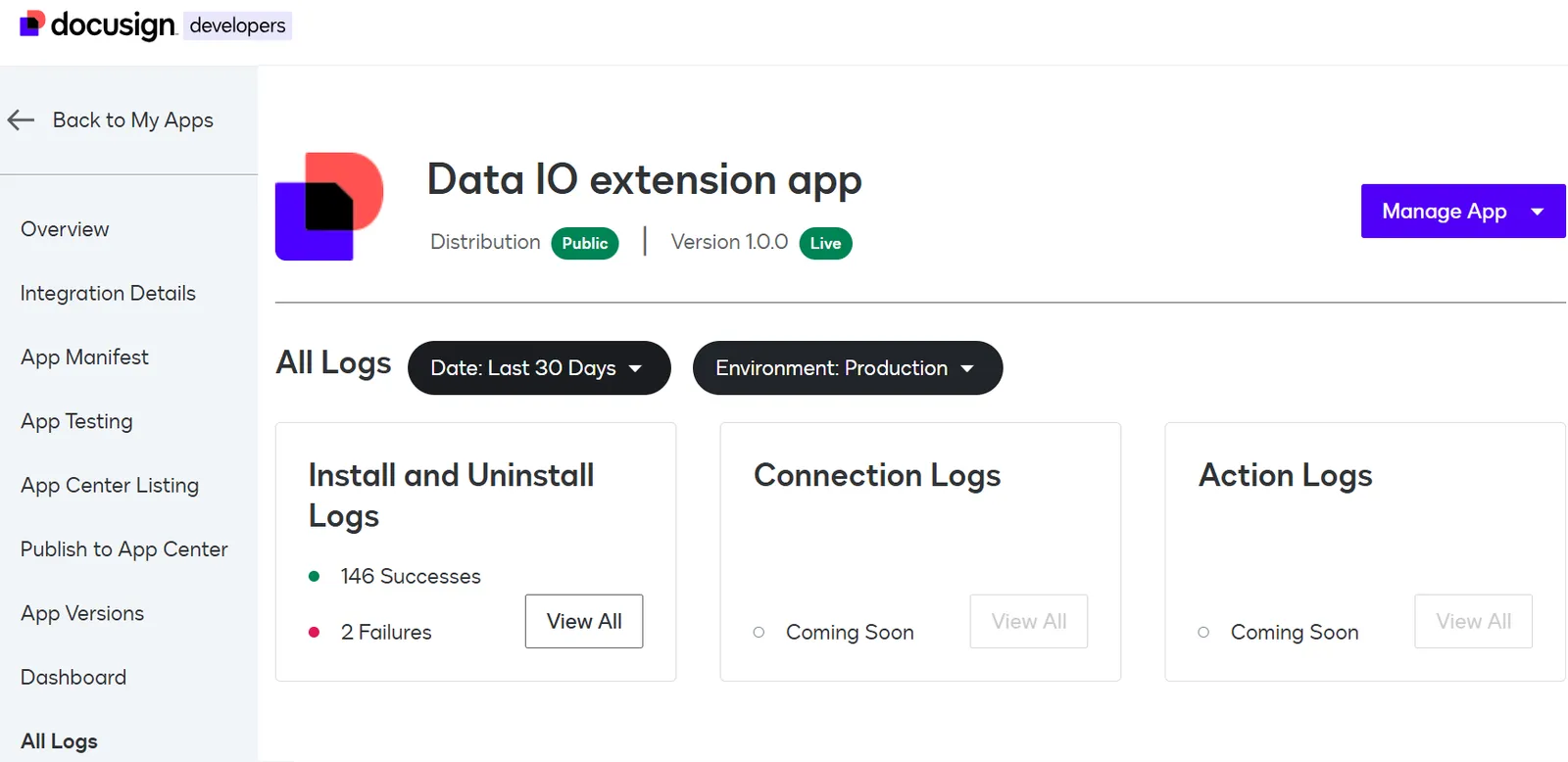
Access extension app logs
To access an extension app’s logs:
- Log in to the Developer Console.
- On the My Extension Apps page, locate the row for the extension app you want to update.
- Select the app to open the Overview page.
- In the left navigation, select All Logs.
Apply log filters
You can filter the logs by date or environment. By default, logs are loaded for the last 30 days for the demo environment.
To change the date range:
-
Select the date filter.
-
Select one of these options and select Apply:
- Last 30 days
- Last 6 month
- Last year
-
You can also select Custom Date Range, specify a range using one of these options, and select Apply:
- Between: Define a start date and end date. Results include activity on the start and end dates, as well as between them.
- Before: Select a date to return data from activity on and before that date.
- After: Select a date to return data from activity on and after that date.
The page reloads and the content reflects the selected date range.
To change the environment:
-
Select the environment filter.
-
Select one of these options and then select Apply:
- Demo
- Production
The page reloads and the content reflects from the selected environment. See Developer and production environments for details about the difference between these environments.
Review log details
To review log details, select View All on the Install and Uninstall Logs tile. The list of logs loads. Each row in the list represents an installation or uninstallation of the extension app. You can apply filters to limit the number of results.
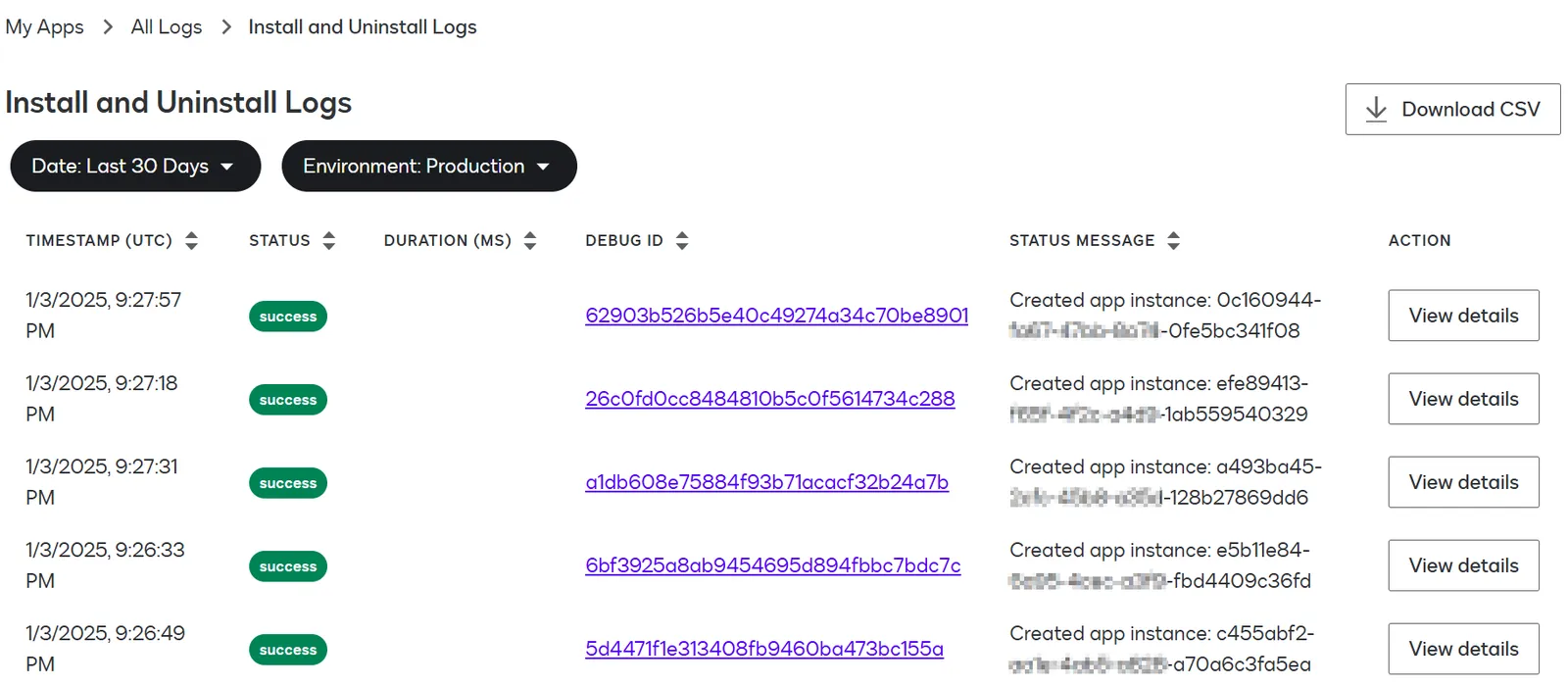
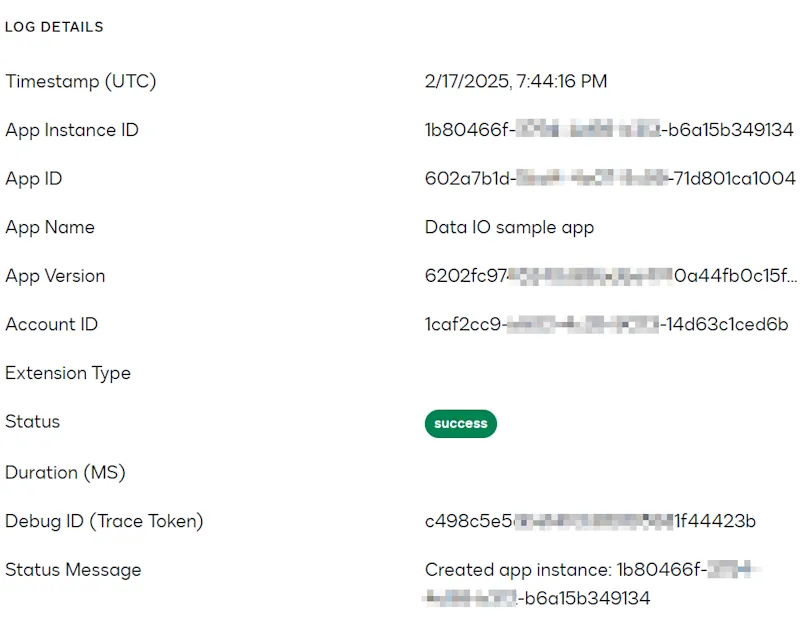
To view details about an installation or uninstallation, select View Details. The following information is displayed:
Select the Download CSV button to download a CSV file that contains the following information for each log file listed:
- Timestamp
- Status (
successorfailed) - Duration in milliseconds of the installation or uninstallation process
- Debug ID
- Status message
Next steps
- Review the options to test an extension app.
- Learn more about the Docusign App Center.