
File output system of record test: An event triggers the workflow (beta)
This procedure explains how to set up and execute a functional test that invokes a file output system of record extension from a workflow. For this test, you configure and run a workflow whose instances start automatically based on an envelope event that occurs in the Docusign account.
The workflow stores files associated with the envelope that triggered the workflow instance. To test a scenario in which files to be exported are generated by a workflow’s Send Documents for Signature step, follow the procedure in File output system of record test: Workflow step creates envelopes. See Identify the file source for information about the two options.
The high-level steps to create and run this test are:
- Step 1. Identify or create an eSignature template
- Step 2. Create and publish the workflow
- Step 3. Trigger a workflow instance
This is one of many possible approaches to setting up a workflow. For additional options, see the workflow user documentation.
Make sure that you’ve completed all the requirements listed for functional tests in Test prerequisites.
Step 1. Identify or create an eSignature template
Before you create the workflow, make sure that you have an eSignature template in your account that you can use to send envelopes. You can use an existing eSignature template in your account, or create a new template.
When selecting or creating a template:
- For a simpler workflow setup, the template should have a single recipient instead of multiple recipients.
- The recipient type must be Needs to Sign.
- Do not hard-code a recipient name or email in the template.
- Make sure that the template document includes, at minimum, a Signature tab.
Step 2. Create and publish the workflow
To create a workflow that tests a file output system of record extension:
-
Log in to the Workflow Designer.
-
Follow the steps in Create a Basic Workflow to create and save a workflow. When creating a workflow, select Blank Workflow. Your workflow should include:
-
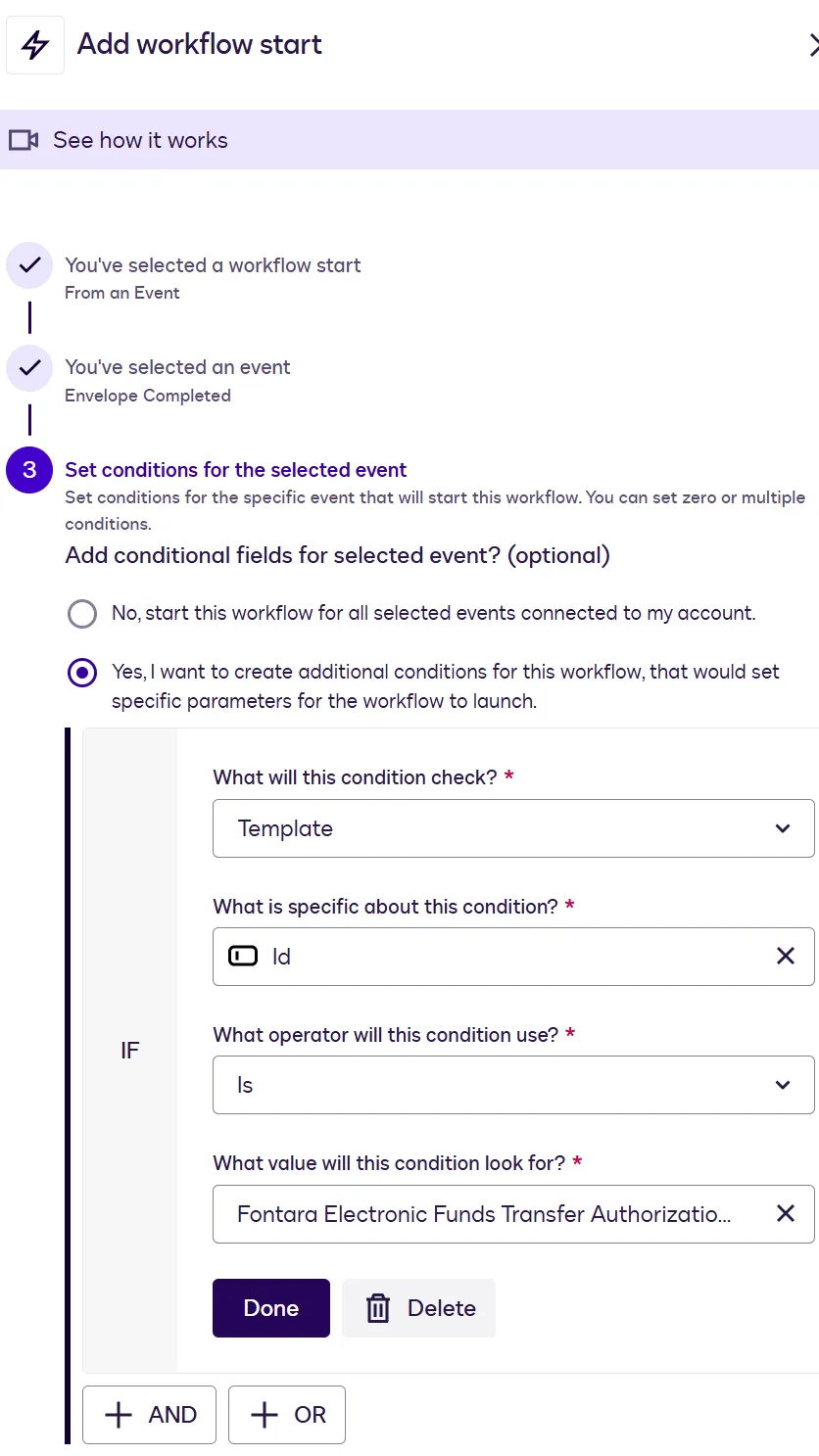
The workflow start method From an event. See Workflow start method for configuration guidelines.
-
A step that invokes your extension app to write the signed document to the system of record. See File output system of record extension step for configuration guidelines.
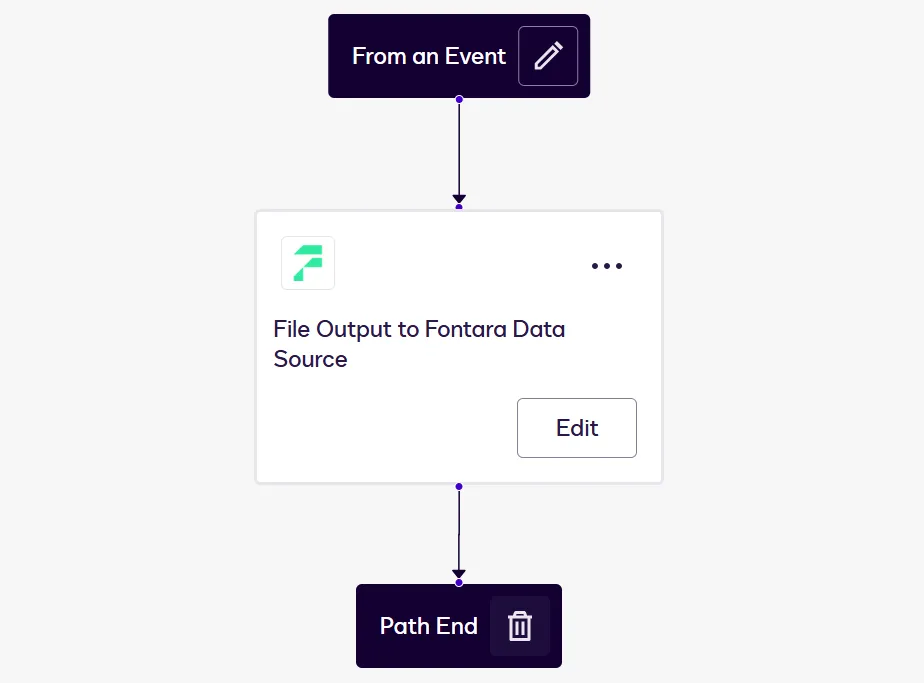
When youʼve finished configuring the start method and the step, the workflow should appear as shown.
-
-
Complete the steps in Review and Publish a Workflow. Then you can trigger instances of the workflow to test your extension app.
Workflow start method
When you define the workflow start method, configure the settings as follows:
File output system of record extension step
This step will invoke your extension app.
To add this step, display the Apps tab on the Add New Step panel and select the extension thatʼs defined in your extension app registration. The Add New Step panel displays the values from the extensions.name and extensions.description properties in the app manifest.
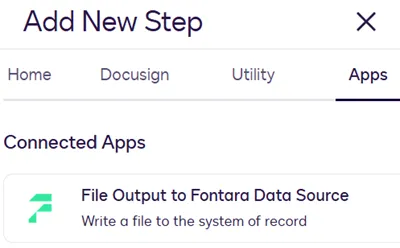
Note: The step for your extension will not appear in the Connected Apps list if the extension app is not installed and connected to your account.
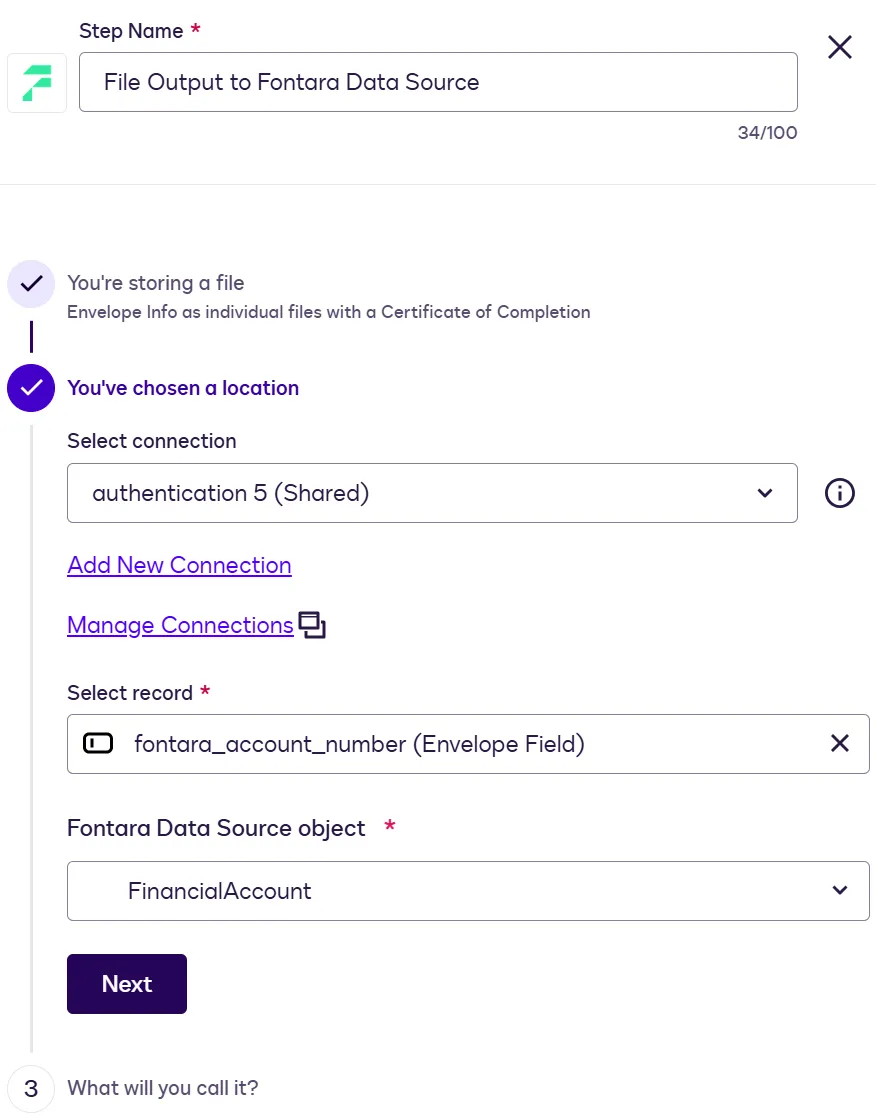
When you configure this step, the Get Type Names capability will be invoked to retrieve a list of objects in the system of record. When you execute an instance of the workflow, this step invokes the Write File action.
When you add this step, configure the settings as follows:
Workflow variables
When defining the File Output step, you can include workflow variables for the record identifier and file naming convention. Variables will be populated with values at workflow instance run time.
The types of variables available for selection include:
- Variables from workflow start. This includes envelope and template fields associated with the account.
- Workflow instance variables. These are values associated with the workflow instance, such as the instance ID and the start date and time.
Step 3. Trigger a workflow instance
After you’ve published your test workflow, you can send an envelope from your Docusign account and complete it to trigger an instance of the workflow.
To trigger a workflow instance:
- Follow the procedure in Use a Template to Create an Envelope to generate an envelope from the template you created or identified for use in this test. When completing this procedure, supply an address where you can receive email.
- When you receive the email, access the envelope via the link, and complete the signing process. See Sign a document sent to you via email for detailed steps. On envelope completion, the workflow instance will be triggered, and the completed envelope files will be stored to your system of record.
- Check the object and record to which the external service stores files, and confirm that the File Output step succeeded.
If your extension is not invoked successfully, run the Developer Console connection and extension tests for the extension app to get detailed error messages and troubleshoot.
Next steps
- Find out more about functional tests.
- Review the File output system of record extension contract reference.
- Learn how to run integration tests.