
Use a manifest file to update a registration
This guide describes the steps for updating an extension app registration by editing a JSON app manifest file. You also have the option of updating an extension app registration using a form. See Form-based and app manifest method comparison for guidance about which method might be more useful.
See Extension app statuses that affect updates for details about steps you may need to take before you can update an extension app registration.
When you update your extension app registration by editing the manifest file, you will need to re-enter your client secret to save your changes.
Step 1. Edit your app registration in the Developer Console
Open My Extension Apps in the Developer Console. Select the kebab menu of the extension app, then select Edit Manifest.
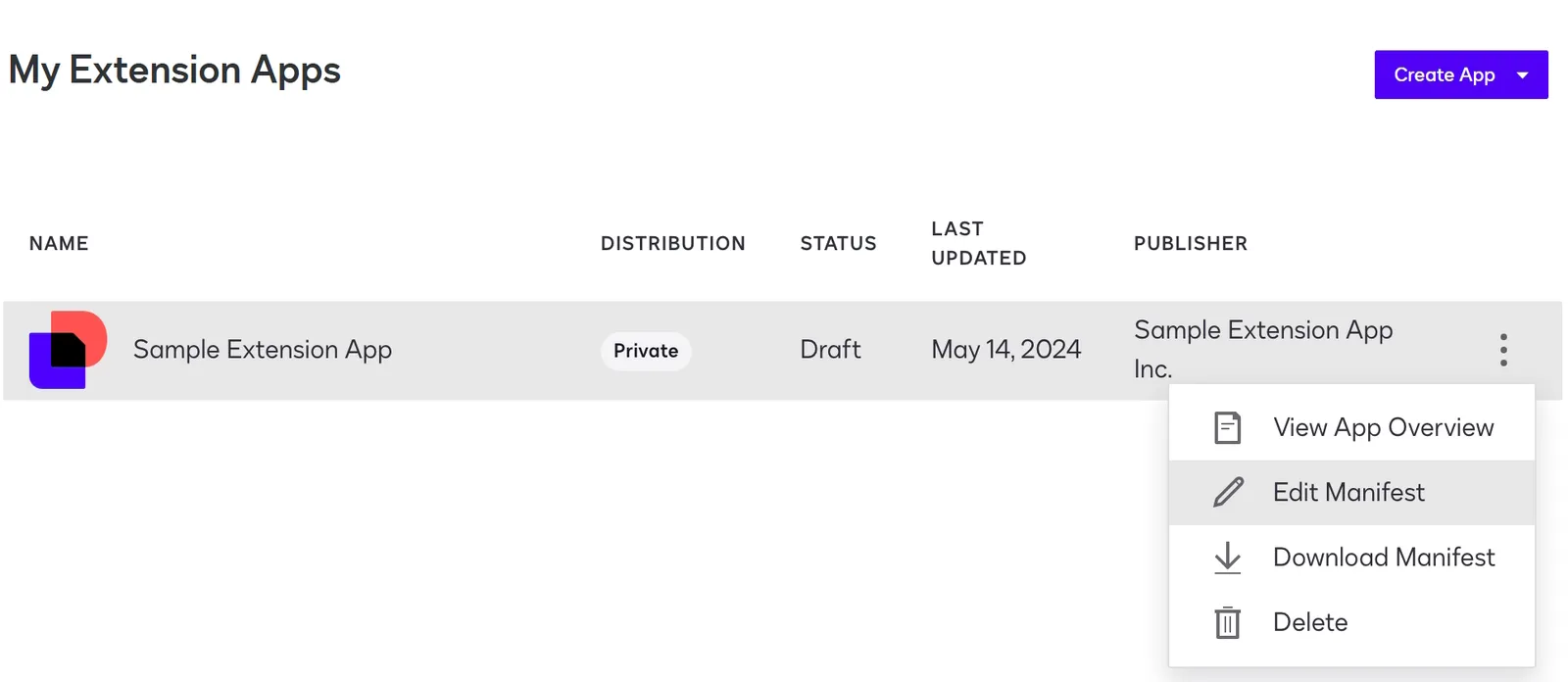
Step 2. Update the extension app manifest
You can edit your manifest directly in the manifest editor or download or copy the manifest to edit it in the IDE of your choice. If you saved your updated manifest as a JSON file, copy and paste your JSON into the manifest editor.
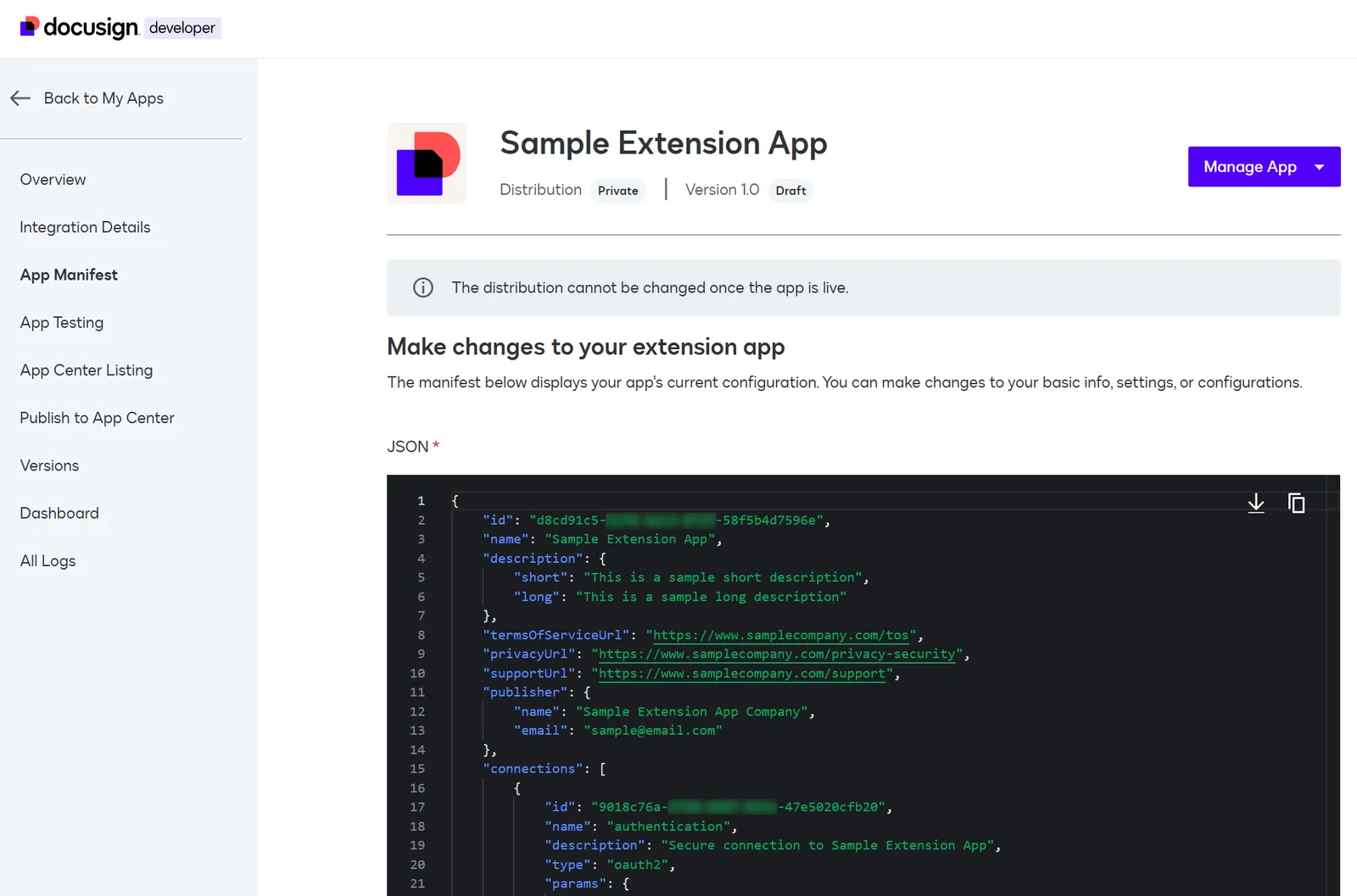
To protect sensitive data, the value of clientSecret is not displayed in the app manifest editor. You must re-enter this value before you can save updates to an app manifest. The manifest editor also does not display the existing Base64 values of any data properties for the icon or screenshots. These values do not need to be reentered unless you want to change them.
Step 3. Validate your app manifest
When your app manifest is ready, select Validate to determine whether your manifest has any errors. See Troubleshooting manifest errors for a list of possible errors with details on how to troubleshoot them. Once your manifest has passed all validation checks, choose Save Changes to finish updating your app registration.
Next steps
- Learn how to update an extension app using a form.
- Get details about extension app statuses.
- Review the process to publish an extension app.