
File input cloud storage extension overview
The file input cloud storage extension imports agreements from a cloud storage service to Docusign Agreement Manager, a smart repository that uses AI analysis to transform flat, unstructured documents into structured data points.
After files have been imported into Agreement manager, your organization can:
- Use robust search features to easily locate agreements
- Manage agreement obligations, such as payments, renewal notices, and termination notices
- Gain valuable insights into agreement data with dashboards and reports
- Track schedules for agreement renewals and terminations
- Implement a Agreement Manager API integration to programmatically retrieve agreement data for additional processing on your system
For example, a municipal government can implement a file input from cloud storage solution to store documents such as contracts, funding applications, and meeting minutes. After the files have been uploaded to Agreement Manager and processed by AI, municipal workers can finalize agreements faster, easily fulfill document requests from elected officials and constituents, and track and act on upcoming contract renewals.
When to use a file input extension instead of other import options
Agreement Manager offers several standard file import methods that enable users to select files stored in these locations:
- A user’s local machine or an accessible drive
- Cloud storage platforms, including Google Drive, Dropbox, Box, OneDrive, and SharePoint
- Email attachments
To complement these standard import methods, you can use the file input cloud storage extension to implement a customized import process. This option can be used if the Docusign App Center does not offer an app that integrates with your cloud storage platform. A custom solution also enables your organization to implement code within your own application to meet specific business requirements. For example, you can impose custom restrictions on files that can be imported into Agreement Manager. You can also log imports to address reporting or compliance requirements. In addition, you can trigger notifications or other downstream processing after imports. Finally, a custom file import solution can be implemented as a private extension app, which enables you to control which Docusign accounts can install and use the app.
This extension cannot be included in the same extension app manifest or form-based app registration alongside the file input system of record extension.
Use a file input cloud storage extension in Agreement Manager
After a file input from cloud storage extension app has been installed and connected to a Docusign account, it can be invoked to upload files into Agreement Manager. Expand the sections below to see how the extension functions during Agreement Manager agreement upload. See File input cloud storage actions and capability for details about the functionality.
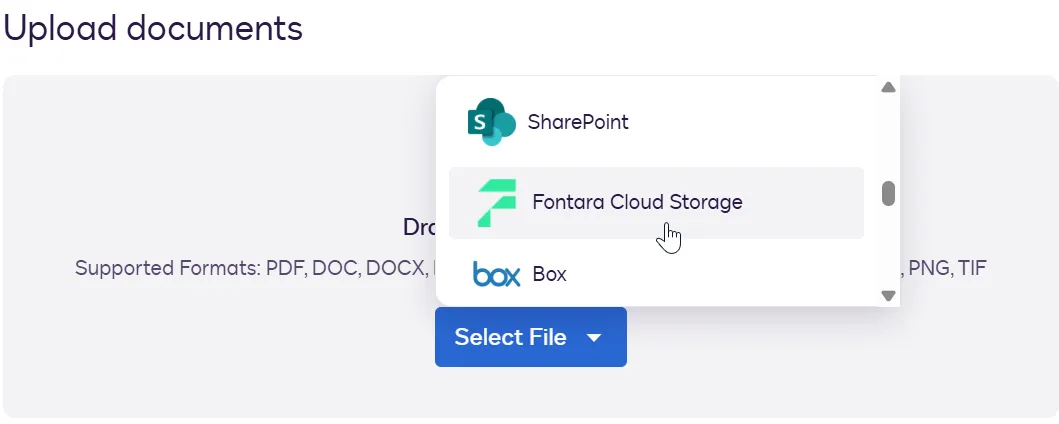
The user selects the extension app
When uploading agreements into Agreement Manager, a contract manager or viewer selects the file input from cloud storage extension app that has been installed to their Docusign account.
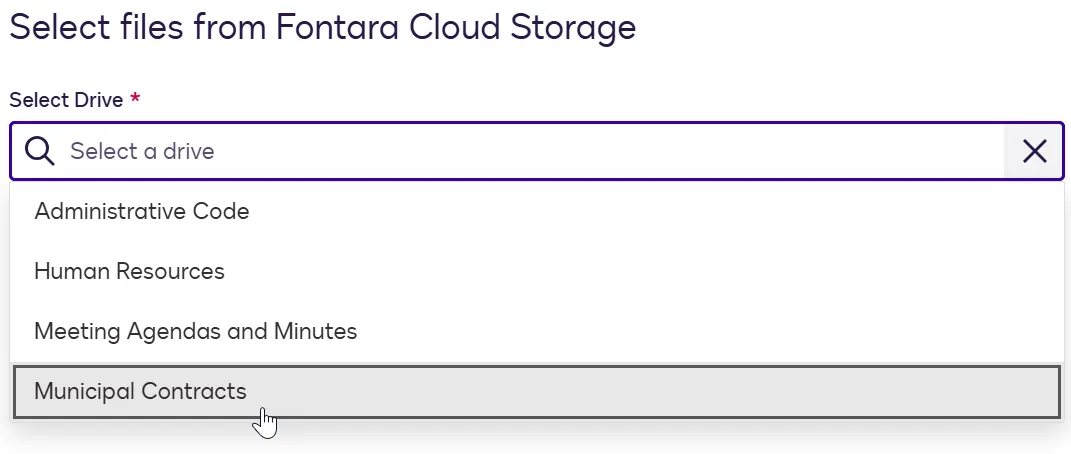
The user selects a cloud storage drive
The user begins the process of locating files to upload into Agreement Manager. The extension can be invoked to list the drives in the cloud storage system. This enables the user to select the drive where the files reside.
Drive selection is an optional capability for file input from cloud storage. If the extension does not implement this feature, users will not be able to select a drive.
Note: If the cloud storage system does not have the concept of drives and instead organizes folders and files under a different container type, the extension can retrieve a list of those containers instead. They will appear in Agreement Manager’s Select Drive list.
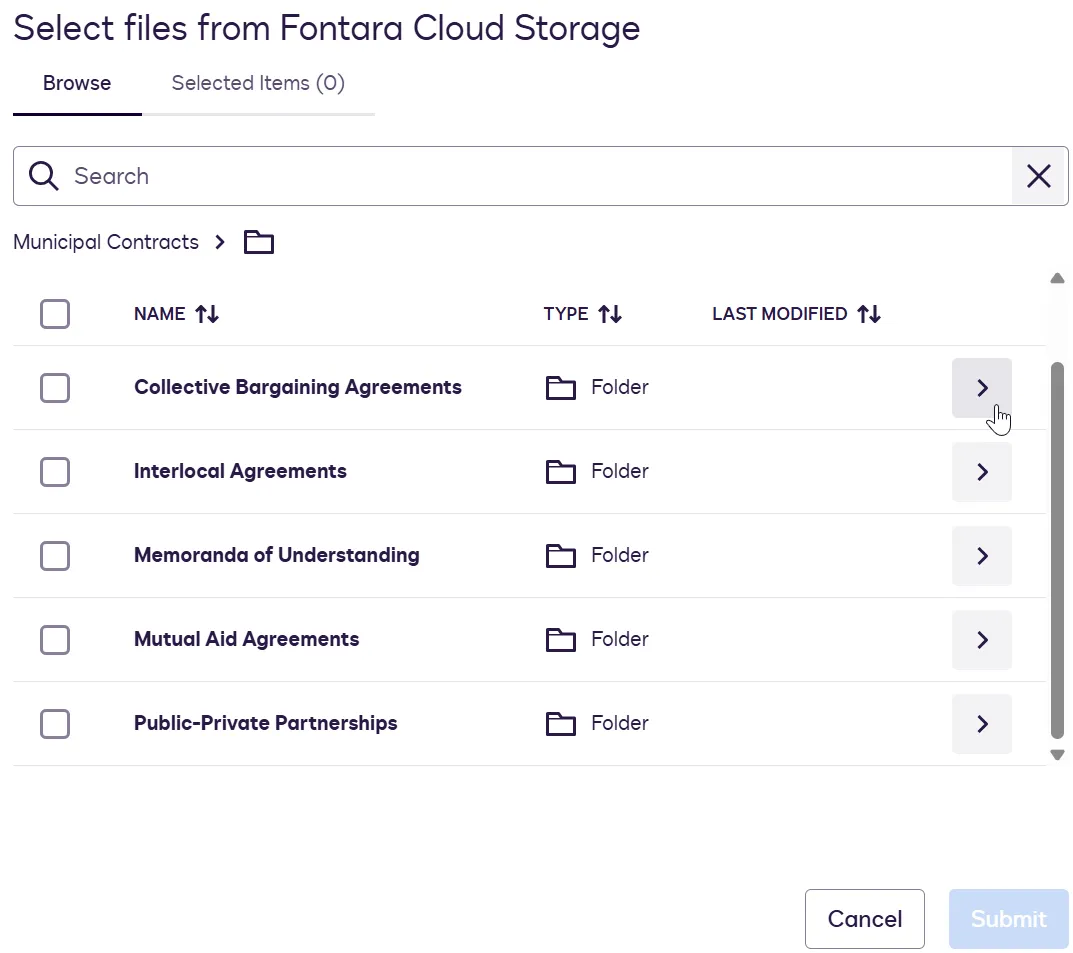
The user browses through the cloud storage directories
Agreement Manager invokes the extension to display a list of cloud storage folders and files. A user can select a folder to drill down further in the folder structure, which again invokes the extension to return subfolders and files in the selected folder. This process can be repeated until the user accesses the folder containing the documents to be uploaded.
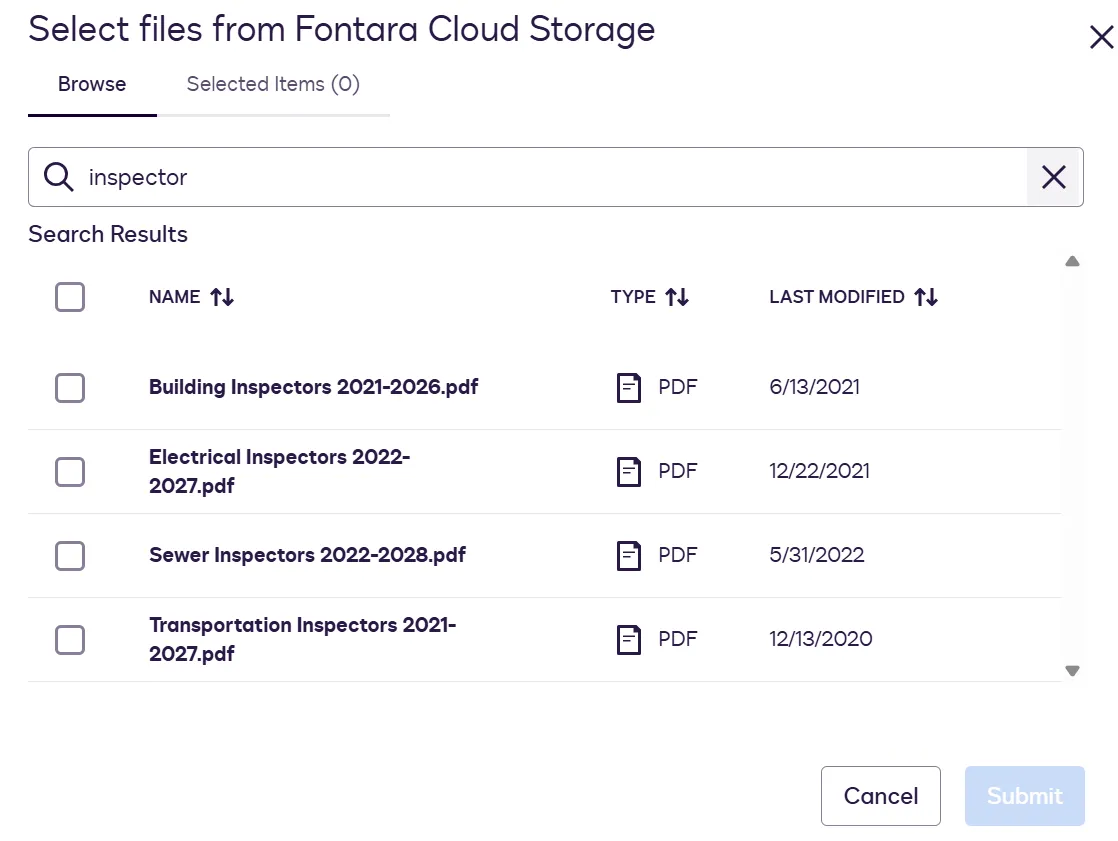
The user searches for files or folders
Instead of browsing through cloud storage directories, a user can search for files or folders by name. Entering a search string invokes the extension to return a list of matching files and folders on the cloud storage system.
The user selects and uploads files
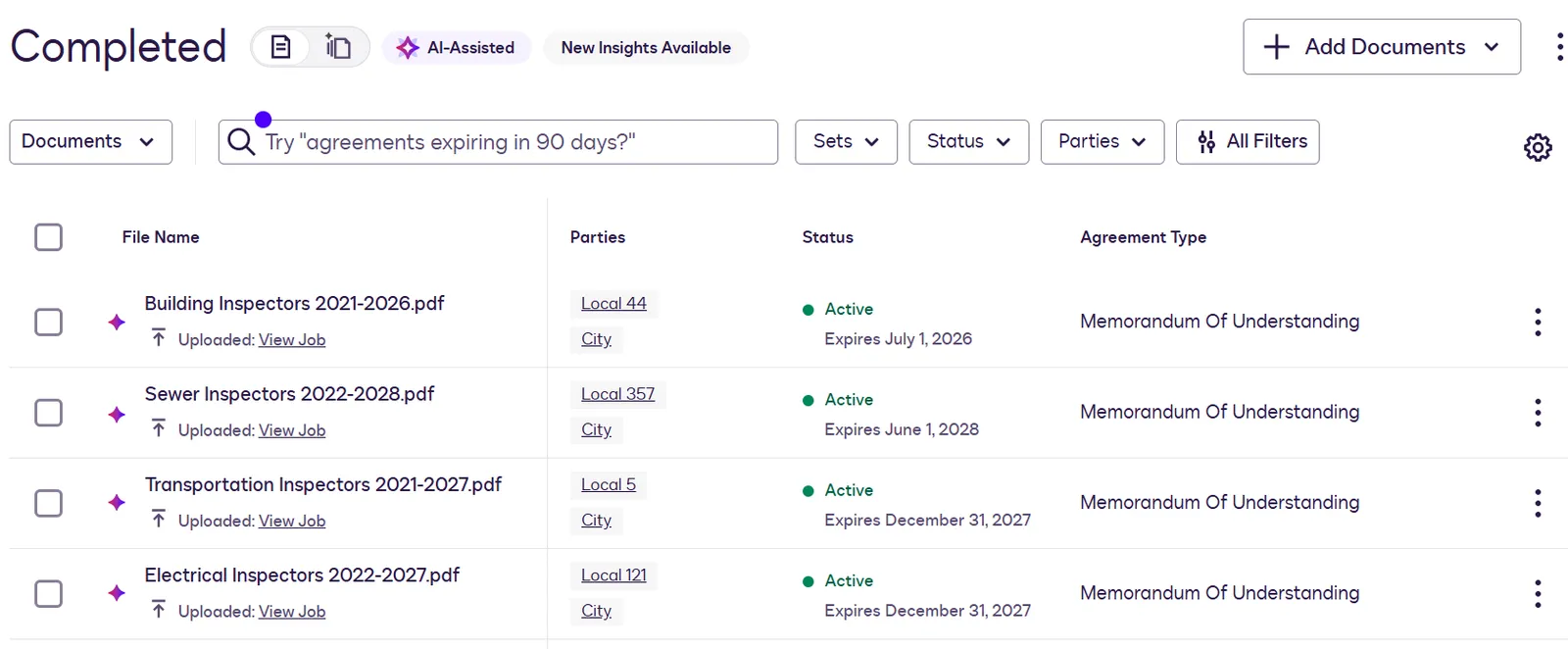
After locating files by browsing through folders or entering a search string, a user selects files for upload. The file input cloud storage extension is invoked to upload the files to Agreement Manager. After the upload is complete, Agreement Manager uses AI to extract key data values from the files to enable searching, managing, and reporting on agreements. See Processing Agreements for details about AI extraction.
File input cloud storage actions and capability
A file input cloud storage extension implements the actions and capability listed below. Both actions and capabilities send requests to an external API service. Actions are required and provide the core functionality for an extension. Capabilities are optional and offer additional features to enhance the core functionality.
Requests that enable users to locate files for upload
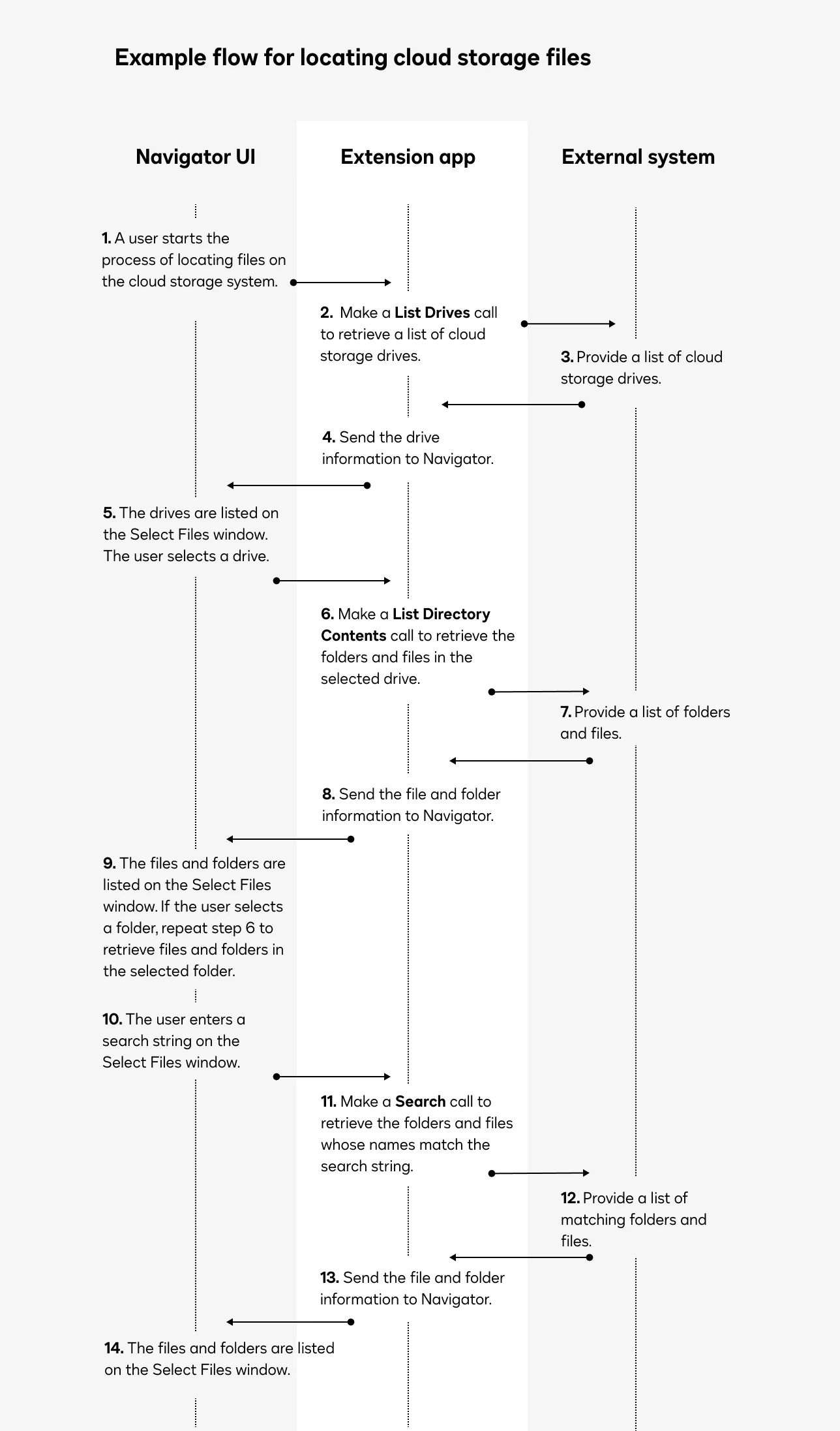
This flow shows how the file input cloud storage extension’s actions and capability are invoked to enable users to locate files for upload.
This flow describes the sequence of calls to the external system when an extension app implements the optional List Drives capability. An extension app can be implemented without this capability. See External system logic to return cloud storage content lists for details.
List Drives capability: When a user starts the process to locate files for upload, Docusign sends a List Drives request to the external system to retrieve a list of drives or similar structures that contain folders and files. The Select Files window displays the list in a dropdown.
List Directory Contents action: The user’s selection of a drive causes Docusign to launch a List Directory Contents request. The Select Files window displays the folder and file names returned in the response. To drill down further in the directory structure, the user can select subfolders. A List Directory Contents request is launched with each new selection of a subfolder. The user can then choose files for upload.
Search action: At any point during the process of locating files, the user can enter a search string, which triggers a Search request to the external system. The Select Files window displays the matching files and folders that the external system returns in the response. The user can then select files for upload.
For details about the request and response contents, see the extension contract reference.
Requests in the file upload process
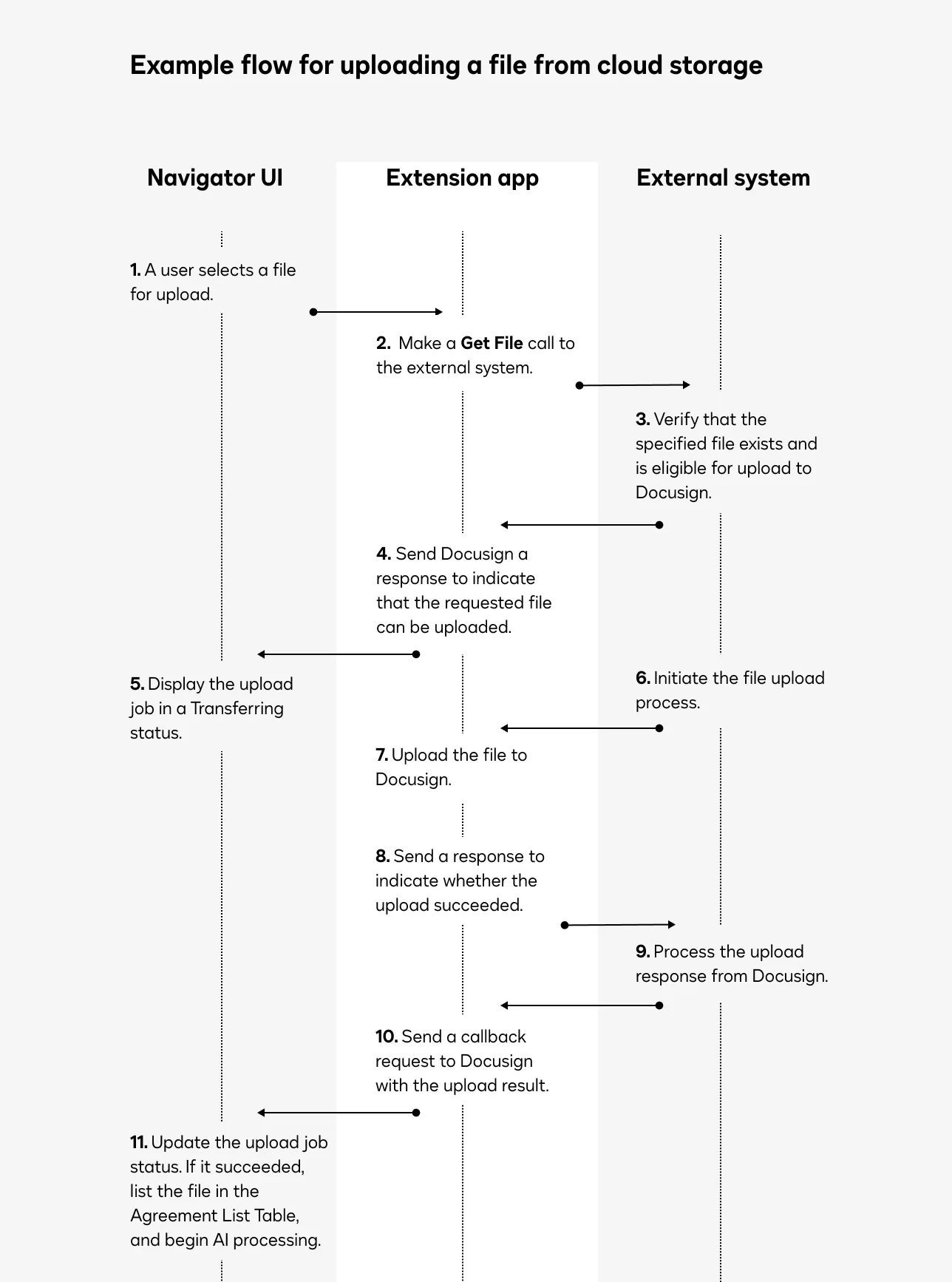
This example flow shows a sequence of requests and responses between Docusign and the external system when a Get File action is initiated to upload a file from cloud storage to Agreement Manager. For details about the request and response contents, as well as error handling, see the extension contract reference.
If a user selects multiple files for upload in Agreement Manager, the sequence described here is repeated for each file.
- Docusign sends a Get File request to the external service. The request includes the ID of the file that a Agreement Manager user selected for upload.
- The external service responds to the Get File request.
- The external service sends Docusign the file contents.
- Docusign sends a response to indicate whether it processed the uploaded file successfully.
- The external service sends a callback request to Docusign to report whether the upload succeeded or failed.
- Docusign sends a response to the callback request.
Plan a file input from cloud storage implementation
These sections describe options that should be considered when planning a file input from cloud storage implementation:
External system logic to return cloud storage content lists
Your implementation choices determine which cloud storage locations and files Agreement Manager users can select when locating files for import. See the next sections for considerations.
Determine whether users can select a drive or similar container
The file input cloud storage extension has an optional List Drives capability. If you want Agreement Manager users to choose from a list of drives or similar containers on the Agreement Manager Select Files window, your extension app should implement this capability. If you do not implement it, the external system must determine the drive or similar container whose files and folders are returned when Docusign sends a List Directory Contents request.
Restrict access to files and folders if appropriate
When Docusign sends a List Directory Contents request, the external system can determine which folders and files it returns for display on the Agreement Manager Select Files window. To comply with your organization’s security or privacy requirements, your extension app can omit certain folders and files from its response to a List Directory Contents request.
Adhere to file upload limitations
In response to a List Directory Contents or Search request, the external service should only return files that meet the restrictions listed below. Docusign will return an error response to an upload request for a file that does not meet these restrictions.
External system logic to upload files
When a Agreement Manager user selects files for upload, Docusign sends a separate Get File request for each file that a user selects for upload. As a result, the external service can receive multiple Get File requests in a short time. The service should implement logic to queue and process them. See Get File sequence of requests and responses for details about the sequence of calls required to process each Get File request from Docusign.
Next steps
- Get an overview of the process to build an extension app.
- See File input cloud storage extension contract reference for details about the action and capability requests and responses.
- Learn more about private extension apps, which are available only to specified Docusign accounts.