
File output system of record extension contract reference (beta)
This extension can be invoked from a step in a workflow to write files to a system of record. The source for the files to write can be either of the following:
- A workflow Send Documents for Signature step, which enables users to complete and sign eSignature envelopes.
- Any envelope sent from the Docusign account that meets certain conditions.
See Identify the file source for details.
A workflow that uses the file output system of record extension may also invoke a data IO extension. The data IO extension enables workflow process builders to define a query that returns the ID of the record to which a file will be written. If a data IO extension is not used, workflow process builders must select a workflow variable instead. The runtime value of this workflow variable can be used to identify the record to which a file will be written. See Identify destination records for more information.
Extension app registration
You can include the file output system of record extension and, optionally, the data IO extension when you register an extension app. If you register the extension app using a form, select the File Output System of Record extension and, if needed, the Data IO extension in the form-based UI, as shown here:
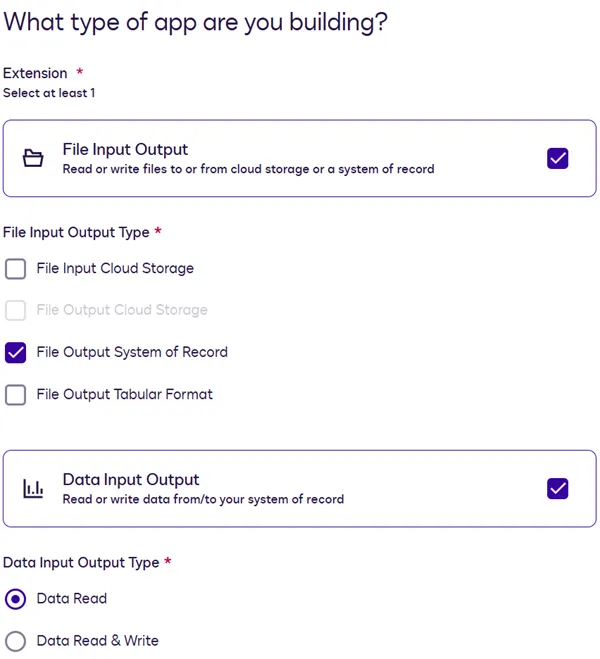
During the form-based extension app registration process, if you select a file IO extension, its required actions are automatically added to the app. You can then configure the actions’ endpoint URIs and other properties on the Integration Details page. The extension’s optional capabilities can be added or removed only by editing the app manifest file. After you’ve added capabilities via the manifest file, you can edit them on the Integration Details page. See Action schema for information about action and capability properties in the app manifest file.
If you register the extension app using an app manifest file, the extensions object must include the file output system of record extension and, if needed, the data IO extension. Set the extensions.template values in your app manifest as follows:
FileIO.Version1.FileOutputSystemOfRecordfor the file output system of record extensionDataIO.Version6.DataInputOutput(optional) for the data IO extension
The actions that your app manifest includes depend on whether the app uses the data IO extension. This extension enables process builders to define a query that returns the ID of the record to which files will be written. See the next sections for details.
When registering an extension app, you cannot include both a file output system of record extension and a file output cloud storage extension in the same app. If you need to use both types of output in workflows, register a separate app for each extension.
Required actions
A file output to system of record app requires you to implement a set of actions to support the functionality. This set of actions differs depending on whether you are implementing the file output system of record extension by itself, or implementing file output alongside data IO. See the next sections for details.
Required actions: File output system of record extension only
For this option, the app registration must include both the Write File action and the Get Type Names capability. Below is a list of their identifiers as they appear in the form-based app registration UI and the app manifest. See Example extension app use cases for a complete sample app manifest for this scenario.
Both the action and the capability are defined in the app manifest fileʼs actions object. This definition includes a template value, a name, and the endpoint URL. The action and capability must also be referenced from the extensions object as follows:
- For both the action and capability, include the
actions.namevalue from theactionsobject in theextensions.actionReferencesarray. - Include a reference to the capability in the
extensions.capabilitiesarray. Use the value from the App manifest extensions.capabilities value column in the table above.
For example, the manifest file action definitions for the Write File action and the Get Type Names capability look like this:
The extensions object includes the actions.name values for both the Write File action and the Get Type Names capability in the actionReferences array. In addition, the Get Type Names capability is included in the capabilities array:
Required actions: File output system of record extension with data IO extension
For this option, the app registration must include the Write File, Get Type Names, Get Type Definitions, and Search Records actions. Below is a list of the actions’ identifiers as they appear in the form-based app registration UI and the app manifest. See Example extension app use cases for a complete sample app manifest for this scenario.
Each action is defined in the app manifest fileʼs actions object. This definition includes a template value, a name, and the endpoint URL. Each action must also be referenced from the extensions object. To reference it, include the actions.name value from the actions object in the extensions.actionReferences array.
For example, the manifest file action definitions look like this:
The extensions object includes both the file output system of record extension and the data IO extension, with the actions.name values for each extension’s actions in the corresponding actionReferences array:
Action contracts
These sections provide details about the requests and responses sent between Docusign and the external service for each action and capability:
Note: For details about the data IO action contracts, see Data IO extension contract reference.
Write File (FileIO.Version1.WriteFile)
This required action writes one or more documents to a system of record. It can be triggered from a Workflow Builder workflow.
Write File is the label that appears when you register an extension app using a guided, form-based process.
If you register your extension app using an app manifest file, make sure that you:
-
Include a definition for the action in the
actionsobject. See Action schema for details about the required properties. The action definition must include these values, which are specific to this action:name: write-filetemplate: FileIO.Version1.WriteFile
-
Include the value from the
actions.nameproperty in theextensions.actionReferencesarray. See Extension schema for details.
See Example extension app use cases for a complete sample app manifest for file output to system of record.
HTTP method
This action initiates a POST request to the external API service.
Request
Example request 1
Example request 2
Example request 3
Request with hardcoded file name:
Docusign passes values in the Write File request that specify the object (in the rootId property) and record (in the parentId property) to which a file is to be written. The external service must implement logic to determine the property to which to write the file contents.
Hardcoded file names
A workflow process builder can hardcode file names when defining a File Output step, as shown here:
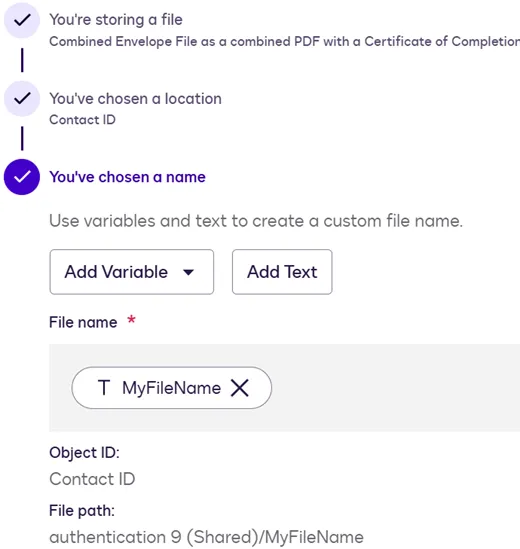
If the file name is hardcoded, the same name will be used for every file that is written to the system of record when workflow instances are executed. The hardcoded name will be populated in the Write File requestʼs files.basename property. If a workflow process builder has selected the option to store files individually, a hyphen and number will be appended to the name of each file included in the same Write File request.
File names that include workflow variables
Instead of hardcoding file names, a process builder can use workflow variables to construct names that will be unique for each workflow instance. The variable values will be set during instance execution.
Note: Because hardcoded values will result in the same file names being used for every workflow instance, Docusign recommends using variables in the names.
If a workflow is configured to start from an event and to store files individually, a process builder can select the Document Name variable. At run time, this value will be populated with the file name from the eSignature envelope.
Shown here is an example in which a process builder has constructed a file naming convention that consists of a combination of hardcoded values and variable names. The variable names appear in square brackets in the File path.
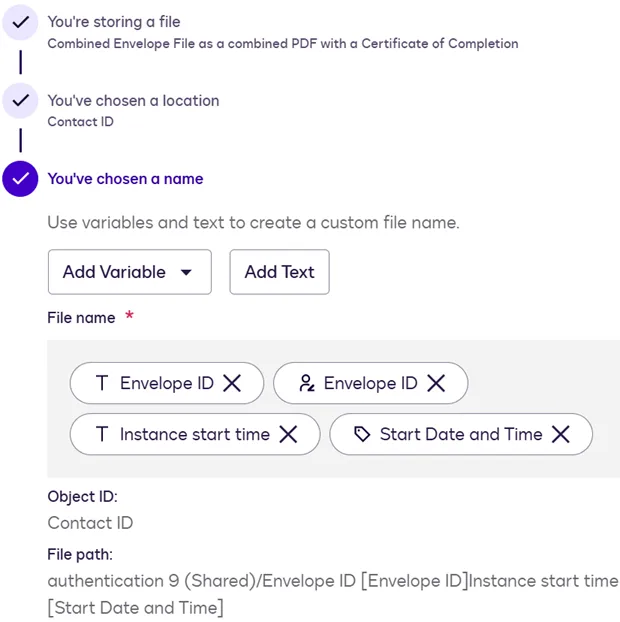
If a file output step specifies a file name containing variables, the Write File request body will include a files.pathTemplateValues array that lists the workflow-instance–specific variable values. When it receives the Write File request, the external system must use values from the files.basename property and the files.pathTemplateValues array to construct the file name as follows:
- Parse the
files.basenamevalue in the request to determine which variables must be replaced with values. Each variable is listed in double curly braces. For example,{{Envelope ID}}refers to an envelope ID variable. - For each variable in
files.basename, replace the string in double curly braces with the corresponding instance-specific value from thepathTemplateValuesarray. The order of thepathTemplateValueselements matches the order of thefiles.basenamevariables.
Below is an example Write File request based on the file naming convention shown in the screenshot:
The external system would complete these steps to derive the file name:
- Replace
{{Envelope ID}}witha7ac1092-xxxx-xxxx-xxxx-7d4f31cb017d - Replace
{{Start Date and Time}}with2025-12-01T19:12:27.560Z
Note: The external system should remove or replace prohibited characters in the file name.
The file name to use for the file sent in the request would be:
Envelope ID a7ac1092-xxxx-xxxx-xxxx-7d4f31cb017dInstance start time 2025-12-01T19_12_27.560Z.pdf
In this example, the prohibited colon character in the start date/time has been replaced with an underscore.
Response
Get Type Names (DataIO.Version6.GetTypeNames)
This optional capability can be implemented for a file output system of record extension. It retrieves the names of the data objects (or database table names) in your system of record.
If this capability is implemented, the object names that it returns will be displayed in the Workflow Builder File Output step configuration screen. This enables a workflow process builder to select the object to which files will be written. If this capability is not implemented, the destination object for file output can be determined by a Read from step in the workflow that precedes the File Output step. See Identify destination records for details about the two options.
Get Type Names is the label for this capability that appears when you register an extension app using a form. If you register your extension app using an app manifest file, the actions.template property value for this action is DataIO.Version6.GetTypeNames. The file output system of record extension uses the data IO extension’s Get Type Names action contract because the contract details are identical.
HTTP method
This action initiates a POST request to the external API service.
Request
Docusign sends an empty request body to the external API service. No data is specified because the external system returns any objects that are available as the file output destination.
Response
Error handling
The external system should return a 200 response code to Docusign if a request succeeded. Any other response code indicates that the request was not successfully executed. Developers are responsible for providing a code and message for each error.
Next steps
- Get an overview of the file output system of record extension and how it can be used.
- Explore the options for testing a file output system of record extension.
- Find out about other supported extensions.