
Publish an extension app to the Docusign App Center
When you add a new extension app to the Developer Console, it is only available in your developer account. This means that only the users in your developer account can see it and use it in the demo environment. If you want to make your extension app available in production and share it with Docusign customers, you can become a Docusign partner and publish your extension app to the Docusign App Center.
Your extension app must comply with all publishing guidelines before it can be published, and it must pass a review process. If Docusign approves your extension app and you are a Docusign partner, you can publish it to the App Center where Docusign customers can install it and use it with their own Docusign account. If you choose to build a private extension app , you will also have to share it with specific production accounts to make it available to customers.
If you want to build applications for streamlining how millions of customers manage their agreements, publishing them to the App Center is a useful method to distribute your extension app to a large audience of Docusign users.
Once you publish your extension app to the App Center, you cannot unpublish or delete it.
Steps to publish your extension apps
This guide shows how to publish an extension app to the Docusign App Center, both for public and private extension apps. Where applicable, we’ll state the differences between public and private apps.
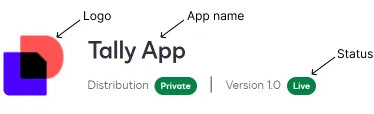
Note: In the Developer Console screenshots in this procedure, we show the Distribution as Public, but if you are registering a private extension app, you’ll see your Distribution listed as Private, as shown here.
Step 1. Have your app ready to be published
To publish an extension app to the Docusign App Center, your app must comply with the App Center publishing guidelines. Please follow the guidelines to ensure that your extension app can pass the review process. Your app must be fully functioning and be tested thoroughly before you can publish it to the Docusign App Center.
Step 2. Review your extension app listing information
The listing for your extension app in the Docusign App Center is created from the information supplied when you registered the extension app. You should review the extension app listing details to ensure that you have the information that you expect to see in the App Center. You can review and update this information using either of these two methods:
- Use a form-based UI
- Use the extension app manifest file. For a complete listing of all fields in the app manifest that impact your App Center listing, please check the app manifest reference.
To see how your extension app listing will appear in the App Center, use the App Center preview feature in the Developer Console.
Step 3. Submit your extension app for review on the Developer Console
Before your app can be published, you must submit it for review by Docusign. To submit your app for review:
-
Log in to the Developer Console.
-
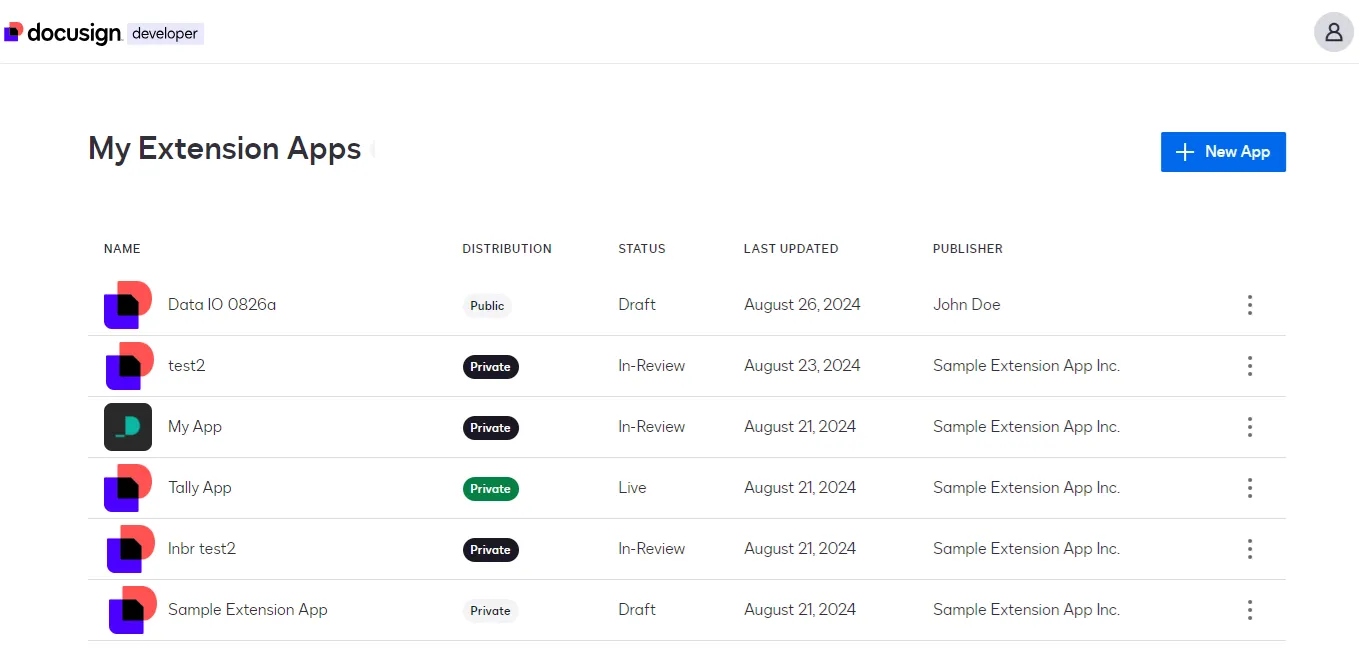
On the My Apps screen, select the extension app you wish to publish.
-
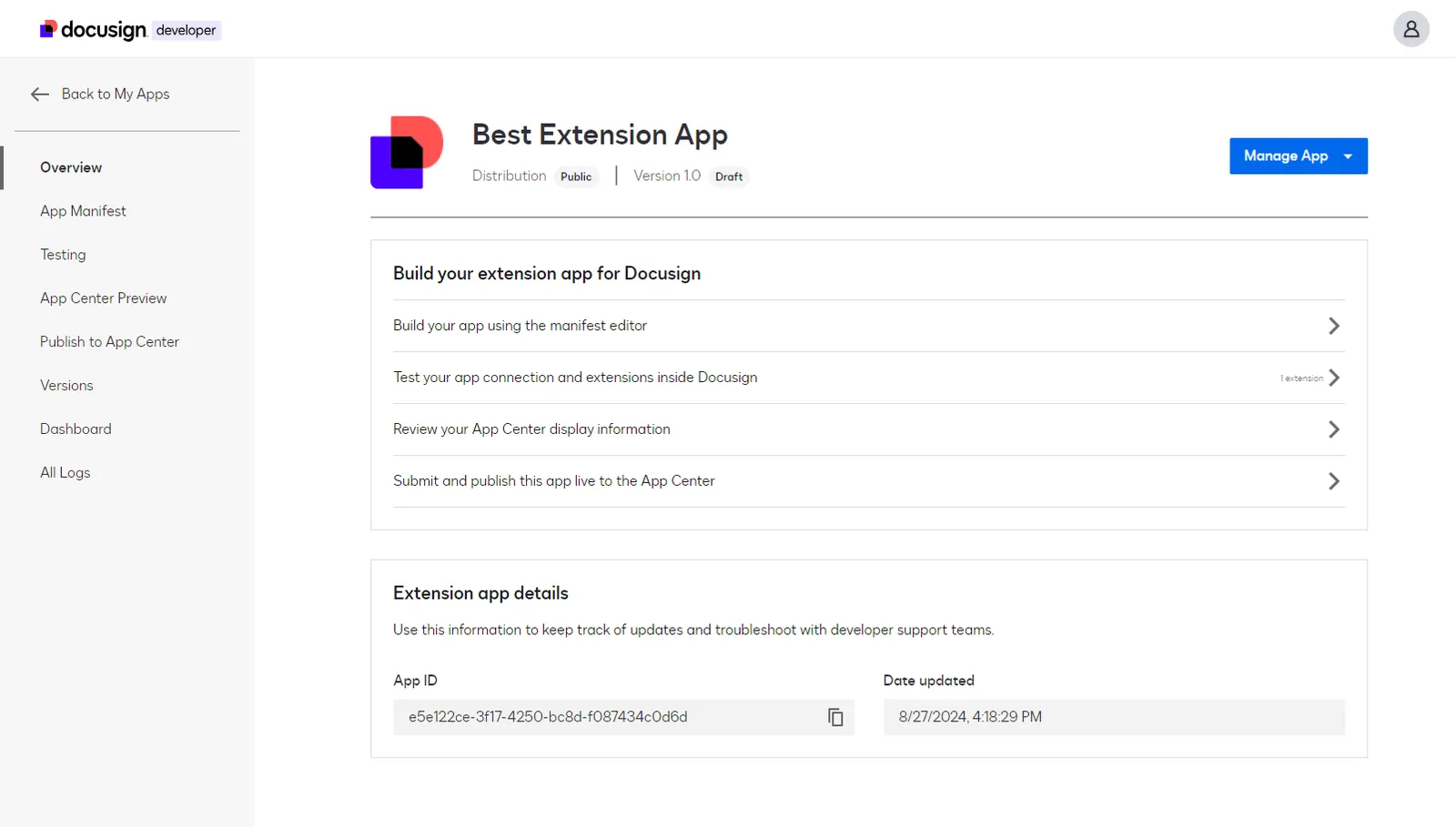
Select Publish to App Center from the left menu.
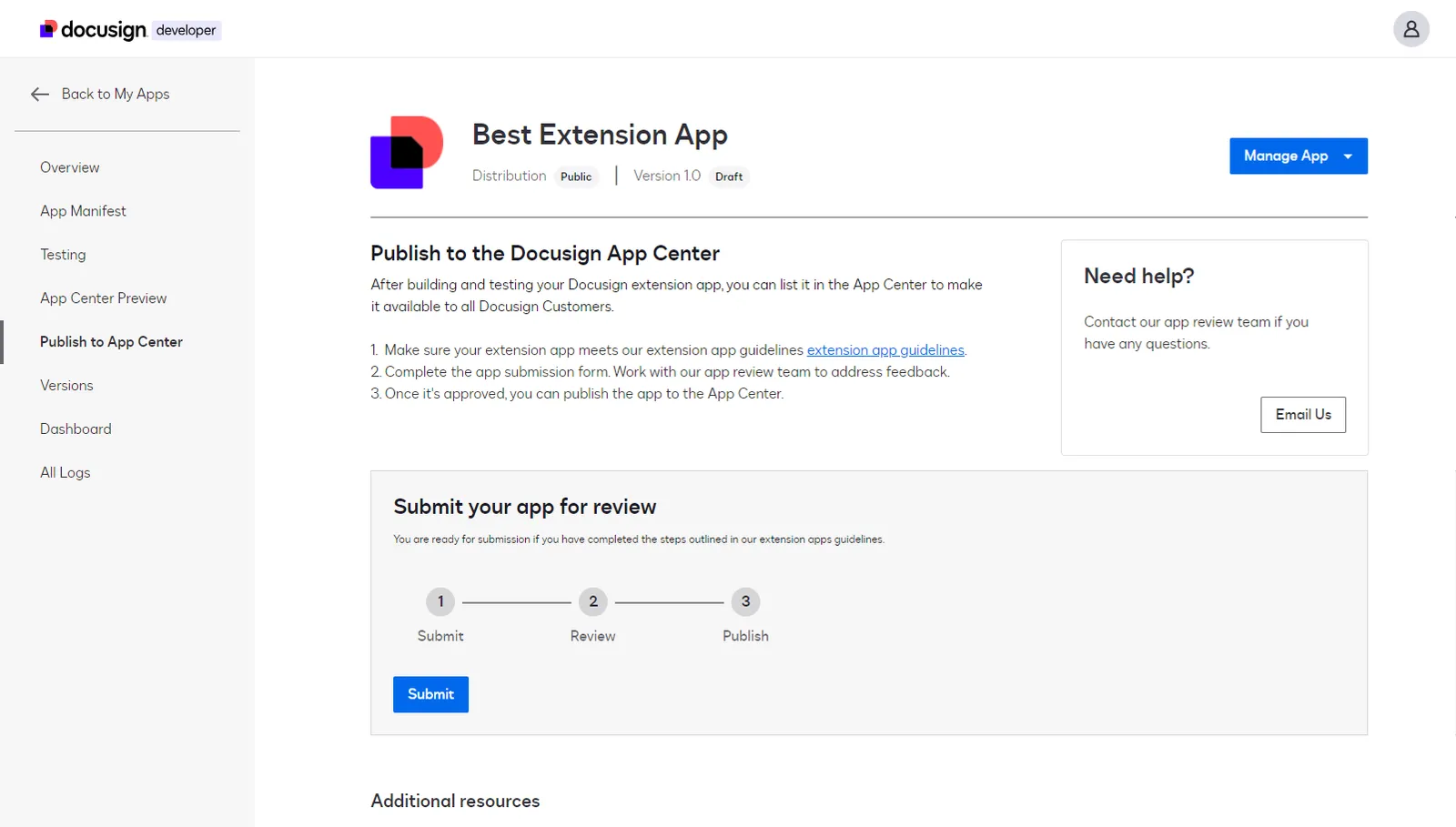
If your extension app was never published, its app status will be Draft.
-
Select the Submit button to submit your app for review.
-
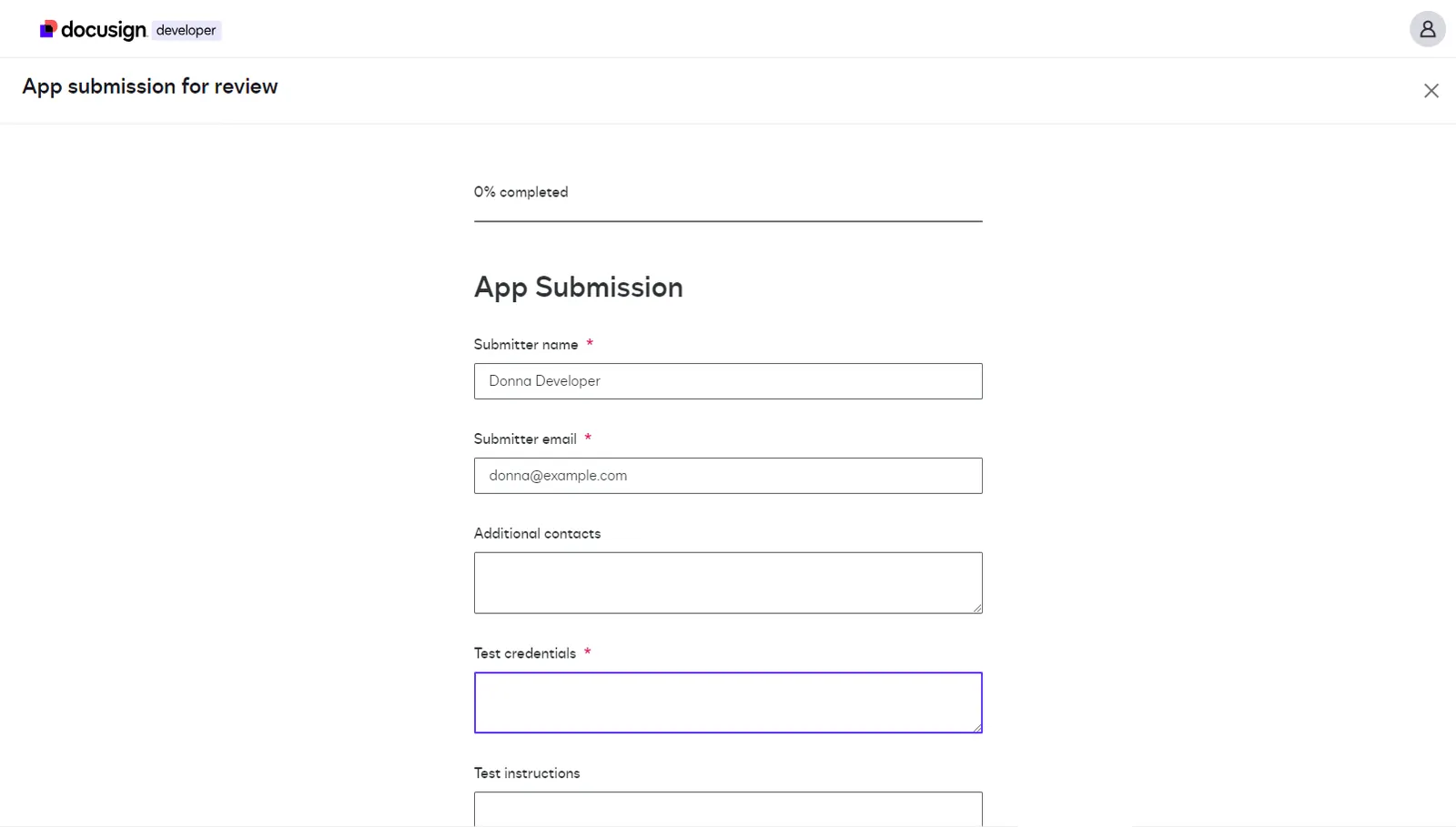
On the web form that opens, supply information that will help the app review team when evaluating your extension app. Not all of these fields are required, but completing every field will help Docusign quickly evaluate your application. The form includes the following fields:
- Submitter name and Submitter email: The name and email address used to log in to the Developer Console will automatically be populated into the form. You may modify them if you want to use different information.
- Additional contacts: Optionally, you can provide additional emails (comma-separated) as needed. Docusign will use these email addresses to communicate with you about the status of your submission.
- Test credentials. A set of credentials (typically username and password) needed for the extension app review team to test your extension app. These credentials (for your own service or services, not Docusign credentials) should be for a test-only account that you set up for this purpose. Do not give your own private credentials or use passwords that you also use for other purposes. The information is stored securely in Docusign and will be removed from our records when the extension app is published. (It is a best practice for you to change this password at that point or remove this account.)
- Test instructions. Optional information that you want to provide the Docusign app review team before they start testing your extension app; for example, for a data validation extension, how the review team can trigger and verify that invalid form entries are correctly flagged before submission. You can also list minor issues that your development team has yet to fix.
- App name. App unique identifier. This GUID is used to identify this particular version of your app. Do not modify this field.
- App identifier. App version identifier. This GUID is used to identify this particular version of your app. Do not modify this field.
- Region Selected. This is the list of one or more regions where your app will be published. The list comes from the regions you selected when you registered the extension app. Do not modify this field. See Globalization for details about regional availability.
- Additional details. Optional field for any other relevant information that you want to provide to the app review team to help them with this process.
-
Select Next to continue to the signing screen. The signing screen now includes all your app’s information.
-
Select Submit to finish the app submission for approval.
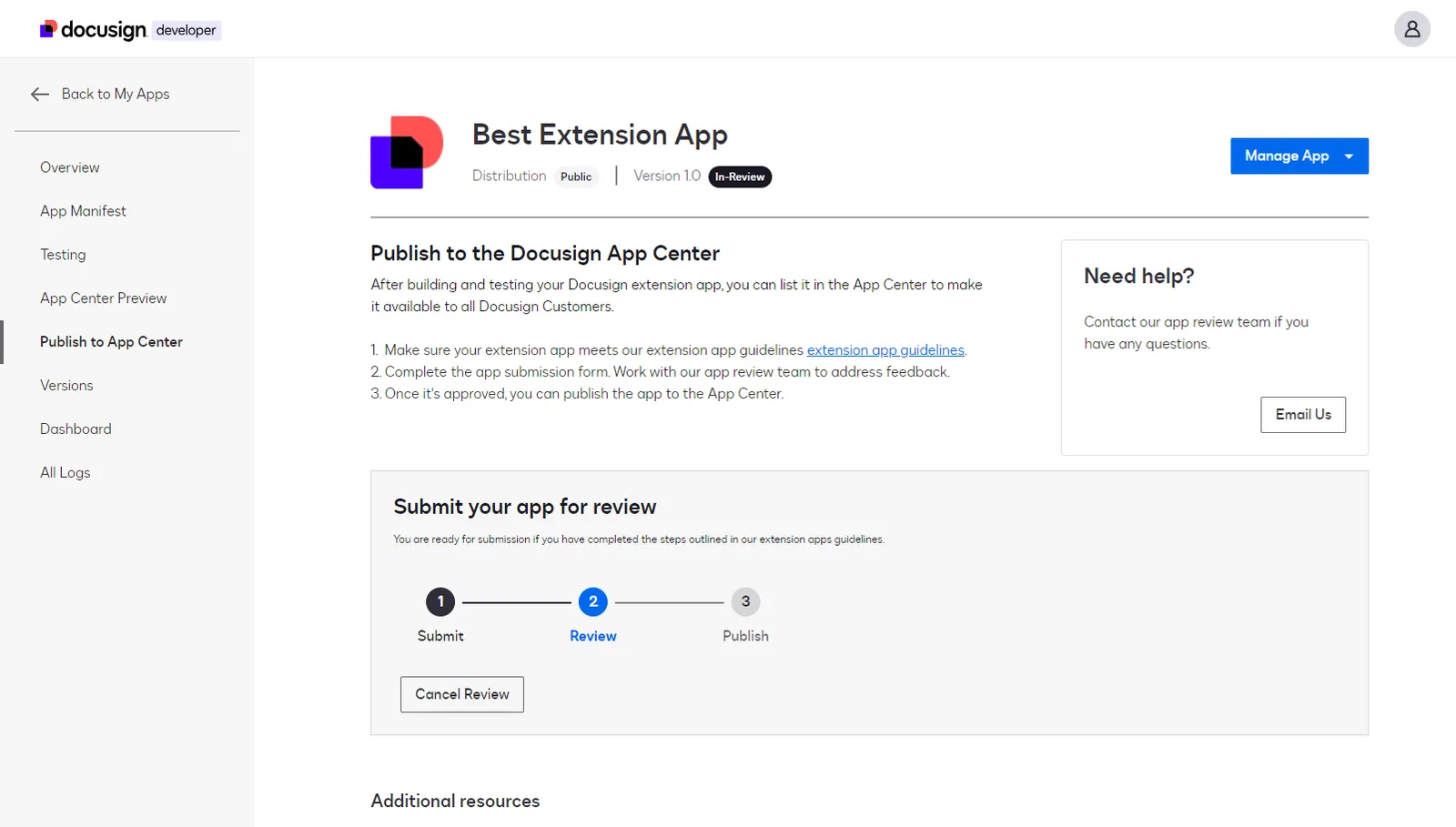
After you submit the app, its app status changes to In Review. It may take a few days for the Docusign app review team to finish reviewing your submission.
You’ll receive an email from Docusign to let you know that your extension app was successfully submitted for review. Look for an email titled Your Docusign extension app is under review in your mailbox (or check your spam folder if you can’t find that email message).
While waiting for Docusign to review your extension app, you may not modify or delete it unless you cancel the review process. To cancel the review, go to the Publish to App Center page of the relevant app, and select Cancel Review. This will set your app status back to Draft and will enable you to edit and resubmit it for review later.
Note that only Docusign partners may publish public extension apps. Docusign will verify your status as a partner during this review process. If you are not currently a partner, Docusign will contact you to discuss becoming a partner, and your app will stay in an In-Review status until onboarding is complete. Your app must still pass the full review process. See Join now for details on how to join the Docusign partner program.
Step 4. Publish your approved extension app
When the Docusign app review team approves your extension app, you will receive another email titled Your extension app has been approved. In the Developer Console, your extension app status will change from In Review to Approved.
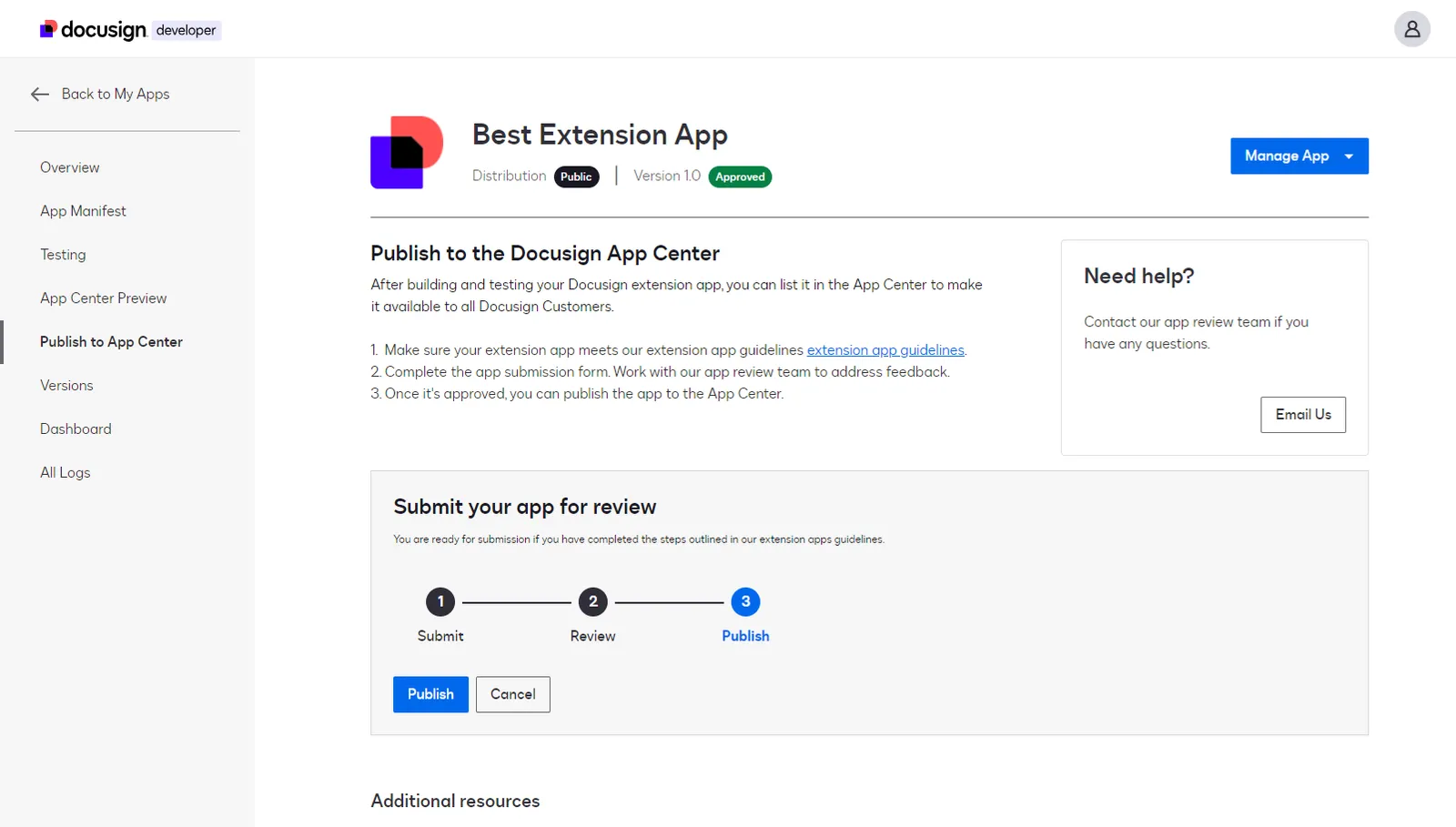
Please note that your extension app is not yet published and therefore is not yet available in the App Center for users (except users in your developer account). You can choose to cancel and not publish your app if you still want to modify it before you publish it. If you choose the Cancel button and confirm you wish to cancel, you’ll have to submit your app for review again before it can be published.
To publish your extension app to the App Center:
- Find your extension app in the Developer Console and select Publish to App Center.
- Select the Publish button that becomes available after Docusign has approved your extension app.
At this point the app status will change from Approved to Live. If this is a public extension app, it will immediately be available in the App Center for all Docusign customers in the regions you selected. If this is a private extension app, it will still have to be shared with selected production accounts for it to be available for customers; see Step 5B for details on this process.
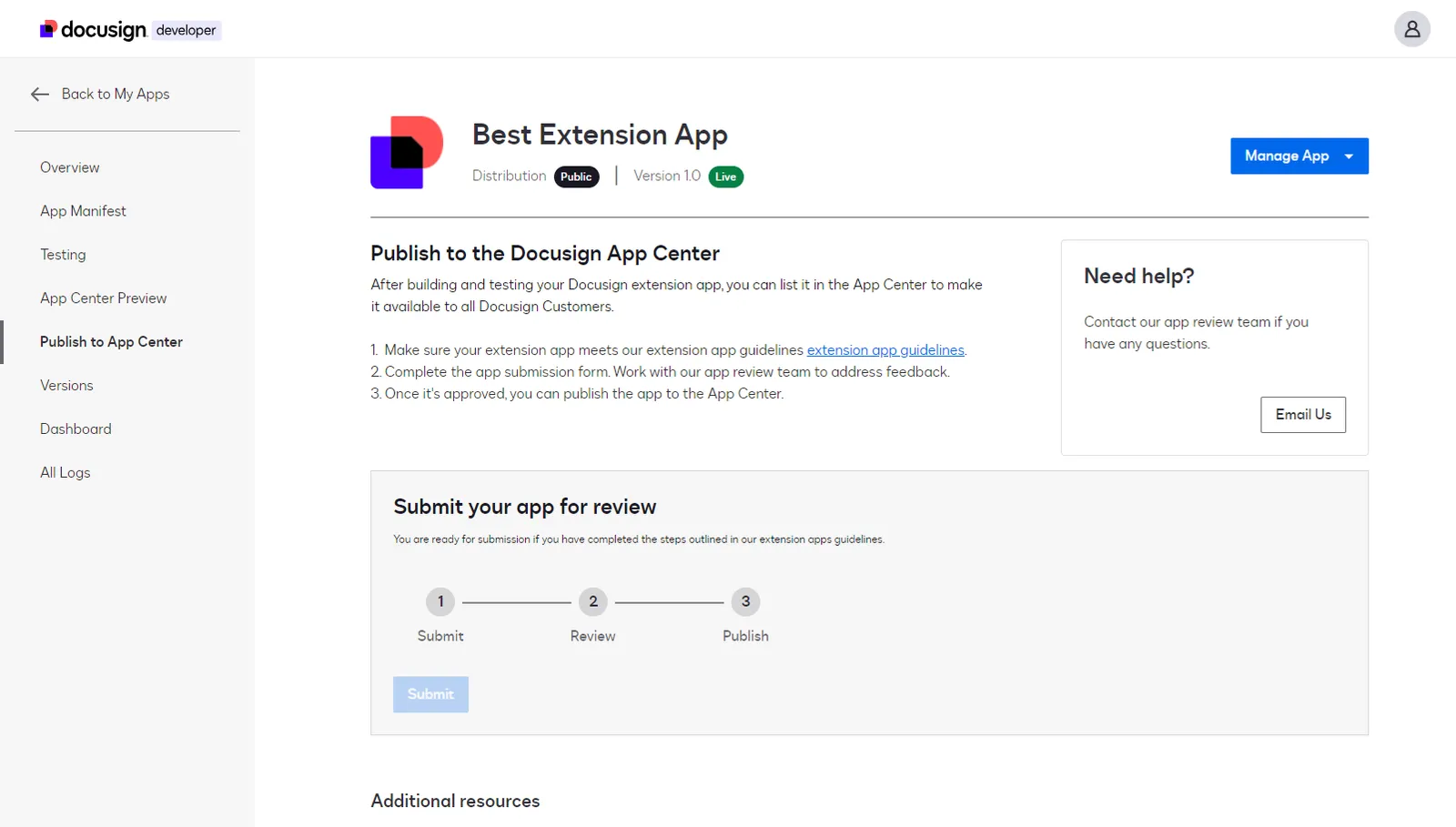
Note: Once published, a public extension app cannot be removed from the Developer Console or from the App Center. If you do need to remove it, please visit the Docusign Developer Community for information and assistance.
Step 5A. Public extension apps: Check out your extension app in the Docusign App Center
Congratulations! Your extension app is live and can be installed by Docusign customers from the Docusign App Center. It’s time to celebrate and think about how to promote your extension app to ensure its success.
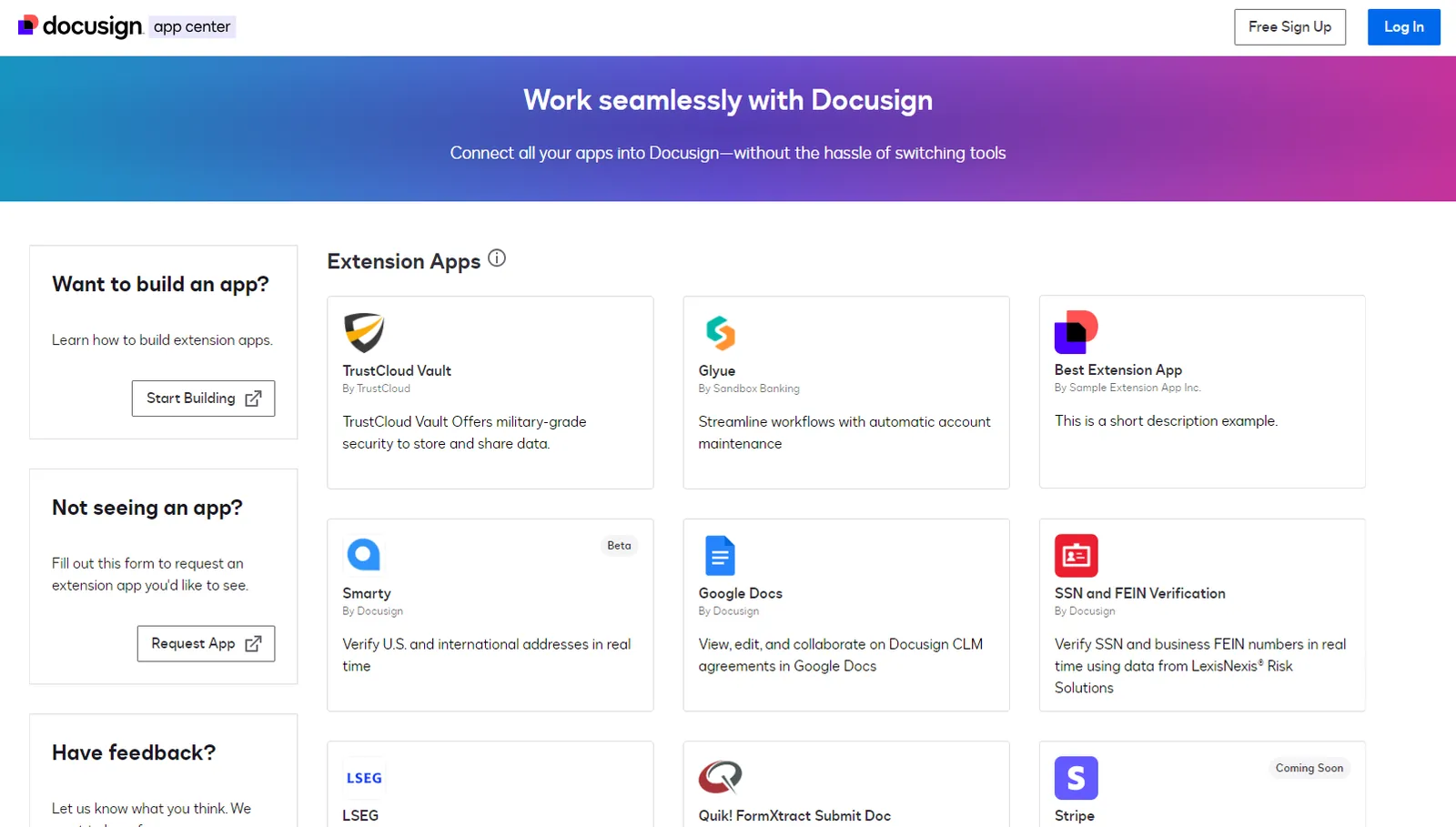
Step 5B. Private extension apps: Share your extension app
Private distribution is currently in beta.
After completing steps 1-4 for private extension apps, you are now ready to share your private extension app with selected production customers. This step is not optional. While your app is now live, it is not yet available to any production customer. To make private extension apps visible and usable to production customers, you must provide their ACCOUNT ID. An account ID is a unique identifier (GUID) for any Docusign account. In order to find an account ID, a customer can go to their Apps and Keys page and copy their API Account ID value. Note that we only support production accounts based in the US data centers (NA1, NA2, NA3, and NA4).
-
Follow items 1-3 in Step 3 above to find your extension app and go to the Publish to App Center page.
-
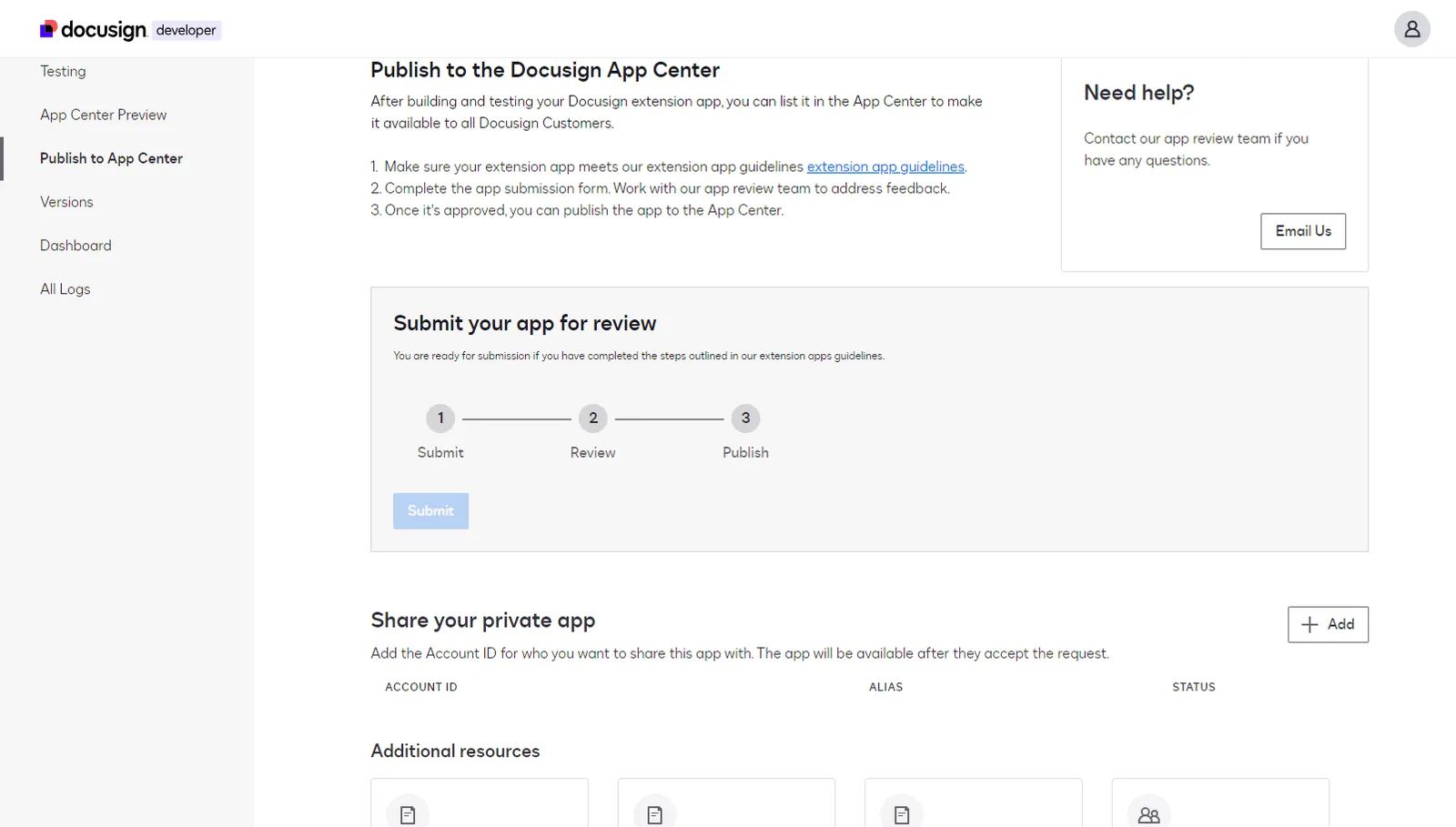
Since your private extension app is now live, you’ll see a new section called Share your private app.
-
Select +Add to add an account to the list.
-
In the ACCOUNT ID field, enter the production account GUID for the account you wish to add as explained above.
-
The ALIAS field is for your own tracking purposes. We recommend you use a name that will help you identify the account you’re using later.
-
Select the checkmark.
-
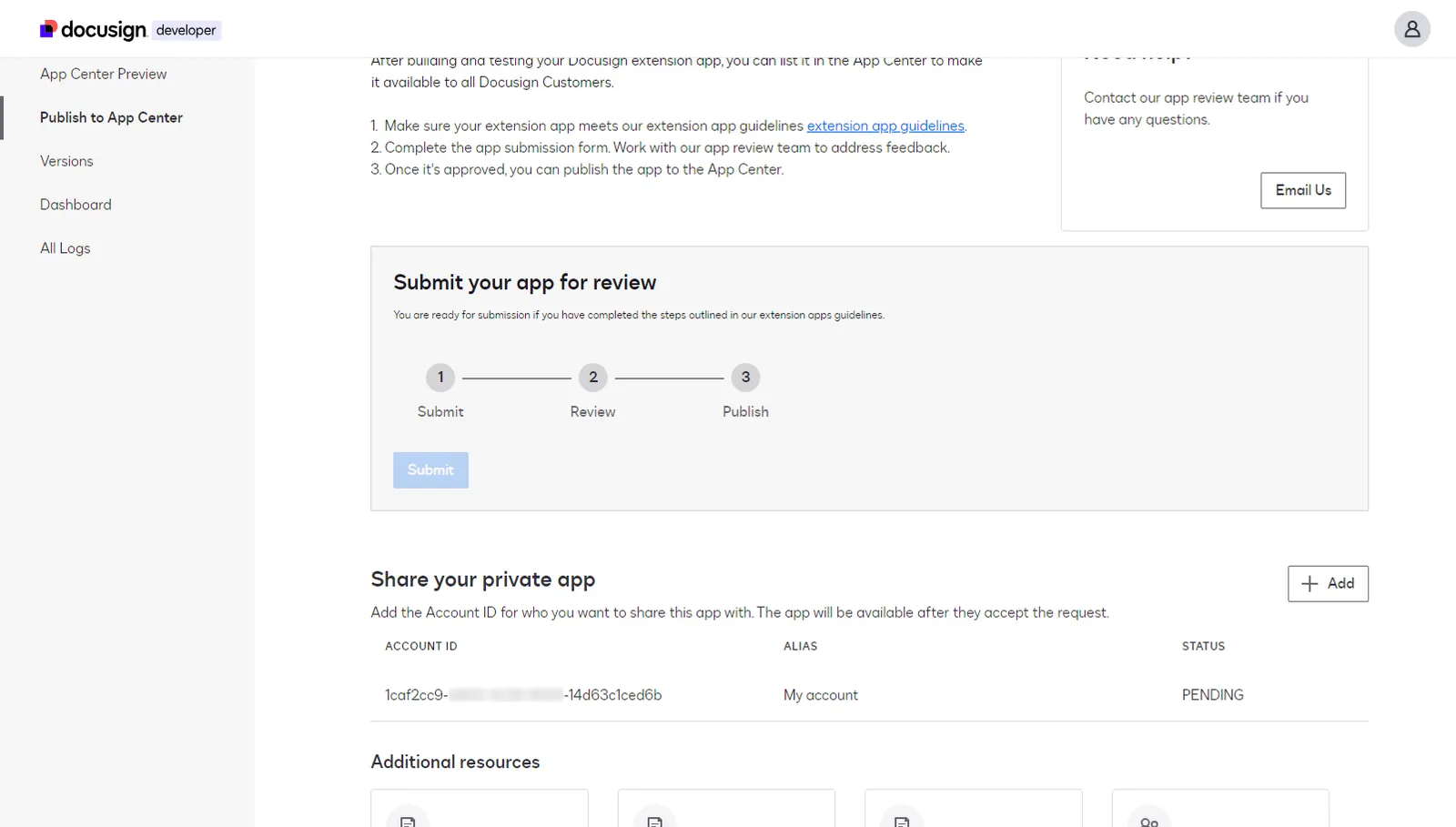
You will now see the new account ID added to the list with a PENDING status.
-
At this point, the administrator of the production account that you added needs to log in to the Docusign App Center (in production) to approve the new extension app for their account.
-
After the administrator selects Accept in App Center, they’ll go to the listing for the new extension app (in App Center) and be able to install it for all members of their account.
-
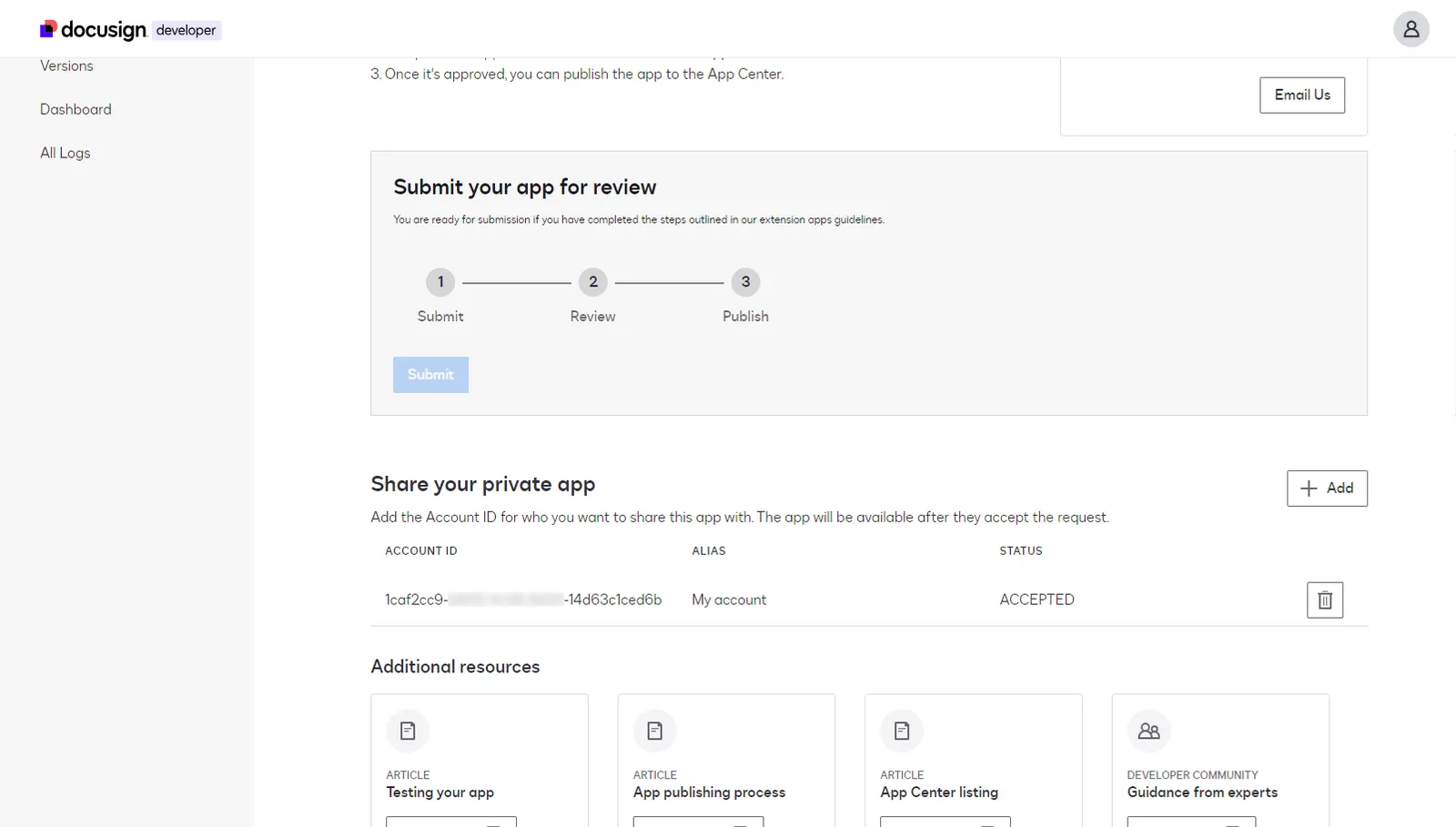
At this point, back in the Developer Console, if you navigate back to the Publish to App Center page, you’ll see that the account that you added now shows in ACCEPTED status, letting you know the the administrator of the production account has added the app to be available in App Center.
Optional: Remove an account from a private extension app
If you need to remove one of the accounts that were previously added to share a private extension app, you can do so at any time. Simply find the account in the list and select the delete icon on the right. It does not matter if the status of the account is PENDING or ACCEPTED. As soon as you do that, you’ll get a confirmation dialog with this message: Are you sure you want to remove this account?
Once you select Remove, the app is immediately removed from the account. The administrator of the account is not notified. You should be careful removing an app after it has already been accepted, as it may be in use by customers.
Developer and production environments
It’s important to understand that the process of publishing extension apps to the App Center includes two different environments. The developer environment is where you do all your work to register and test your extension app. It’s where you start when you use the Developer Console.
When you publish your extension app to the Docusign App Center, it is automatically published in both the developer environment (also known as demo) and the production environment. Customers who want to use your extension app can then install it in the production environment App Center as well as in the demo environment App Center if they are using that environment. If you have multiple developer accounts, publishing an extension app that you registered in one of those accounts enables you to install the app to your other accounts in the demo environment App Center.
Note: You cannot use your extension app in production unless it was published to the Docusign App Center.
Next steps
- Review Extension app best practices.
- See App Center publishing guidelines.
- Check Support resources and FAQs.
- View a dashboard that displays extension app usage data.
- Retrieve logs of extension app installations and other activity.