
Connected fields extension overview
The connected fields extension enables you to perform real-time custom data verification of values entered in eSignature envelopes. Unlike the data verification extensions, which verify specific types of values (such as bank account numbers and addresses), the connected fields extension can verify any data against your organization’s system of record.
For example, you can use a connected fields extension to verify user-supplied values in an eSignature envelope to authorize a transfer in a financial account. Each envelope value can be mapped to a property in your system of record. When a user completes the required envelope fields, Docusign sends your system a verification request that includes the values. Your system can apply its verification logic and return the result in its response to Docusign, which then displays the result to the user.
In the response, your system also supplies custom messages that provide users with specific guidance about the information they must enter. In addition, your system can return autofill values for the envelope based on known information about a user.
In the current release, Docusign will display field labels and messages in the signing UI in the language in which the external system provides them. In a future release, translation to other languages will be supported.
Because connected fields extensions verify organization-specific data, they are useful for private extension apps. Private extension apps can be developed and published for use by specific accounts or within your organization. This contrasts with public extension apps, which are available for all Docusign customers to view and install.
Connected fields in Docusign envelopes
After a connected fields extension app has been installed and connected to a Docusign account, the fields it implements are available for custom data verification in envelopes created in the account. Expand the sections below to see how connected fields function during envelope preparation and signing.
Preparer accesses a list of connected fields
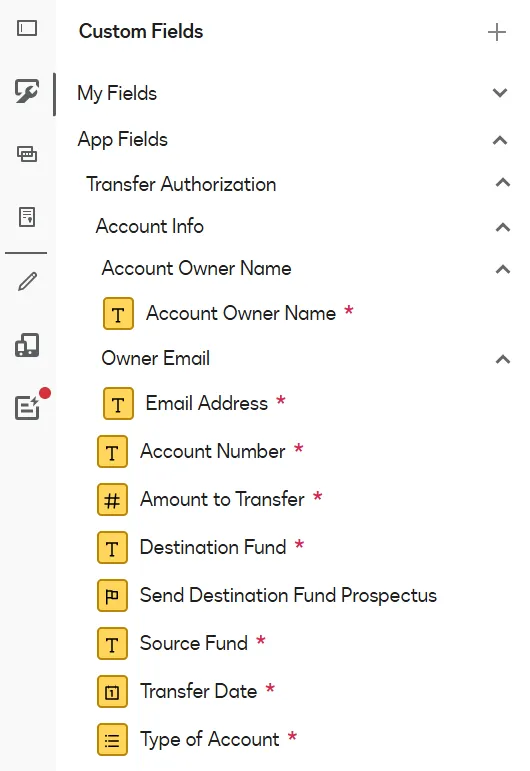
In this example, a preparer creates a template or envelope containing a document that an organization requires customers to complete when transferring money from one fund in a financial account to another. The data that a customer must populate might include an account number, source fund, transfer amount, destination fund, and other values.
For the preparer who sets up the transfer authorization document in the Add Fields view, the available connected fields would look like this:
Preparer adds connected fields to a document
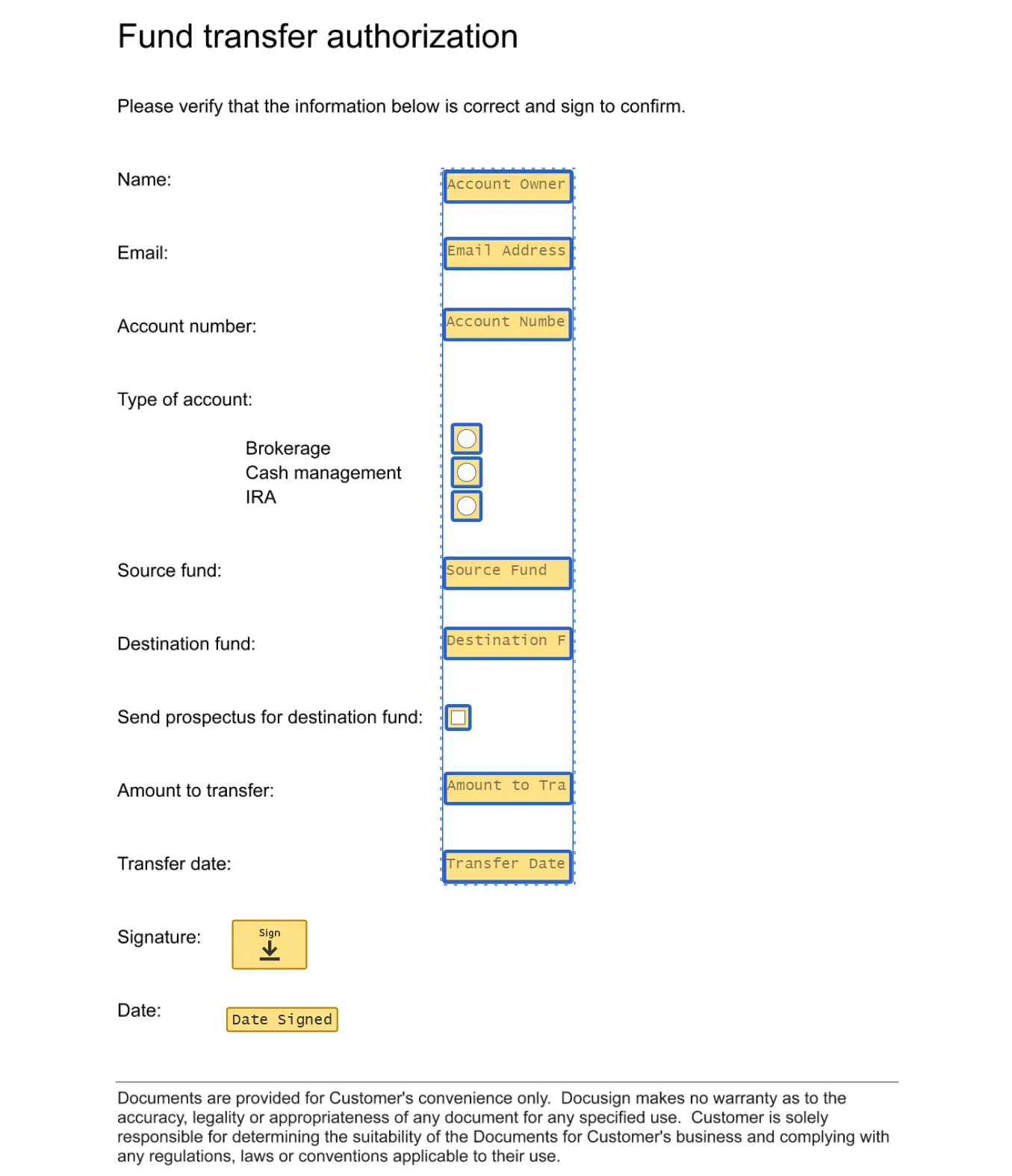
The preparer can add the connected field group to the document by selecting any required field in the group, dragging it to the document, and positioning the fields as needed. After completing this setup, the preparer sends the envelope to a customer for completion.
Signer populates connected fields, triggering verification
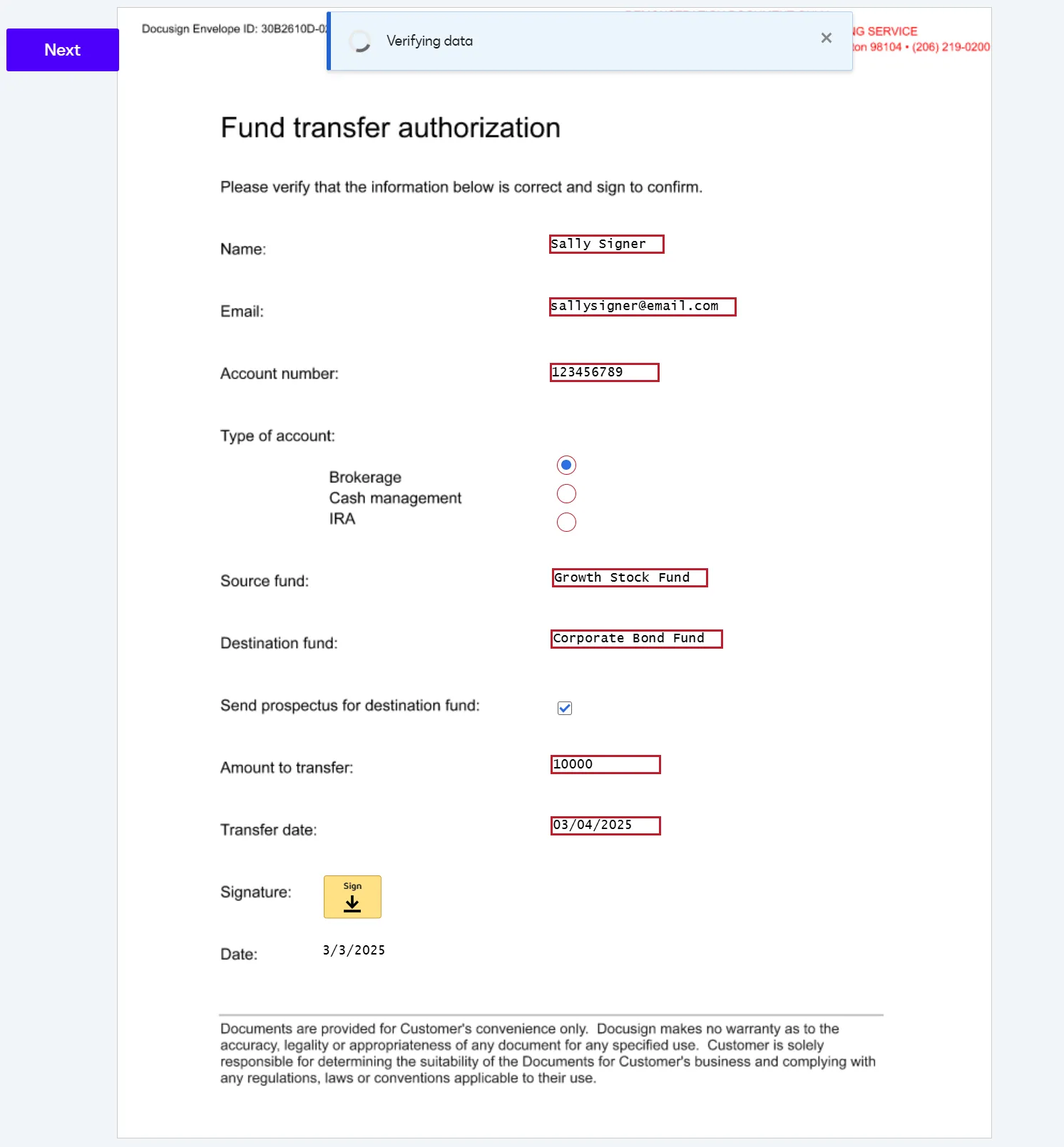
A signer accesses the envelope. When the signer has populated all the required fields in the connected fields group, Docusign sends a verification request that includes the user-entered values to the external system. The system is responsible for applying verification logic to the values that Docusign sends.
Signing view displays verification result and message
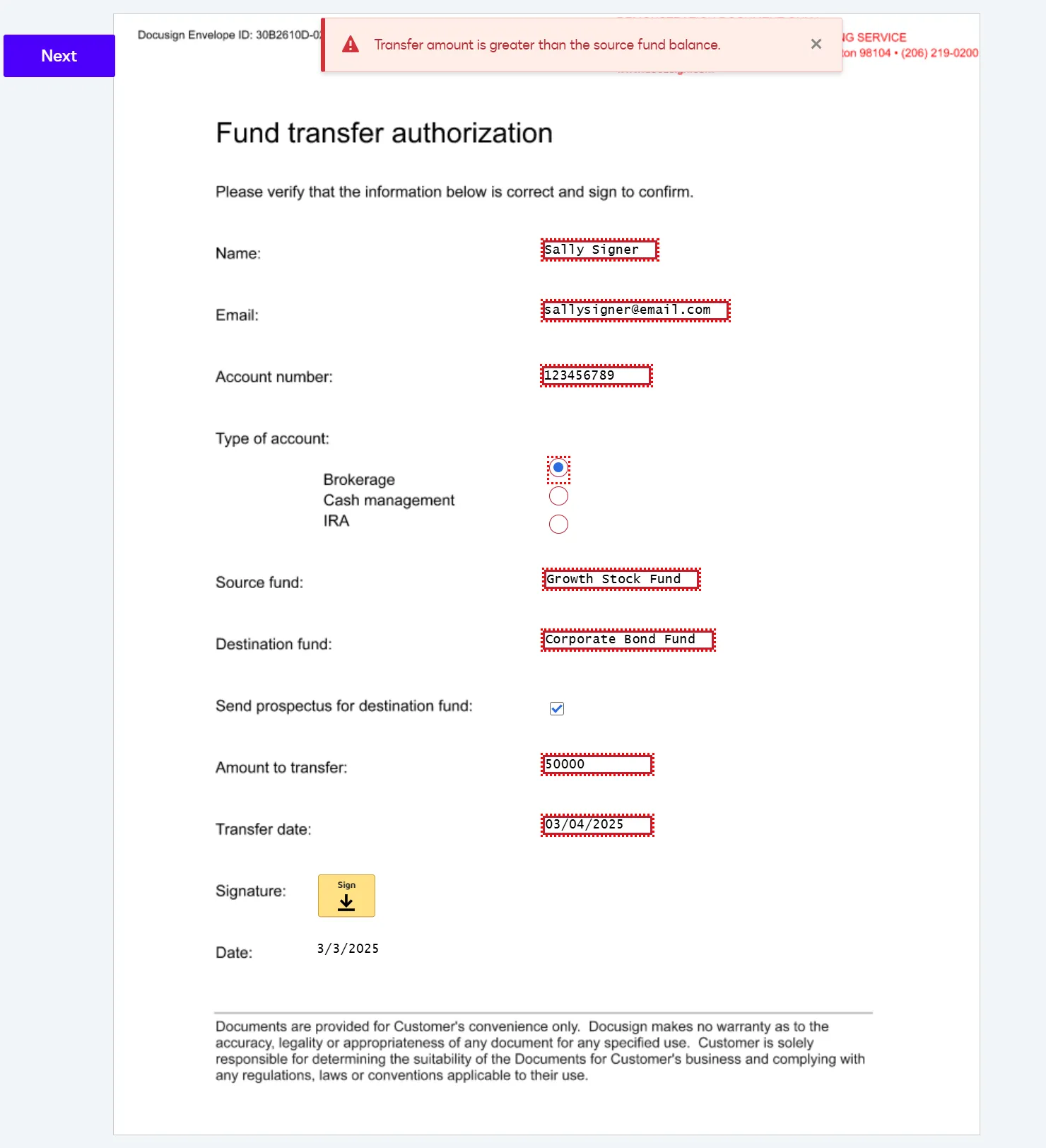
The response from the external system to Docusign must indicate whether verification succeeded or failed. The signing view displays the accompanying message that the external system returns.
Signing view autofills suggested values
The external system’s response can also supply suggested values for any of the fields. Docusign autofills the suggested values, and the signer can use them if they wish.
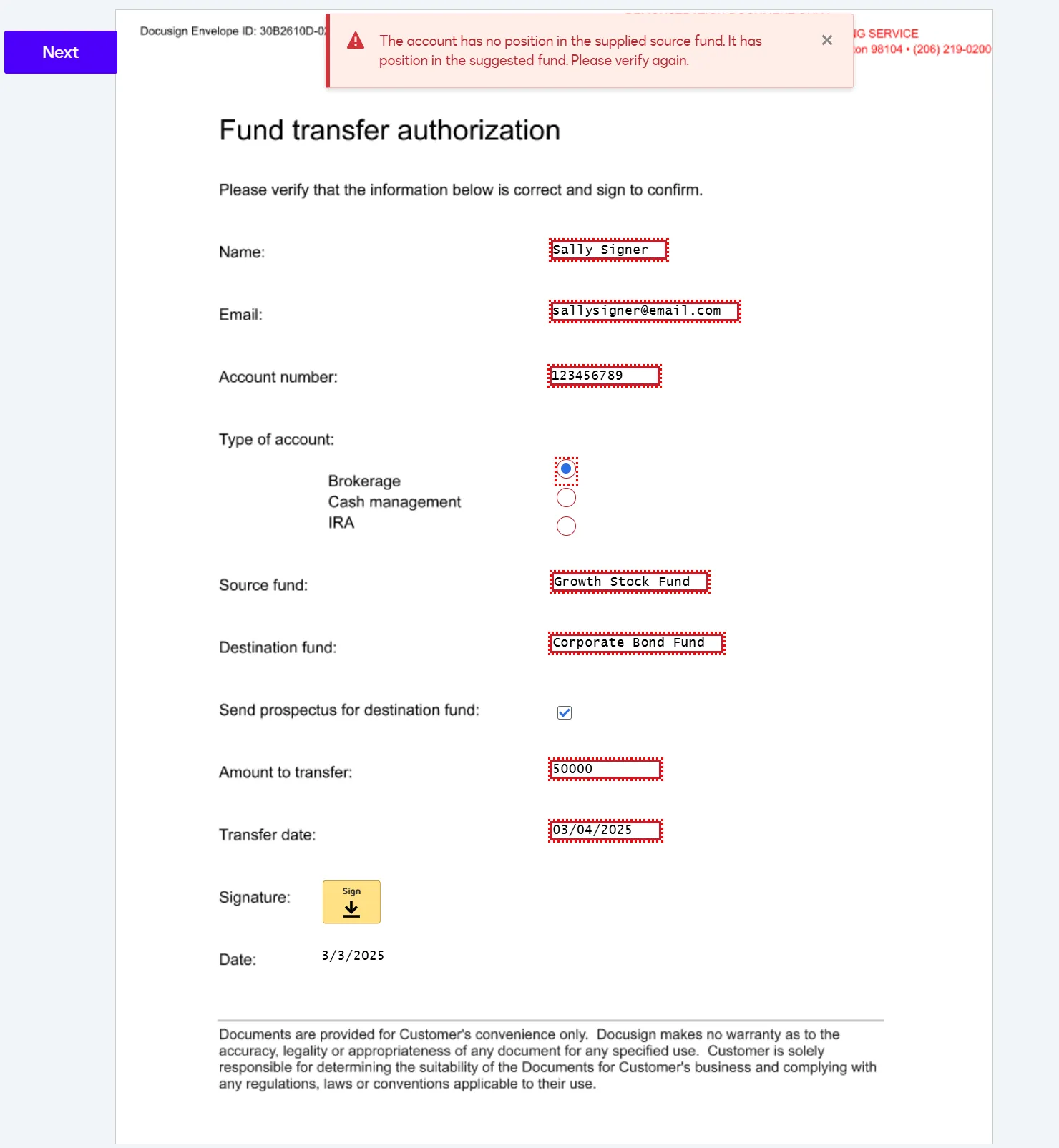
Signer completes the envelope after successful verification
If verification succeeds, the signer can complete and submit the envelope to Docusign.
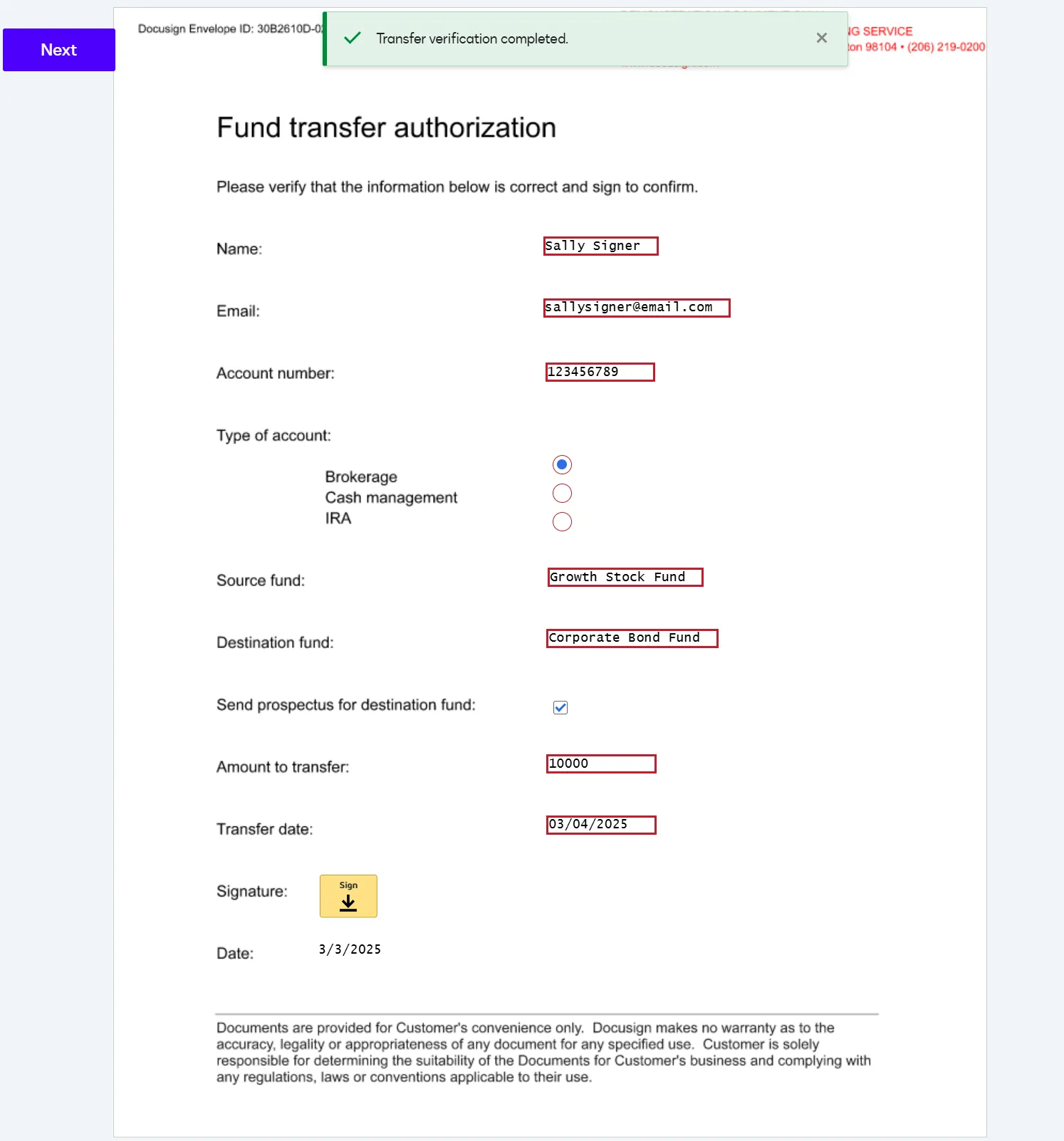
Create envelopes with connected fields programmatically
To create envelopes that include connected fields programmatically, use these API requests:
- Connected Fields API TabInfo:GetConnectedFieldsTabGroups request: Retrieves information about the connected fields extension apps installed and connected to your account, and the required connected fields associated with each extension app.
- eSignature REST API Envelopes:create request: Creates envelopes that can include connected fields from the extension apps installed to your account
See Connected fields concepts for an overview of the API, and see How to send an envelope with extension app data verification fields for example code and a detailed walkthrough.
Verification results
To retrieve verification results programmatically, you can use Docusign Connect and implement a listener to receive the extension-executed event. This event is supported only with the JSON SIM event model. See JSON SIM event reference for the event structure.
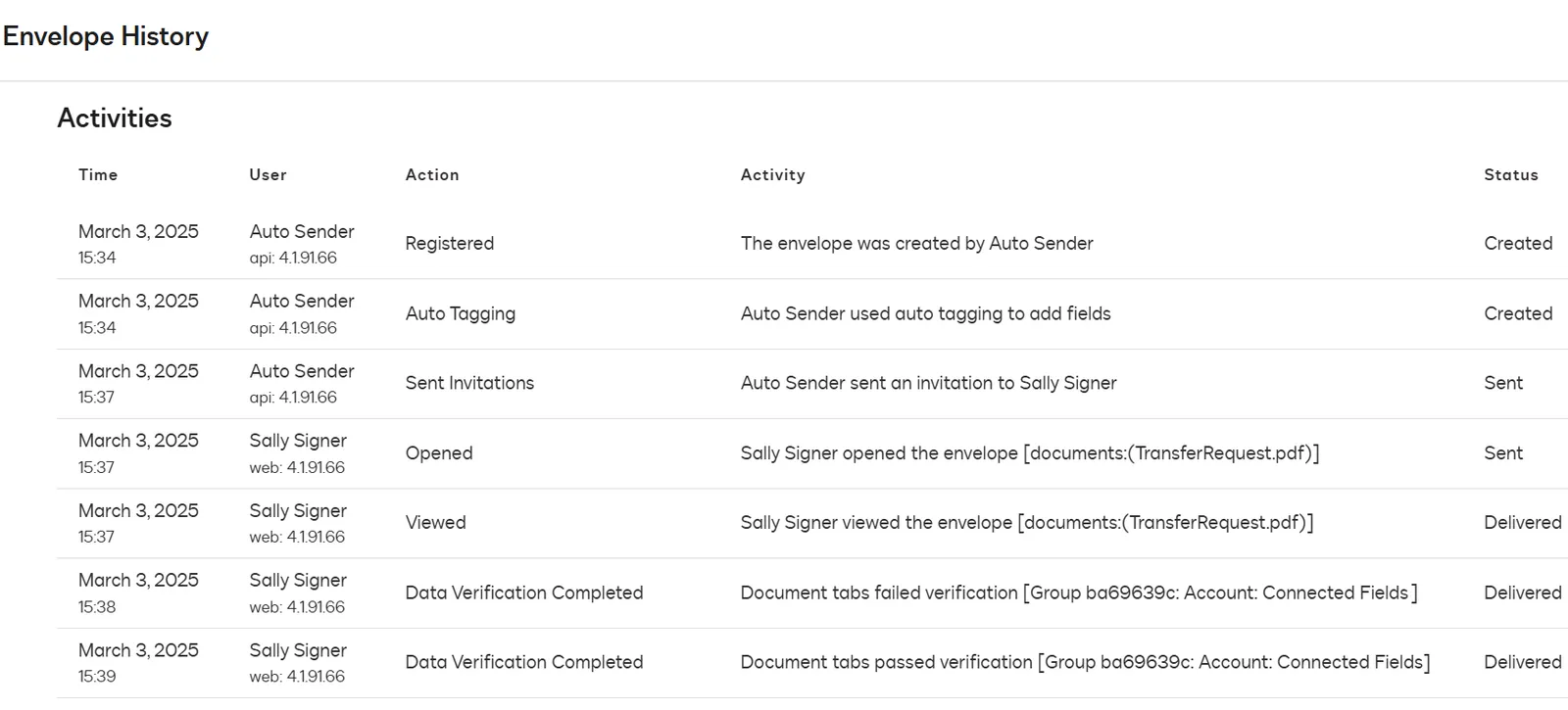
Verification results are also included in the envelope history, shown in this figure, and the certificate of completion.
Connected fields actions
A connected fields extension implements these actions:
Get Type Names and Get Type Definitions flow
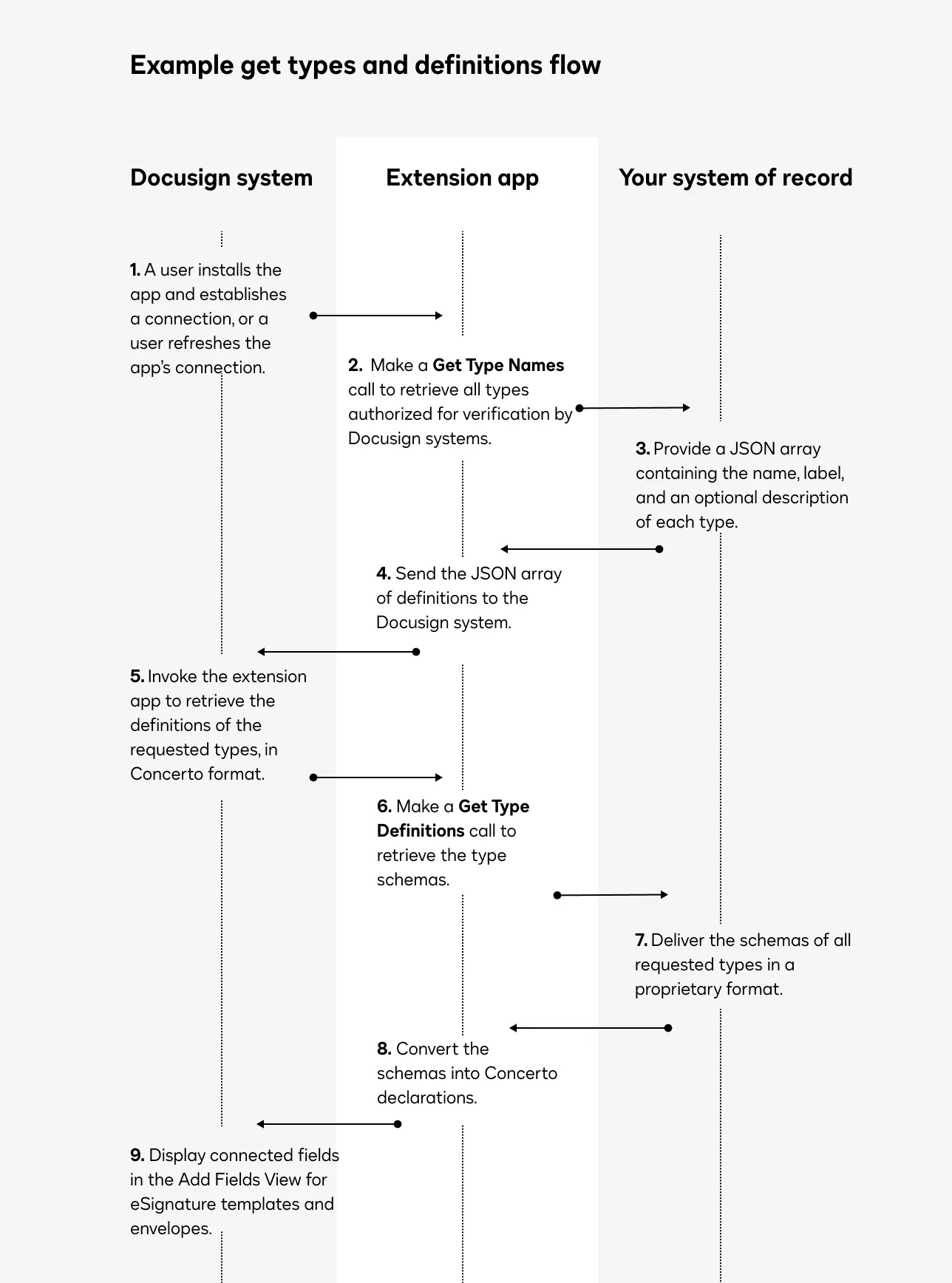
When your connected fields extension app is installed and connected to a Docusign account, or when a connection is refreshed in the Docusign App Center, the extension app will automatically get the types and type definitions of the objects that your system of record is configured to expose:
- Docusign calls Get Type Names to get the set of types that your system of record exposes. The types are returned as a JSON object that includes the name, label, and an optional description for each type.
- Docusign calls Get Type Definitions, inputting the types returned by Get Type Names. This returns the definitions of each type that your system of record exposes for Docusign.
After the Docusign platform receives the type definitions, it will display the corresponding connected fields in the eSignature Add Fields view for users in your account. This enables template and envelope preparers to include the connected fields in documents that will be sent to your customers.
Important: Docusign models data input and output definitions using a flexible schema in Concerto. If your system of record does not already use the Concerto data model, you must implement logic to convert your type definitions into Concerto format as part of your response to the Get Type Definitions call.
See Data model for recommendations on mapping types or Concerto specification for details on specific types, syntax, and examples.
Verify flow
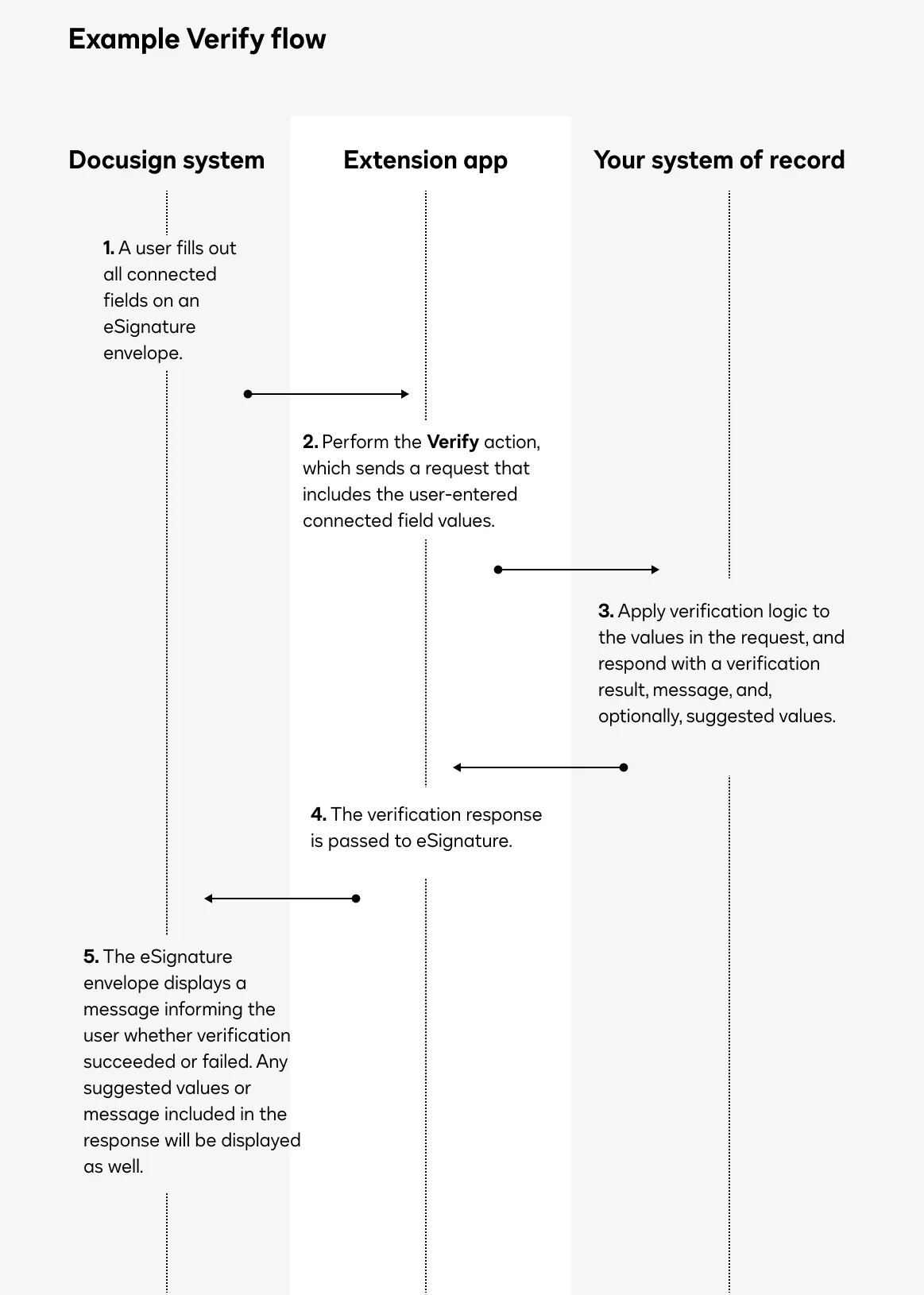
The Verify action is executed when a user completes all required connected fields in a Docusign envelope or updates a required connected field value:
- The Verify request is sent to the system of record. The request body is a JSON object that includes key-value pairs representing property names and user-populated values from the envelope, as well as a type name and a unique key that the external system can use to identify duplicate requests.
- The external system applies any required business logic to verify the user-populated values.
- The external system sends a response to Docusign indicating the verification result, suggested values if appropriate, and a message for the user.
- Docusign displays the verification result, accompanying message, and any suggested values used to autofill fields in the envelope signing view.
Plan a connected fields extension implementation
When planning the implementation of a connected fields extension, you’ll need to consider the following:
- eSignature envelope field mapping to data source properties
- External system logic to return data model with verification markers
- External system logic to process verification requests
eSignature envelope field mapping to data source properties
Identify eSignature envelope fields whose values are to be verified, and determine which external data source properties they can be verified against. For the example case described in Connected fields in Docusign envelopes, the mapping might be:
When planning the mapping of external data source properties to Docusign envelope fields, keep in mind that each data type returned in a Get Type Definitions response will be automatically rendered as one of the supported envelope field types. See Transform logic for details.
External system logic to return data model with verification decorators
Your external system must be able to return the information Docusign needs to determine which values can be sent to your system for verification. The two requests that Docusign will send to retrieve this information are:
- Get Type Names: Retrieves a list of objects in the data source.
- Get Type Definitions: Retrieves definitions of the properties in the data source. This response must include decorators that mark objects as verifiable and indicate which properties are required for verification.
See the connected fields extension contract for details about the request formats and the expected response formats. See API proxy for guidance about transforming requests and responses to the correct format.
External system logic to process verification requests
Your system must implement logic to verify user-entered envelope values according to your business requirements. For example, if Docusign sends an account owner name, account number, source fund for a transfer, destination fund, and transfer amount, your system might evaluate whether:
- The account owner name matches the owner on record for the supplied account number.
- The account has a position in the source fund supplied.
- The source fund balance is greater than or equal to the transfer amount.
- All of your organization’s other requirements for the transfer have been met.
For details about the format of the verification request that Docusign sends and the required format for the response, see the Verify action contract. See API proxy for guidance about transforming requests and responses to the correct format.
Next steps
- See Connected fields extension contract reference for details about the action requests and responses.
- Get an overview of the process to build an extension app.
- Learn more about private extension apps, which are available only to specified Docusign accounts.