
File input cloud storage extension contract reference
The file input cloud storage extension imports documents from a cloud storage system to Docusign Agreement Manager. Agreement Manager is a platform service that uses AI to analyze, classify, and extract structured data from agreements. See File input cloud storage extension overview for details about how the extension is invoked in Agreement Manager, the supported file types, and other behaviors and restrictions.
You can include this extension when you register an extension app. If you register the extension app using a form, select the File Input Cloud Storage extension in the form-based UI, as shown in this figure:
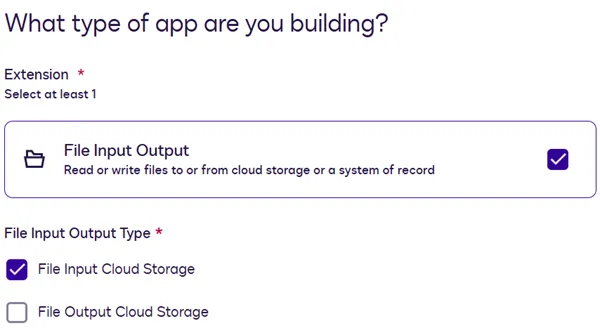
During the form-based extension app registration process, if you select a file IO extension, its required actions are automatically added to the app. You can then configure the actions’ endpoint URIs and other properties on the Integration Details page. The extension’s optional capabilities can be added or removed only by editing the app manifest file. After you’ve added capabilities via the manifest file, you can edit them on the Integration Details page. See Action schema for information about action and capability properties in the app manifest file.
If you register the extension app using an app manifest file, set the extensions.template value in your app manifest to FileIO.Version1.FileInputCloudStorage.
This extension has three required actions and one optional capability. Below is a list of their identifiers as they appear in the form-based app registration UI and the app manifest. See Example extension app use cases for a complete sample app manifest for file input from cloud storage.
Both the actions and the capability are defined in the app manifest fileʼs actions object. This definition includes a template value, a name, and the endpoint URL. The actions and capability must also be referenced from the extensions object as follows:
- For both the actions and capability, include the
actions.namevalue from theactionsobject in theextensions.actionReferencesarray. - Include a reference to the capability in the
extensions.capabilitiesarray. Use the value from the App manifest extensions.capabilities value column in the table above.
For example, the manifest file action definitions for the required actions and the optional List Drives capability look like this:
The extensions objectʼs actionReferences array includes the actions.name values for the Get File, List Directory Contents, and Search actions and the List Drives capability. In addition, the List Drives capability is included in the capabilities array:
For details about what the actions and capability do when invoked, see File input cloud storage actions and capability.
These sections provide details about the requests and responses sent between Docusign and the external service for each action and capability:
Get File (FileIO.Version1.GetFile)
This required action imports a file into Docusign Agreement Manager. If a user selects multiple files for import, Docusign executes a separate Get File action for each file.
Get File is the label that appears when you register an extension app using a guided, form-based process.
If you register your extension app using an app manifest file, make sure that you:
-
Include a definition for the action in the
actionsobject. See Action schema for details about the required properties. The action definition must include these values, which are specific to this action:name: get-filetemplate: FileIO.Version1.GetFilecontractType: action-with-callback
-
Include the value from the
actions.nameproperty in theextensions.actionReferencesarray. See Extension schema for details.
See Example extension app use cases for a complete sample app manifest for file input from cloud storage.
Get File sequence of requests and responses
Below is the sequence of requests and responses between Docusign and the external service for a Get File action. Details about each one appear in the next sections.
- Get File request to the external service
- Get File synchronous response to Docusign
- Upload request to Docusign
- Upload response to the external service
- Callback request to Docusign
- Callback response to the external service
Get File request to the external service
Docusign sends this POST request when a user selects a file for upload in Agreement Manager.
Get File request header
The request includes an x-docusign-session header that is Base64-encoded. The external service must decode this header to extract these values for use in subsequent processing:
Get File request body
The Get File request body includes a fileId, which is the ID of the file to upload to Agreement Manager. Docusign uses the file ID that the external system supplied in its response to a List Directory Contents or Search request that preceded the Get File request.
Get File synchronous response to Docusign
On receiving a Get File request, the external service should return a synchronous response with an empty response body. The synchronous response has no dependency on the file import being initiated or succeeding.
A success response from the external service should use a 202 Accepted HTTP status code. If the external service cannot fulfill the Get File request from Docusign, it should return an appropriate HTTP error code, such as 401 Unauthorized or 404 Not Found.
On completion of the Get File request and a 202 Accepted response, Agreement Manager creates an upload job for the file. The job status is Transferring. See Job Monitoring for Agreement Uploads and Processing for details.
Upload request to Docusign
This POST request to Docusign includes the contents of the file being uploaded. The file contents must be sent as a stream of raw bytes.
The request must use these values that have been extracted from the x-docusign-session header of the Get File request that Docusign sent to the external service:
- The URL to which the request should be sent.
- A session token in the request’s
Authorizationheader in this format:Bearer: [sessionToken]
See Get File request header for details.
Note: The request does not require a Content-Type header. The type of file that Docusign expects in the request is encoded in the sessionToken. Docusign sets the expected file type based on the file that a user selected for upload in Agreement Manager.
After Docusign successfully processes an upload request, the Agreement Manager upload job remains in Transferring status.
Upload response to the external service
If Docusign successfully processes the upload request, it returns a 201 Created HTTP status code with an id in the response body. The id is a GUID value that identifies the file on the Docusign system. This identifier will be different from the file ID that Docusign sent in the initial Get File request to the external service.
If the uploaded file exceeds the 25 MB size limit, Docusign returns a 413 Content Too Large error. After Docusign sends this or any other error response to an upload request, additional upload requests for the same Get File action will not succeed. The external service must report the failure in the callback request. See the next section for details.
Callback request to Docusign
When the external system receives a response to the file upload request, it must send a POST callback request to notify Docusign whether the upload request succeeded or failed.
The request must use these values that have been extracted from the x-docusign-session header of the Get File request that Docusign sent to the external service:
- The URL to which the request should be sent.
- A session token in the request’s
Authorizationheader in this format:Bearer: [sessionToken]
See Get File request header for details.
If the upload response from Docusign had a 201 Created HTTP status code, the external system should report success in the callback request, as shown below. For a response with an HTTP error status code, such as 400 Bad Request, the external system should report failure in the callback request.
After Docusign processes a callback request for a successful upload, the Agreement Manager upload job status changes from Transferring to Uploading, and then to Upload to Agreement Manager complete. At this point, the file appears in the Agreement Manager Agreement List Table. Next, Agreement Manager uses AI to process the file and extract agreement data. See Processing Agreements for details. For a failed upload, the Agreement Manager upload job status changes to Failed after the callback request is processed.
Callback response to the external service
After Docusign processes the callback request, it returns a response with an id in the response body. This ID represents the file upload execution on the Docusign platform. This value is informational only. The external system is not required to use this ID for any processing.
List Drives (FileIO.Version1.ListDrives)
This optional capability can be implemented for a file input cloud storage extension. It returns the drives available in the cloud storage system. If this capability is implemented, a Agreement Manager user can select from a list of drives before browsing folders, searching, and selecting files to upload.
Note: If the cloud storage system does not have the concept of drives and instead organizes folders and files under a different container type, this capability can retrieve a list of those containers instead. They will appear in Agreement Manager’s Select Drive list.
List Drives is the label that appears when you register an extension app using a guided, form-based process.
If you register your extension app using an app manifest file, make sure that you:
-
Include a definition for the capability in the
actionsobject. See Action schema for details about the required properties. The action definition must include these values, which are specific to this capability:name: list-drivestemplate: FileIO.Version1.ListDrives
-
Include the value from the
actions.nameproperty in theextensions.actionReferencesarray. -
Include the value from the
actions.templateproperty in theextensions.capabilitiesarray.
See Extension schema for details about the actionReferences and capabilities arrays. See Example extension app use cases for a complete sample app manifest for file input from cloud storage.
HTTP method
This capability initiates a POST request to the external API service.
List Drives request body
List Drives response body
List Directory Contents (FileIO.Version1.ListDirectoryContents)
This action is required for a file input cloud storage extension. It returns a list of folders and files in a drive or directory on the cloud storage system so that Agreement Manager can display them. This enables users to drill down into the cloud storage structure to locate files to upload. Each time a user selects a directory, Agreement Manager sends a List Directory Contents request to get the contents of the currently selected directory.
List Directory Contents is the label that appears when you register an extension app using a guided, form-based process.
If you register your extension app using an app manifest file, make sure that you:
-
Include a definition for the action in the
actionsobject. See Action schema for details about the required properties. The action definition must include these values, which are specific to this action:name: list-directory-contentstemplate: FileIO.Version1.ListDirectoryContents
-
Include the value from the
actions.nameproperty in theextensions.actionReferencesarray.
See Extension schema for details about the actionReferences and capabilities arrays. See Example extension app use cases for a complete sample app manifest for file input from cloud storage.
HTTP method
This action initiates a POST request to the external API service.
List Directory Contents request body
List Directory Contents response body
Search (FileIO.Version1.Search)
This action is required for a file input cloud storage extension. It returns a list of cloud storage folders and files whose names match a search string that a Agreement Manager user has entered.
Docusign passes the search string to the external service exactly as entered in the Agreement Manager search field. The external service can implement handling for wildcard characters in search strings, or any other search logic as appropriate.
The search request from Docusign does not specify the ID of a drive or directory to search. The response should return all matching folders and files that are eligible to be selected as an upload source, regardless of their location on the cloud storage system.
Search is the label that appears when you register an extension app using a guided, form-based process.
If you register your extension app using an app manifest file, make sure that you:
-
Include a definition for the action in the
actionsobject. See Action schema for details about the required properties. The action definition must include these values, which are specific to this action:name: searchtemplate: FileIO.Version1.Search
-
Include the value from the
actions.nameproperty in theextensions.actionReferencesarray.
See Extension schema for details about the actionReferences and capabilities arrays. See Example extension app use cases for a complete sample app manifest for file input from cloud storage.
HTTP method
This action initiates a POST request to the external API service.
Search request body
Search response body
Error handling
In general, the external system should return a 200 response code to Docusign if a request succeeded. For a success response to an initial Get File request, a 202 response code should be used. Any other response code indicates that the request was not successfully executed.
This applies to all actions and capabilities. Developers are responsible for providing a code and message for each error.
Next steps
- Get an overview of the file input cloud storage extension and how it can be used.
- Explore the options for testing a file input cloud storage extension.
- Find out about other supported extensions.