
Data IO extension overview
Data IO is an extension that enables you to read data from and write data to your system of record. After creating an extension app that implements data IO, you can integrate that functionality into your automation and Docusign scenarios, such as creating automation that responds to a job offer agreement by creating an account for the new employee in your system of record. You can also publish your completed extension app to the Docusign App Center for other Docusign users to find, install, and use.
Data IO includes two capabilities that can be configured as steps in Workflow Builder workflows:
- The data input capability retrieves data from your system of record, such as Salesforce, ServiceNow, or Stripe.
- The data output capability transmits your data from Docusign to update your system of record.
See Data IO extension workflow test for details on how the data IO extension is displayed to users in the UI and learn how it maps to the extension action contracts.
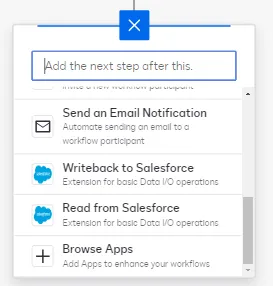
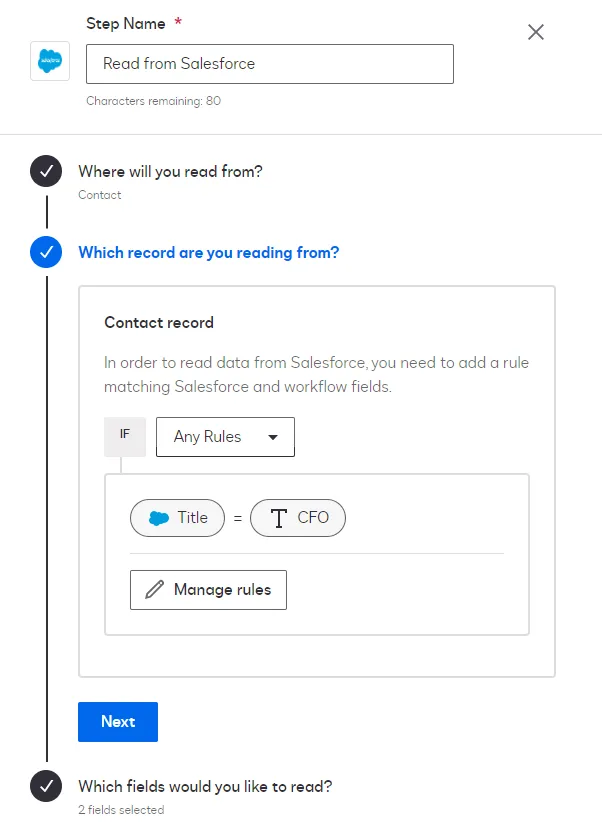
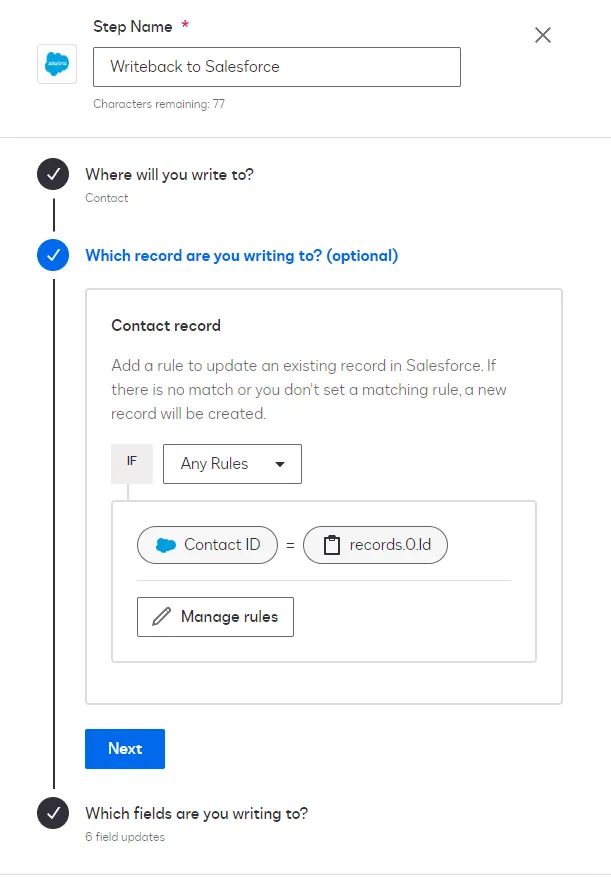
These screenshots show an example of how these capabilities are displayed in the Workflow Builder UI, in both Add a step and Step configuration.
Workflow Builder add steps UI:
Workflow Builder data input configuration UI:
Workflow Builder data output configuration UI:
You can implement data input as a standalone capability without also implementing data output. To do this, implement only the Search Records, Get Type Names, and Get Type Definitions actions. Note that you cannot implement data output as a standalone capability, because it uses the data input actions to find the records to update. If your extension must write data to your system of record, you must implement all five data IO actions.
Note: If your app only needs to create new records and does not need to update them, you can choose to only create a full implementation for Create Record. In this case you still need to define Patch Record, but it does not need to contain any code.
Get type names and definitions
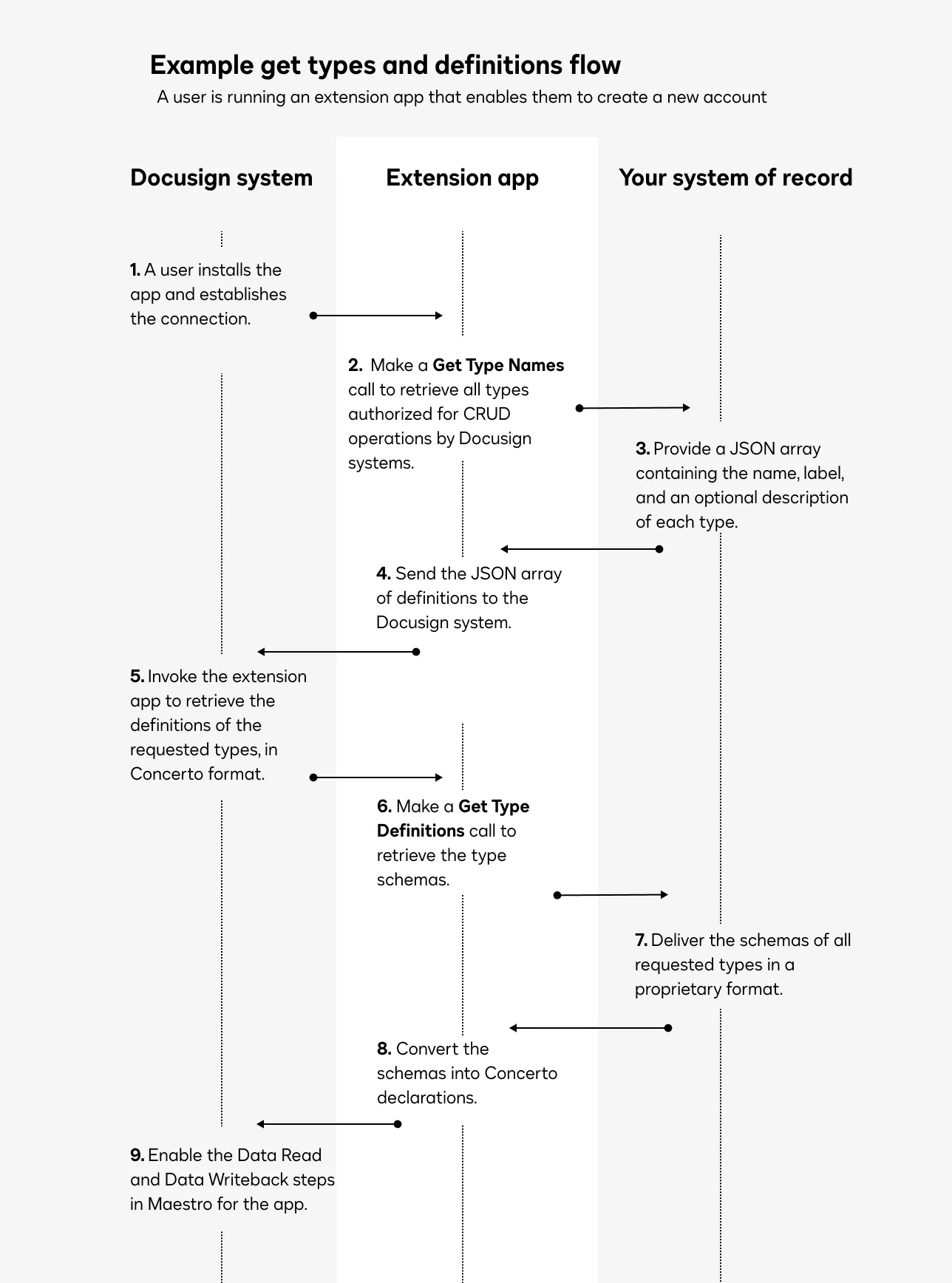
When your data IO extension app is run and your Connection is established prior to any steps being executed, your extension app will automatically get the types and type definitions of the objects that your system of record is configured to expose:
- Your workflow calls Get Type Names to get the set of types that your system of record exposes for Docusign. The types are returned as an array of string names.
- Next, it calls Get Type Definitions, inputting the types returned by Get Types. This returns the full definitions of each type that your system of record exposes for Docusign.
Important: Docusign models data input and output definitions using a flexible schema in Concerto. If your system of record does not already use the Concerto data model, you must implement logic to convert your type definitions into Concerto format as part of your response to the Get Type Definitions call.
See Data model for recommendations on mapping types or Concerto specification for details on specific types, syntax, and examples.
Input data
When you add a data input step in the workflow designer, you configure that step by:
- Choosing the type of record to retrieve.
- Applying filters to specify which set of records to look through.
- Specifying the attributes of the specific records to retrieve.
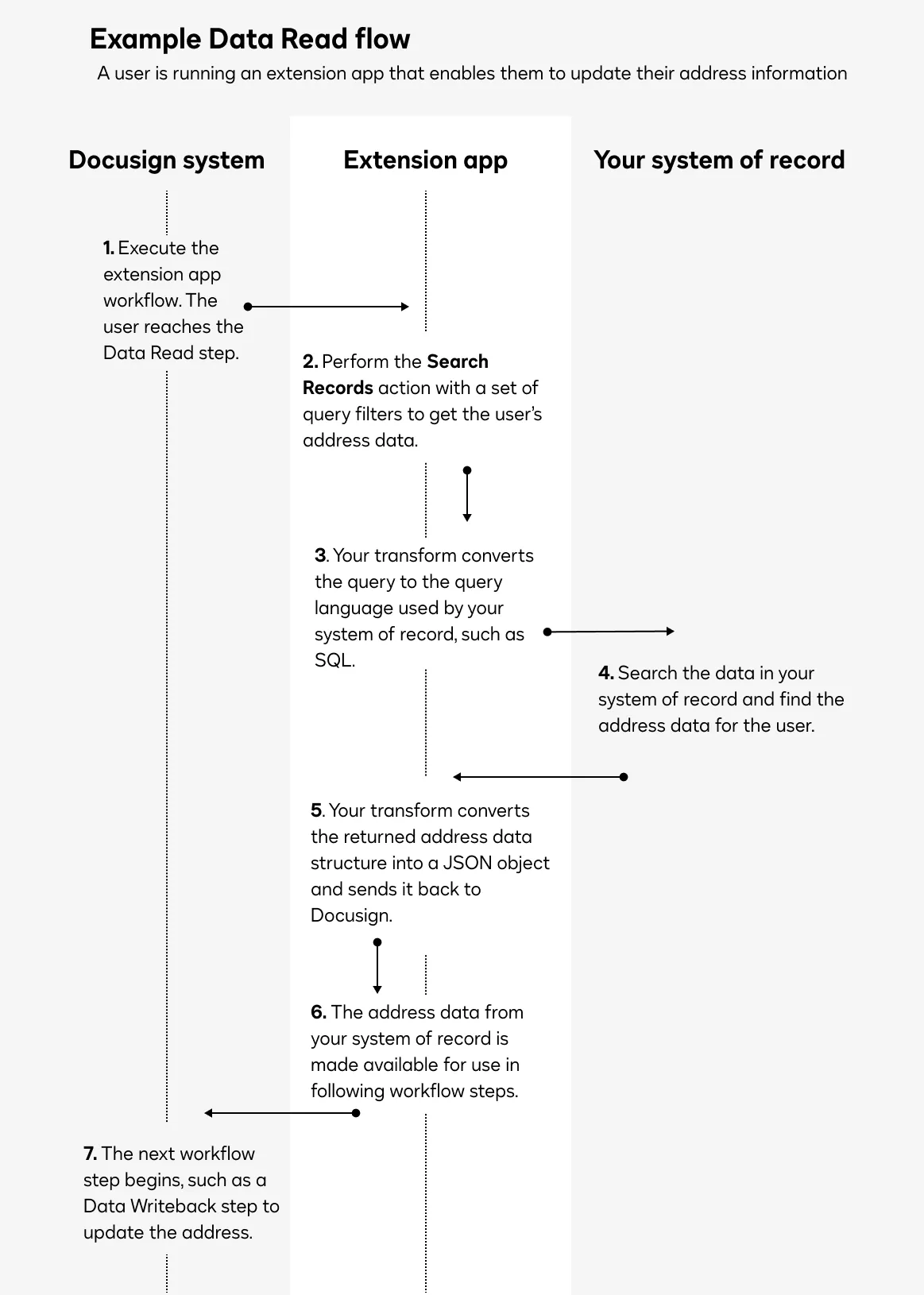
When your data input workflow step is reached during execution, the Search Records action is called to run your query and retrieve the records. Once the records are retrieved, you can use these values in subsequent workflow steps.
Important: Docusign uses a simple custom query language to filter and select records without dependencies on any specific external systems. To implement the Search Records action, you must create transform logic to convert the query expression into one supported by your system of record. See Custom query language reference for details on the query language structure and syntax.
Output data
When you add a data output step in the workflow designer, you configure that step by choosing whether it creates or updates a record.
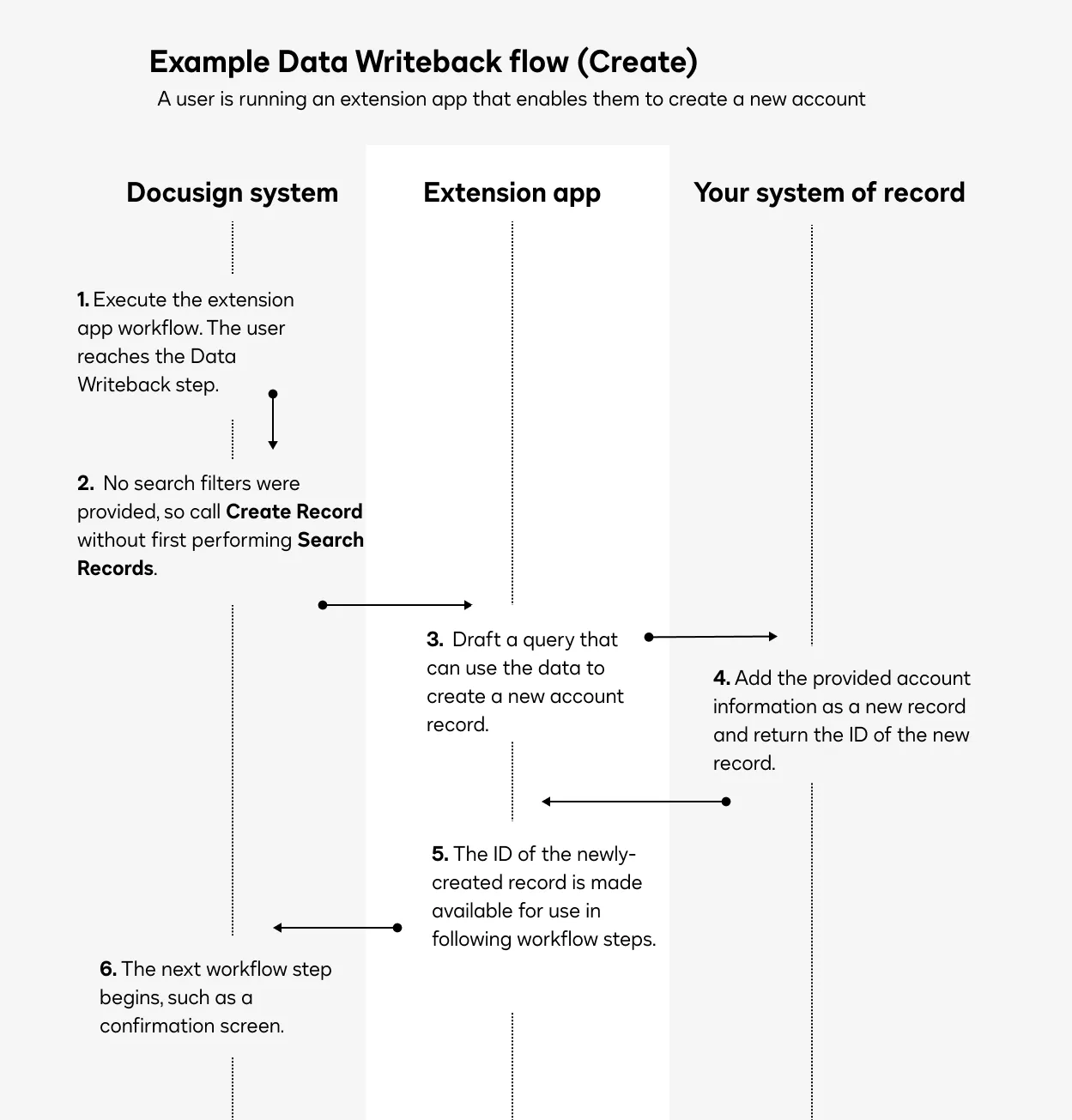
To create a record:
- Select the type of record to create.
- Do not set any filter conditions for the step’s query.
- Provide data attributes to populate the record. Any attributes that are required by the record type in your system of record must be provided.
To update a record:
- Select the type of record to create.
- Set one or more filter conditions that result in exactly one matching record being found. If more than one record is returned, an error will be generated. If no records are found, a Create Record call will be made instead.
- Provide data attributes to be added to the record. Any values of these attributes already present in the record will be overwritten.
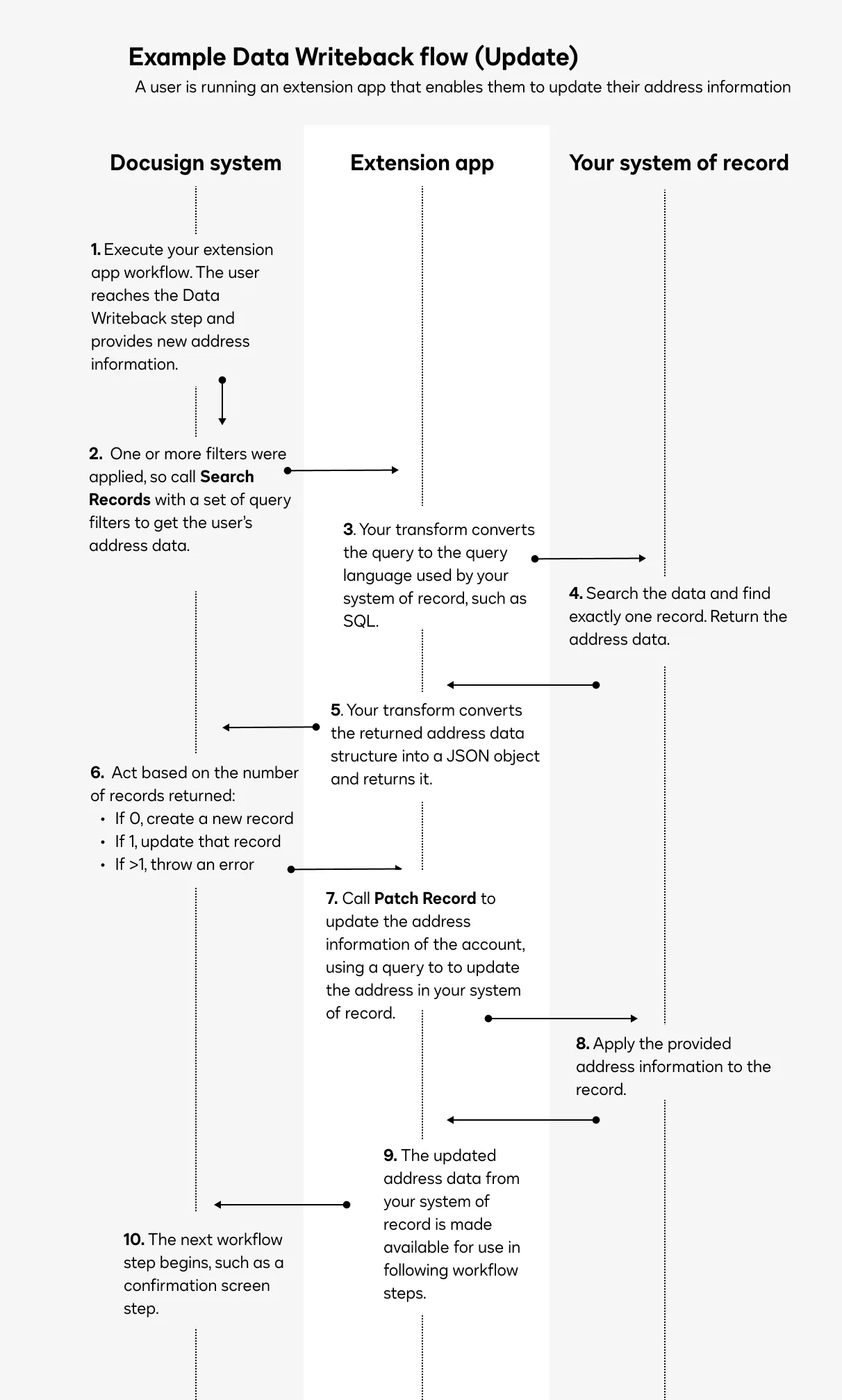
When your data output step is reached during execution, the following logic is run:
- If you provide one or more search filter conditions, a Search Records action is performed to find any record matching your query.
- If the results of this query are empty, the internal Docusign system will create a record by invoking the Create Record action on the app, which will return a
recordId. - If the query returns a record, that record’s
recordIdis used to call Patch Record and update the record’s attribute values. An error will be generated if more than one record is returned. - You can then use the returned
recordIdto identify the record to use and work with in future steps of your workflow.
Important: Docusign uses a simple custom query language to filter and select records without dependencies on any specific external systems. To implement the Search Records action, you must create transform logic to convert the query expression into one supported by your system of record. See Custom query language reference for details on the query language structure and syntax.
Next steps
- See Data IO extension workflow test for details on how the data IO extension is displayed to users in the UI and learn how it maps to the extension action contracts.
- See details about the data IO contracts and objects in the Data IO extension contract reference.
- Learn how to implement foreign-key relationships in a data IO extension app.
- After creating an extension app that implements data IO, you can integrate that functionality into your automation and Docusign scenarios, such as creating automation that responds to a job offer agreement by creating an account for the new employee in your system of record. You can also publish your completed extension app to the Docusign App Center for other Docusign users to find, install, and use.