
Update integration details
This procedure enables you to use a form to define settings required to obtain authorization and connect to endpoints in the external API service. Instead of using a form, you can define the settings by creating or updating a JSON app manifest file.
Access integrations details for an extension app
To access an extension app’s integration details:
- Log in to the Developer Console.
- On the My Extension Apps page, locate the row for the extension app you want to update.
- Select the app to open the Overview page.
- In the left navigation, select Integration Details.
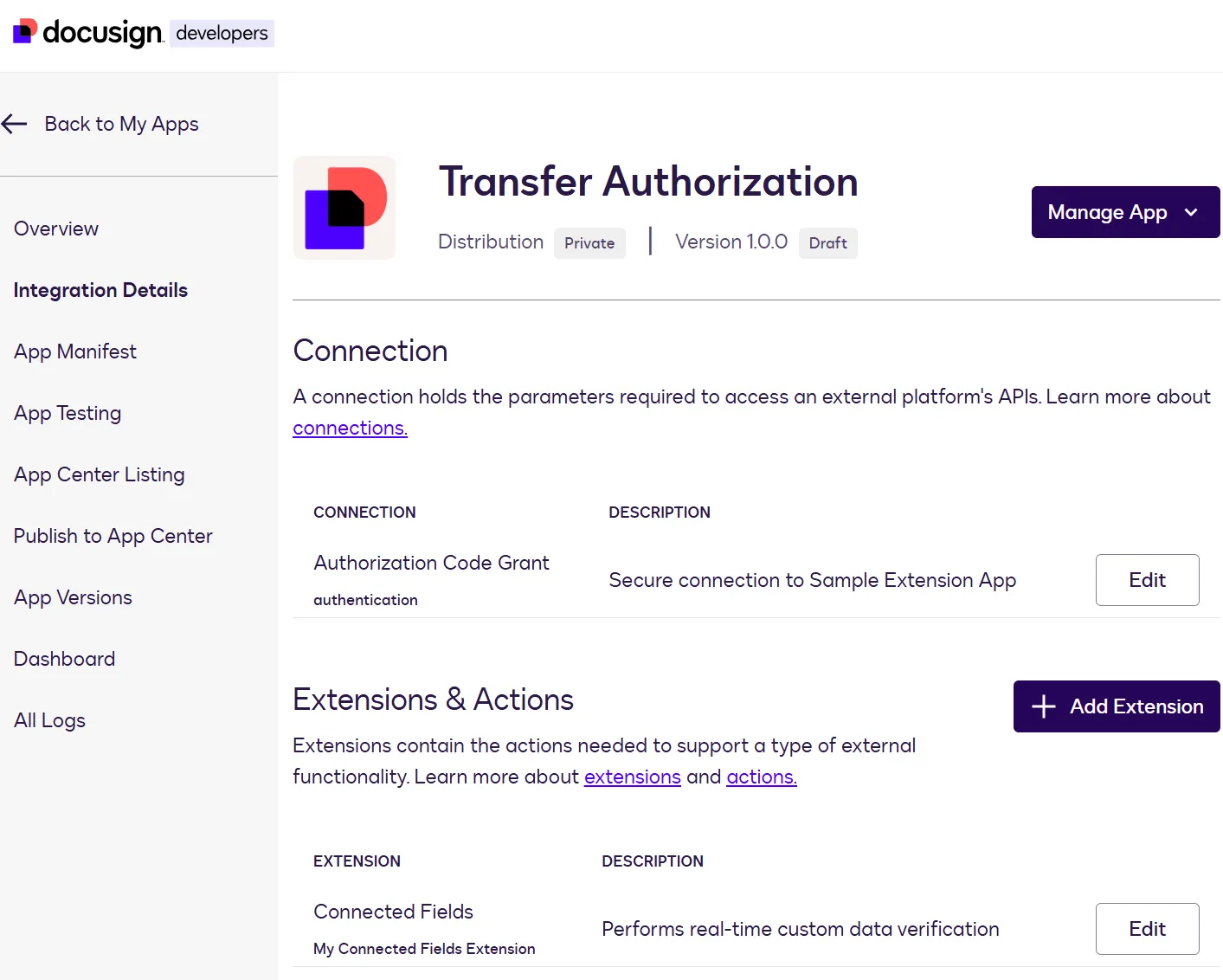
If the extension app registration is newly created, define both the connection settings and the extension and action settings.
If you are updating an existing extension app registration, you can modify only the settings you want to change.
Update connection settings
Connection settings enable an extension app to obtain authorization from the external API service or identity provider.
To update an extension app’s connection settings:
-
Under Connection, select Edit.
-
Enter or update these values:
-
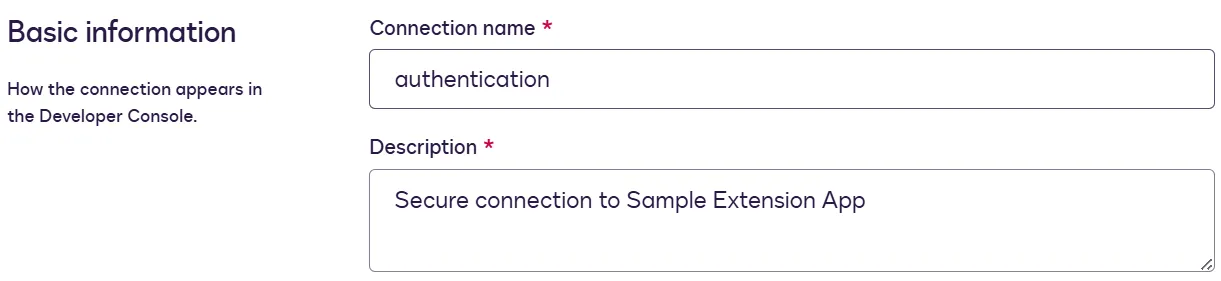
Connection name. The name of the connection. This value must be unique. This name will appear in these locations: the Developer Console integration tests page; the Docusign App Center page where users install and connect your extension app; and the Workflow Builder workflow step configuration page, for extensions that can be used in a workflow.
-
Description. A description for the connection.
-
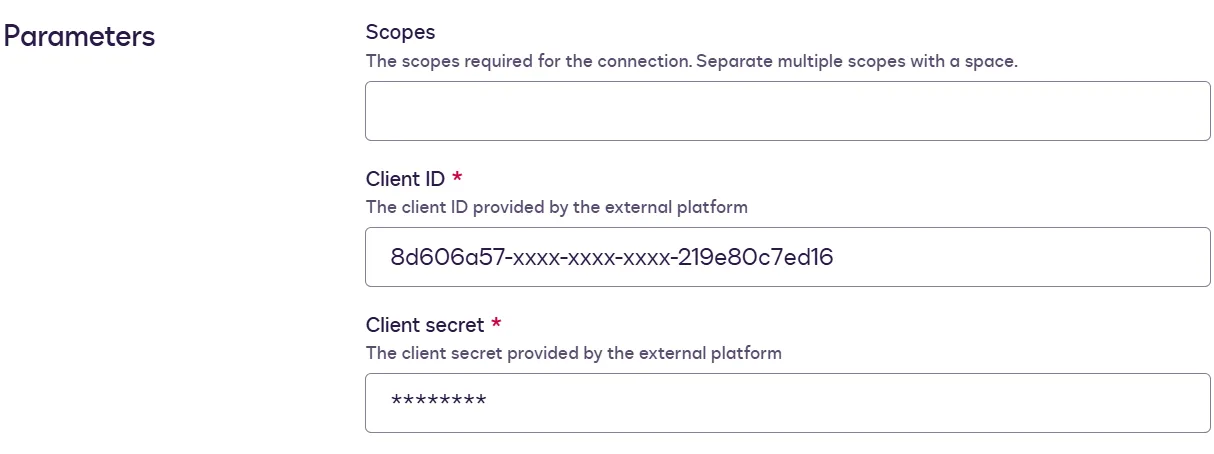
Scopes. Any scopes that are required for authorization. See Scopes for more information. If you are supplying more than one scope, separate them with spaces.
-
Client ID. The client ID that is required for authorization with the external platform.
-
Client secret. The client secret that is required for authorization with the external platform.
-
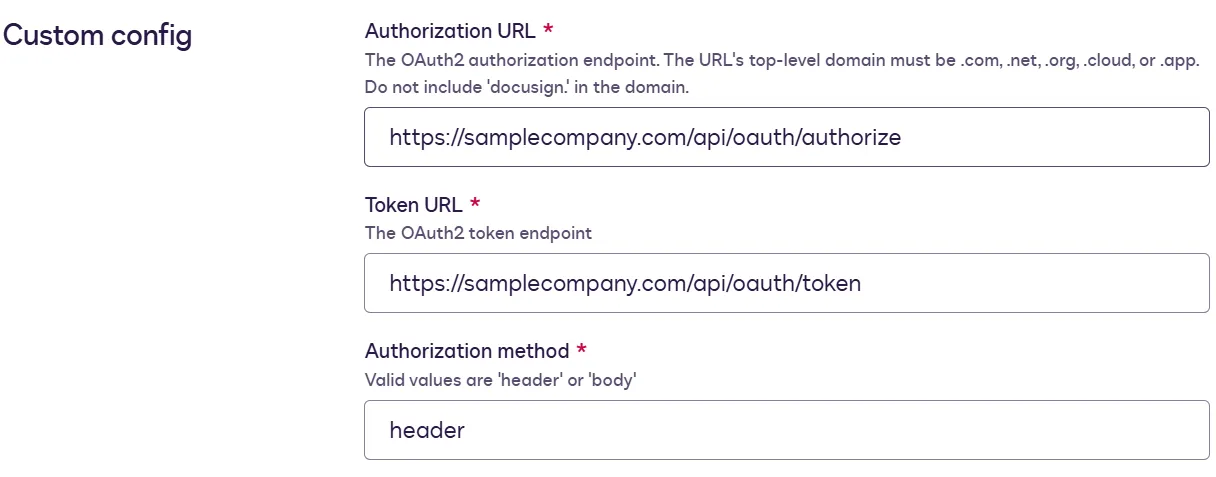
Authorization URL. The OAuth 2.0 authorization endpoint. When the Docusign platform makes a request to this endpoint, the external service returns an authorization code. The URL’s top-level domain must be one of the following:
.com,.net,.org,.app, or.cloud. Do not includedocusign.in the domain. If the OAuth 2.0 grant type is Client Credentials, this setting does not appear. -
Token URL. The OAuth 2.0 token endpoint. When the Docusign platform provides an authorization code in a request to this endpoint, the external service returns an access token that will be included in all subsequent API requests from the extension app to the external service.
-
Authorization method. If you set this value to header, when Docusign makes a request to the authorization URL, the client ID and client secret will be sent in the request header. If you set this to body, they will be sent in the request body.
-
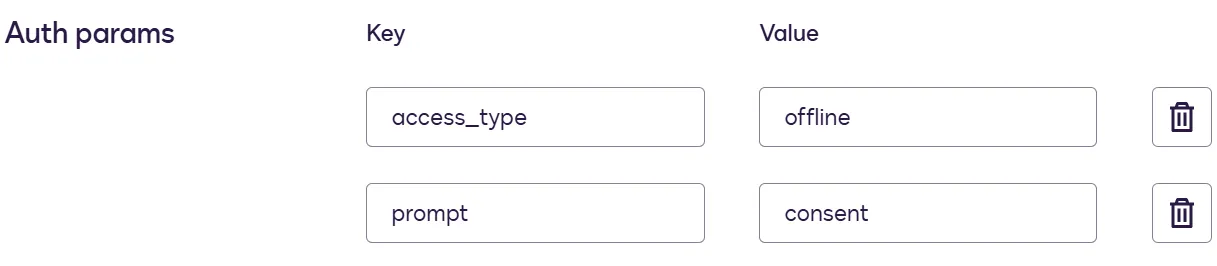
Auth params. A set of query parameters required for the authorization URL. If the OAuth 2.0 grant type is Client Credentials, this setting does not appear.
-
-
Select Save.
-
If prompted, re-enter the client secret and select Save.
Update extension and action settings
For the file IO extensions, you can add or remove capabilities only by editing the app manifest file. After you’ve added capabilities via the manifest file, you can edit them on the Integration Details page.
Extension and action settings determine which functionality the extension app offers, such as importing files from or writing files to cloud storage, reading data from or writing it to a system of record, or verifying customer information such as a bank account. These settings also provide the information that the Docusign platform uses to send requests to the external API endpoints that provide this functionality.
To update an extension app’s extension and action settings:
-
Under Extensions & Actions, locate the extension whose settings you want to define.
-
Select Edit.
-
Enter or update these values:
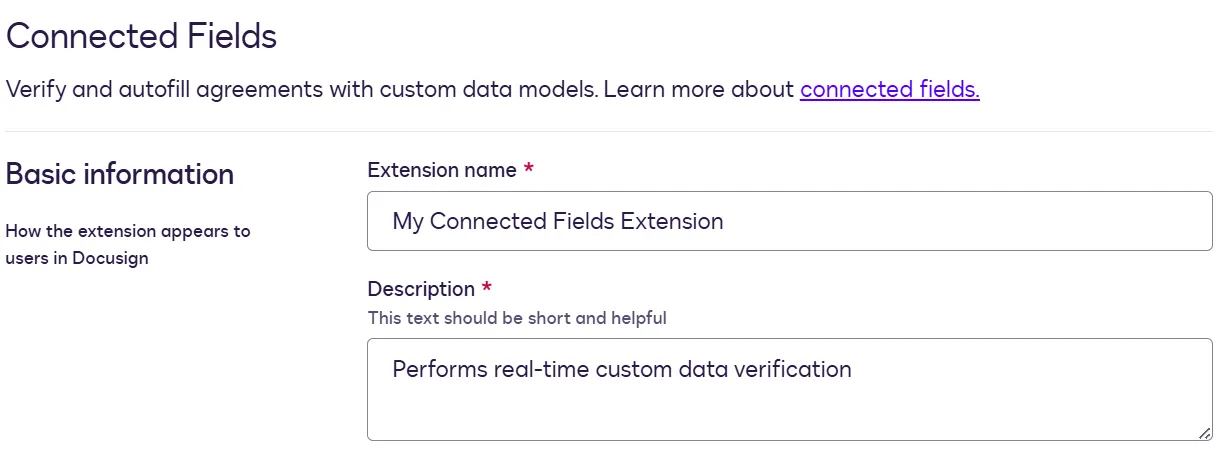
- Extension name. A name for the extension. For file input cloud storage extensions, the name will appear in a list of document sources on the Agreement Manager Upload Documents window. For file output cloud storage and file output system of record extensions, the name will appear on the Workflow Builder workflow step selection and step configuration screens.
- Description. A description for the extension. For file output cloud storage, file output system of record, and data IO extensions, this description will appear on the Workflow Builder workflow step selection screen.
-
For each of the extension’s actions, enter or update these values:
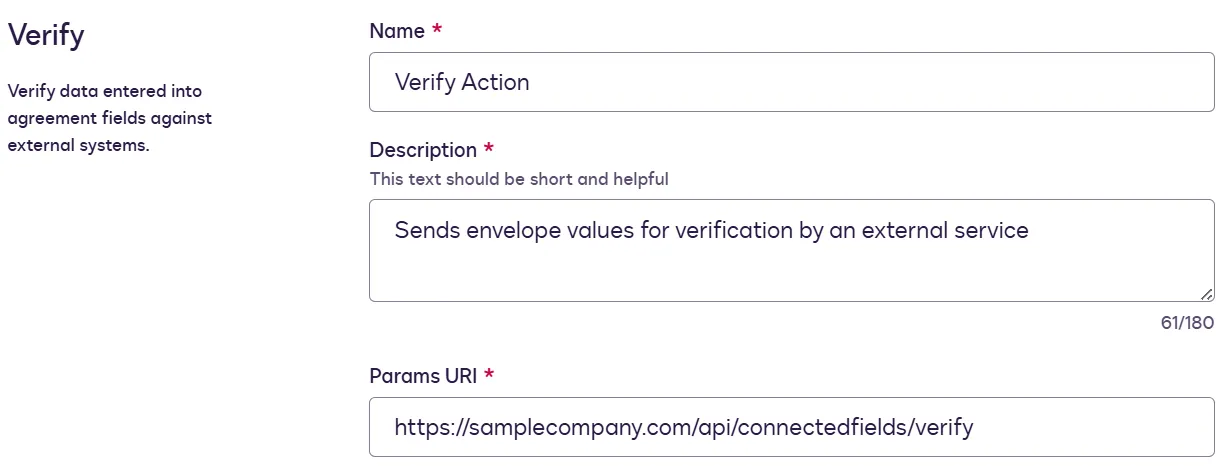
- Name. A name for the action. This name will appear on the Developer Console integration tests page. For file IO extensions, the name is not editable.
- Description. A description for the action.
- Params URI. The URI of the external API endpoint that will be called by the action.
-
Select Save.
Add an extension
To add an extension to an extension app registration:
-
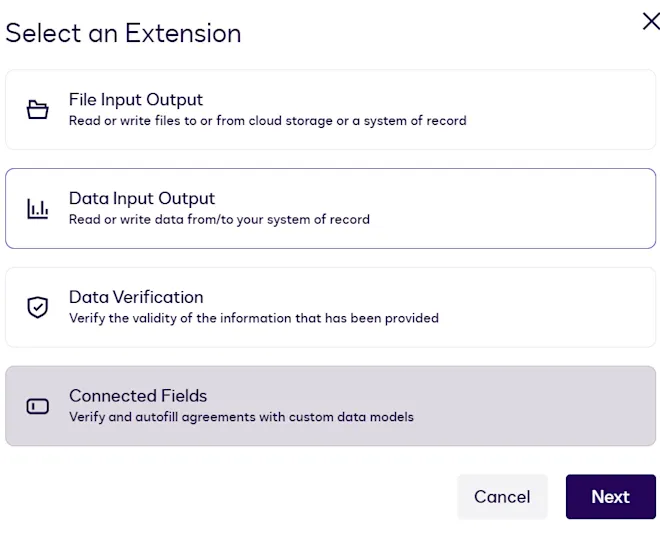
Under Extensions & Actions, select Add Extension.
-
Select an extension type and select Next. For information about the available types and the associated extensions, see Supported extensions.
-
Depending on the extension type you select, you may be presented with additional choices. For example, these choices are available for data IO:
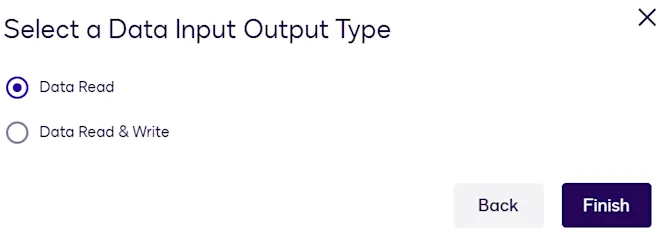
Make a selection, and select Finish.
-
Populate the extension and action values. See Update extension and action settings for descriptions of the values.
-
Select Save.
Delete an extension
To delete an extension from an extension app registration:
- Access the Integration Details page.
- Under Extensions & Actions, locate the extension you want to remove.
- Select Delete.
- Select Delete on the confirmation window.
Next steps
- Review the procedure to update the App Center listing for an extension app.
- See how to update an extension app registration by editing the app manifest file.