
File output tabular format extension contract reference
The file output tabular format extension exports data from a Workflow Builder workflow to an existing tabular format file stored in a cloud provider like Google Drive or Sharepoint.
You can include this extension when you register an extension app. If you register the extension app using a form, select the File Output Tabular Format extension in the form-based UI, as shown in this figure:
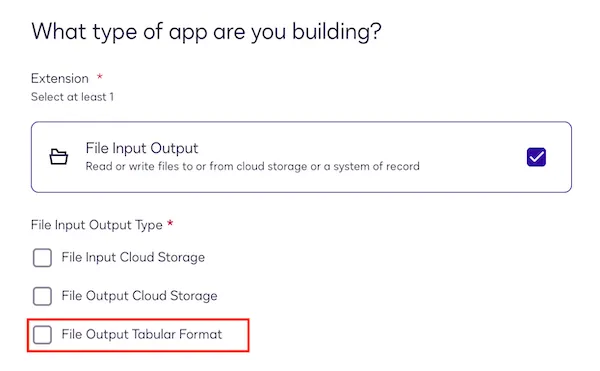
In the current release, users can export data only to an existing spreadsheet. Creating a new spreadsheet from within the extension is not yet supported.
If you register the extension app using an app manifest file, set the extensions.template value in your app manifest to FileIO.Version1.FileOutputTabularFormat.
This extension has two required actions and two optional capabilities. Below is a list of their identifiers as they appear in the form-based app registration UI and the app manifest. See Example extension app use cases for a complete sample app manifest for file output to tabular format.
During the form-based extension app registration process, if you select a file IO extension, its required actions are automatically added to the app. You can then configure the actions’ endpoint URIs and other properties on the Integration Details page. The extension’s optional capabilities can be added or removed only by editing the app manifest file. After you’ve added capabilities via the manifest file, you can edit them on the Integration Details page. See Action schema for information about action and capability properties in the app manifest file.
Action contracts
Export To Destination (FileIO.Version1.ExportToDestination)
This required action writes the exported data to a specified destination and can be triggered from a Maestro workflow. The data is passed as a 2D array of strings, where each sub-array represents a row, and headers are provided as an array of strings.
Export To Destination is responsible for validating headers, setting headers if absent, and exporting the data to the destination. An example implementation could involve retrieving destination headers, comparing them with provided headers for data integrity, setting headers if the destination is blank, and then appending rows if headers match, returning a success or failure response. If headers do not match, an error is returned to prevent data corruption. The app manifest defines how Maestro recognizes and executes the exportToDestination action within a workflow, including the configuration details needed to authenticate and call the backend process that performs the export.
HTTP method
This action initiates a POST request to the external API service.
Request
Response
List Headers (FileIO.Version1.ListHeaders)
This required action contract is called by the configurator to verify that the selected destination can accommodate the data being exported. During this step, the system checks whether the destination sheet contains enough columns to match the number of variables provided. If the column counts don’t align, the configurator prompts the user to create a new destination or adjust the selected fields. When the destination has enough columns to hold all exported values, the configuration process is considered complete.
The List Headers action is part of the ExportTabularData extension contract.
When registering an extension app using an app manifest file, the action must be defined in the actions object. See Action schema for details about the required properties. The action definition must include these values, which are specific to this action:
name: list-headerstemplate: FileIO.Version1.ListHeaders
The value from actions.name (list-headers) is included in the extensions.actionReferences array.
Request
The request requires the unique identifier of the target destination.
Response
The response indicates whether the operation was successful and may return column headers for reference. Variables are written to existing columns in order rather than by name.
List Directory Contents (FileIO.Version1.ListDirectoryContents)
This optional capability can be implemented for a file output tabular format extension. It returns a list of folders on the cloud storage system. If this capability is implemented, a workflow process builder can select from a list of folders when configuring a file output step or specify a naming convention for a new folder to be created.
Maestro can call List Directory Contents multiple times as a process builder configures a file output step, to enable the process builder to drill down in the folder structure. For example, the process builder can select Add Folder to choose a top-level folder. The process builder can then select Add Subfolder to choose a folder one level lower. Additional selections of Add Subfolder can be made to drill down further, and each time, a List Directory Contents request is executed.
List Directory Contents is the label that appears when you register an extension app using a guided, form-based process.
If you register your extension app using an app manifest file, make sure that you:
-
Include a definition for the capability in the
actionsobject. See Action schema for details about the required properties. The action definition must include these values, which are specific to this capability:name: list-directory-contentstemplate: FileIO.Version1.ListDirectoryContents
-
Include the value from the
actions.nameproperty in theextensions.actionReferencesarray. -
Include the value from the
actions.templateproperty in theextensions.capabilitiesarray.
See Extension schema for details about the actionReferences and capabilities arrays. See Example extension app use cases for a complete sample app manifest for file output to cloud storage.
HTTP method
This action initiates a POST request to the external API service.
Request
Request when List Directory Contents is called after after a process builder selects a drive (or similar container type) and then selects Add Folder:
Response
List Drives (FileIO.Version1.ListDrives)
This optional capability can be implemented for a file output cloud storage extension. It returns the drives available in the cloud storage system. If this capability is implemented, a workflow process builder can select from a list of drives when configuring a file output step.
Note: If the cloud storage system does not have the concept of drives and instead organizes folders and files under a different container type, this capability can retrieve a list of those containers instead. They will appear in the file output step configuration pageʼs Select drive list.
List Drives is the label that appears when you register an extension app using a guided, form-based process.
If you register your extension app using an app manifest file, make sure that you:
-
Include a definition for the capability in the
actionsobject. See Action schema for details about the required properties. The action definition must include these values, which are specific to this capability:name: list-drivestemplate: FileIO.Version1.ListDrives
-
Include the value from the
actions.nameproperty in theextensions.actionReferencesarray. -
Include the value from the
actions.templateproperty in theextensions.capabilitiesarray.
See Extension schema for details about the actionReferences and capabilities arrays. See Example extension app use cases for a complete sample app manifest for file output to cloud storage.
HTTP method
This action initiates a POST request to the external API service.
Request
Response
Error handling
The external system should return a 200 response code to Docusign if a request succeeded. Any other response code indicates that the request was not successfully executed.
This applies to all actions and capabilities. Developers are responsible for providing a code and message for each error.
Next steps
- Get an overview of the file output tabular format extension and how it can be used.
- Explore different options for testing your extension.
- Find out about other supported extensions.