
Use a form to register an extension app
This procedure explains how to register an extension app using a form. You also have the option of registering an extension app by constructing a JSON app manifest file. See Form-based and app manifest method comparison for guidance about which method might be more useful.
Before starting this procedure, make sure that you have completed or obtained the items listed in Prerequisites for registering an extension app.
To register an extension app using a form:
-
Log in to the Developer Console.
-
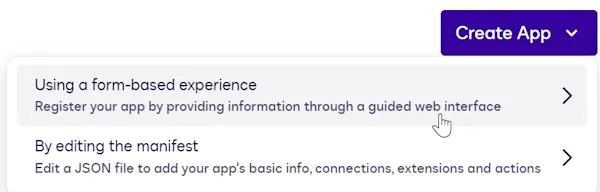
Select Create App, and then Using a form-based experience.
-
Enter basic information about the app:
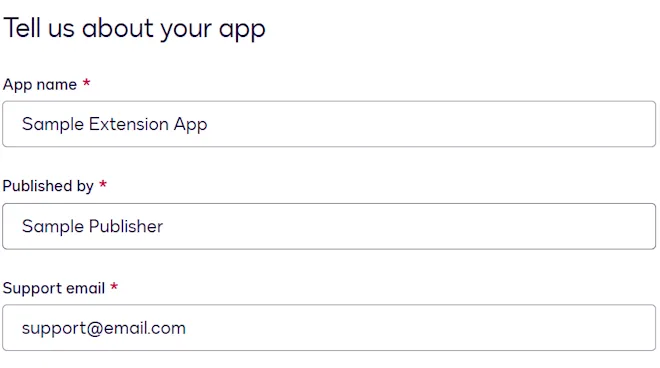
- App name. The name of your extension app. This value must be unique; the maximum length is 30 characters. This name will appear in the Docusign App Center listing for your extension app. For a data IO extension, this name will appear in workflows on the step selection and step configuration screens. For a data verification extension, this name will appear in the Add Fields view when adding the extension to an envelope or template.
- Published by. The name of the extension app publisher. This value will appear with your extension app’s name in all App Center locations that list your app. This value will also appear on your extension app’s detail page in the App Center as the Developer.
- Support email. The email address of the extension app publisher. This will appear under Resources in the App Center listing.
-
Supply these values:
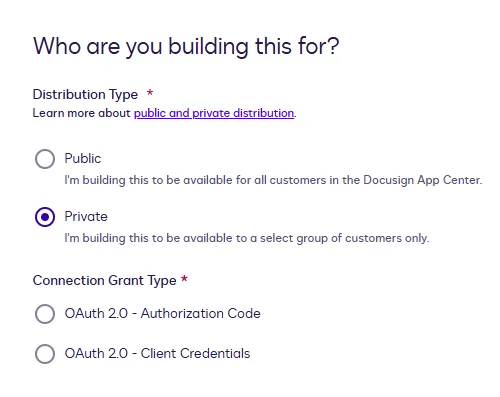
- Distribution Type. Determines whether your extension app will be available in production to all users (public distribution) or only to users in accounts that you specify. To publish a public extension app, you must join the Docusign Partner Program. For more information, see Choosing private distribution instead of public. Note: Once an app has been published, its distribution type cannot be changed.
- Connection Grant Type. Determines whether your extension app will use Authorization Code Grant or Client Credentials Grant to authorize its access to your platform. Client Credentials Grant can only be selected if your Distribution Type is set to Private.
-
Select the extensions to include. See Supported extensions for descriptions of each extension, their extension points, and links to more information.
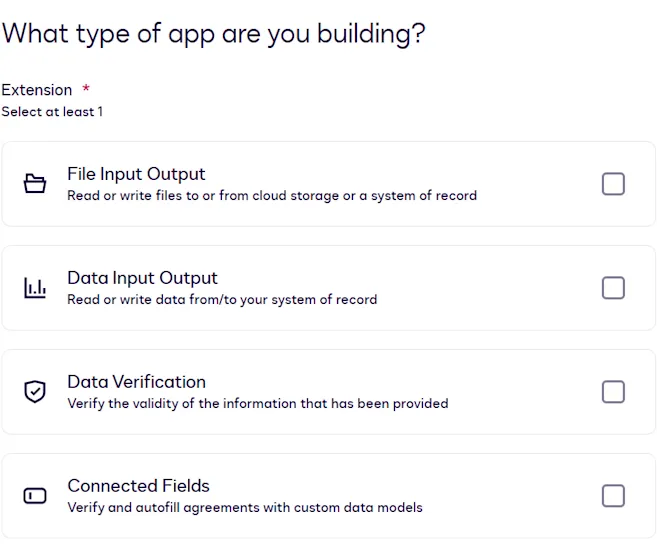
If you select File Input Output, you can select from the supported extensions of that type.
When registering an extension app, you cannot include both a file output system of record extension and a file output cloud storage extension in the same app. If you need to use both types of output in workflows, register a separate app for each extension.
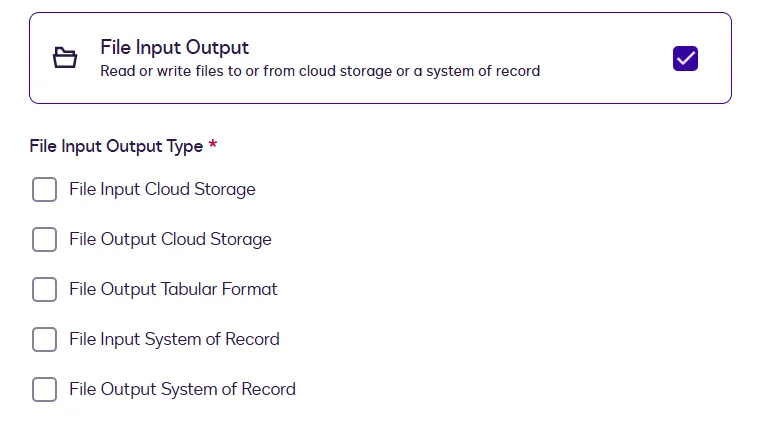
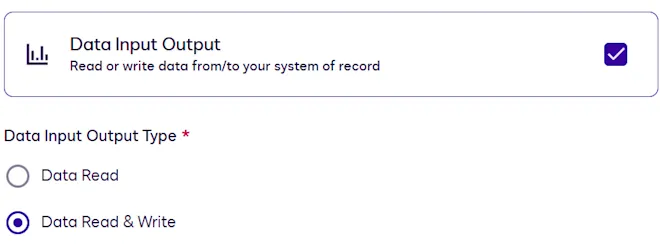
If you select Data Input Output, you have the option to select whether the extension app will only read data from a system of record or whether it will both read from and write to the system of record.
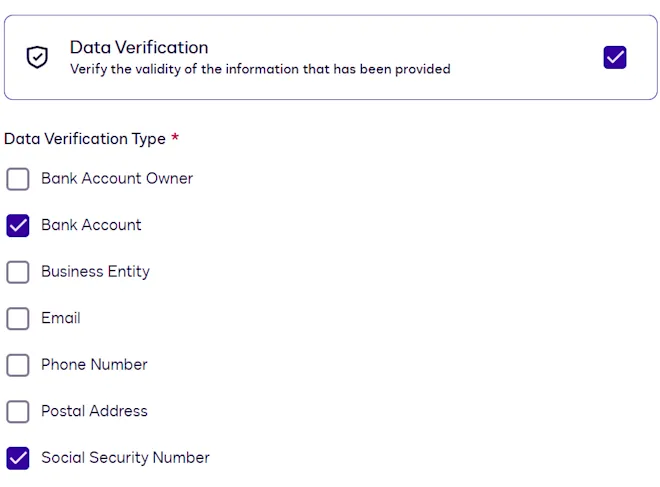
If you select Data Verification, you can select the type of data the extension app will verify.
-
Select Create App.
-
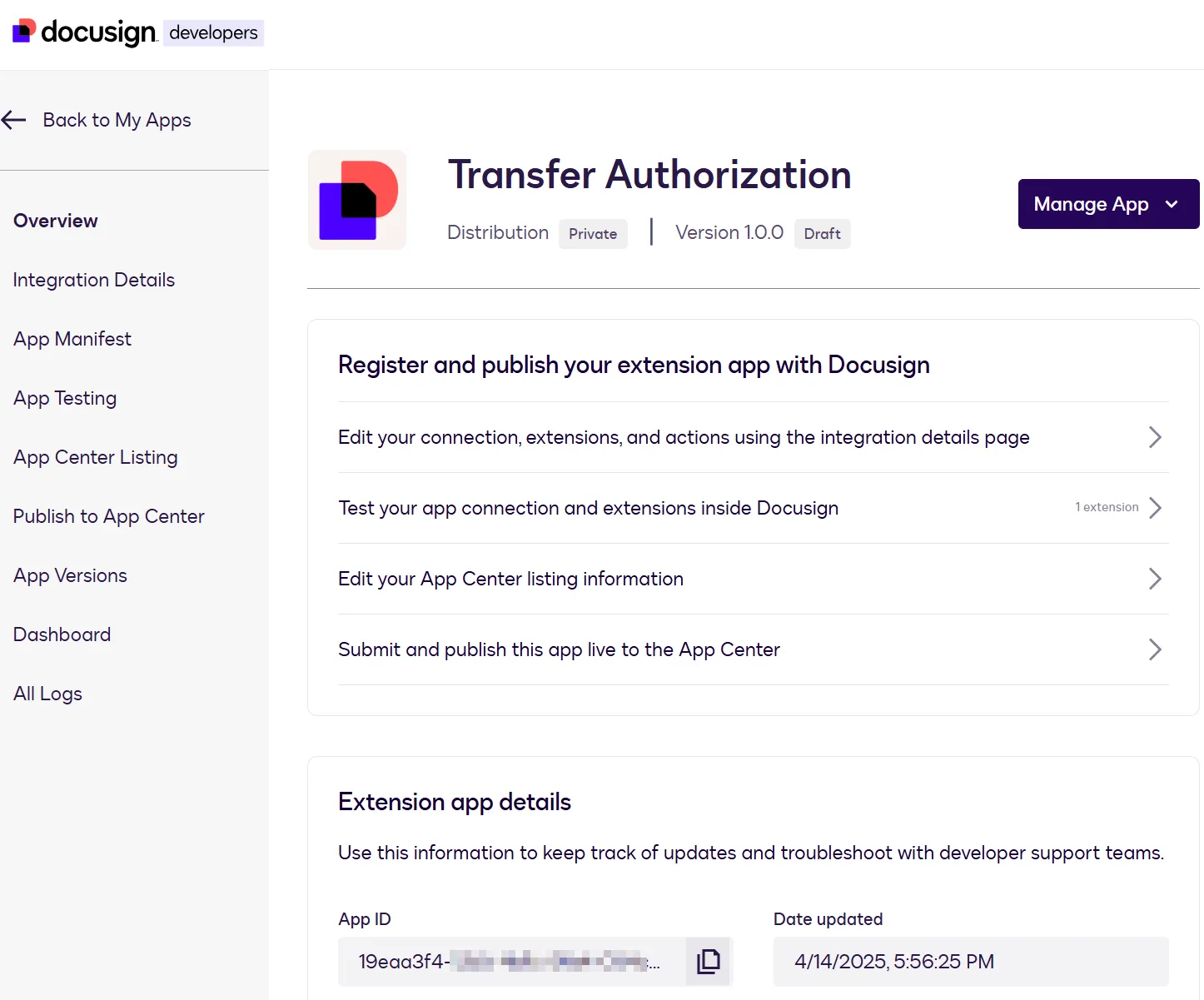
A basic extension app registration and app manifest file are created, and the extension app Overview page is displayed.
Steps to complete extension app registration
Although your extension app registration has been created, you must complete these additional steps to supply all the required information:
-
Update the App Center listing: Define the text and images that will be displayed to App Center users.
-
Update the integration details: Define the settings required to obtain authorization and connect to the external API endpoints for the actions and capabilities. You must complete this step before you can use the Developer Console’s extension app testing features.
During the form-based extension app registration process, if you select a file IO extension, its required actions are automatically added to the app. You can then configure the actions’ endpoint URIs and other properties on the Integration Details page. The extension’s optional capabilities can be added or removed only by editing the app manifest file. After you’ve added capabilities via the manifest file, you can edit them on the Integration Details page. See Action schema for information about action and capability properties in the app manifest file.
Next steps
- Find out how to register an extension app using an app manifest file.
- Review the options for updating extension app registration details.
- Learn how to test an extension app.