
How to request a signature by email
This topic demonstrates how to send a signature request via an email, also known as a remote signature request or remote signing. The email will contain a signing link that the recipient can use to open and electronically sign a document using the Docusign mobile app or the Docusign website. After signing is complete, the recipient receives a carbon copy (CC) of the email that includes all of the completed and signed documents.
This example scenario also demonstrates how to:
- Use anchor tabs to automatically position tabs in documents at instances of a specified string.
- Include signing documents in several formats (a customized HTML file, a DOCX file, and a PDF file in the envelope).
Run this code example from our Quickstart or launcher projects: Bash, C#, Java, Node.js, PHP, PowerShell, Python, or Ruby.
Required data
Running the code in this how-to requires this data:
Step 1. Obtain your OAuth token
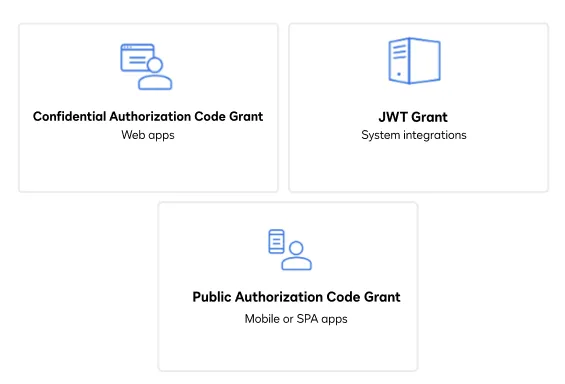
To make the API call shown in this how-to, you need a valid OAuth access token. Docusign supports access tokens for three different recommended OAuth grant types: Public Authorization Code Grant, Confidential Authorization Code Grant, and JSON Web Token (JWT) Grant. Choose the OAuth grant type appropriate for your scenario.
See Confidential Authorization Code Grant for guidance on your options to get an Confidential Authorization Code Grant OAuth token.
Step 2. Create the envelope definition
The first step in requesting a signature by email is to create a new envelope definition. This topic shows how to create an individual envelope by defining a method named makeEnvelope that creates the envelope definition. The makeEnvelope method demonstrates how to:
- Create a new, signable HTML document in code.
- Attach multiple documents to the envelope.
- Set signer and CC recipient data.
- Create a routing order for the documents.
- Create and assign signable fields to specific signers within the documents.
Define the makeEnvelope method with this code.
Step 3. Create and send the envelope
Next, you use the definition of the envelope that you created in the makeEnvelope method in Step 2 to create a new envelope and send it, adding your access token and base path to the request header.
When the envelope is sent, the documents inside it will be delivered to the email address you specified for signing. The API returns the ID and status of the new envelope.
Expected response
If you run this code example from our Quickstart or launcher projects, you should see a JSON response similar to the code shown.
In addition, the signer receives an email containing a signing link that they can use to open and electronically sign a document using the Docusign mobile app or the Docusign website. After signing is complete, the recipient receives a carbon copy (CC) of the email that includes all of the completed and signed documents.
Next steps
- Run this code example from our Quickstart or launcher projects: Bash, C#, Java, Node.js, PHP, PowerShell, Python, or Ruby.
- Find out more about anchor tabs.
- Learn How to request a signature through your app.
- See how to Go-Live with a completed app and find the base path for API calls in the production environment.