
Specify conditional recipients
You can customize a signature workflow to have a different set of recipients sign a document only if specific conditions are met. This feature, called conditional recipients, is one of a suite of eSignature platform features collectively known as Advanced Recipient Routing (ARR).
Why specify conditional recipients?
By default, signature workflows are predetermined; you define specific recipients who sign documents in a set order determined by the envelope definition. However, some business processes require that different groups of people sign a document depending on different conditions. For these scenarios, the conditional recipients feature enables you to embed conditional logic and control the signature workflow directly within an envelope or template. This helps you avoid having to create multiple templates to handle different signing conditions and manage conditional logic in an integration.
- Alternate signers: You can set the entity who signs a document based on a condition. For example, with purchase order approvals, you might specify one signer for amounts up to a given figure, and another signer for amounts above that figure.
- Adding signers: You can require additional signatures if a condition is met. With a sales contract, for example, you might specify different discount levels at which additional signers can be required. One example would be that a manager has to sign up to a 20% discount, a VP for a 40% discount, and a CFO for a 60% discount.
- Choosing signers: You can conditionally choose among sets of signers. In a university, for instance, a student’s application for admission or tuition assistance might go through the dean’s office, but then to whichever one of the several dozen academic departments matches the student’s major.
Using conditional recipients, each of these scenarios can be handled with a single template.
How conditional recipients work
The eSignature REST API provides an object named workflow that defines a workflow and specifies conditional recipients for an envelope. The workflow object can also be used to pause and unpause a signature workflow.
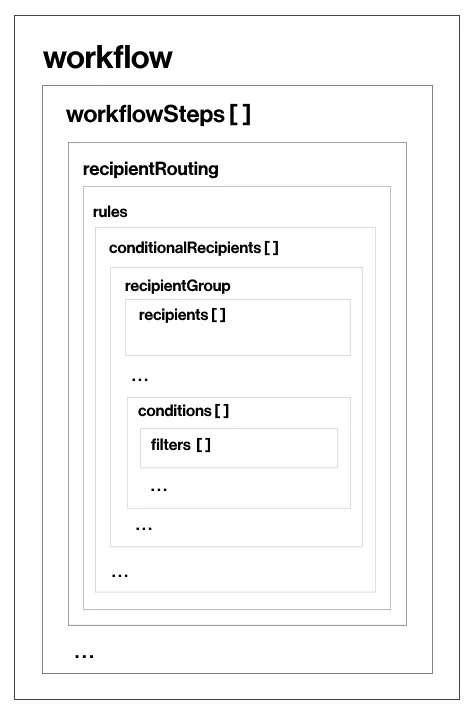
The following diagram shows the structure of the workflow object:
-
The
workflowobject containsworkflowSteps, an array of objects that define each step in the workflow. -
Each object in the
workflowStepsarray contains arecipientRoutingproperty, which in turn contains arulesobject. -
Each rules object contains a
conditionalRecipientsarray. Each entry in this array represents a rule that can define a set of recipients and the conditions under which they will be used for your envelope by setting:- An array of conditions that define when the conditional recipients will be used, including the step(s) in the workflow where the condition applies
- An array of recipients that will be used for the envelope if all of the defined conditions are met
See How to use conditional recipients for details on how to use set and use conditional recipients in a workflow.
Next steps
For details and full example code that demonstrates how to specify conditional recipients, see:
For more features of Advanced Recipient Routing, see: