
How to download envelope documents
This topic demonstrates how to retrieve documents from an envelope, such as the generated Certificate of Completion (which is created when a document is completed), a composite PDF of all documents, a ZIP file containing everything, or a specific document within the envelope.
Before you download documents from an envelope, you will need to know the name or ID of the document that you want. You can get a list of envelope documents to obtain this information.
Run this code example from our Quickstart or launcher projects: Bash, C#, Java, Node.js, PHP, PowerShell, Python, or Ruby.
Required data
Running the code in this how-to requires this data:
Step 1. Obtain your OAuth token
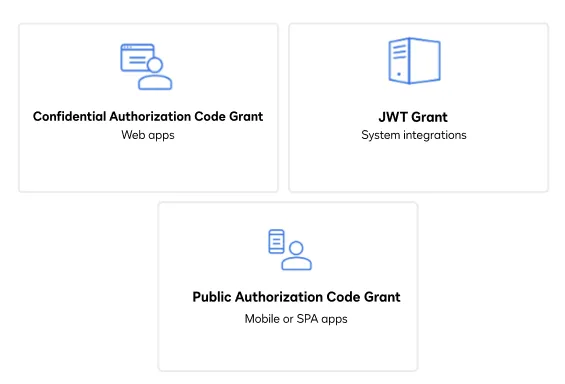
To make the API call shown in this how-to, you need a valid OAuth access token. Docusign supports access tokens for three different recommended OAuth grant types: Public Authorization Code Grant, Confidential Authorization Code Grant, and JSON Web Token (JWT) Grant. Choose the OAuth grant type appropriate for your scenario.
See Confidential Authorization Code Grant for guidance on your options to get an Confidential Authorization Code Grant OAuth token.
Step 2. Construct your API headers
After you have a valid OAuth access token, you are ready to construct the API headers that you will pass to the API call. Construct your headers like this, but make sure to substitute your valid OAuth access token for {ACCESS_TOKEN}.
Step 3. Call the eSignature REST API
Now that you have constructed your API headers, make a request to the eSignature REST API EnvelopeDocuments:get
endpoint to download the document or documents you want. Here’s how you make the call, but make sure to substitute your API account ID for {ACCOUNT_ID}, envelope ID for {ENVELOPE_ID}, and document ID for {DOCUMENT_ID}.
The document ID specifies the document or documents that you want to download. You can use the document ID itself or one of the following keywords.
combined: Retrieves a PDF file that contains the combined content of all of the documents. If the account option Attach certification of completion to envelope is on, then the Certificate of Completion is also included in the PDF file. You set this account option in the Admin tool on the Signing Settings screen, or by setting theattachCompletedEnvelopeproperty in theaccountSettingsobject totrue.archive: Retrieves a ZIP archive that contains all of the PDF documents and the Certificate of Completion.certificate: Retrieves the Certificate of Completion as a PDF file.portfolio: Retrieves the envelope documents as a PDF portfolio.
Expected response
You should receive the Certificate of Completion, a composite PDF of all documents, a ZIP file containing everything, or a specific document within the envelope.
Next steps
- Run this code example from our Quickstart or launcher projects: Bash, C#, Java, Node.js, PHP, PowerShell, Python, or Ruby.
- See complete documentation of the EnvelopeDocuments:get endpoint in the API Reference.
- Learn more about documents or envelopes.
- See how to Go-Live with a completed app and find the base path for API calls in the production environment.