
Branding
You can customize the look and feel of the emails and envelopes that you send out for signature using the branding feature. Branding enables you to add visual elements, such logos and colors, to:
- Customize your app’s signing experience
- Customize your app’s sending experience
- Enforce brand consistency across your account
You can create multiple brands in your Docusign account to represent different corporate brands or internal departments (custom groups). You can also manage brand access for users in your account.
You can configure branding on the Brands page of eSignature Admin or through the eSignature REST API AccountBrands Resource.
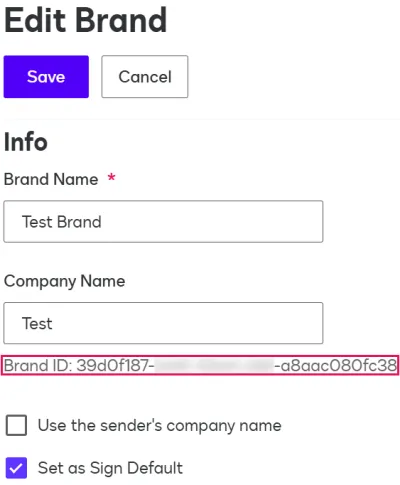
A brand is identified by its ID, which is a GUID. You can reference this ID in API calls that update or retrieve information about a brand. To obtain a brand’s ID, you can do either of the following:
- Send an AccountBrands:list request to retrieve details about all brands in your account.
- Locate the brand on the eSignature Admin Brands page and select Edit. The brand detail page displays the brand ID.
What you can set in a brand
Branding enables you to add your organization’s visual identity to your integration’s eSignature sending and signing views. This helps maintain a consistent user experience for your organization.
For the signing view, you can:
- Set the colors of the UI
- Set a custom logo
- Set a new redirect URL for all branded envelopes
- Add your own set of header and footer links
- Set a default language and specify additional languages available to signers
- Update a resource file that controls text in emails and in the signing view
For the sending view, you can:
- Set the colors of the UI
- Set a custom logo
- Set footer links
For brand management, you can:
- Set your brand as the default used for all envelopes created by your account. You can also manually specify which brand to use each time you create a new envelope.
- Assign brands to one or more Groups defined for your account. Only users who belong to a group that has been assigned a brand may use it, unless it is set as the default brand. See Assign Brands to Groups for details.
For more information on setting up brands, see From the Trenches: Apply your brand to your Docusign emails or try the Government Sample App.
Next steps
Working with brands? See code examples on:
- How to create a brand
- How to apply a brand to an envelope
- How to apply a brand and template to an envelope
See AccountBrands Resource for details about API requests related to brands.
See Brands in the eSignature Admin Guide for details on working with brands using the UI.