
Document generation
Document generation enables you to create reusable templates with professionally formatted documents that include personalized data. For example, you can create a boilerplate employment offer letter that’s updated with job details from an HR system for each candidate.
To create a document that can be populated with custom data, you include placeholders, known as sender fields, that will be replaced with values specific to each agreement before you send an envelope. If the document is an offer of employment, you can define sender fields for the job title, salary, start date, and any other information that varies with each offer.
In addition, you can define conditional sender fields that display text based on values in other sender fields. For example, an employment offer can list a different supervisor name depending on the job title. You can also define dynamic tables that can be populated with agreement-specific values in each row, such as compensation package components and their corresponding amounts in an offer letter.
The custom data values are seamlessly incorporated into the final document that is sent to the recipient. The document looks as if it was generated specifically for that user, with no visible traces of the placeholders.
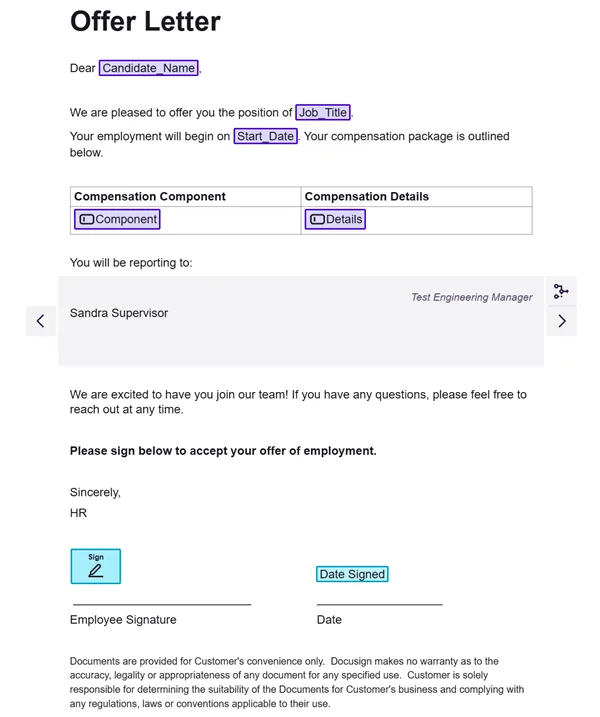
For example, this Word document contains the sender fields Candidate_Name, Job_Title, and Start_Date. It also contains a dynamic table that includes Component and Details sender fields that will appear in each row. This table can be populated with as many rows as necessary when the agreement is generated. In addition, the document includes conditional logic to display the appropriate manager name, based on the provided job title.
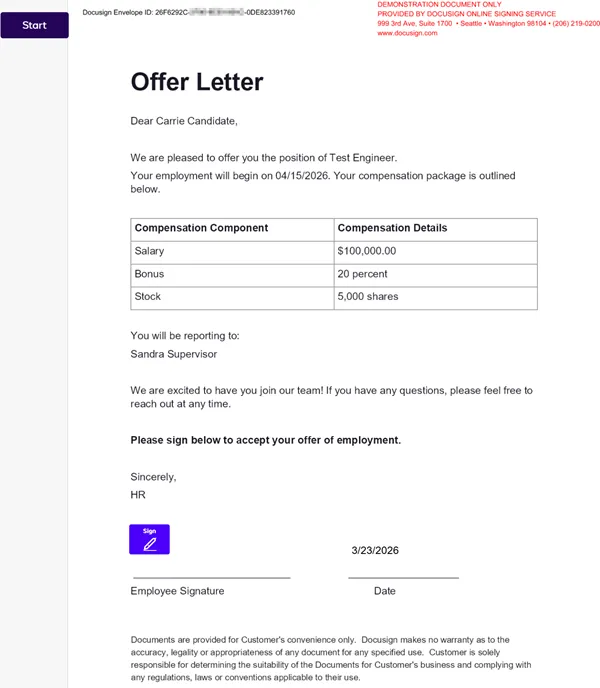
In the final document sent to the recipient, the sender fields are replaced with values specific to that agreement and the dynamic table is populated with the number of rows supplied for the agreement, as shown here. Recipients cannot edit these values.
Document generation is available in all developer accounts, but must be purchased for production account plans. Contact Docusign Support or your account manager to find out whether document generation is available for your production account plan.
Document generation process
To create and send envelopes that use document generation:
- Create the document or documents that contain sender fields. The documents must be included in a template. See Methods for creating documents for an overview of the options.
- Implement the sequence of API requests or SDK methods to create envelopes from the template, populate the documents with custom data, and send the envelopes to recipients.
Methods for creating documents
For each document that will include sender fields, create a DOCX file. Other file types are not supported with document generation.
Options for creating the file are listed below. For guidance on which editor may be more appropriate to use, see Choosing Between Document Editors.
- Recommended: Use the Agreement Template Builder to create a template; add a DOCX file to it; add sender fields, conditional logic, and dynamic tables; and preview the document with sample data.
- Alternative option: Use the Docusign Template Assistant for Word add-in to add sender fields, conditional logic, and dynamic tables to a DOCX file; preview the document with sample data; and upload the document to an eSignature template.
- Manually add the sender field syntax to a DOCX file. This method, while not recommended for creating many sender fields, can be used when making minor changes or when configuring dynamic tables in ways not supported in the Agreement Template Builder or the Template Assistant table editor. See Table definition behaviors and restrictions for details.
Sender field types
Document generation supports the sender field types listed below. The Field type column in the table contains the type identifier used in API requests and responses. See Retrieve and populate sender fields for an example response.
File size and field limits
The following limits apply to document generation files created via an editor.
When you use dynamic tables, the number of sender field values in generated agreements will vary depending on how many table rows are populated. For example, a DOCX file might have 25 sender fields in the text, plus a dynamic table definition containing five columns with a sender field in each column. In this case, the total number of sender fields will be 30. If the dynamic table in a generated agreement has 100 rows, then the total number of sender field values in the agreement will be 525 (five sender field values per table row multiplied by 100 rows, plus the 25 sender field values from the text).
Implement sequence of API requests
You have several options for implementing a sequence of API requests or SDK methods to customize and send documents to your recipients. The next sections contain example sequences of implementation steps. In the first sequence, the Agreement Template Builder is used to create a template, add a DOCX file to it, and add sender fields. In the second sequence, the Docusign Template Assistant for Word is used to create a document with sender fields. The third sequence assumes that you will manually add sender field syntax to the DOCX file.
The eSignature SDKs have equivalent methods in all the supported programming languages for each API request referenced in the sample sequences below.
Sample sequence using the Agreement Template Builder
Below is a sample sequence of document generation implementation steps consisting of API requests and tasks completed in the Agreement Template Builder.
- Use the Agreement Template Builder to create a document generation template that includes your DOCX file, and add sender fields, tabs, and dynamic tables to the DOCX file. This is a one-time setup task. Once you have created the template, you can reuse it with multiple envelopes.
- Envelopes:create: Creates a draft envelope from the template.
- DocumentGeneration:getEnvelopeDocGenFormFields: Retrieves a list of sender fields from the document, including the field names, types, and dynamic table structure.
- DocumentGeneration:updateEnvelopeDocGenFormFields: Updates sender fields with agreement-specific values that will be displayed in the document in the signing UI. See Retrieve and populate sender fields for more information.
- Envelopes:update: Sends the draft envelope.
Sample sequence using Docusign Template Assistant for Word
Below is a sample sequence of document generation implementation steps consisting of API requests and tasks completed via the Docusign Template Assistant for Word.
- Templates:create: Creates a template. As an alternative to creating a template via an API request, you can create it in the eSignature web application.
- Use the Docusign Template Assistant for Word to add sender fields and dynamic tables to the document.
- Use the Docusign Template Assistant for Word to upload the document to the template created in step 1. Instead of first creating the template and then uploading a document, you can create a new template during the document upload.
- TemplateRecipientTabs:create: Adds tabs to the document. You can also add tabs in the eSignature web application. This step and the previous three make up an initial setup process. Once you have completed this process, you can reuse the template with multiple envelopes.
- Envelopes:create: Creates a draft envelope from the template.
- DocumentGeneration:getEnvelopeDocGenFormFields: Retrieves a list of sender fields from the document, including the field names, types, and table structure for dynamic tables.
- DocumentGeneration:updateEnvelopeDocGenFormFields: Updates sender fields with agreement-specific values that will be displayed in the document in the signing UI. See Retrieve and populate sender fields for more information.
- Envelopes:update: Sends the draft envelope.
Sample sequence with manually created sender field syntax
Below is a sample sequence of document generation implementation steps consisting of API requests and manual addition of sender field syntax to a DOCX file.
For ease of use and to reduce the risk of syntax errors, Docusign recommends using the Agreement Template Builder or the Docusign Template Assistant for Word rather than manually creating sender field syntax.
- Manually add sender field syntax to a DOCX file.
- Templates:create: Creates a template. As an alternative to creating a template via an API request, you can create it in the eSignature web application.
- TemplateDocuments:update: Adds the document with sender fields to the template. The document is supplied in this request as a Base64-encoded string. You can also add a document to a template in the eSignature web application.
- TemplateRecipientTabs:create: Adds tabs to the document. You can also add tabs in the eSignature web application. This step and the previous three make up an initial setup process. Once you have completed this process, you can reuse the template with multiple envelopes.
- Envelopes:create: Creates a draft envelope from the template.
- DocumentGeneration:getEnvelopeDocGenFormFields: Retrieves a list of sender fields from the document, including the field names, types, and table structure for dynamic tables.
- DocumentGeneration:updateEnvelopeDocGenFormFields: Updates sender fields with agreement-specific values that will be displayed in the document in the signing UI. See Retrieve and populate sender fields for more information.
- Envelopes:update: Sends the draft envelope.
A walkthrough of this sequence, including code examples, appears in How to request a signature by email with document generation.
Retrieve and populate sender fields
Regardless of which method you use to create a DOCX file, Docusign automatically extracts sender field and dynamic table information and stores it with the document in the docGenFormFields array. When you use the Agreement Template Builder, this information is automatically extracted when you save the template. For documents created via the Docusign Template Assistant for Word, Docusign extracts this information when you upload the document to a template. For documents to which sender field syntax has been added manually, the information is extracted when you add the document to a template via a TemplateDocuments:update API request or equivalent SDK method, or when you add it to the template in the eSignature web application.
You can retrieve a list of a document’s sender field names and types and dynamic table structure via a DocumentGeneration:getEnvelopeDocGenFormFields request or an equivalent SDK method.
Here’s an example of a list of sender fields that were created in the Agreement Template Builder:
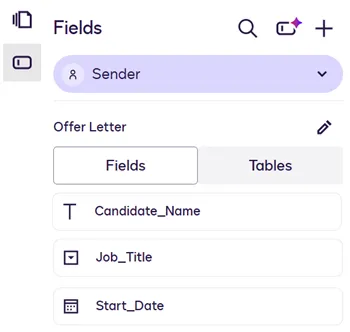
The response to a DocumentGeneration:getEnvelopeDocGenFormFields request for the document includes each field name and type, the dynamic table structure, and other details:
Once you’ve retrieved the list of sender fields (and the table definition, if the DOCX file includes a dynamic table), you can populate these elements with recipient-specific values via a DocumentGeneration:updateEnvelopeDocGenFormFields request or equivalent SDK method. The request only needs to reference the name and value for each sender field, as shown in How to request a signature by email with document generation. See Dynamic tables for details about retrieving and populating sender fields that appear in a dynamic table.
Make sure that the sender field names in the DocumentGeneration:updateEnvelopeDocGenFormFields request match the name values in the DocumentGeneration:getEnvelopeDocGenFormFields response. Depending on the method used to create the document, the names might be Docusign-generated strings, like the ones shown in the example response above.
Validation of sender field values
Docusign does not validate number, date, or select sender field values populated via a DocumentGeneration:updateEnvelopeDocGenFormFields request or equivalent SDK method. The request can succeed even if a number or date field value is not a valid number or date, or if a select field value is not one of the allowed values. Date, number, and select field validation will be implemented in a future release.
If you create a document generation envelope in the eSignature web application, sender field values are validated upon entry. Number and date field values must be in the correct format. For select fields, the application displays a dropdown that lists only the allowed values.
Dynamic tables
You can use document generation sender fields in a dynamic table structure that accommodates varying numbers of rows for each agreement. For example, an employment offer might contain a table of compensation package components that differs for each offer. One candidate’s offer might include rows for salary and annual bonus, while another offer might include additional rows for company stock and a signing bonus.
Define table structure
To use a dynamic table, you must define its structure. The table definition includes a name and the sender fields that appear in the columns.
Below is an example dynamic table definition in the Agreement Template Builder:
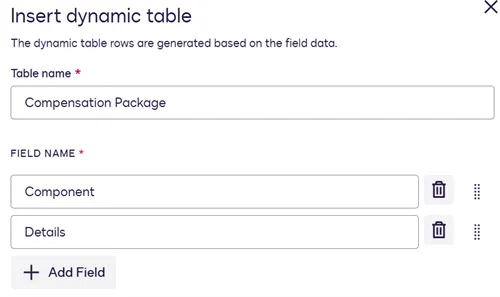 The table definition includes the fields that will appear in each data row. The number of rows displayed in each agreement is determined by the API request that populates the sender fields for that agreement. See Populate dynamic table values for details.
The table name and sender field names entered during table definition do not appear in agreements that are displayed to users. Table column headings are defined as static text in the DOCX file. The column headings cannot be retrieved or populated via API requests.
These methods are available for defining table structure in a DOCX file:
- Recommended: Use the Agreement Template Builder to define a dynamic table and insert it into the DOCX file. See Insert a Dynamic Table for details.
- Alternative option: Use the Docusign Template Assistant for Word to define a dynamic table and insert it into the DOCX file. See Create a Dynamic Table With the Template Assistant for details.
- Manually add sender field syntax to a table in the DOCX file. Although the preferred method is to use the Agreement Template Builder, you may need to manually add sender field syntax if you are configuring dynamic tables in ways not supported in the Agreement Template Builder. See Table definition behaviors and restrictions for details.
Table definition behaviors and restrictions
Table definitions are subject to these behaviors and restrictions:
- Table definition names must be unique within a document, for documents that have more than one dynamic table.
- The same sender field can be used in more than one dynamic table, but values are not reused across tables. See Table value behaviors and restrictions for details.
- The same sender field can be used both in a dynamic table column and in regular text in the document, but values are not reused between regular text and dynamic tables. See Table value behaviors and restrictions for details.
- The same table column can include more than one sender field. For example, for a column that contains a full name, the document creator might need to include two sender fields in the column—one for the first name and one for the last name. However, the Agreement Template Builder and the Docusign Template Assistant for Word only support one sender field per column. To include a second sender field in the same column, the document creator would have to manually add the field to the column in the DOCX file.
- The same sender field can be included in more than one column in the same dynamic table, but you must manually insert the sender field in any additional columns. The Agreement Template Builder and the Docusign Template Assistant for Word do not support inserting the same sender field into more than one column.
- Only
TextBoxtype sender fields can be used in dynamic table columns. Other sender field types are not supported in dynamic table columns in the current release. - In the current release, calculations cannot be performed on values from sender fields in dynamic tables.
Retrieve table definition
To populate rows in a dynamic table, your application must first retrieve the table definition, which lists the sender fields that appear in each row. The table definition, as well as details about all other sender fields in a document generation document, is included in the response to the DocumentGeneration:getEnvelopeDocGenFormFields request. See Implement sequence of API requests for details about how this request fits into an overall document generation flow.
The following example shows a dynamic table definition from a DocumentGeneration:getEnvelopeDocGenFormFields response. Key properties are:
type: The valueTableRowidentifies this as a dynamic table definition.name: The name of the table definition must be referenced in the DocumentGeneration:updateEnvelopeDocGenFormFields request to populate table values.rowValues.docGenFormFieldList: An array of sender fields that will appear in each row. The sender field names must be referenced in theDocumentGeneration:updateEnvelopeDocGenFormFieldsrequest to populate table values.
Populate dynamic table values
The DocumentGeneration:getEnvelopeDocGenFormFields response in the previous section contains one rowValues.docGenFormFieldList array. This array defines the sender fields that make up a table definition. A DocumentGeneration:updateEnvelopeDocGenFormFields request, on the other hand, can include multiple rowValues.docGenFormFieldList arrays—one for each table row to be displayed to an end user.
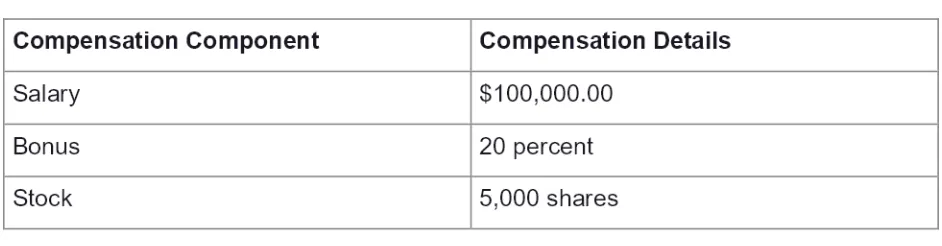
The following example shows a section of a DocumentGeneration:updateEnvelopeDocGenFormFields request that populates the dynamic table whose definition appears in the previous section. This example includes three rows of values—one for salary, one for bonus, and one for stock. Each rowValues.docGenFormFieldList array consists of name/value pairs for the sender fields in one row.
The dynamic table populated with these values would look like this in the agreement that is displayed to an end user:
 See Implement sequence of API requests for details about how the
DocumentGeneration:updateEnvelopeDocGenFormFields request fits into an overall document generation flow. See How to request a signature by email with document generation for code examples that demonstrate how to populate a dynamic table.
Table value behaviors and restrictions
The population of table values via a DocumentGeneration:updateEnvelopeDocGenFormFields request is subject to these behaviors and restrictions:
- There is no limit on the number of rows that a table can contain. However, a maximum of 100,000 sender fields can be populated in a document, including sender fields in dynamic tables. See File size and field limits for details.
- Each
rowValues.docGenFormFieldListarray that populates values for a row must include a name/value pair for all sender fields in the table definition, even for sender fields that are not being populated. - For sender fields that should not be populated, set the
valueproperty in the name/value pair to an empty string. If you omit a name/value pair for a sender field from therowValues.docGenFormFieldListarray for a row, an error response will be returned. - If you don’t want to populate any values in a dynamic table, you can omit the entire
TableRowJSON structure from theDocumentGeneration:updateEnvelopeDocGenFormFieldsrequest. If it is omitted, the table’s heading row and one blank row beneath it will appear in the agreement that the recipient receives. - If a document has more than one dynamic table, supply a
TableRowJSON structure in the request for each table, with the corresponding name for the table definition, followed by therowValuesarray for that table’s values. - Sender field values are not reused across rows in the same table. For example, each r
owValues.docGenFormFieldListarray must include a value for theDetailssender field for that row. - A sender field can be populated with only one value per row. If a table definition includes more than one instance of the same sender field, the value provided for that sender field in a
rowValues.docGenFormFieldListarray will be reused for every occurrence of that sender field in the same row. - Sender field values are not reused across dynamic tables, even if the same sender field name is used in multiple tables.
- If the same sender field name is used in a DOCX file in both a table definition and in regular text outside the table, the
DocumentGeneration:updateEnvelopeDocGenFormFieldsrequest must populate separate values for the regular text instance of the sender field and for each row of the dynamic table. Only one value can be supplied for all non-table instances of the same sender field.
Document generation support with other eSignature features
The following common eSignature features support document generation:
- Composite templates. For a walkthrough and sample API requests, see Document generation with composite templates.
- Bulk sending envelopes
- Sharing templates
- Basic responsive signing
- Authoritative copies
These features, however, do not:
Next steps
For more information about document generation, see:
- How to request a signature by email with document generation
- DocumentGeneration Resource in the API reference
- Document Generation for Docusign eSignature in the eSignature User Guide