
CFR Part 11 accounts
The eSignature REST API enables customers in the life sciences, pharmaceutical, and medical technology industries to meet the authentication and signature requirements of the Food and Drug Administration (FDA) 21 CFR Part 11 regulation. This requires sending envelopes from a Docusign CFR Part 11 account. If you send an envelope from a CFR Part 11 account, the workflow includes the following features that differ from non-CFR Part 11 envelopes:
-
Document access: Recipients must authenticate via account login, SMS, or another supported method before viewing documents. See Authentication options for descriptions of the different ways recipients can authenticate. Even non-signing recipients must authenticate to access CFR Part 11 envelopes. This includes carbon copy and certified delivery recipient types. To view a completed CFR Part 11 envelope, a signer must authenticate just as they did when accessing the document before signing it.
-
Signatures: CFR Part 11 signatures include the following:
-
Authentication: By default, signers must authenticate when they sign or initial documents. This authentication step is in addition to the authentication required to view a document. See Signing Experiences for Part 11 Accounts for information about an option that does not require authentication for each signature.
-
Reason: When they sign or initial, recipients must select a signing reason.
-
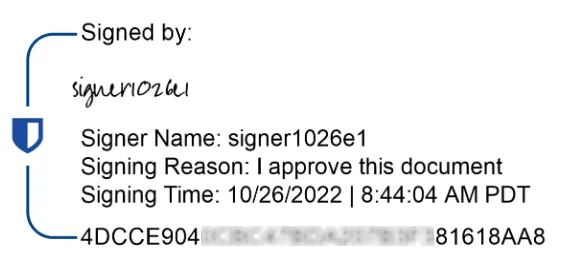
Signature manifestation: All completed signatures and initials are marked with required information, including the signer name, the signing reason, a timestamp, and a unique identifier, as shown below. See Tall vs. Wide Signatures on Part 11 Envelopes for information about different signature style options.
-
For details about how the Docusign CFR Part 11 solution enables customers to meet FDA regulatory requirements, see Docusign Part 11 Compliance Information.
Account prerequisite
You can send CFR Part 11 envelopes only from an account that has CFR Part 11 enabled. CFR Part 11 accounts are preconfigured with settings compatible with regulatory requirements, and certain account features are not available with CFR Part 11 to mitigate risk of noncompliance. You cannot use a CFR Part 11 account to send envelopes that do not require CFR Part 11 compliance. If you send both CFR Part 11 envelopes and envelopes that do not use this feature, you’ll need to use separate accounts to send each type.
To obtain a developer environment account that has CFR Part 11 enabled, contact your account manager or Docusign Support. Production CFR Part 11 accounts are available only with commercial plans and not through Docusign web plans. Contact your account manager for more information.
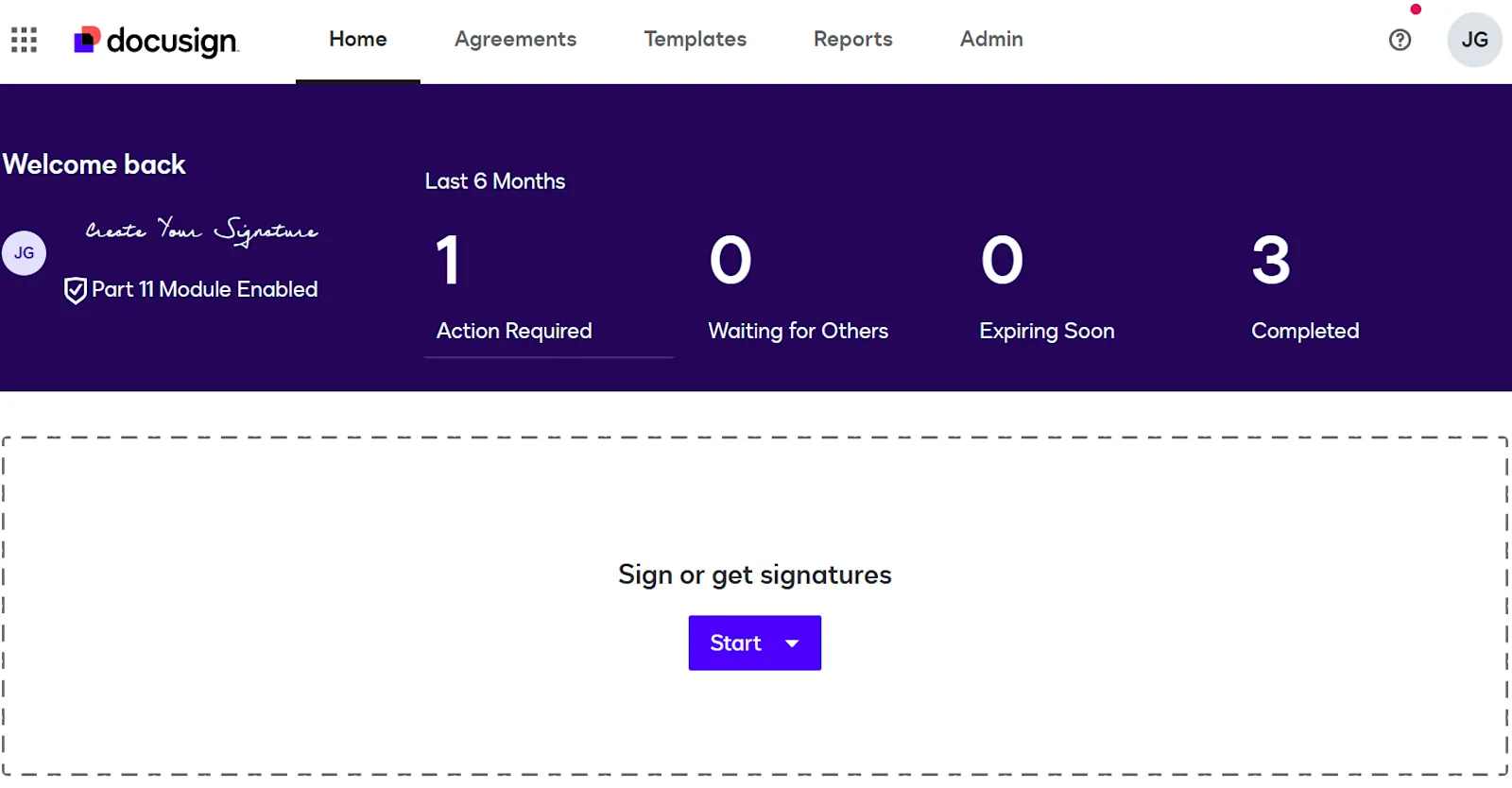
To confirm whether an account has CFR Part 11 enabled, make a request to the Accounts:get endpoint and confirm that the response includes a status21CFRPart11 property set to enabled. You can also log in to the eSignature web app on the developer environment or production environment to verify that the shield and Part 11 Module Enabled appear on the home page, as shown below.
Envelope access options
You can create CFR Part 11 envelopes that use remote signing, in which recipients access an envelope via an emailed link, or embedded signing, in which recipients sign directly through your app’s UI. The API request that creates CFR Part 11 envelopes is the same Envelopes:create call that’s used for non-CFR Part 11 envelopes, but additional properties may be required for CFR Part 11, depending on the authentication method. See Implement CFR Part 11 envelopes for details.
Authentication options
The envelope access method you select determines which authentication methods are available. The authentication method determines how recipients verify their identities when viewing and signing documents. These authentication options are listed below.
Implementation information for each authentication option appears in Implement CFR Part 11 envelopes.
The default behavior for every authentication option is that recipients must authenticate every time they sign or initial. See Signing Experiences for Part 11 Accounts for information about an option that does not require authentication each time. Docusign recommends consulting with your quality team when considering this option.
Remote signing authentication methods
With remote signing, these authentication methods are supported:
- Account login for access and signatures: To access a document, and each time they sign or initial, recipients must enter a Docusign account email address and password. Recipients who do not have a Docusign account can create one at no charge via a link from the authentication page. Implement remote signing with account login for access and signatures has details about this option.
- SMS for access and signatures: To access a document, and each time they sign or initial, recipients must provide the last four digits of their phone number and then enter a security code received via SMS. Recipients do not need a Docusign account to authenticate using this method. Implement remote signing with SMS for access and signatures describes the API requests in this workflow.
- Recipient authentication and account login for access, and account login for signatures: To access a document, recipients must enter a Docusign account email address and password and then authenticate using one of the supported recipient authentication methods. Recipients who do not have a Docusign account can create one at no charge via a link from the authentication page. Each time they sign or initial, recipients must re-enter their Docusign account email address and password. Implement remote signing with account login and recipient authentication has details about this option.
Embedded signing with SMS for access and signatures
The only authentication method supported with embedded signing is SMS for access and signatures. To access a document, and each time they sign or initial, recipients must provide the last four digits of their phone number and then enter a security code received via SMS. Recipients do not need a Docusign account to authenticate using this method. Implement embedded signing with SMS for access and signatures describes the API requests in this workflow.
Implement CFR Part 11 envelopes
The sections below describe the API requests for the supported CFR Part 11 envelope access and authentication methods:
- Remote signing with account login for access and signatures
- Remote signing with SMS for access and signatures
- Remote signing with account login and recipient authentication
- Embedded signing with SMS for access and signatures
Regardless of the implementation option you choose, you can use the Docusign Connect webhook service and a listener to receive envelope updates as they progress through the delivery and signing process.
Implement remote signing with account login for access and signatures
To set up a CFR Part 11 remote signing workflow that requires recipients to enter a Docusign account email and password to view and sign, use a standard Envelopes:create request. For each signer, define at least one required signature tab or one required initial tab. If a CFR Part 11 signer does not have at least one of these tabs, Docusign returns the error code DIGITAL_CERTIFICATE_WITH_21CFR_MUST_HAVE_SIGNATURE_TAB.
See How to request a signature by email for a walkthrough and code samples for remote signing.
Implement remote signing with SMS for access and signatures
A basic CFR Part 11 remote signing workflow that requires SMS authentication to view and sign consists of these API requests:
-
IdentityVerifications:list: Returns a list of the workflow IDs associated with the recipient authentication methods available to your account. For SMS authentication, the workflow ID you’ll need is the one with a
defaultNameofSMS for access & signatures. -
Envelopes:create: Creates the envelope. It must specify the following for each recipient:
-
An identityVerification property that includes:
- The workflow ID obtained from the
IdentityVerifications:listresponse. - The recipient’s phone number. When recipients authenticate, they enter the last four digits of this phone number and then enter a security code sent via SMS to this number.
- The workflow ID obtained from the
-
The recipient name and email.
-
At least one required signature tab or one required initial tab for each signer. If a CFR Part 11 signer does not have at least one of these tabs, Docusign returns the error code
DIGITAL_CERTIFICATE_WITH_21CFR_MUST_HAVE_SIGNATURE_TAB.
-
For an example of a CFR Part 11 Envelopes:create request, see step 3 of How to request a signature through your app (embedded signing) with a CFR Part 11 account. You can use the same properties in the remote signing request, but omit the clientUserId because that property defines a recipient as an embedded recipient.
Implement remote signing with account login and recipient authentication
You can implement a CFR Part 11 remote signing workflow that requires recipients to do both of the following to view a document:
-
Enter a Docusign account email and password.
-
Authenticate via one of these recipient authentication methods:
Recipients must re-enter their Docusign account email and password each time they sign or initial.
Phone authentication, knowledge-based authentication, or ID verification
Below are the API requests that implement a basic CFR Part 11 remote signing workflow that requires Docusign account login followed by phone authentication, knowledge-based authentication, or ID verification to view a document.
-
IdentityVerifications:list: Returns a list of the workflow IDs associated with the recipient authentication methods available to your account.
-
Envelopes:create: Creates the envelope. It must specify the following for each recipient:
-
An identityVerification property that includes:
- The workflow ID for the authentication method you want the recipient to use, obtained from the
IdentityVerifications:listresponse. - The recipient’s phone number if using phone authentication. A security code will be sent to this number via phone call or SMS, depending on the recipient’s selection during authentication.
- The workflow ID for the authentication method you want the recipient to use, obtained from the
-
The recipient name and email.
-
At least one required signature tab or one required initial tab for each signer. If a CFR Part 11 signer does not have at least one of these tabs, Docusign returns the error code
DIGITAL_CERTIFICATE_WITH_21CFR_MUST_HAVE_SIGNATURE_TAB.
-
For code samples, see:
- How to require phone authentication for a recipient
- How to require knowledge-based authentication (KBA) for a recipient
- How to require ID verification (IDV) for a recipient
Access code authentication
For a basic CFR Part 11 remote signing workflow that requires Docusign account login followed by access code authentication to view a document, use a standard Envelopes:create request that does not include an identityVerification property. For each recipient, the request must include an access code that the recipient enters in order to view the document. For each signer, define at least one required signature tab or one required initial tab. If a CFR Part 11 signer does not have at least one of these tabs, Docusign returns the error code DIGITAL_CERTIFICATE_WITH_21CFR_MUST_HAVE_SIGNATURE_TAB.
For code samples, see How to require access code authentication for a recipient.
Implement embedded signing with SMS for access and signatures
A basic CFR Part 11 embedded signing workflow that requires SMS authentication to view and sign consists of these API requests:
-
IdentityVerifications:list: Returns a list of the workflow IDs associated with the recipient authentication methods available to your account. For SMS authentication, the workflow ID you’ll need is the one with a
defaultNameofSMS for access & signatures. -
Envelopes:create: Creates the envelope. It must specify the following for each recipient:
-
An identityVerification property that includes:
- The workflow ID obtained from the
IdentityVerifications:listresponse. - The recipient’s phone number. When recipients authenticate, they enter the last four digits of this phone number and then enter a security code sent via SMS to this number.
- The workflow ID obtained from the
-
The recipient name, email, and
clientUserId. TheclientUserIdproperty identifies the recipient as an embedded signing recipient. -
At least one required signature tab or one required initial tab for each signer. If a CFR Part 11 signer does not have at least one of these tabs, Docusign returns the error code
DIGITAL_CERTIFICATE_WITH_21CFR_MUST_HAVE_SIGNATURE_TAB.
-
-
EnvelopeViews:createRecipient: Generates the signing URL. This request must include a name, email, and
clientUserIdthat match the values from theEnvelopes:createrequest.
See How to request a signature through your app (embedded signing) with a CFR Part 11 account for a walkthrough and code samples.
Account settings that affect CFR Part 11
Several account settings enable you to customize the CFR Part 11 signing process. They include:
- Rapid Part 11 signing: Requires recipients to authenticate only to access and complete an envelope, but not every time they sign or initial.
- Wide signatures: Changes the layout of the signature and accompanying signing information.
- Recipient lockout notifications: Notifies an envelope sender if a recipient becomes locked out of their Docusign account after exceeding the permitted number of login attempts.
Next steps
- See How to request a signature through your app (embedded signing) with a CFR Part 11 account for a walkthrough and code samples for CFR Part 11 envelopes.
- See Docusign Part 11 Module Overview for general information about CFR Part 11 features.
- See Recipient authentication for information about methods you can use with both CFR Part 11 and non-CFR Part 11 accounts to verify a recipient’s identity.