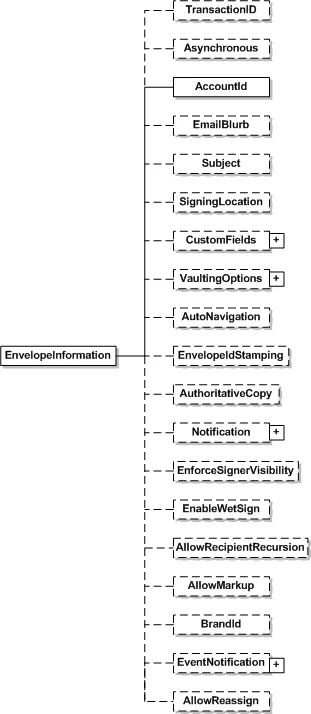
| TransactionID | LongString | An optional element that can be used to identify an envelope. The id is a sender-generated value and is valid in the Docusign system for 7 days. It is used when calling SynchEnvelope. |
| Asynchronous | Boolean | If true, will queue the envelope for processing and EnvelopeStatus will have a value of ‘Processing’.Use SynchEnvelope to determine when the queued envelope has been processed. Additionally, RequestStatus calls will return ‘Processing’ until completed. |
| AccountId | DSXId | Account Id of the user who created the envelope. |
| Subject | LongString | The subject of the email that will be sent to the recipient. |
| EmailBlurb | LongString | Optional element, if specified is included in email notifications to the envelope recipients. |
| SigningLocation | SigningLocationCode | Specifies the physical location where the signing takes place. It can have two enumeration values; InPerson and Online. |
| CustomFields | CustomField | Complex element contains a list of names and values. Element can specify if the name value pair needs to be entered before sending the envelope. It can also specify if the name value pair needs to be shown to user who is sending the envelope.
Note: Each custom field used in the envelope must have a unique name.
Reserved CustomField names:
- ##SFAccount - ##SFContract - ##SFOpportunity - ##SFCaseReserved
field names can be used to link data from Docusign Connect to Salesforce. |
| VaultingOptions | VaultingOptions | Specifies that, on document completion, this document is to be sent to an electronic vaulting solution. You MUST have an established relationship with the electronic vault and explicitly have vaulting permissions enabled to use this feature. Contact your Docusign representative for more information. |
| AutoNavigation | Boolean | Specifies the Auto Navigation feature. If the Boolean is set to true the auto navigation is enabled. |
| EnvelopeIDStamping | Boolean | Specifies the Envelope Stamping feature. If the Boolean is set to true the Envelope Stamping is enabled. |
| AuthoritativeCopy | Boolean | Specifies the Authoritative copy feature. If the Boolean is set to true the Authoritative copy feature is enabled. |
| Notification | Notification | Specifies information of the notification options for the envelope.
See the Notification section for more information. |
| EnforceSignerVisibility | Boolean | When true requires that a Signer have a signature or initial on the document or that the document has no signers in order to view it. |
| EnableWetSign | Boolean | When true, allows the signer to print the document and sign it on paper. |
| AllowRecipientRecursion | Boolean | When set to true, this enables the Recursive Recipients feature and allows a recipient to appear more than once in the routing order. |
| AllowMarkup | Boolean | When true, enable Document Markup for envelope. |
| AllowReassign | Boolean | If true, the recipient can redirect an envelope to a more appropriate recipient. |
| BrandId | String | This sets the brand profile format used for the envelope. The value in the string is the BrandId for the profile. Account branding must be enabled for the account to use this option. |
| BrandLock | Boolean | When true, the brand profile associated with the envelope cannot be changed. |
| EventNotification | EventNotification | This optional complex element allows a message to be sent a specified URL when the envelope changes status. It is similar to Docusign Connect, but only applies to the envelope. For example, from “Sent” to “Delivered”, the URL is sent a message containing the updated envelope status and optionally the documents.
When an EventNotification is attached to an envelope using the API, it only applies to the envelope (treating the envelope as the sender). This is different from envelopes created through the console user interface, where the user is treated as the sender.
EventNotification consists of:
- URL – The endpoint where envelope updates are sent. This will accept XML unless “useSoapInterface” is set to true. - LoggingEnabled – When set to true, logging is turned on for envelope events on the Web Console Connect page. - RequireAcknowledgment – When set to true, the Docusign Connect service checks that the message was received and retries on failures. - UseSoapInterface – When set to true, this tells the Connect service that the user’s endpoint has implemented a SOAP interface. - SoapNameSpace – This lists the namespace in the SOAP listener provided. - IncludeCertificateWithSoap – When set to true, this tells the Connect service to send the Docusign signedby certificate as part of the outgoing SOAP xml. This appears in the XML as wsse:BinarySecurityToken. - SignMessageWithX509Cert – When set to true, messages are signed with an X509 certificate. - IncludeDocuments – When set to true, the PDF documents are included in the message along with the update XML. - IncludeEnvelopeVoidReason – When set to true, this tells the Connect Service to include the void reason, as entered by the person that voided the envelope, in the message. - IncludeTimeZone – When set to true, the envelope time zone information is included in the message. - IncludeSenderAccountAsCustomField – When set to true, the sender account ID is included as a envelope custom field in the data. - IncludeDocumentFields – When set to true, this tells the Connect Service to include the Document Fields associated with the envelope. Document Fields are optional custom name-value pairs added to documents using the API. - IncludeCertificateOfCompletion – When set to true, this tells the Connect Service to include the Certificate of Completion with completed envelopes. -
EnvelopeEvents – The list of envelope-level events statuses that will trigger Connect to send updates to the url. It can be a two-part list with:
EnvelopeEventStatus – The envelope status, this can be Sent, Delivered, Signed, Completed, Declined, or Voided.
-
RecipientEvents – The list of recipient event statuses that will trigger Connect to send updates to the url. It can be a two-part list with:
RecipientEventStatus – The recipient status, this can be Sent, DeliveryFailed, Delivered, Completed, Declined, or AuthenticationFailed. |
| Accessibility | String | Optional element that can only be used if Document Accessibility is enabled for the account.
This sets the document reading zones for screen reader applications.
Note: This information is currently generated from the Docusign web console by setting the reading zones when creating a template, exporting the reading zone string information, and adding it here. |
| MessageLock | Boolean | If true, prevents senders from changing the emailBlurb and emailSubject for the envelope. Additionally, this prevents users from making changes to the emailBlurb and emailSubject when correcting envelopes.
However, if the messageLock node is set to True and the emailSubject is empty, senders and correctors are able to add a subject to the envelope. |