
App Password authentication
App Password is a new way to authenticate through the SOAP API and get an access token for your app. It works by having a user create a special password linked with their profile (user ID) in the user profile Security and Privacy tab. They can then use this password to authenticate and obtain an access token in place of using their own personal account passwords. Account admins can also use an App Password to make SOBO calls, sending on behalf of an account user without getting their explicit permission.
Once you have created one or more App Passwords, you can use those passwords in place of your normal password to authenticate.
App Password has the following benefits over legacy username/password authentication:
- Docusign has begun phasing out its legacy username/password method of SOAP API authentication and, by September 2022, all Docusign apps must use OAuth (for REST APIs) or App Password (for SOAP) authentication before they can be used in a production environment.
- Unlike legacy username/password authentication, App Password is compatible with two-step verification (TSV). In cases where a user has enabled two-step verification, App Password allows you to bypass the second step.
- Using an App Password is more secure than passing in user passwords for authentication.
- There are no differences in the call syntax or authentication workflow between App Password and legacy username/password authentication. This means that you don’t need to make any code changes to switch to using App Password, unless your app has hard-coded data for authentication headers.
Note: Users cannot use App Passwords to log in to Docusign. App Passwords can only be used to authenticate and obtain access tokens in place of a user’s account password.
Generate an App Password
Use the following steps to generate an App Password for your account:
- Open your account profile page.
- Select Privacy & Security in the left nav, then confirm your credentials.
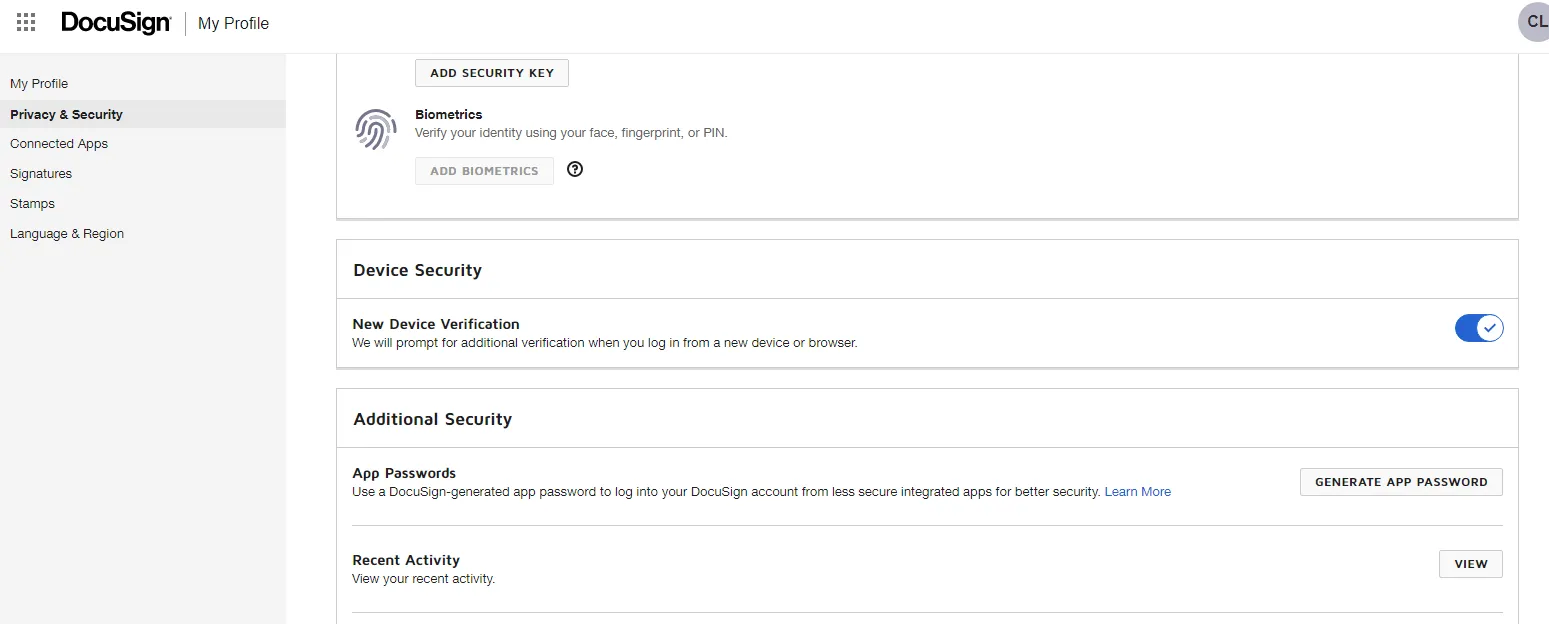
- Find the App Passwords row in the Additional Security section, then select GENERATE APP PASSWORD.
Note: This option is not available for SSO-only users. You must allow password login to generate and use an app password.
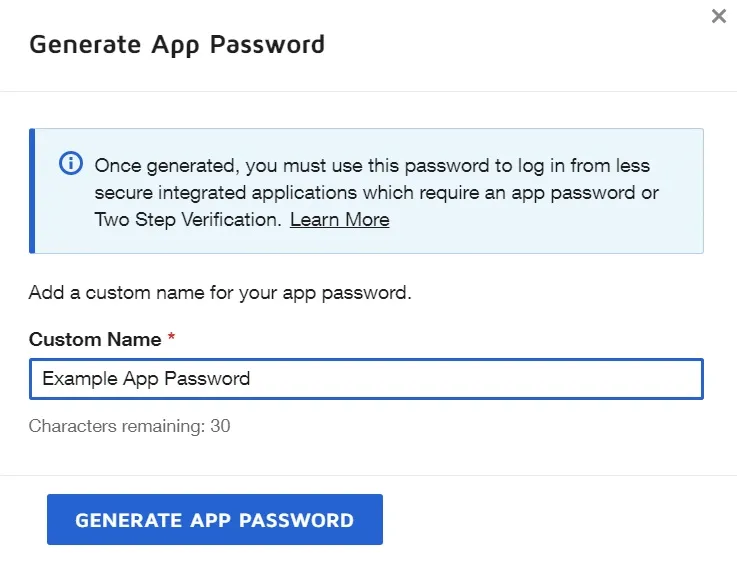
- In the Generate App Password dialog box, choose a custom name for the App Password, then select GENERATE APP PASSWORD.
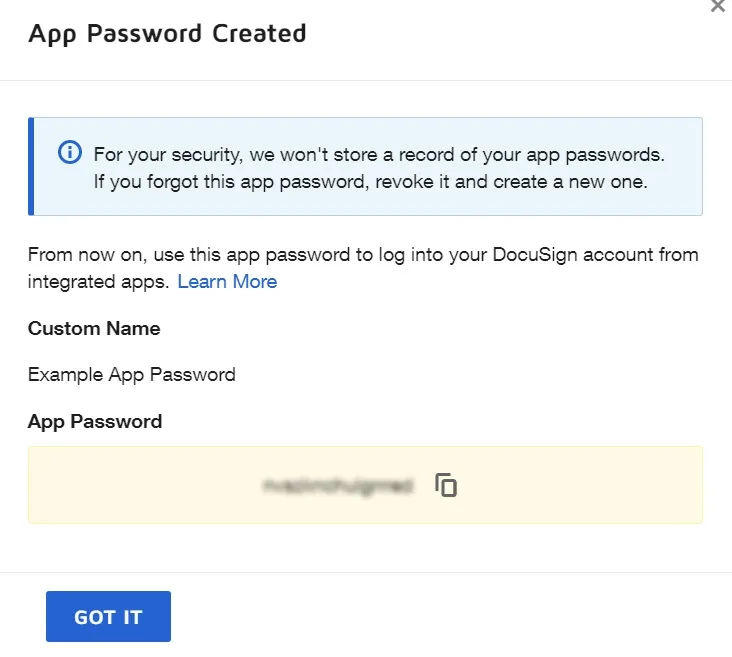
- Copy the generated App Password and record it in a secure place. It will only be displayed once. Select GOT IT to return to your profile page.
Each user profile (user ID) may have up to five App Passwords defined, and each App Password may have a custom name. These App Passwords are associated with the user profile and not a specific integration.
Use an App Password to authenticate
After you have generated an App Password, you may provide the App Password value instead of your user password during legacy username/password authentication. There are no other differences in the call syntax or authentication workflow between username/password authentication and authentication via App Password. Unless you have hard-coded values in your authentication headers (not recommended), your app should be able to use App Password authentication without needing to be updated.
Best practices
- Don’t save App Password values directly in your app’s code. Rather than hard-code a password, generate an App Password and use it in your headers.
- Try to map specific App Passwords to specific apps. For example, if your profile has defined three integrations, create a separate App Password for accessing each one.