
How to configure mutual TLS for the F5 load balancer
The F5 load balancer (F5) is a popular front-end load balancer with many capabilities. This topic demonstrates how to enable F5 to request mutual TLS from Docusign Connect and provide access control based on the certificate’s fingerprint/thumbprint.
Note: This guide assumes that you have experience configuring the F5 load balancer. Your web server configuration should always be reviewed and tested by your Networking and Information Security departments. Don’t rely on this guide to create a secure system.
Learn about mutual TLS
Mutual TLS authentication and authorization enables Docusign Connect to guarantee the identity of the server to the client and provide a two-way encrypted channel between the two.
- See Mutual TLS to learn more about mutual TLS capabilities and requirements.
- SeeMutual TLS: Stuff you should know for context around mutual TLS and recommendations for implementing it.
Required data
You will need the following information to configure mutual TLS for the f5 load balancer:
Network configuration
Typically, F5 load balancers are placed between the Internet and a pool of one or more servers. Clients (web browsers and computers such as the Docusign Connect system) make requests to F5 via the internet.
The F5 load balancer passes the requests onwards to the servers in the pool, balancing the requests among the servers. For HTTPS requests, the F5 load balancer can act in either of two modes:
- The F5 load balancer can act as the terminus for the SSL/TLS session, offloading the SSL/TLS cryptography work from the servers. This is the offloading configuration.
- An F5 load balancer can also be configured to forward the HTTPS conversation to the back-end servers without decryption. This is the pass-through configuration.
The offloading configuration is more common, so this guide focuses on that configuration.
In the offloading configuration, the F5 load balancer’s clients are the clients on the Internet. The F5 acts as a server to them. The F5’s servers are the pools of servers that will ultimately handle the incoming requests. The F5 acts as a client to its servers.
Step 1. Obtain the root certificate for the client
During the mutual TLS part of the handshake, the server (your listener), sends the client (Docusign) the root Distinguished Name that the server trusts. The client then responds with a matching certificate/intermediate certificate bundle.
The Docusign Trust site’s Docusign public certificates page includes a link to the Connect root certificate. It has the common name DigiCert Global Root G2. The same certificate is available from the DigiCert web site. It is a 2048-bit certificate. Some older software versions may not be able to use a 2048-bit certificate and will need to be upgraded.
Copy the certificate, including the “BEGIN/END CERTIFICATE” lines, to a file on your webserver. Use the name docusign_root_cert.pem or similar for the certificate file.
Step 2. Configure your F5 load balancer
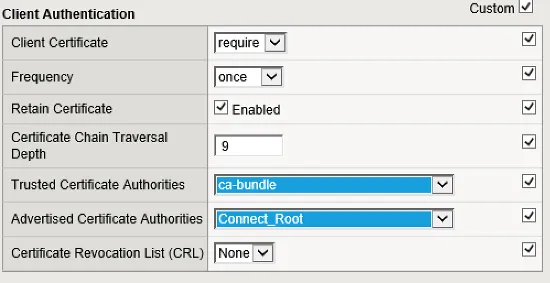
The Trusted Certificate Authorities field is set to the F5 default, ca-bundle. The standard bundle from F5 includes the Docusign Connect client certificate’s root certificate.
The Advertised Certificate Authorities field is set to the Connect_Root certificate that you downloaded previously.
This certificate’s distinguished name will be sent to the client (Docusign) via the CertificateRequest message during the TLS handshake.
Step 3. Add an access control iRule
Mutual TLS authenticates the client, but, for the best security, you must also use access control to limit access to only Docusign. You can do this by using the following iRule set. It includes several diagnostic log commands that can be activated (uncommented-out) during installation and testing.
The iRule stores the MD5 hash of the incoming certificate in the cert_hash variable, and the client’s Common Name in the cSSLSubject variable using the format CN=common_name. Next, the iRule sets the Expected_hash value from the AuthThumb lookup table on the F5. If the Expected_hash doesn’t match the cert_hash, then the connection is rejected.
The presence of the Docusign certificate’s common name in the log shows that Mutual TLS worked. Next, conduct additional tests to ensure that notifications are being delivered successfully.
Troubleshooting
iRule problems
The F5 iRule compiler checks for the presence of the AuthThumb lookup table at compile time. Therefore, you need to create the table before you can start your tests to determine the MD5 hash value of the correct certificates.
Certificate problems
In this configuration, you’re sending the Distinguished Name from a root cert for the Connect certificate and validating the Connect certificate by using the standard F5 ca_bundle.
Using just the 2048 root cert to validate the Connect certificate does not work on F5, perhaps because the F5 is trying to validate the entire intermediate cert chain sent by Docusign.
Client Certificate Not Sent
The first issue is for Docusign to send its client certificate in response to the F5’s CertificateRequest TLS handshake message. To troubleshoot, test without the iRule on. If Docusign doesn’t send its certificate, check that the F5 version is 11.5.1 or more recent.
Logging
You can activate logging on the F5 to help debug problems. Look at the TLS handshake protocol, which is used to set up the encrypted channel.