
Switch to an admin profile for your account
Some Docusign users have multiple Docusign memberships in different accounts in the same environment (developer or production). For example, you may have both a work and a personal account, or you may have accounts for multiple organizations that you work with.
Some functionality, such as using the Quickstart, requires that the account profile you’re using to log in has administrator access to the Docusign account.
See if your current account profile is an administrator
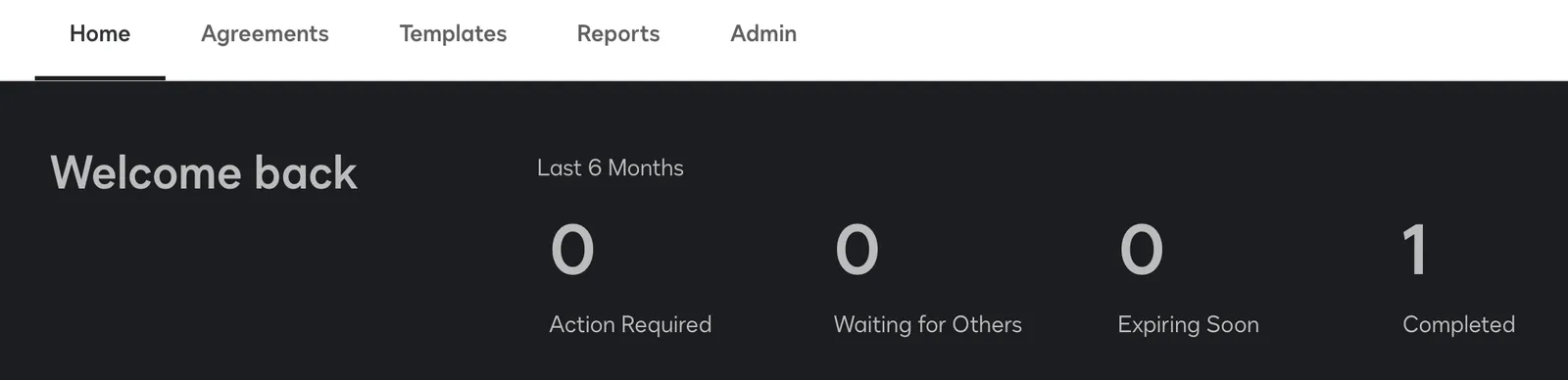
To see if your current account profile has administrator privileges, log in to your account and go to https://appdemo.docusign.com/home.
If the top navbar shows an Admin tab, your current account profile is an administrator. If there is no Admin tab, your current account profile is not an administrator.
Switch your account profile
If your current account profile does not have this access but you do have another profile that is an administrator, use the following process to switch:
- Go to the Apps and Keys page. The ID of your current account is shown in the upper left of the screen. Select the Accounts button in the left nav.
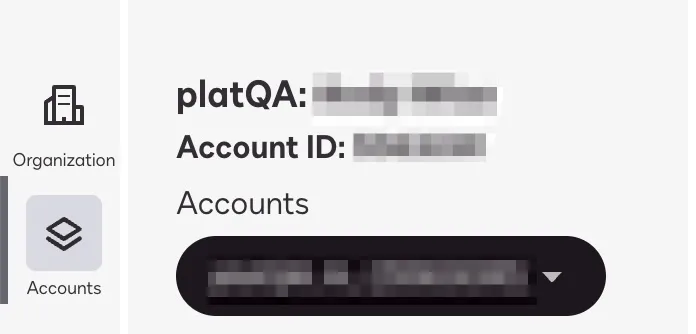
- The Accounts window displays each organization and account to which you can switch, along with that account’s role. This quickly enables you to tell whether any of your account profiles has the admin role. For more information, see Switch Your View to an Account.
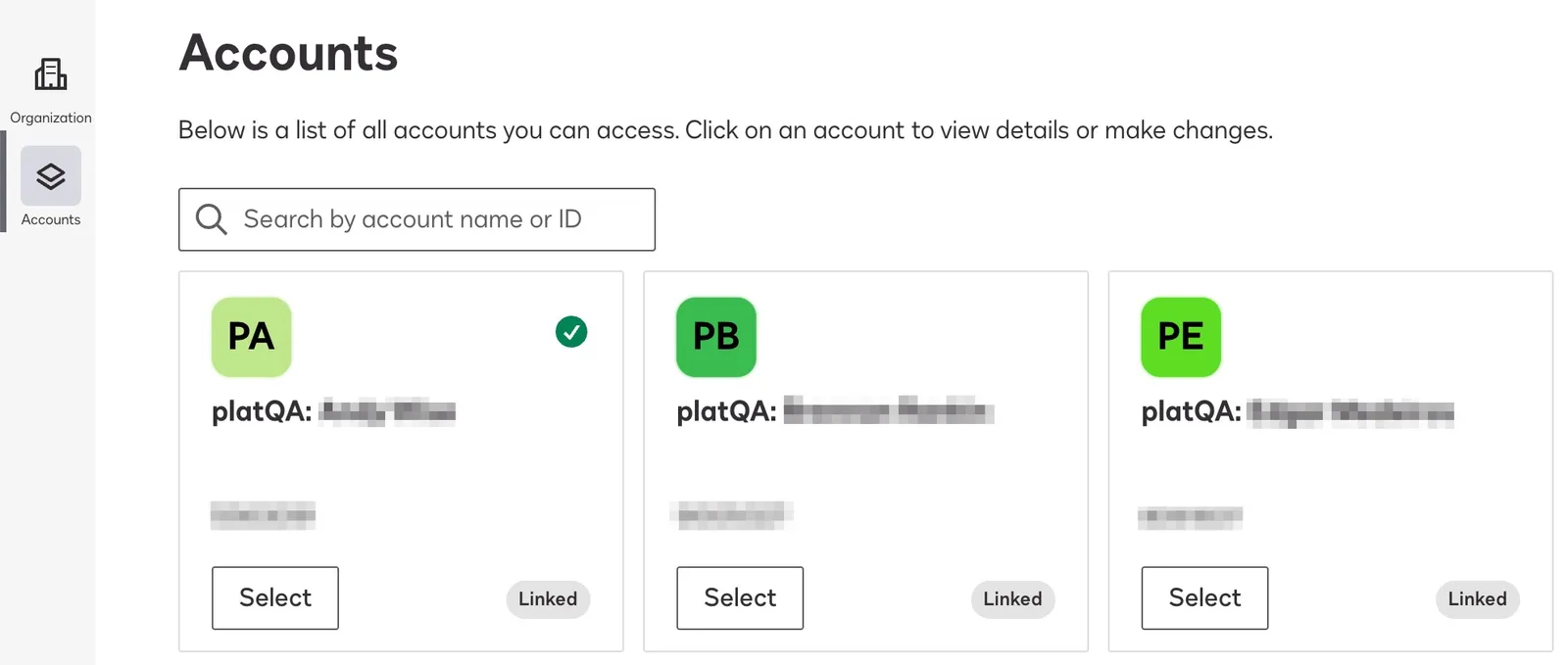
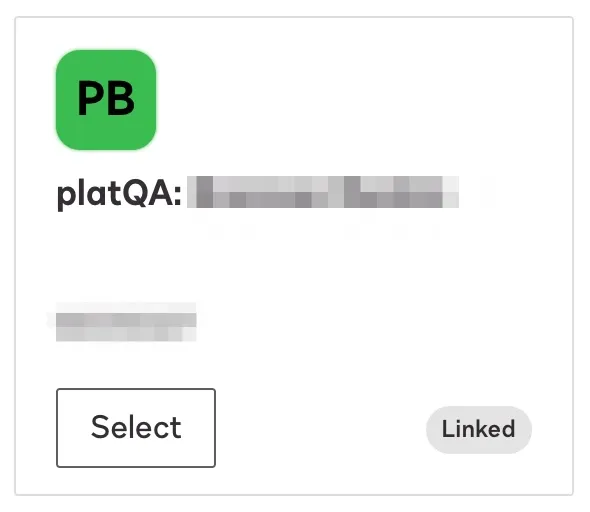
- Choose the account profile you want. Docusign refreshes and loads the selected account profile. On the Apps and Keys page, your account ID will now match the account profile that you chose.
This account profile switching is only available for account profiles using the same email and password combination, and only applies to active and suspended account profiles. Inactive or closed account profiles do not show up in the list.