
Recipient Connect
Recipient Connect is a webhook service that pushes notifications to your app when an event that you’ve subscribed to occurs, just like Docusign Connect. Recipient Connect differs from Docusign Connect in that it provides event notifications when a specific domain user in your organization is a recipient (a signer or carbon copy recipient) of an envelope and a subscribed action occurs, rather than when they are a sender and the action occurs.
This means that you can now track events without polling for an envelope that you have received but did not send. This enables your apps to:
- Receive event notifications for workflows where you are a signer or carbon copy recipient, rather than a sender.
- Track the status of envelopes as a recipient without polling, providing greater efficiency and scalability.
- Automate workflows triggered by incoming event data.
Recipient Connect messages are always sent in JSON format, rather than XML.
If multiple recipients in a workflow are subscribed to Recipient Connect, a message will be generated for each recipient for each event.
Prerequisites Before you can use Recipient Connect:
- You must have an organization in Docusign Admin.
- Your organization must have claimed a domain. If your organization’s plan enables it, you can claim a domain for free.
- The account(s) that will receive envelopes and trigger Recipient Connect event notifications must be linked to your organization.
Configuration
You can create and customize a Recipient Connect configuration in the same way as a Docusign Connect configuration. Both configurations are separate and must be defined individually, but they behave and are set in the same way.
Any users specified in your Recipient Connect configuration must be:
- Part of your organization in Docusign Admin.
- A member of a domain claimed by your organization. This requires the Access Management with SSO feature. If you don’t have access to this feature, please contact your Docusign account manager (for production accounts) or submit a Docusign Support case that includes your developer account number (for developer accounts).
If you are part of an organization that has claimed a domain, you can create a Recipient Connect configuration using the following steps:
- Log in to your developer account.
- Select Admin from the top menu, find the Integrations category on the left navigation bar, then select Connect.
- Select Add Configuration, then Custom Recipient.
- Set the Recipient Connect configuration in exactly the same way as you would a Docusign Connect configuration.
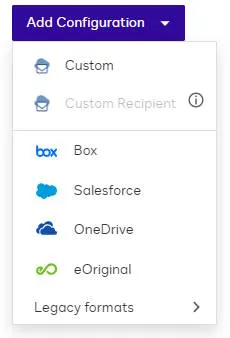 See Recipient Connect Configuration Settings for details on each setting in the configuration.
Supported events and notifications
Your Recipient Connect configuration may subscribe to any of the following events:
- envelope-completed
- recipient-authenticationfailed
- recipient-completed
- recipient-declined
- recipient-delivered
- recipient-deliveryfailed
- recipient-sent
Note: If the envelope sender requires recipients to pass authentication steps, these steps may need to be passed before you can receive notifications with Recipient Connect. See Include Documents in Recipient Connect Messages for details.
Best practices for building with Recipient Connect
To reliably receive and process Recipient Connect notifications:
- Ideally, your server (the listener) should be available at all times, without having to go offline even for scheduled maintenance. It should be reliable with an uptime goal of 99.99% or better.
- Your listener should process notifications asynchronously by adding new notifications to a reliable queue and then acknowledging receipt of the notification back to Docusign. Simultaneously, a different software process (the worker) should handle each notification message appropriately.
- Your listener must be available as a URL on the public internet. This enables the Docusign servers to communicate with it. If your servers are behind your firewall, then the firewall must be modified to enable Docusign to communicate with your server.
Fully meeting these requirements can be difficult and expensive to implement correctly and securely. Fortunately, you can reduce the cost and difficulty of building a listener by creating a small program in the cloud (AWS, Azure, Google Cloud, or similar) that adds incoming notification messages to a secure queuing service (also hosted in the cloud). This has the following benefits:
- Because the communications to the queuing service are all outbound from your application server, this configuration does not require any corporate firewall changes.
- Your application can use an SDK for the cloud queuing service to retrieve the notification messages as soon as they arrive.
- Code examples are available from Docusign for AWS, Azure, or Google Cloud.
- This configuration does require that you use a cloud service and that documents be retrieved from Docusign as needed, instead of including them in the notification messages.
Video demonstration
See the following video for details on Recipient Connect and a walkthrough of some common use cases.
Frequently asked questions
What is required to configure Recipient Connect?
- You must have development resources set up, deploy, and maintain a listener application (active eSignature API and Connect customers may already have a listener application set up and deployed).
- You must be using Docusign REST APIs (rather than eSignature SOAP).
What data and event information is available?
- See Supported events and notifications for a list of events.
- Events are generated when the incoming agreement was sent by a Docusign account.
How does the payload differ from the current product?
Docusign Connect and Recipient Connect deliver the same event payloads. If you need to identify whether an event is a Recipient Connect event or not, you can create a new listener specifically for Recipient Connect or add query parameters like ?customrecipient to the end of the URL to identify the messages.
Next steps
- Create an organization or claim a domain
- Learn more about Docusign Connect
- See videos for building a Connect Listener on Azure or Google Cloud
- See Connect Listener code examples for AWS, Azure, or Google Cloud
- See details about building webhook listeners