
Microsoft (Copilot Studio)
Follow the steps below to configure your Docusign MCP server, starting with the required prerequisites and credentials.
Prerequisites
Before connecting to the Docusign MCP server, you will need:
- A Docusign developer account. You can create one for free at the Developer Center.
- Copilot Studio account – A Microsoft Copilot Studio plan.
Connecting a Docusign Demo Account to Microsoft Copilot Studio
-
Open Microsoft Copilot Studio .
-
Select Sign in to Copilot Studio.
-
Enter your corporate email address and login Microsoft Copilot Studio.
-
On the left navigation pane of the home page, select Agents and select New agent.
-
Enter a name for your agent. Ex.Docusign_MCP_Demo.
-
Select the three dots menu, and select Settings.
-
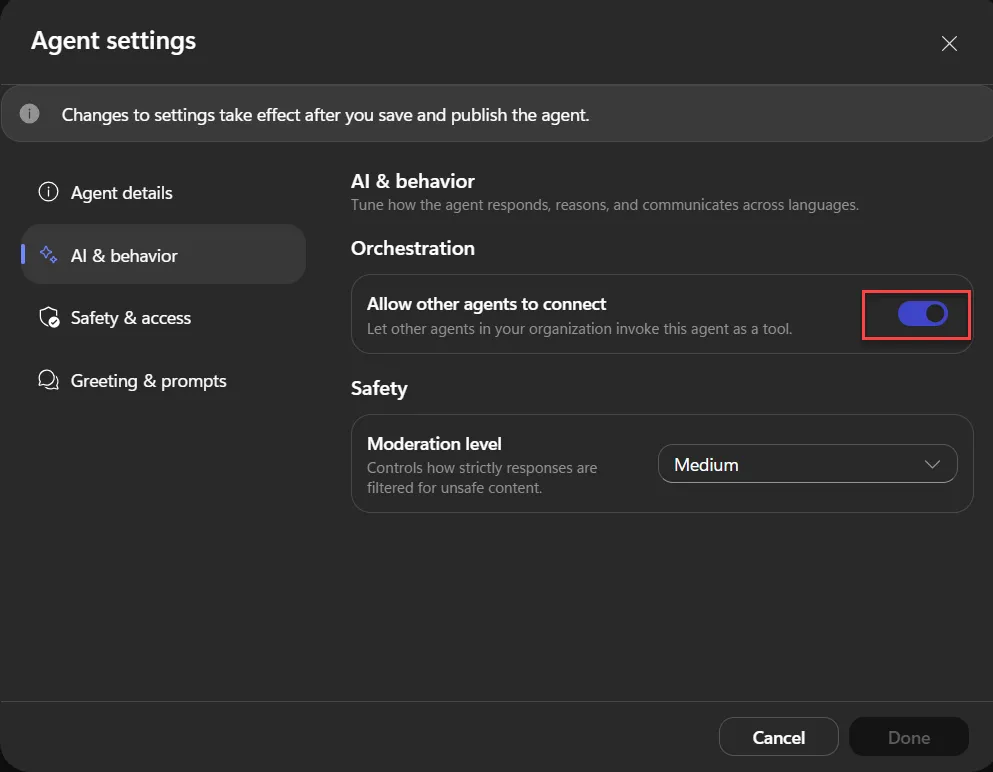
Under AI & behaviour > Orchestration section, ensure Allow other agents to connect setting is enabled.
-
Select Done.
-
On your agent’s home page, navigate to Tools and select + (Add a tool).
-
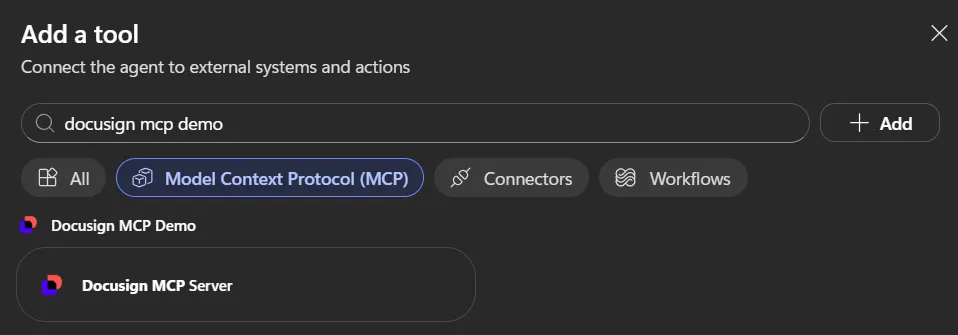
Select the Model Context Protocol (MCP) filter, and search for Docusign MCP Demo.
-
Select the Docusign connector named Docusign MCP Server under Docusign MCP Demo to add it to your agent.
-
Select Not Connected > Create new connection.
-
(Optional) Enter a connection name.
-
Select Create.
-
Sign in to your Docusign Developer’s account (Docusign Demo account).
-
Select Allow Access.
-
Select Add to confirm the connection.
-
Select Save.
-
Select Publish.
The agent with MCP server connection is added at the end of this step.
Run a test prompt
-
Select Preview tab on the agent’s page.
-
Verify the MCP connection by entering a prompt such as: “Can you list the Docusign tools available to me?”
Note: The wording of AI responses may differ between AI platforms, but the data and results should be the same.
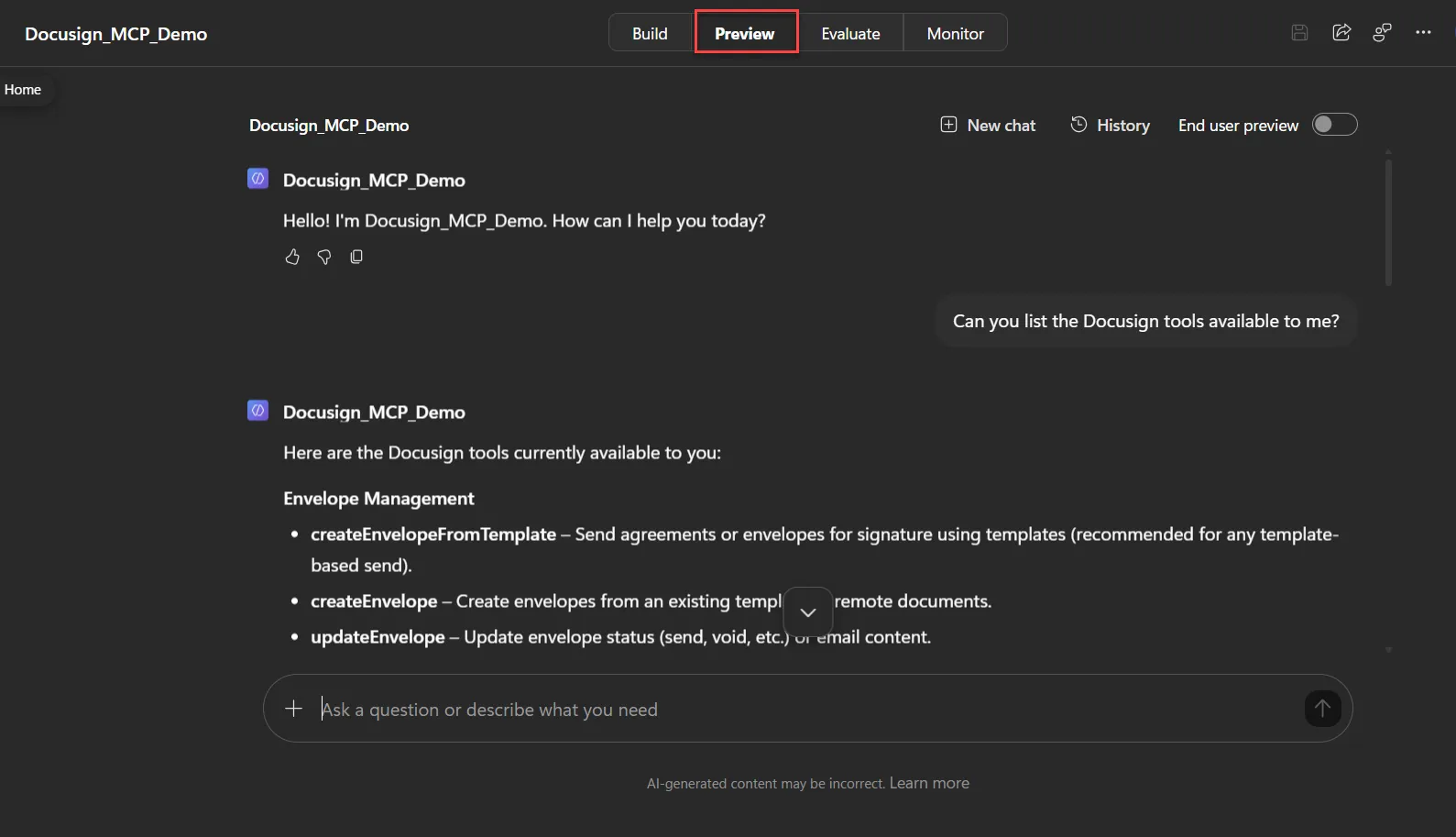
Your Copilot Studio agent is now configured to orchestrate Docusign agreement workflows using natural language.
Remove MCP Configuration
-
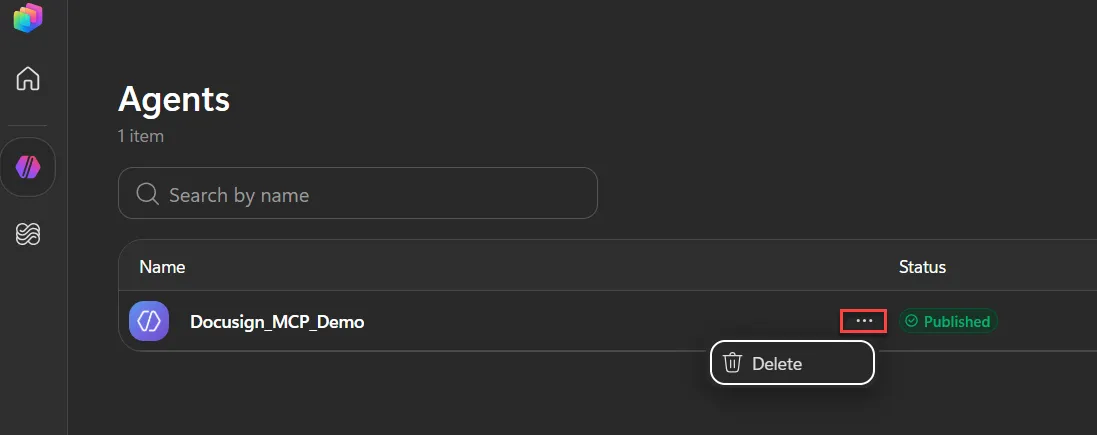
In your agent homepage, navigate to Agents.
-
Select three dots under Docusign MCP Server tool.
-
Select Delete.
-
Select Delete to confirm.
Your Docusign MCP server is now deleted in your agent.
Next steps
- Try the Docusign MCP server with GitHub (Copilot) to explore its capabilities in Microsoft Visual Studio Code.
- Try the Docusign MCP server with Anthropic (Claude) to explore its capabilities.