
GitHub (Copilot)
Follow the steps below to configure your Docusign MCP server, starting with the required prerequisites and credentials.
Prerequisites
Before connecting to the Docusign MCP server, you will need:
- A Docusign developer account. You can create one for free at the Developer Center.
- Integration key id - See Configure your app to add an Integration key.
- Client secret - See Configure your app to create a secret key.
App Configuration
- Obtain an Integration Key (IK). Refer How to get an integration key page.
- Generate a client secret. Refer How to add a secret key page.
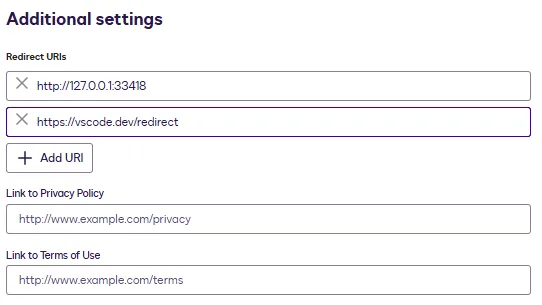
- Enter the following redirect URLs for your app. Refer How to set a redirect URI page.
Adding a MCP server in VS Code
To add a MCP server in VS Code:
-
Launch Microsoft Visual Studio Code.
-
Open the Command Palette (Ctrl+Shift+P or Cmd+Shift+P).
-
Select MCP: Add Server… command.
-
Select HTTP (HTTP or Server-Sent-Events) protocol.
-
Enter Server URL as https://mcp-d.docusign.com/mcp and press Enter.
-
Enter a Server ID name and press Enter. For example: Docusign-MCP.
-
Select configuration target as either Global or Workspace.
-
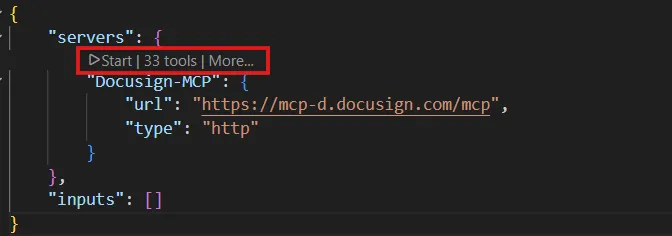
At the top of your JSON file, you’ll see a small toolbar above your configuration as Start | nn tools | More… Click Start to launch the MCP server.
-
Select Copy URIs & Proceed in the popup window.
-
Enter the Integration Key (IK) of the app and press Enter.
-
Enter the client secret of the app and press Enter.
-
Select Allow to authenticate the Docusign MCP server.
-
Sign in to your Docusign account in your browser.
-
Select Open Visual Studio Code.
Verify the MCP server is ready for use
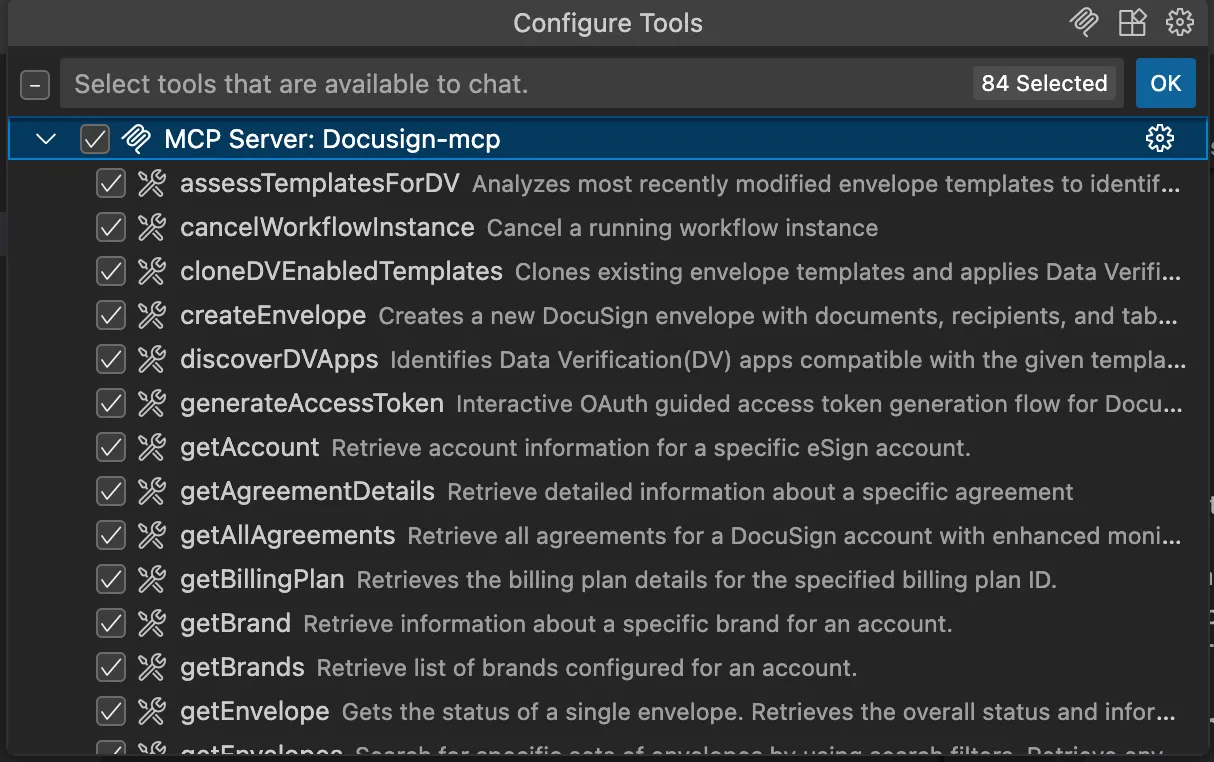
Open the Copilot chat box, then select the Configure Tools button to see available tools. You should see all of the available tools within the Docusign MCP server.
Run a test prompt
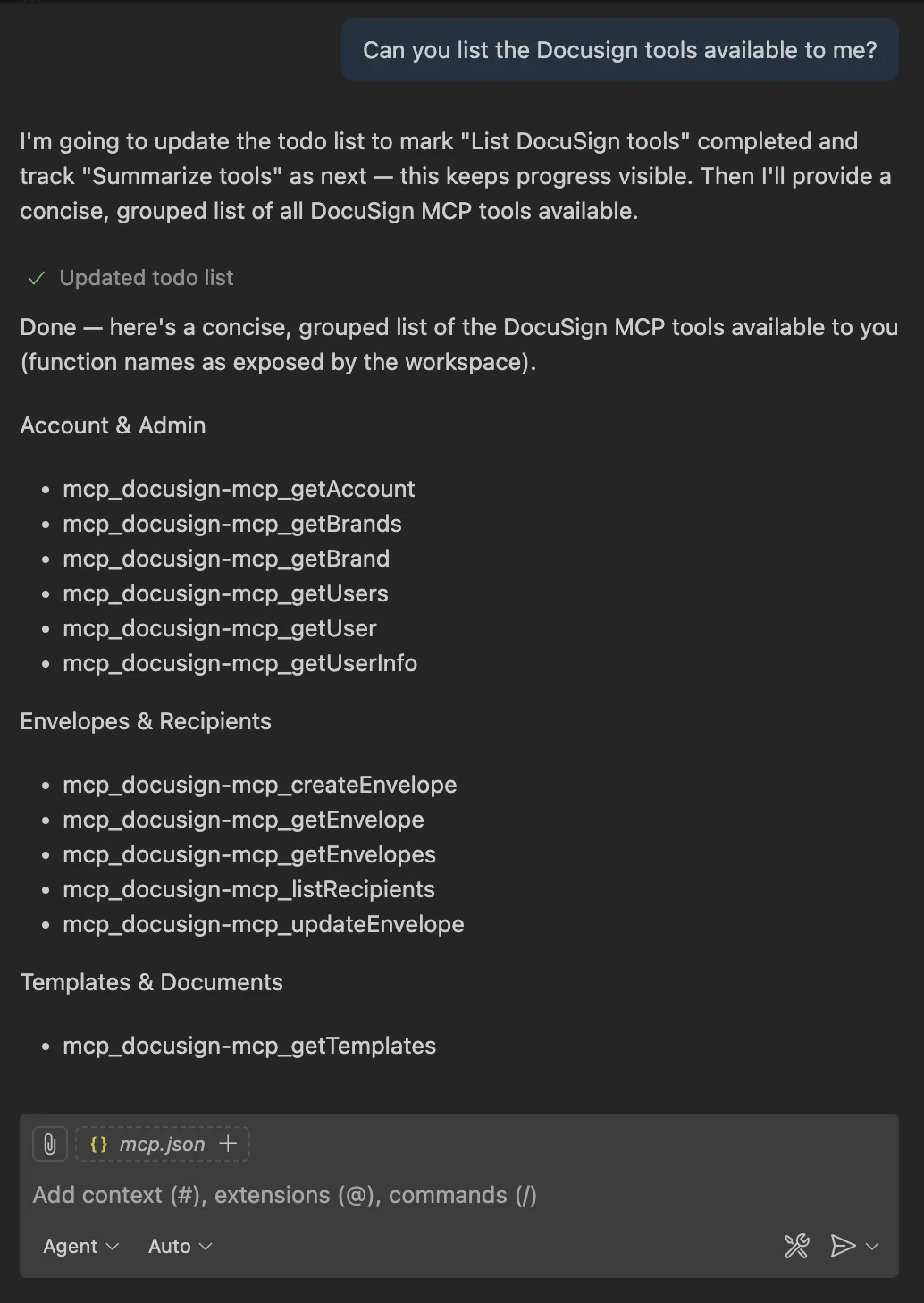
Verify the MCP connection by entering a prompt such as: “Can you list the Docusign tools available to me?”
Note: The wording of AI responses may differ between AI platforms, but the data and results should be the same.
Remove MCP Configuration in VS Code
To remove an existing MCP server in VS Code:
- Open the Command Palette (Ctrl+Shift+P or Cmd+Shift+P).
- Select Authentication: Remove Dynamic Authentication Providers command.
- Select mcp-d.docusign.com and select OK.
- Select Remove to confirm.
Next steps
- Try the Docusign Developer AI Assistant for VS Code (Beta) to generate access tokens, orchestrate APIs, and get real-time answers to Docusign integration questions directly in your IDE.
- Try the Docusign MCP server with Anthropic (Claude) to explore its capabilities.