
Enable or disable CORS for apps
Cross-Origin Resource Sharing (CORS) is a protocol that allows apps to send API requests directly from scripts running in web browsers.
If you are an account administrator, you can:
- Enable or disable CORS by default for any apps that authenticate as a user in your account
- Enable or disable CORS for specific apps if they authenticate as a user in your account
If you administer multiple accounts, you need to manage these settings for each account.
If you are a partner, an independent software vendor (ISV), or an application owner, users of your app may need to work with their Docusign administrators to enable CORS for your app on their accounts. By default, CORS is enabled, but some administrators may change the default.
In addition to CORS being enabled for an app at the account level, the app must have CORS configuration parameters defined. If settings at both levels are not configured properly, Docusign will reject CORS requests.
Account default and app-specific CORS settings
The Cross-Origin Resource Sharing (CORS) page contains settings that determine whether CORS is enabled for the account’s users by default and enabled for specific apps.
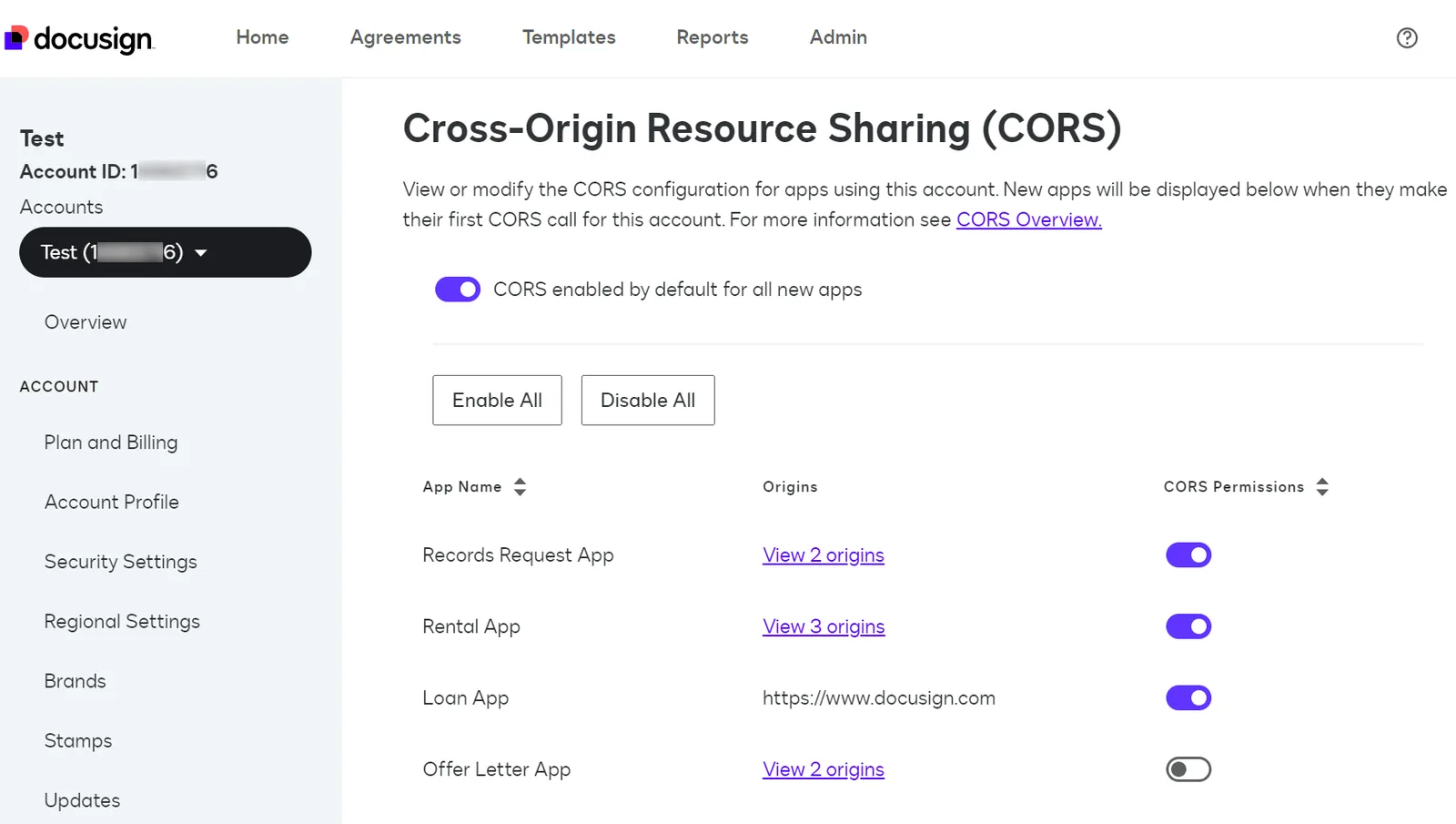
If CORS is enabled by default for apps that authenticate as users under your account, the slider at the top of the page includes an on toggle button. This default setting is applied for each app the first time it makes a CORS request while authenticated as a user in your account.
If you choose to keep CORS disabled by default, then when a new CORS app is installed, your users will ask you to enable CORS for it.
After an app has made its first CORS request for a user in your account, the app appears in the list below the default setting. It appears in the list regardless of whether the first CORS request succeeded or failed. The CORS Permissions sliders in this list indicate whether CORS is enabled for each app. If a slider includes an on toggle button, CORS is enabled for that app, and Docusign will allow CORS requests from the app while it’s authenticated as a user in your account.
Once an app appears in this list, changes to the account default setting are no longer applied to it, and CORS can only be enabled or disabled for the app using the app-specific setting in the CORS Permissions column, or using the Enable All and Disable All buttons.
The Origins column displays the allowed origin or a link to a list of allowed origins for each app. An origin represents the domain of a web script that launches CORS requests. The application developer or owner specifies the origins it will use in the app’s CORS configuration parameters. Docusign checks each CORS request against the allowed origins for the app making the request.
Update account default CORS setting
The account default CORS setting determines whether Docusign will accept CORS requests from apps by default when they authenticate as a user in your account.
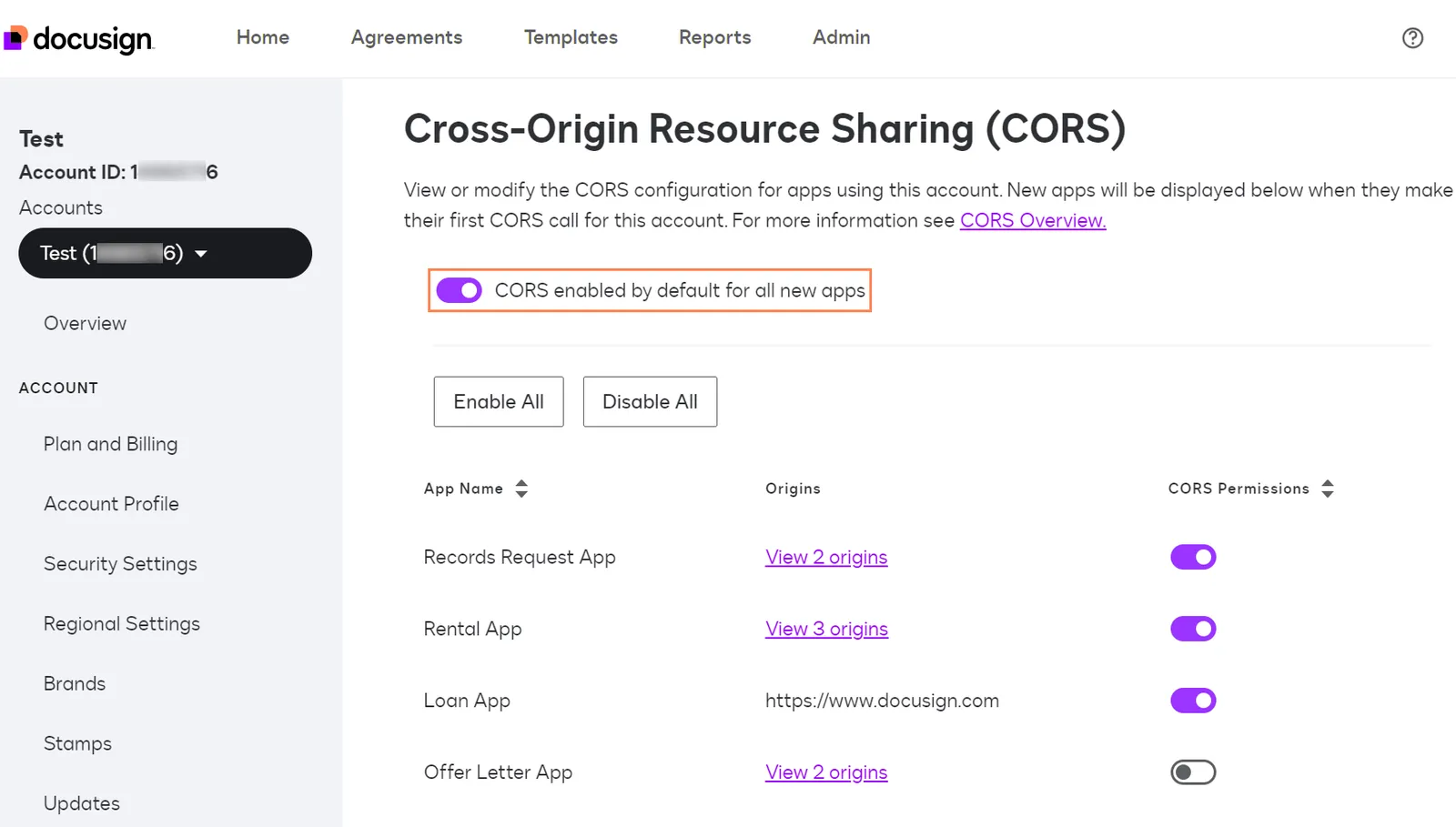
This setting is applied to each app when it makes its first CORS request while authenticated as a user in your account. It is not applied to apps that have already made at least one CORS request under your account. You can enable or disable CORS for those apps using the app-specific settings.
Note: Changes to this setting can take up to five minutes to fully propagate across the Docusign platform.
To update the account default CORS setting:
-
To log in and directly access the Cross-Origin Resource Sharing (CORS) page, select a link below:
If you are already logged into the production or developer environment, select Admin > Integrations > CORS.
-
To change the default setting, move the slider at the top of the page, and confirm the change on the prompt window that appears.
Update app-specific CORS settings
App-specific CORS settings determine whether Docusign will accept CORS requests for those apps when they have authenticated as a user in your account. If the CORS Permissions slider in the row for an app includes a check mark, CORS is enabled for the app.
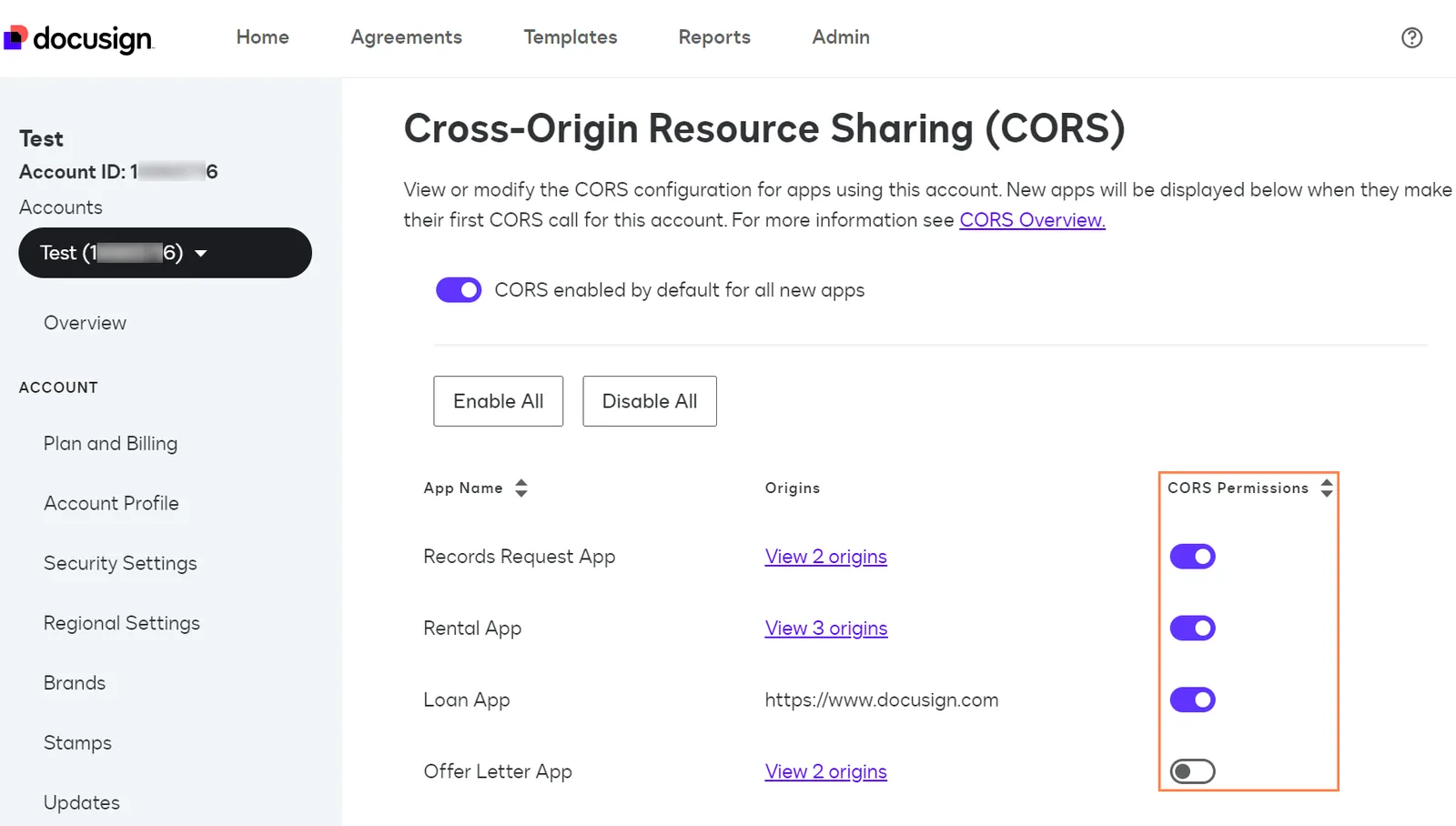
App-specific settings take precedence over the account default setting.
You can update an app-specific setting only after an app has made its first CORS request to Docusign while authenticated as a user in your account. Before the first request, the app does not appear in the app list on the Cross-Origin Resource Sharing (CORS) page. To determine whether CORS requests are permitted from apps that have not yet made their first CORS request under your account, Docusign uses the account default setting.
With CORS enabled, both CORS and non-CORS requests can be made under an app’s integration key. For example, an SPA can send CORS requests and a client-server integration can send non-CORS requests using the same integration key. If CORS requests are disabled, an app can still make non-CORS requests under that integration key.
Note: Changes to these settings can take up to five minutes to fully propagate across the Docusign platform.
To update app-specific CORS settings:
-
To log in and directly access the Cross-Origin Resource Sharing (CORS) page, select a link below:
If you are already logged into the production or developer environment, select Admin > Integrations > CORS.
-
To change the setting for a single app, locate it in the list, move the CORS Permissions slider in that row, and confirm the change on the prompt window that appears.
-
To enable or disable CORS for all apps listed on the page, select Enable All or Disable All and confirm the change on the prompt window that appears.