
OpenAI (ChatGPT)
Follow the steps below to configure your DocuSign MCP server, starting with the required prerequisites and credentials.
Prerequisites
Before connecting to the Docusign MCP server, you will need:
- A Docusign developer account. You can create one for free at the Developer Center.
- Integration key id - See Configure your app to add an Integration key.
- Client secret - See Configure your app to create a secret key.
- Developer mode is enabled in ChatGPT . See ChatGPT Developer mode.
App Configuration
- Obtain an Integration Key (IK). Refer How to get an integration key page.
- Generate a client secret. Refer How to add a secret key page.
Adding a MCP server in ChatGPT
To add a MCP server in ChatGPT:
-
Navigate to ChatGPT.
-
Sign in to your account.
-
Select your avatar on the bottom left of the menu.
-
Select Settings.
-
In the Plugins menu, select Browse plugins.
-
Select + (New Plugin).
-
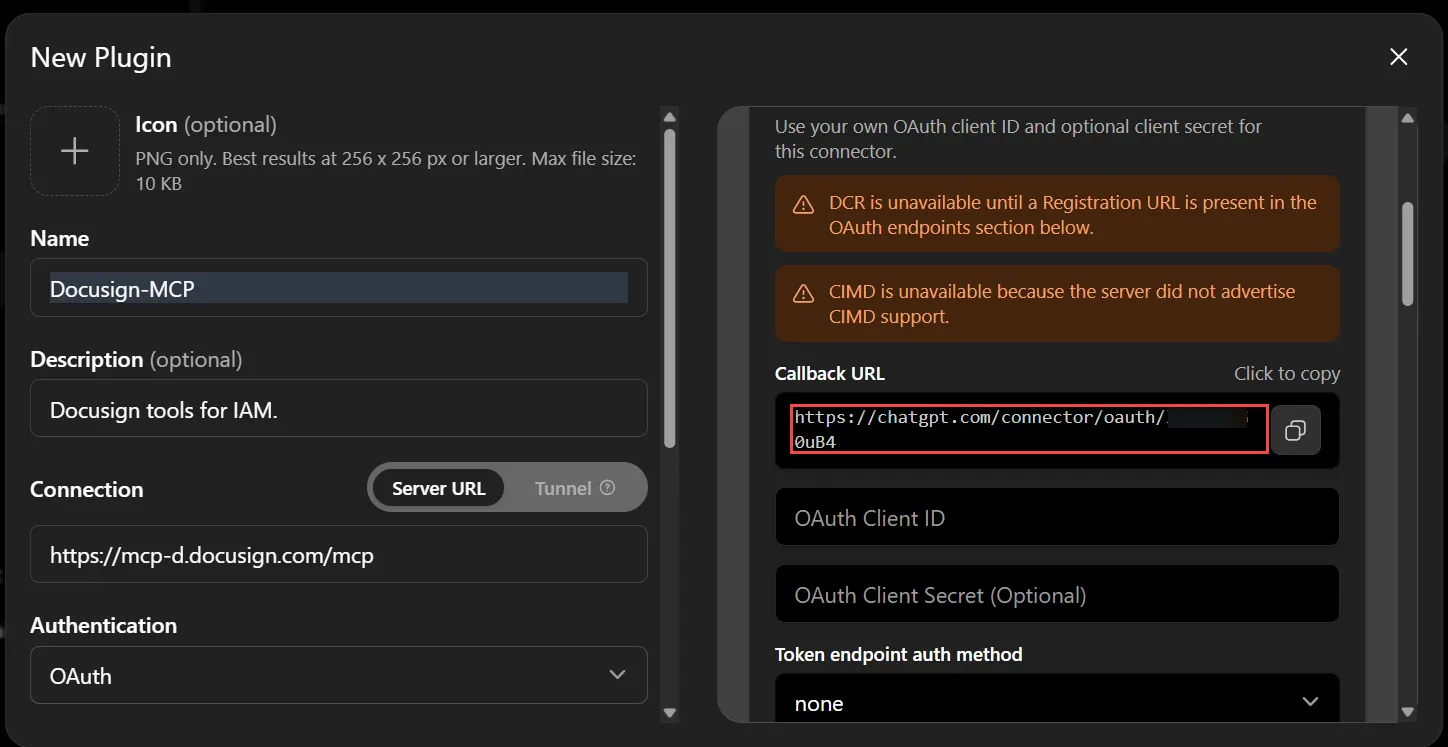
Enter a Name for the plugin. For example: Docusign-MCP
-
(Optional) Enter a description for the plugin.
-
Enter Connection as https://mcp-d.docusign.com/mcp.
-
Select Authentication as OAuth.
-
Select Advanced OAuth Settings, and copy the Callback URL.
-
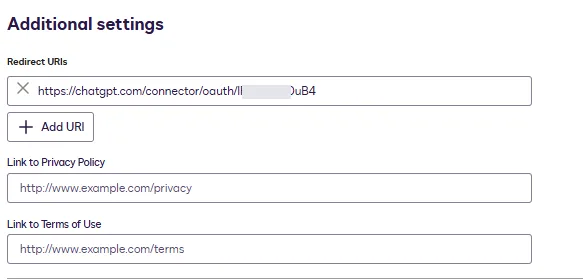
Copy the Callback URL from ChatGPT and enter as the redirect URL for your app in the Docusign Apps and Keys page and save it. Refer How to set a redirect URI page.
-
Enter Integration key id as OAuth Client ID in ChatGPT settings window.
-
Enter client secret as OAuth Client Secret in ChatGPT settings window.
-
Verify the default selected scopes.
-
Select I understand and want to continue.
-
Select Create.
-
Select Sign in with <Plugin name>.
-
Sign in to your Docusign account in your browser (if required).
-
Select Allow Access in the app page requesting the access.
The page redirects to the ChatGPT settings page confirming the configured MCP server.
-
Select the … (three dots menu) of the plugin and select Reconnect.
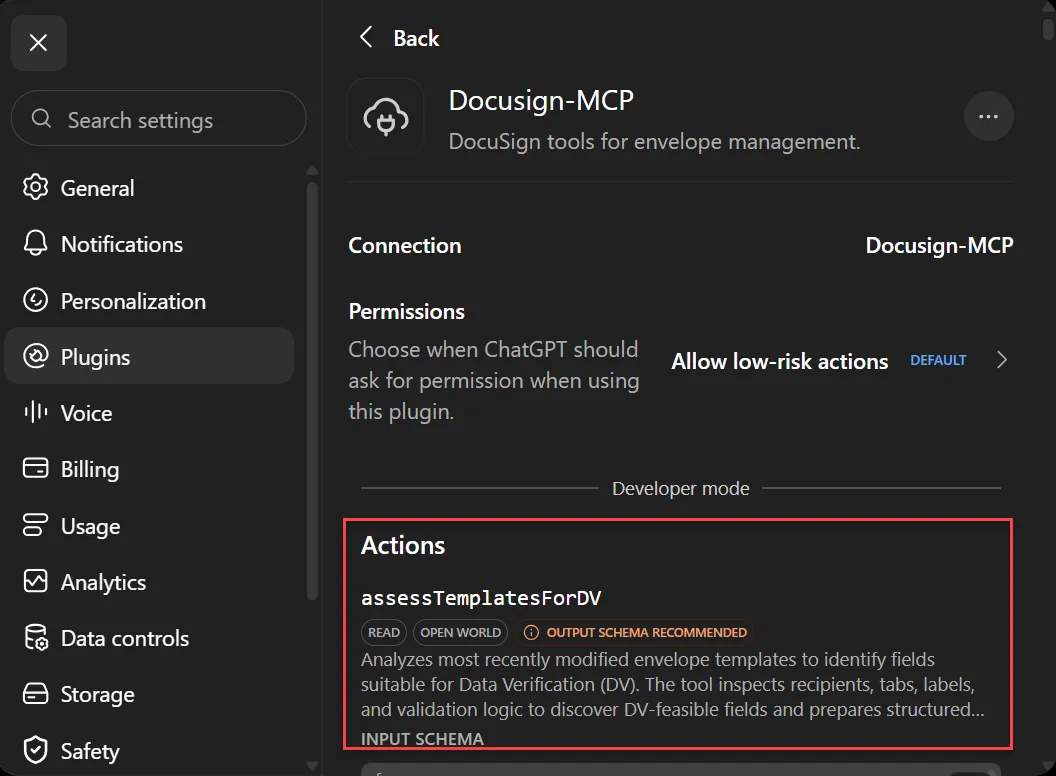
The connects to your Docusign developer account and displays all the available actions.
Verify the MCP server is ready for use
You should see all of the available tools within the Docusign MCP server app created in the ChatGPT settings.
Run a test prompt
To execute a test prompt, complete the following steps:
-
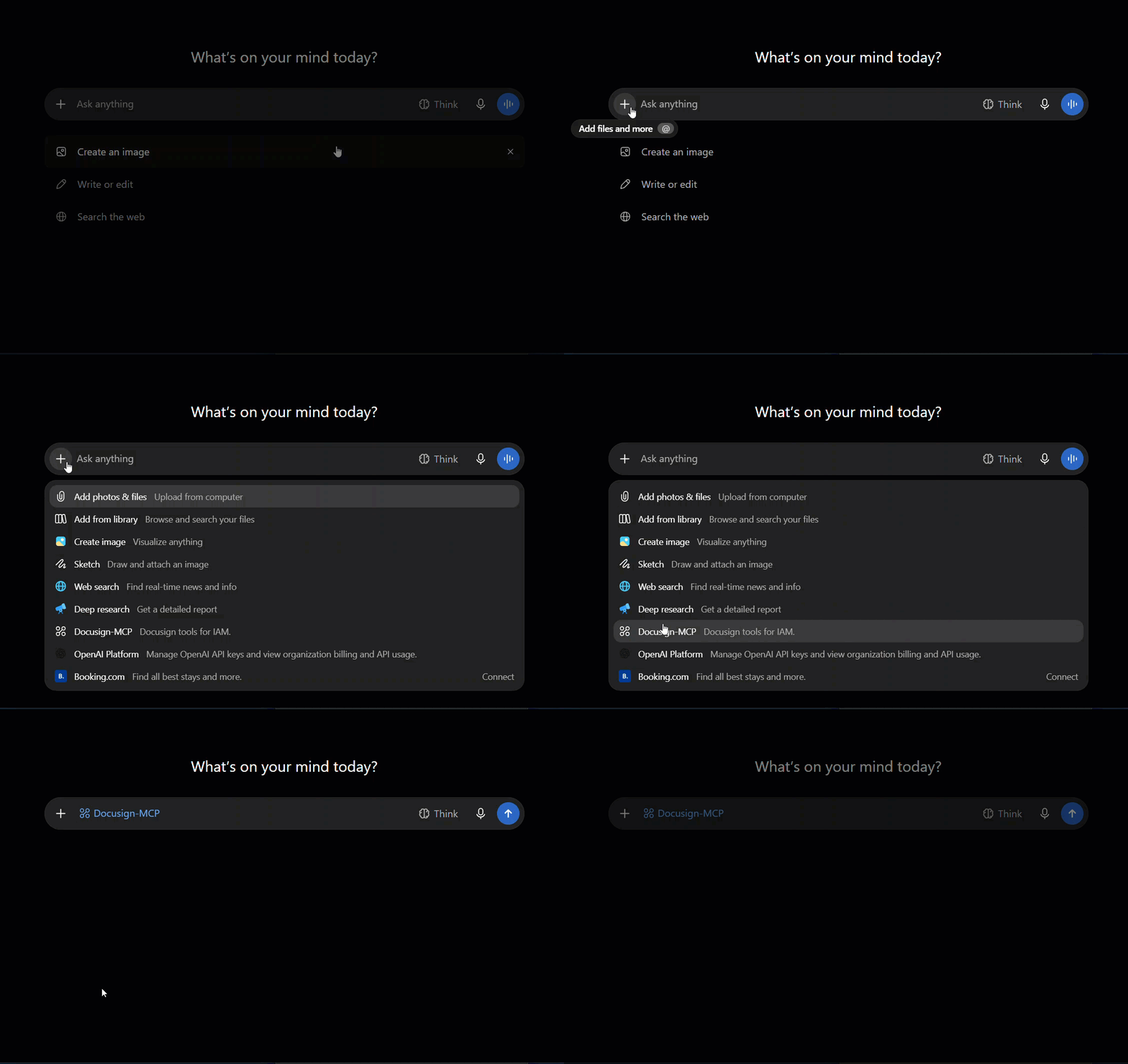
Open a new ChatGPT chat box, and select the + Add Files and more.
-
Select the configured MCP tool.
-
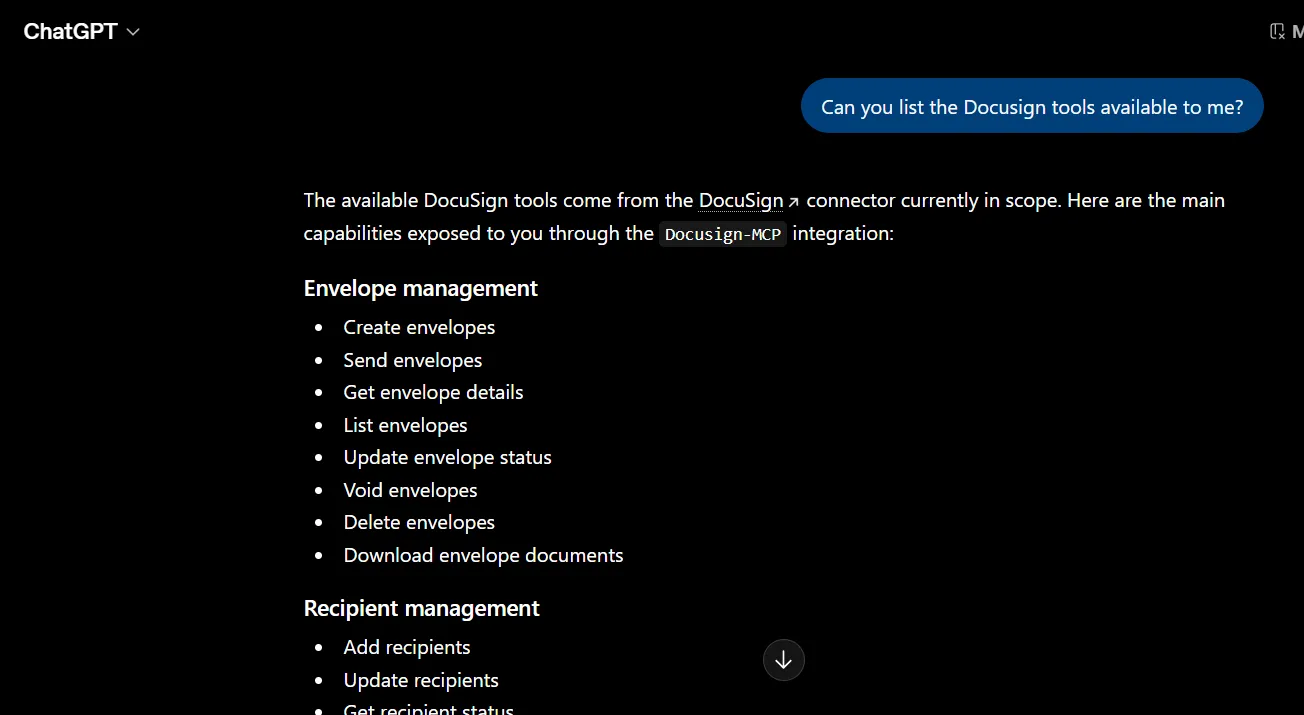
Enter a prompt such as: “Can you list the Docusign tools available to me?” or “What’s the status of NDA sent to Fontara Inc? ”
The chat window responds with the available Docusign MCP tools or the status of NDA sent to Fontara Inc depending on the prompt.
Note: The wording of AI responses may differ between AI platforms, but the data and results should be the same.
Disconnect or Delete MCP App
To disconnect or remove an existing MCP server in ChatGPT:
-
Select your avatar on the bottom left of the menu.
-
Select Settings.
-
In the Plugins menu, select the configured MCP app.
-
(Optional) To disconnect or delete the app, select the …(three dots menu) and select Disconnect or Delete.
The selected MCP configuration is removed at the end of this step.
Next steps
- Try the Docusign MCP server with GitHub (Copilot) to explore its capabilities in Microsoft Visual Studio Code.
- Try the Docusign MCP server with Anthropic (Claude) to explore its capabilities.