
OAuth for Docusign Connect
OAuth for Docusign Connect is an optional security mechanism for Docusign Connect. You can use it to authenticate that the Connect notification messages your app receives are from Docusign. OAuth for Connect uses the Client Credentials OAuth grant type, which is a server-to-server authentication workflow that interfaces with your existing OAuth implementation.
Note: Unlike other OAuth grants supported by Docusign, OAuth for Connect is not used to get an access token and make API calls to the Docusign platform. Instead, it enables you to authenticate that the Connect event notification messages that you receive are from Docusign.
You can combine OAuth for Connect with mutual TLS security. See Mutual TLS with OAuth for Docusign Connect for details.
Client Credentials flow
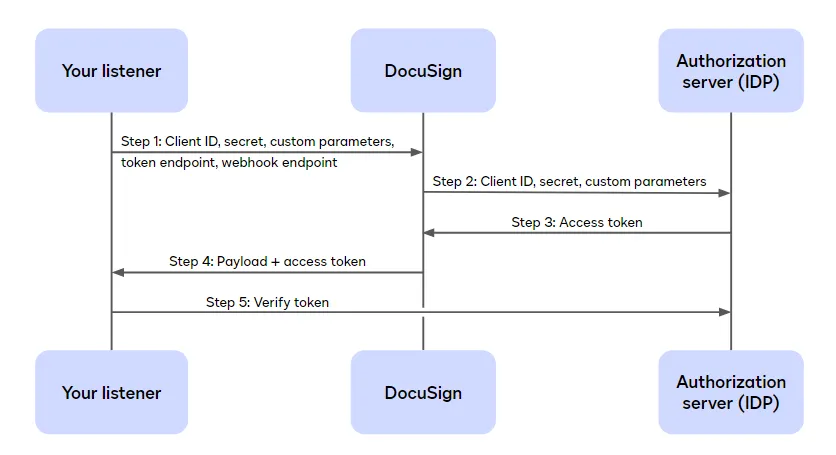
In the Client Credentials OAuth flow, you set your Docusign Connect configuration to send to your app OAuth credentials alongside Connect event notification messages. Your existing OAuth service or authorization server (IDP) that implements OAuth uses these credentials to authenticate that the messages are from Docusign.
-
As a customer, you have an app that exposes an HTTPS webhook URL for receiving Docusign Connect event notification messages. To ensure that the messages you receive are actually from Docusign, you implement OAuth.
-
OAuth requires that you define a set of credentials and URLs:
- A client ID
- Client secret
- A set of custom parameters, such as scope (optional)
- A URL endpoint that can process authentication requests from Docusign for the Connect event notification messages (also called the Token URL)
- An HTTPS URL where the Connect event notification messages will be sent. This URL is supplied at the configuration level after you provide your OAuth credentials.
-
Your listener supplies Docusign with these credentials. In response, Docusign sends the client ID, the client secret, and any custom parameters you have defined to the URL of your IDP/OAuth service. The IDP uses these parameters to generate an access token and sends it back to Docusign.
-
Docusign passes this access token back to your app’s listener URL as a key in an
AuthorizationHTTP header along with every future Connect message.Because this access token is shared only with your app, the authorization server, and Docusign, you can trust that requests delivered with this token are from a trusted source. You can also verify the access token is legitimate by checking with the authorization server that created it.
Important: It is your responsibility to verify the access token used in requests to your listener URL.
Flow diagram
Enable OAuth for Connect
You can enable OAuth for Connect using the UI or by calling an API endpoint. See Enable OAuth for Docusign Connect on the Docusign Support site for details on how to enable OAuth using the UI.
Using the API, you can enable OAuth for Connect by creating or updating your Connect configuration and supplying the required credentials using the ConnectConfigurations:createConnectOAuthConfig or ConnectConfigurations:update endpoints.
Note: Enabling OAuth for Connect is not supported with the eSignature SOAP API.
Custom parameters
You can use custom parameters to support scopes and other fields that are required by your OAuth implementation. Any custom parameters that you set for your Connect OAuth configuration will be included in all Connect event notification messages sent to your IDP or OAuth service.
When creating or updating your Connect OAuth configuration with the API, you can set custom parameters by adding name/value JSON pairs to the customParameters element, as shown in the examples above. You can set any name and value you want for your custom parameters within the limits set by the OAuth framework definition; it is up to your IDP or OAuth service implementation to use this data.
Note: To add multiple scopes, use a space-separated list of scopes within a single custom parameter.
Data required to generate an access token
The data required to generate an access token for Docusign to use with OAuth for Connect can differ based on the API gateway you use. The following table lists the required data for the major supported API gateways.
Note: These are the default OAuth parameters needed per authorization server to generate an access token. Reach out to your network team if additional custom parameters may be needed.
Microsoft Azure
Main parameters
authorizationServerUrl(Required)clientId(Required)clientSecret(Required)
Custom parameters
scope(Required)
See Setting up OAuth for Docusign Connect with Microsoft Azure for a walkthrough on setting up OAuth for Connect with Azure.
Okta
Main parameters
authorizationServerUrl(Required)clientId(Required)clientSecret(Required)
Custom parameters
scope(Required)
Auth0
Main parameters
authorizationServerUrl(Required)clientId(Required)clientSecret(Required)
Custom parameters
audience(Required)
Amazon Web Services (AWS)
Main parameters
authorizationServerUrl(Required)clientId(Required)clientSecret(Required)
Google (Apigee)
Main parameters
authorizationServerUrl(Required)clientId(Required)clientSecret(Required)
Retrieve your OAuth credentials
To retrieve your OAuth credentials, you can make a GET request to ConnectConfigurations:getConnectOAuthConfig.
Note: Only the client ID, your authentication service URL endpoint, and custom parameters will be returned. The client secret will not be provided for security reasons.
Set OAuth for specific Connect configurations
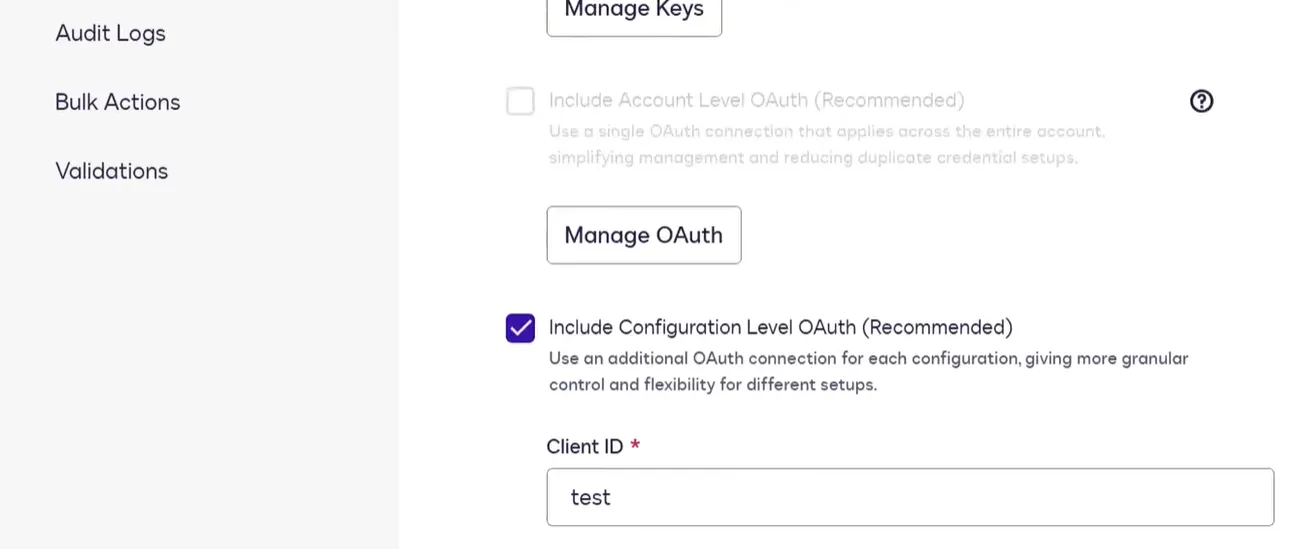
You can set a Connect configuration to have its own set of OAuth credentials, separate from the credentials of other Connect configurations in your account. This enables you to use Connect configurations with more than one identity provider from a single account, giving you more flexibility, security, and control across different integrations. For example, you can set each Connect configuration to connect to different endpoints or use different scopes.
Configuration-level OAuth works exactly like account-level OAuth, other than being used for specific configurations rather than for every configuration in an account. If a Connect configuration has its own set of OAuth credentials, they override the account-level OAuth settings.
You can set configuration-level OAuth credentials in two ways:
-
In the UI: Select Include Configuration Level OAuth on the Edit Configuration page. Once this checkbox is selected, the OAuth settings fields will appear for you to enter the credentials.
-
Using the eSignature API: Set
"enableOAuthPerConfiguration": trueand include the OAuth credentials in a create or updateConnectConfigurationsAPI call.
Set OAuth for specific Connect configurations
If you choose to use configuration-level OAuth for a Connect configuration, options to use account-level OAuth and Basic Auth will be disabled.
Mutual TLS with OAuth for Docusign Connect
Mutual TLS and OAuth for Docusign Connect are both optional security mechanisms for Docusign Connect that can authenticate that your event messages are coming from Docusign and not a third party. Although you can use either Mutual TLS (mTLS) or OAuth for Connect on their own, for optimal security, you can also use both mechanisms together. Each mechanism operates on different layers of your network infrastructure:
- mTLS ensures that the connection is from Docusign.
- OAuth for Connect adds authentication at the application level and protects your connection from forged message attacks.
To use mTLS with OAuth, your authorization server should request Docusign Connect’s x.509 certificate to verify its identity before starting its OAuth grant flow, as shown in the flow diagram.
Flow diagram
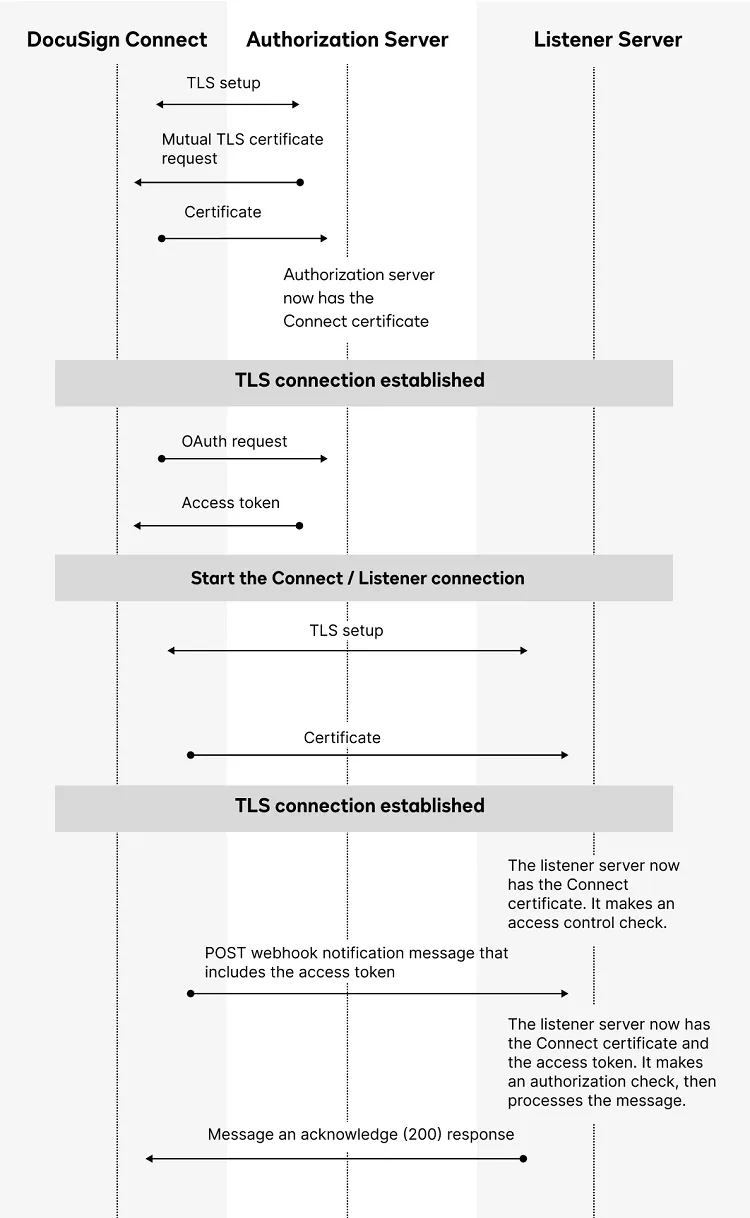
You can also enable an additional security option, access token integrity (“Mutual-TLS Client Certificate-Bound Access Tokens”), by having your authorization server associate its issued access token with Docusign Connect’s x.509 certificate. This enables you to check your Connect message’s access token, both for validity and to ensure that the message’s origin (Docusign Connect) is the same client (same certificate) that requested the access token.
All Docusign Connect security mechanisms, including Mutual TLS and OAuth for Docusign Connect, are implemented, configured, and controlled by the customer’s server hardware and software. The appropriate level of Connect message authenticity checks can differ depending on your business case and networking environment. Contact Docusign Professional Services for guidance on which layers are right for your integration.
Frequently asked questions
Will Docusign request a new access token that is close to expiring?
Yes. Docusign will attempt to retry to obtain a new access token when it nears expiration and if the endpoint returns an error indicating failure to authenticate an access token.
Will Docusign request a new client secret that is close to expiring?
No, Docusign has no control over client secrets. It is your responsibility to enter a new secret if it’s set to expire.
When does Docusign request an access token from the OAuth provider?
Docusign requests an access token when we are attempting to send data to the listener.
Is the OAuth token included in the authorization header?
Yes, the token is included in the Authorization: Bearer {token} header.
Will username/password authentication work with OAuth?
No, Docusign only supports one authentication type per configuration.
Next steps
- Learn about other options for Validation and security
- See how you can secure event notification messages Using HMAC Security with Docusign Connect
- Learn about Setting up OAuth for Docusign Connect with Microsoft Azure
- Read more about using Mutual TLS with OAuth for Docusign Connect in From the Trenches: Updates to mTLS with OAuth for Docusign Connect