
Build with the Docusign MCP Server
The Docusign Model Context Protocol (MCP) server introduces a new way for developers to interact with Docusign APIs through natural, conversational AI interfaces. Instead of switching between documentation, API references, and code, you can now use any AI assistant that supports the MCP standard to explore Docusign’s capabilities, including generating access tokens, testing APIs, and automating end-to-end agreement workflows.
Prerequisites
If you are using a custom connector with a production Docusign account, ensure you
- Submit this form with your integration key and email to allow-list your production Docusign account. For more details, refer here.
If you are using a custom connector with a developer Docusign account, you will need:
- A Docusign developer account. You can create one.
The Docusign MCP server can connect to any AI-assisted tool powered by a large language model (LLM) platform. Here are a few examples of tools that support MCP:
- Anthropic Claude Desktop
- GitHub Copilot
- Microsoft Copilot Studio
- Mistral Vibe
- OpenAI (ChatGPT)
- Perplexity
- Slackbot
To know more about security and compliance of Docusign MCP Server, refer Security and Compliance Reference.
Explore what’s possible with the Docusign MCP Server
The Docusign MCP Server supports a range of builders, from engineers developing custom agents to operations leads creating automations without code. That includes teams at startups and global enterprises, as well as the partners who serve them.
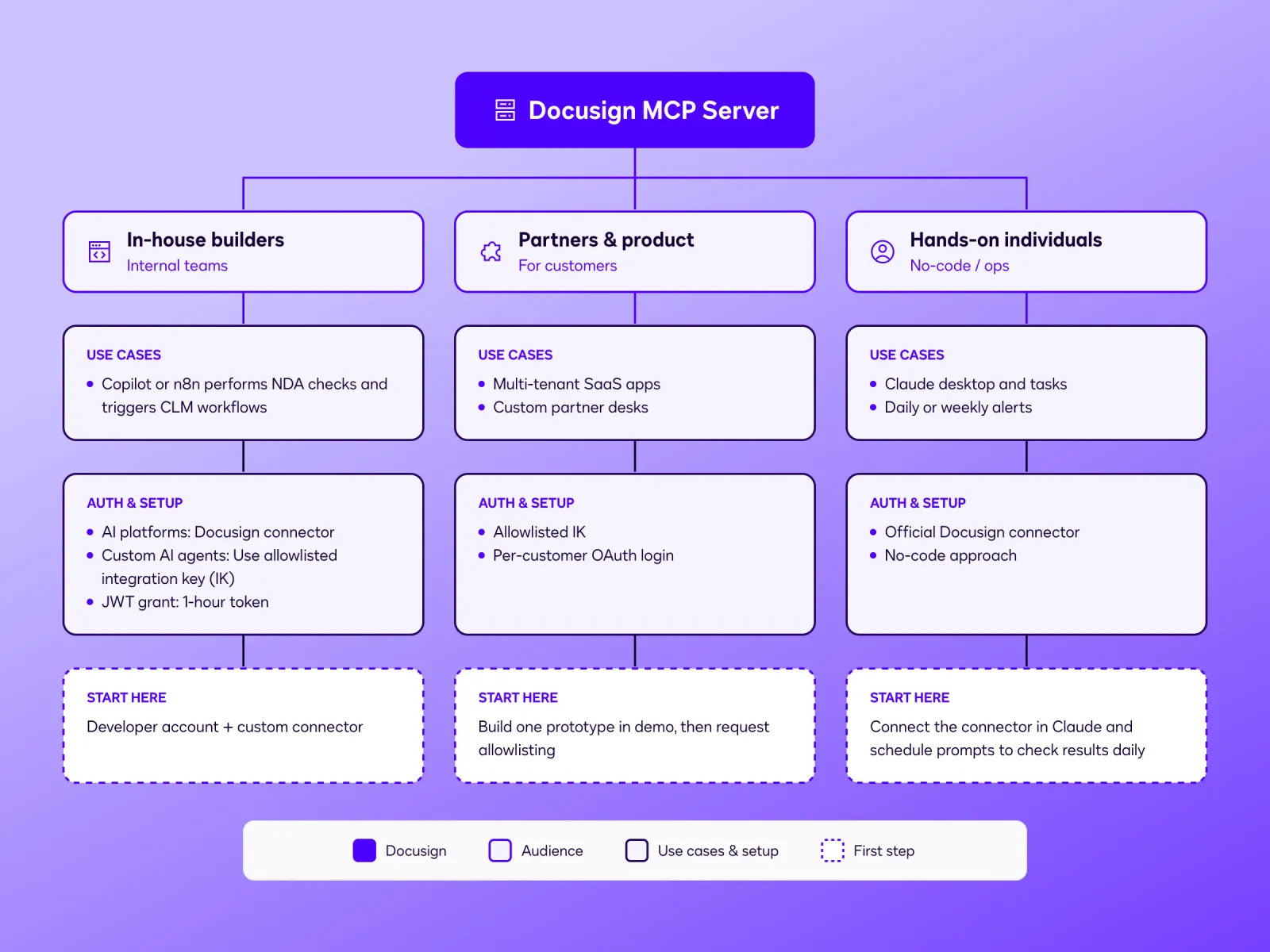
Most builders fall into three groups:
- In-house builders, creating agents for their own company
- Partners and product teams, building agents for their customers
- Hands-on individuals, automating their own day-to-day work
Here’s what each group can build and how to get started.
In-house builders: Agents for your own company
For example, a Copilot Studio agent could answer, “Do we already have an NDA with this vendor, and when does it expire?” before procurement sends a new one. A contract-request agent built in your own code could start the right CLM workflow as soon as a request comes in, rather than leaving it in legal’s inbox.
In AI platforms, build on the official connector. For custom agents, use your own allowlisted IK and build the approval step yourself.
Want to simplify further and to run your agentic workflow on a schedule? Try a scheduled job or an MCP-capable automation platform like n8n, starting in the demo environment. A weekly check for agreements nearing auto-renewal is a good first job. Use JWT Grant: tokens expire after eight hours, so create refresh logic to let these automations run unattended.
Start here: build against a developer account with a custom connector.
Partners and product teams: Agents for your customers
A property-management platform could let its agent send leases from each customer’s own Docusign templates and report who has signed. A systems integrator (SI) could build a renewal desk for a client’s legal team that tracks expiration dates and the client’s custom provisions.
Your agent uses your allowlisted IK. Each customer signs in with their own account, and their admin enables MCP, allowing one agent to serve many customers.
Start here: Prototype one client workflow in demo, then request allowlisting.
No-code builders: Automate agreement tasks without writing code
Operations leads and power users in legal, sales, procurement, and HR can use the official Docusign connector in Claude to automate recurring agreement tasks without writing code or using an Integration Key (IK).
For example, a legal ops lead could create a skill that sends NDAs from an approved template and schedule a weekly summary of agreements nearing auto-renewal. A sales ops manager could set up a daily report of envelopes that have been waiting on a signer for more than three days. These tasks can also require approval before execution.
Start with: Connect the official Docusign connector in Claude and create a scheduled task using a prompt like:
“Use the Docusign connector to list envelopes I’ve sent that have been waiting on a signer for more than three days, with each recipient’s name and the date sent.”
Run the prompt once in chat to check the results, then schedule it to run every Monday at 9 a.m.
Next steps
- Learn the difference between official and custom MCP Server Connectors to explore its capabilities.
- Learn how to authenticate and the list of scopes required to connect Docusign MCP server. See Authentication & Scope.
- Learn the various MCP tools available in the Docusign MCP server. See MCP Tools to explore its capabilities.
- For more information on using production Docusign account with Docusign MCP server, see Docusign MCP Server and AI Connector User Guide.