
How to obtain individual consent
The most straightforward way to obtain consent for your application to act on a user’s behalf is to directly ask that user, getting their individual consent.
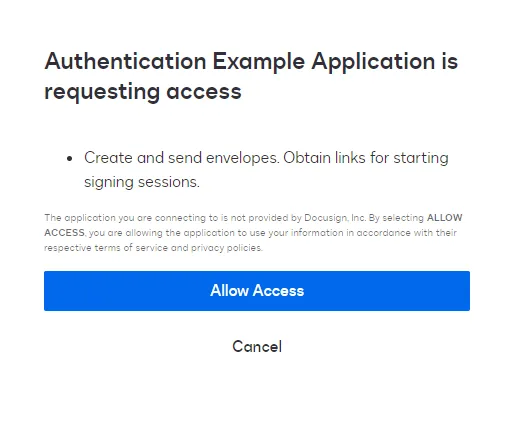
When an application authenticates to perform actions on behalf of a user, that user will be asked to grant consent for the set of scopes (sets of permissions) that the application has requested, unless they have previously granted that consent.
Video walkthrough
You can also see a video walkthrough of how to obtain individual consent, shown below:
Prerequisites
To grant individual consent, you must meet the following prerequisites:
Step 1. Open the Docusign authorization URI
To begin authentication and obtain consent, your app will open a constructed Docusign authorization URI. Note that this is not a standard GET request and cannot be directly sent by the application. Instead, the browser will open the authorization request URI and the request is sent from there to the account server.
Typically, your application can provide this URI to the user as a link to select or via an email.
The authorization request includes several parameters used with the base URL to configure specific authentication options. The following parameters are required:
Your application should open the resulting URI in a web browser to initiate the authentication process. You can test the process by pasting your URI string into a browser window.
Step 2. Obtain consent
If the user hasn’t already given consent (or if consent has been revoked by the user or an admin) they are notified that they must give consent to the application for the requested scopes.
After the user chooses Accept, consent is granted. The Docusign authentication service verifies that the client application is valid and has access to the requested scope. If so, it redirects the access token to the provided callback URI in a hash fragment.
Once a user has granted consent to an application, they will no longer be prompted to do so again unless consent is revoked.
Next steps
- Every Docusign workflow requires that your user grant explicit consent for your application to act on their behalf. See Obtain and revoke consent for details and a description of each way to get consent from your users.
- Learn more about authentication.
- See the list of scopes.