
How to send an envelope with email reminders
This topic demonstrates how to send an envelope with email reminders using the Notifications class in the Apex Toolkit.
Prerequisites
- Install the Docusign eSignature for Salesforce managed package.
- Create a subdomain for your Salesforce organization by enabling “My Domain.”
- Select the Docusign Setup tab and complete the login step.
Required data
Running the code in this how-to requires this data:
Step 1. Define a public class and method
Create the class and methods that will contain the code in this example. You can skip this step if you are adding this code to an existing class.
Step 2. Create the notification definition
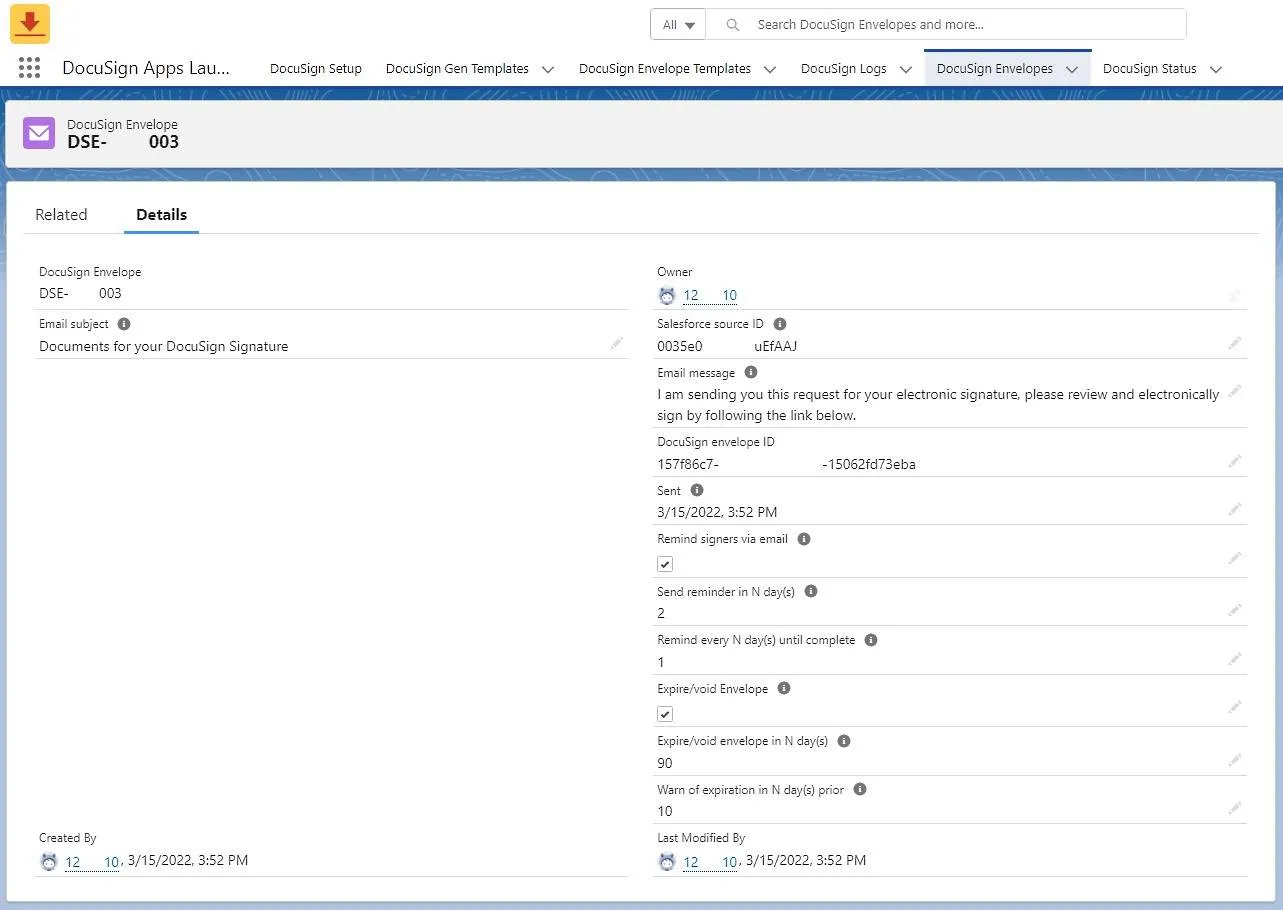
Create a Notifications object to define the notification settings for all of the envelope’s recipients. The first parameter of the Notifications object is set to true to indicate that reminders should be sent to the recipients. The second parameter indicates the number of days that will pass before the first reminder is sent, and the third parameter indicates the number of days that will pass between reminders. The Notifications object also allows you to set an expiration date for the envelope and send a reminder before that date.
Step 3. Create the envelope definition
Use the EnvelopeService.getEmptyEnvelope method to create an empty envelope template definition that will be subsequently completed, created, and sent. Specify the Salesforce ID of the record in the Entity parameter that is to be used as the source object for the envelope. Create a Recipient object for each recipient of the envelope. Once a recipient is created, use the withRecipients method to add it to the envelope. Create a new dfsle.Document using the dfsle.Document.fromTemplate method and add it to the envelope. Add your Notifications object from the previous step to the envelope with the withNotifications method.
Step 4. Send the envelope
Send the envelope using the EnvelopeService.sendEnvelope method. Set the sendNow parameter to true to indicate that you want to send the envelope immediately. Setting the sendNow parameter to false will save the envelope as a draft. The Apex Toolkit does not support sending a draft envelope. To send a draft envelope, you will need to call the eSignature REST API outside of the Apex Toolkit.
The accompanying code demonstrates how to send the envelope.
Step 5. Execute your method
To execute your code, go to the Developer Console in Salesforce, open the Debug menu, then select Open Execute Anonymous Window. Type the accompanying code in the window and select Execute.
View this code on GitHub: Apex.
Expected response
If your API call is successful, the recipient should receive an email notification asking them to sign the document in the envelope. After two days, they will begin to receive daily email reminders until the envelope expires in 90 days. You can view the envelope in the Docusign Apps Launcher under Docusign Envelopes.
Next steps
- See all available Apex Toolkit How-to guides.
- Learn How to send an envelope.
- See How to perform unit testing to ensure that you have adequate code coverage.