
How to create and embed an external form fill session
This topic demonstrates how to create and embed an external form fill session using the ExternalFormFillSessions:CreateExternalFormFillSession method.
Important: You must first create and add a form to a room to complete this how-to.
Run this code example from our Quickstart or launcher projects: Bash, C#, Java, Node.js, PHP, PowerShell, Python, or Ruby.
Required data
Running the code in this how-to requires this data:
Step 1. Obtain your OAuth token
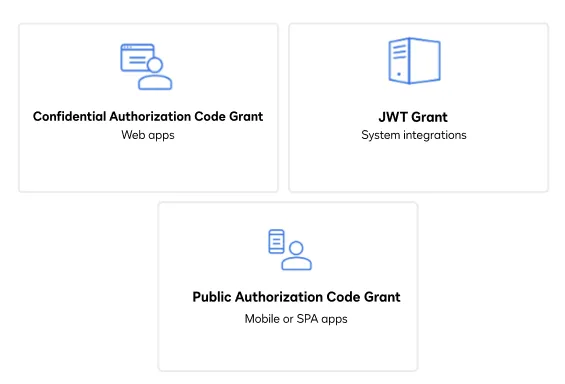
To make the API call shown in this how-to, you need a valid OAuth access token with the dtr.rooms.write scope enabled. Docusign supports access tokens for three different recommended OAuth grant types: Public Authorization Code Grant, Confidential Authorization Code Grant, and JSON Web Token (JWT) Grant. Choose the OAuth grant type appropriate for your scenario.
See Authentication for guidance on your options to get an OAuth token.
Step 2. Construct your API headers
After you have a valid OAuth access token, you are ready to construct the API headers that you will pass to the API call. Construct your headers like this, but make sure to substitute your valid OAuth access token for {ACCESS_TOKEN}.
Step 3. Construct the request body
Next, create the request body. Set your formIDs, roomID, and xFrameAllowedUrl domain in your request body. The formIDs allows you to add multiple forms to the form fill session. The xFrameAllowedUrl is the domain where you want to embed the form. Here’s how you make the request, but make sure to substitute your room ID for {room_id}, your form IDs for {library_form_id} and enter your domain next to xFrameAllowedUrl as shown in the gist.
Step 4. Call the Rooms API
Now that you have constructed your API headers and request body, make a request to the Rooms API to return an external form fill session. Here’s how you make the call, but make sure to substitute your API account ID for {account_id}.
Expected response
Copy the return url from the JSON response, and paste it in the corresponding line in the next step.
Step 5. Embed the form fill session
Paste the url generated in the prior step. Redirect your app’s internal browser to this URL to begin the external form fill session.
Expected response
You will be redirected to the return URL to start the embedded external form fill session in your browser.
Note: Select SAVE & CLOSE to save the completed form to your room. In your Rooms account, right click on the specified Room, then select Documents to see this completed form.
Next steps
- Run this code example from our Quickstart or launcher projects: Bash, C#, Java, Node.js, PHP, PowerShell, Python, or Ruby.
- See How to create a room with a template.
- See How to add forms to a room.
- Learn about Using room templates and task lists.
- See how to Go-Live with a completed app and find the base path for API calls in the production environment.