
Creating a Rooms developer account
To use Docusign Rooms functionality, you need to create a company Rooms account. This account will contain all of your member (employee) accounts, any rooms you create, and all of the metadata associated with those members and rooms. As with the eSignature REST API, Rooms accounts can be created in either the developer account (demo) or production environment.
You can create a Rooms developer account for free, which you can use to see, experiment with, and develop for the Rooms API functionality. You can create a Rooms production account (which can use your Rooms developer account data) by purchasing one of the Rooms API Docusign products. Once you’re ready, you can promote your app from your Rooms developer account to your production account by completing the Go-Live process.
You can create a new company Rooms API developer account using the following steps:
-
Create an eSignature developer account. Because Rooms integrates eSignature functionality, you must have an existing eSignature account before you can create a Rooms account.
-
Contact Docusign to request a Rooms account via support-re@docusign.com. Include the following information:
- Your company’s name and address.
- Your developer account ID. To find your Account ID, log in to your eSignature developer account, then select your account portrait to access your profile. Copy the Account ID value that appears directly below your name in the displayed drop-down menu.
- Your API Account ID. To find your API Account ID, log in to your eSignature developer account and select Admin, then click Apps and Keys. Copy your API Account ID value
-
After you have provided this information, Docusign will send you a confirmation email. When you receive it, go on to step 4.
-
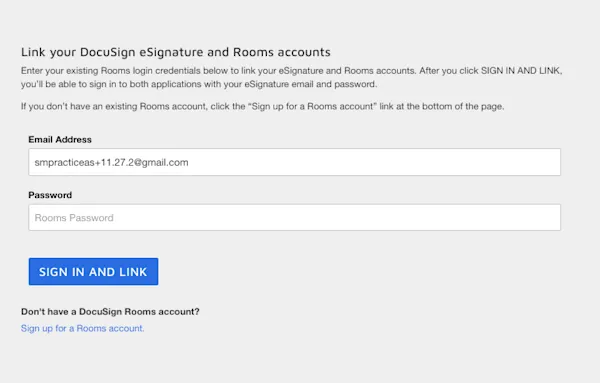
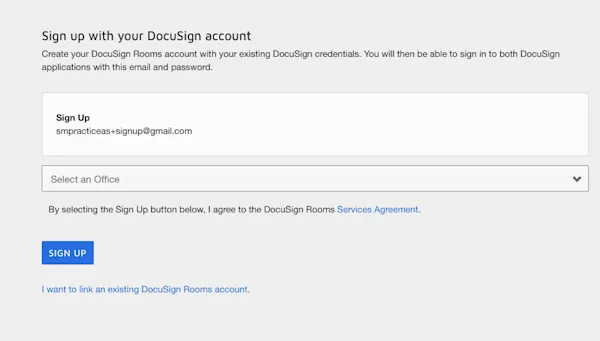
Log in to your eSignature developer account from an incognito browser window, select your portrait at the top right of the window, then select Switch to Rooms. Re-enter your developer credentials if prompted. On the Link your Docusign eSignature and Rooms accounts page, select Sign up for a Rooms Account at the bottom of the page, then select Sign Up to open the dashboard of your new Rooms account.
-
Select Accept Agreement to accept the agreement.
You are now an administrator of the new account with access to both eSignature and Rooms functionality. Go to the Rooms sign-in page to sign in to your new rooms account.