
Skip to navigation

How to assign a form to a form group

View as Markdown
Docusign Rooms for Real Estate only

This topic demonstrates how to assign a form to a form group for your Docusign Rooms for Real Estate account.

You must first create a form group and grant office access to this form group to complete this how-to.

Run this code example from our Quickstart or launcher projects: Bash, C#, Java, Node.js, PHP, PowerShell, Python, or Ruby.

Required data

Running the code in this how-to requires this data:

Data elementDescription
{API_ACCOUNT_ID}A GUID value that identifies your account. This value is automatically generated by Docusign for any account you create. Copy the value from the API Account ID field on the Apps and Keys page.
{BASE_PATH}A string value that forms the root of the URL required to make API calls. The base path value in the example code is set to target the developer environment at
https://<domain>/restapi/v2
Where <domain> is demo.rooms.docusign.com for the developer environment and rooms.docusign.com for production.
{FORM_GROUP_ID}A GUID value that identifies your form group. This value is created by Docusign when you create a form group.
{FORM_ID}A GUID value that identifies the form to attach to a room. To return a list of your form IDs, use the FormLibraries:GetFormLibraries method.
Forms enabled on your Rooms accountThe user role needs the Manage form groups permission assigned. These permissions are only available to accounts with Forms enabled. To enable this feature, contact your Account Manager or Business Development representative.
Rooms enabled for your accountYou will need access enabled to use the Rooms API. See creating a Rooms developer account.

Step 1. Obtain your OAuth token

To make the API calls shown in this how-to, you need a valid OAuth access token. Docusign supports access tokens for three different recommended OAuth grant types: Public Authorization Code Grant, Confidential Authorization Code Grant, and JSON Web Token (JWT) Grant. Choose the OAuth grant type appropriate for your scenario.

See Authentication for guidance on your options to get an OAuth token.
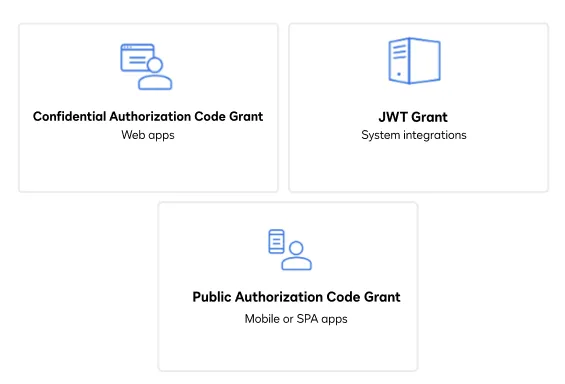
Three icons that represent the three methods a user can use to obtain an OAuth token: JSON Web Token (JWT), Public Authorization Code Grant (ACG), and Confidential Authorization Code grant

Step 2. Construct your API headers

After you have a valid OAuth access token, you are ready to construct the API headers that you will pass to the API call. Construct your headers like this, but make sure to substitute your valid OAuth access token for {ACCESS_TOKEN}.

declare -a Headers=('--header' "Authorization: Bearer ${ACCESS_TOKEN}"
'--header' "Accept: application/json"
'--header' "Content-Type: application/json")

Step 3. Retrieve the desired form library ID

Rooms accounts have forms bundled into objects known as FormLibraries. Form Libraries are collections of form IDs that can be applied to a given form group through its associated form group ID.

Retrieve your desired form ID from the formsLibraryId by making a GET request to the FormLibraries:GetFormLibraries endpoint. Here’s how you make the call, but make sure to substitute your base path for {BASE_PATH} and API account ID for {API_ACCOUNT_ID}.

# Create a temporary file to store the response
response=$(mktemp /tmp/response-rooms.XXXXXX)
# Call the Rooms API to look up your forms library ID
Status=$(curl -w '%{http_code}' --request GET ${base_path}/restapi/v2/accounts/${API_ACCOUNT_ID}/form_libraries "${Headers[@]}" --output ${response})
if [[ "$Status" -gt "200" ]]; then
echo ""
echo "Error:"
echo ""
cat $response
exit 1
fi
echo ""
echo "Response:"
cat $response
echo ""
declare -A form_name_to_id_map
form_names=()
FORM_ID=''
FORMS_LIBRARY_ID=$(cat $response | grep formsLibraryId | sed 's/.*formsLibraryId\":"//' | sed 's/\".*//')
# Call the Rooms API to look up a list of form IDs for the given forms library
Status=$(curl -s -w '%{http_code}' --request GET ${base_path}/restapi/v2/accounts/${API_ACCOUNT_ID}/form_libraries/${FORMS_LIBRARY_ID}/forms "${Headers[@]}" --output ${response})
if [[ "$Status" -gt "200" ]]; then
echo ""
echo "Error:"
echo ""
cat $response
exit 1
fi
form_name=`cat $response | grep -o -P '(?<=name\":\").*?(?=\")'`
form_ids=`cat $response | grep -o -P '(?<=libraryFormId\":).*?(?=\,)'`
arr_form_ids=($form_ids)
form_count=$(echo "$form_name" | grep -c '^')
if [ "$form_count" -eq "1" ]; then
FORM_ID=$form_ids
else
echo ""
PS3='Select a form by the form name: '
IFS=$'\n'
select form in $form_name; do
if [ "$REPLY" -gt "0" ] && [ "$REPLY" -le "$form_count" ]; then
FORM_ID=${arr_form_ids[$REPLY-1]//\"/}
break
fi
done
fi
echo ""
echo "FORM_ID: " $FORM_ID
echo ""

Step 4. Select a form group ID

To find the form group you want to assign the form to, you need to make a GET request to the FormGroups:GetFormGroups endpoint. The Rooms API will return a list of available form group IDs; select one to continue through the example.

Here’s how you make the call, but make sure to substitute your base path for {BASE_PATH} and API account ID for {API_ACCOUNT_ID}.

# Call the Rooms API to look up a list of form group IDs
Status=$(curl -w '%{http_code}' --request GET ${base_path}/restapi/v2/accounts/${API_ACCOUNT_ID}/form_groups "${Headers[@]}" --output ${response})
if [[ "$Status" -gt "200" ]]; then
echo ""
echo "Error:"
echo ""
cat $response
exit 1
fi
echo ""
echo "Response:"
cat $response
echo ""
form_group_name=`cat $response | grep -o -P '(?<=name\":\").*?(?=\")'`
form_group_ids=`cat $response | grep -o -P '(?<=formGroupId\":).*?(?=\,)'`
arr_form_group_ids=($form_group_ids)
form_group_count=$(echo "$form_group_name" | grep -c '^')
if [ -z "$form_group_name" ]; then
echo ""
echo "Error:"
echo ""
echo "Form group ID is needed. Please run step 7 - Create a form group..."
exit 0
elif [ "$form_count" -eq "1" ]; then
FORM_GROUP_ID=$form_group_ids
else
echo ""
PS3="Select a form group: "
IFS=$'\n'
select form_group in $form_group_name; do
if [ "$REPLY" -gt "0" ] && [ "$REPLY" -le "$form_group_count" ]; then
FORM_GROUP_ID=${arr_form_group_ids[$REPLY-1]//\"/}
break
fi
done
fi

Step 5. Construct your request body

Next, create a request body using the previously obtained form ID. Make sure to substitute your form ID for {FORM_ID}.

printf \
'
{
"formId": "'"${FORM_ID}"'",
}' >>$request_data

Step 6. Call the Rooms API

Now that you have constructed your API headers and request body, make a POST request to the FormGroups:AssignFormGroupForm endpoint and include the request body to add your form to a form group for your Rooms account.

Here’s how you make the call, but make sure to substitute your base path for {BASE_PATH}, API account ID for {API_ACCOUNT_ID}, and form group ID for {FORM_GROUP_ID}.

View the source code for this how-to on GitHub: Bash, C#, Java, Node, PHP, PowerShell, Python, or Ruby.

Status=$(curl -w '%{http_code}' --request POST ${base_path}/restapi/v2/accounts/${API_ACCOUNT_ID}/form_groups/${FORM_GROUP_ID}/assign_form "${Headers[@]}" --data-binary @${request_data} --output ${response})

Expected response

If you run this code example from our Quickstart or launcher projects, you should see a JSON response similar to the code shown.

Sample response
{
"formGroupId": "05e4c7a9-xxxx-xxxx-xxxx-b3e9b55b0e55",
"name": "Sample Room Form Group",
"officeIds": [
"4xxx1"
],
"forms": [
{
"formId": "24416d38-xxxx-xxxx-xxxx-a19720cc2931",
"name": "DUPLICATE FIELD FORM - DTRENG-1984",
"isRequired": false,
"lastUpdatedDate": "2020-07-31T23:21:04.027"
}
]
}

Next steps