
Skip to navigation

How to request a signature online (embedded signing)

View as Markdown

This topic demonstrates how to collect signatures directly from the app UI in a process called embedded signing. To present the signing request in the app UI, the logged-in SDK user must:

  • be the document sender and
  • have access to the sent envelope to retrieve the signing URL.

Required data

Running the code in this how-to requires this data:

Data elementDescription
{ENVELOPE_ID}A GUID value that identifies a Docusign envelope. This value is automatically generated by Docusign when the envelope is created.
{RECIPIENT_CLIENT_USER_ID}A string value that serves as an identifier of an individual signer throughout the signing process. The combination of this value, the signer’s name, and the signer’s email is used to uniquely identify them.
{SIGNER_EMAIL}A string value for the email address where the signer will receive a notification of the signing request.
{SIGNER_NAME}A string value for the full name of the signer.

Step 1. Log in to Docusign

To make the API call shown in this how-to, you must be logged in to Docusign.

See How to log in to Docusign from your app for details.

Step 2. Start the embedded signing process:

Start the embedded signing process using the method shown. The method retrieves the signing URL and loads the embedded signing session for the authenticated sender account.

[[DSMEnvelopesManager alloc] presentCaptiveSigningWithPresentingController:self
envelopeId:@"{ENVELOPE_ID}"
recipientUserName:@"{SIGNER_NAME}"
recipientEmail:@"{SIGNER_EMAIL}"
recipientClientUserId:@"{RECIPIENT_CLIENT_USER_ID}"
animated:true
completion:^(UIViewController * _Nullable presentedController, NSError * _Nullable error) {
if (error) {
NSLog(@"%@", error.localizedDescription);
return;
}
}];

Expected response

If your call is successful, you will see the web view that is returned by the SDK, and the user can complete the embedded signing process.
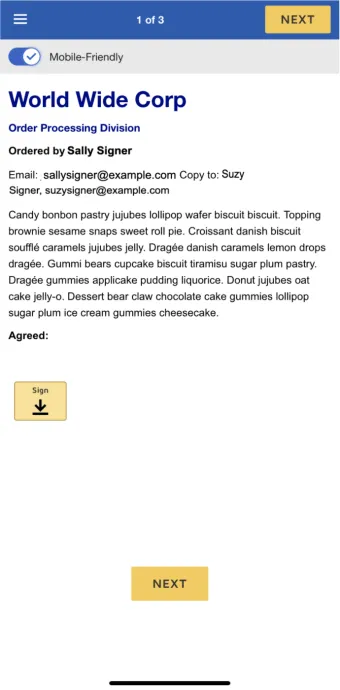
iOS web view for embedded signing

Next steps