
Skip to navigation

How to log in to Docusign from your app

View as Markdown

This topic demonstrates how to log in to Docusign from your app.

Required data

Running the code in this how-to requires this data:

Data elementDescription
{API_ACCOUNT_ID}A GUID value that identifies your account. This value is automatically generated by Docusign for any account you create. Copy the value from the API Account ID field on the Apps and Keys page.
{BASE_PATH}A string value that forms the root of the URL required to make API calls. The base path value in the example code is set to target the developer environment at
https://<domain>/restapi
Where <domain> is demo.docusign.net for the developer environment and is the result of the GetUserInfo call in production.
{INTEGRATION_KEY}A GUID value that identifies your app. This can be obtained in your developer account by accessing the Apps and Keys page. See the Administration Guide for more information.
{USER_EMAIL}A string value for the email address associated with your account.
{REDIRECT_URI}A URL to which the user will be forwarded after authentication. The value for this URL must exactly match one of those pre-registered for the integration key in your Docusign account. See redirect URI for details.
{IMPERSONATION_USER_GUID}A GUID value that identifies the user. This value is automatically generated by Docusign. Copy the value from the User ID field on the Apps and Keys page.
{USER_NAME}A string value for the name associated with your account. This value must exactly match (case-sensitive) the value shown in your Account Profile in the Name field.

Step 1. Obtain your OAuth token

To make the API call shown in this how-to, you need a valid OAuth access token. The Docusign iOS SDK supports access tokens for two different OAuth grant types: Authorization Code Grant and JSON Web Token (JWT) Grant. Choose the OAuth grant type appropriate for your scenario. See Authenticate for guidance on your options to get an OAuth token.
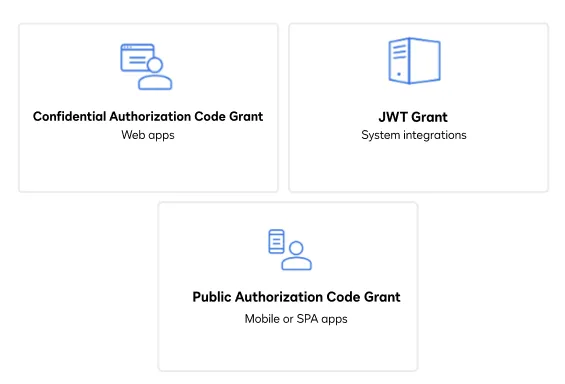
Three icons that represent the three methods a user can use to obtain an OAuth token: JSON Web Token (JWT), Public Authorization Code Grant (ACG), and Confidential Authorization Code grant

Step 2. Enable SDK token storage in Keychain

To enable the SDK to store access tokens and refresh tokens in the Apple Keychain, insert the following entry into your application’s Info.plist file:

<key>AppIdentifierPrefix</key>
<string>$(AppIdentifierPrefix)</string>
application info.plist file

Step 3. Log in to Docusign

Use the method shown to log in to Docusign. Be sure to substitute {ACCESS_TOKEN} for the token obtained in Step 1. This method also includes two optional parameters:

  • refreshToken: You can use a refresh token to get a new access token after the access token expires. This token is included in the authentication response in Step 1.
  • expiresIn: A date object that indicates the expiration date of the access token. If you do not wish to include these parameters, you can set these values to nil.
[DSMManager loginWithAccessToken: @"{ACCESS_TOKEN}"
accountId: @"{ACCOUNT_ID}"
userId: @"{USER_ID}"
userName: @"{USER_NAME}"
email: @"{USER_EMAIL}"@
host:[NSURL URLWithString: @"{BASE_PATH}"]
integratorKey:@"{INTEGRATION_KEY}"
refreshToken:@"{REFRESH_TOKEN}"
expiresIn:{EXPIRES_IN}
completion:^(DSMAccountInfo *accountInfo, NSError *error) {
if (error) {
NSLog(@"%@", error.localizedDescription);
return;
}
}];

Expected response

If login is successful, a DSMAccountInfo object will be returned. You will now be able to make API calls.

Next steps