
Skip to navigation

How to create an envelope for offline signing (from a template)

View as Markdown

This topic demonstrates how to create an envelope from a template for offline signing.

Required data

Running the code in this how-to requires this data:

Data elementDescription
{ROLE_NAME}A string value for the role name associated with the template recipient. This value can be defined upon template creation. This value must exactly match (case-sensitive) the value shown in the Role field assigned to the recipient in the template.
{SIGNER_EMAIL}A string value for the email address where the signer will receive a notification of the signing request.
{SIGNER_NAME}A string value for the full name of the signer.
{TAB_LABEL}A string value identifying a text-based tab to override in the template. This value can be defined upon template creation using the Data Label field. This value must exactly match (case-sensitive) the value shown in the tab’s Data Label field in the template.
{TAB_VALUE}A string value to assign to the text tab in the template.
{TEMPLATE_ID}A GUID value that identifies a Docusign template that is used to create a Docusign envelope. This value is automatically generated by Docusign when the template is created.

Step 1. Log in to Docusign

To make the API call shown in this how-to, you must be logged in to Docusign.

See How to log in to Docusign from your app for details.

Step 2. Cache template

Use the method shown to cache the template you wish to use to construct your envelope.

[self.templatesManager cacheTemplateWithId: @"{TEMPLATE_ID}"
completion:^(NSError * _Nullable error) {
if (error) {
NSLog(@"%@", error.localizedDescription);
return;
}
}];

Step 3. Create envelope defaults

When creating an envelope definition with a template, the documents, tabs, and most of the other envelope data will be automatically populated by your chosen template. To create an envelope from a template, you must:

  • Specify the ID of the template.
  • Specify the names, emails, and role names for each role in the template.
  • Provide a custom string to be assigned as the value of any tab objects identified by {TAB_LABEL} that you wish to override.

Note: Only text-based tabs are supported for tab defaults.

DSMEnvelopeDefaults *envelopeDefaults = [[DSMEnvelopeDefaults alloc] init];
// Add recipients to Template
DSMRecipientDefault *recipient1 = [[DSMRecipientDefault alloc] init];
recipient1.recipientRoleName = @"{ROLE_NAME}";
recipient1.recipientSelectorType = DSMEnvelopeDefaultsUniqueRecipientSelectorTypeRecipientRoleName;
recipient1.recipientName = @"{SIGNER_NAME}";
recipient1.recipientEmail = @"{SIGNER_EMAIL}";
envelopeDefaults.recipientDefaults = @[recipient1];
// Add Tabs
NSDictionary * tabData = @{@"{TAB_LABEL}":@"{TAB_VALUE}"};
envelopeDefaults.tabValueDefaults = tabData;

Step 4. Create the envelope

Next, use the envelope defaults you created in the previous step to create an envelope.

[[[DSMTemplatesManager alloc] init] presentSendTemplateControllerWithTemplateWithId: @"{TEMPLATE_ID}"
envelopeDefaults:envelopeDefaults
pdfToInsert:nil
insertAtPosition:0
signingMode:DSMSigningModeOffline
presentingController:self
animated:YES
completion:^(UIViewController * _Nullable viewController, NSError * _Nullable error) {
if (error) {
NSLog(@"%@", error.localizedDescription);
return;
}
}];

Expected response

If the account used for authentication is set as the signer for the envelope, you will see the iOS SDK’s native offline signing screen, and be prompted to complete the offline signing process.
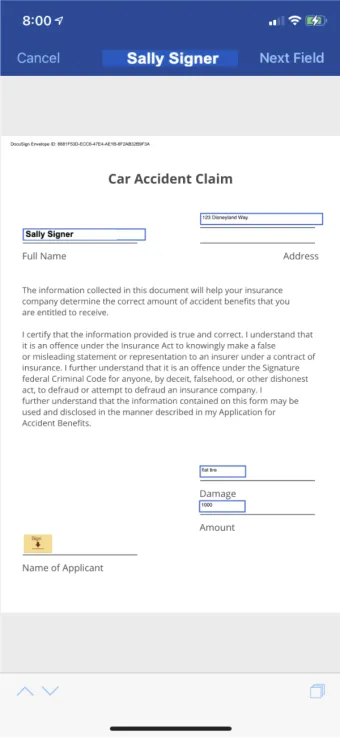
IOS SDK native offline signing interface

Once signing has been completed, or if the envelope has a remote signer, the envelope will be cached directly for sync later. You will receive a DSMEnvelopeCachedNotification to keep track of the signing process.

Next steps