
Set up your test environment
This procedure enables you to set up the Agreement Manager API Postman collection and start testing API requests.
Prerequisites
To use the Postman collection, you need the following:
- Your Docusign developer account credentials
- A Postman account
One-time setup procedures
In addition to the prerequisites, you’ll need to complete these steps:
- Create an integration in your Docusign developer account
- Add agreements in Agreement Manager (optional)
- Fork the Postman collection and set environment variables
After you’ve completed the one-time setup, follow the steps in Authenticate and execute Agreement Manager API requests whenever you want to test Agreement Manager API requests.
Create integration in Docusign developer account
To authenticate with Docusign so that you can send Agreement Manager API requests, you need to create an integration in your developer account and configure it with the required parameters. This is a one-time setup procedure.
To create the integration:
-
Access the Apps and Keys page and supply your Docusign developer account credentials.
-
Select Add App and Integration Key.
-
Supply an app name and select Create App.
-
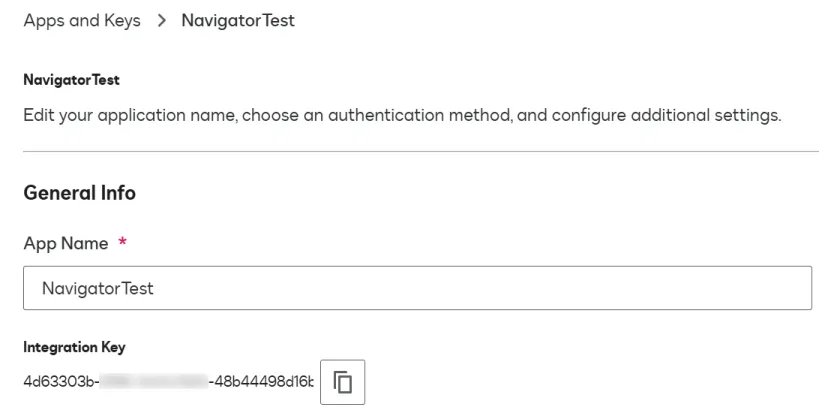
Locate the integration key and copy it to a file. You’ll need this value later.
-
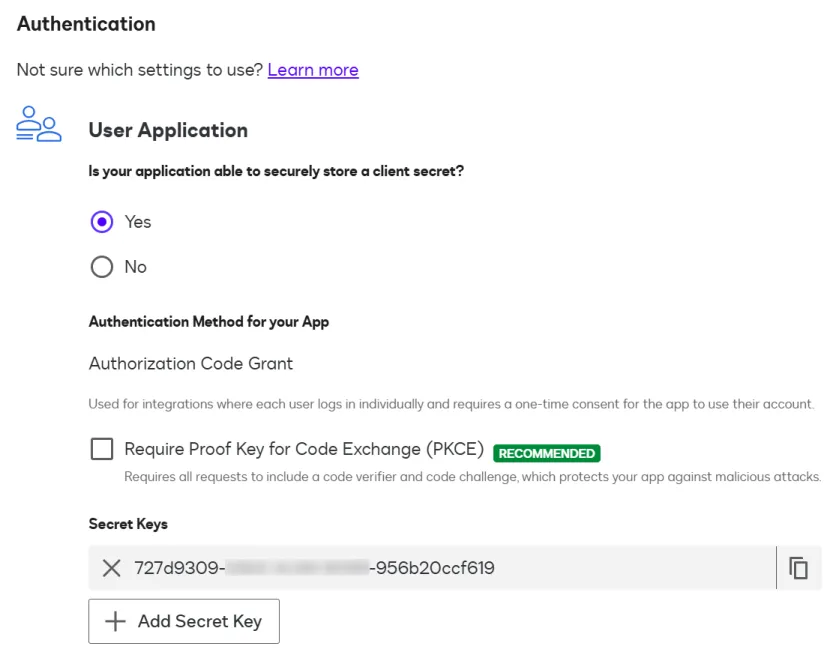
In the Authentication section, select Add Secret Key and then copy the generated value to a file. You’ll need this value later.
-
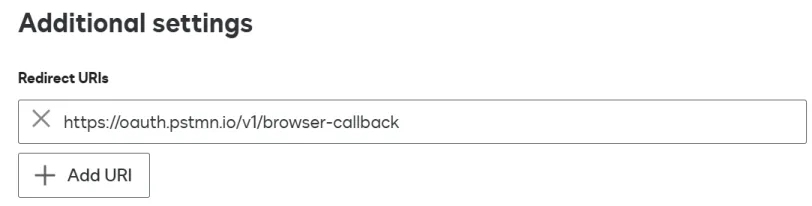
In the Additional Settings section, select Add URI and add this URI: https://oauth.pstmn.io/v1/browser-callback
Note: If you plan to test Agreement Manager API requests with your own app instead of Postman, enter a redirect URI to your app.
-
At the bottom of the page, select Save.
Add agreements in Agreement Manager (optional)
In this step, you use the Agreement Manager UI to add sample agreements to your Docusign developer account. Once Agreement Manager has completed AI extraction on the uploaded documents, you’ll be able to retrieve the agreement details using Agreement Manager API requests. This is a one-time setup procedure.
Follow the instructions in Docusign Agreement Manager: Free Trial Sample Agreements to download Docusign-provided sample agreements and add them to your Docusign developer account.
You can also upload your own sample agreements. You can upload a maximum of 100 agreements to your account.
Fork the Postman collection and set environment variables
This procedure enables you to fork the Docusign-provided Agreement Manager (previously called Navigator) API collection into your workspace and configure the forked collection with environment variables required for authentication. This is a one-time setup procedure.
To fork the collection and set environment variables:
-
Access the Docusign API: Limited availability APIs Postman workspace via the link that was sent to you when you were accepted to the LA release.
-
Provide your Postman account credentials.
-
Select Collections in the Postman left navigation.
-
In the list of collections, select Navigator API [version]-beta #examples.
-
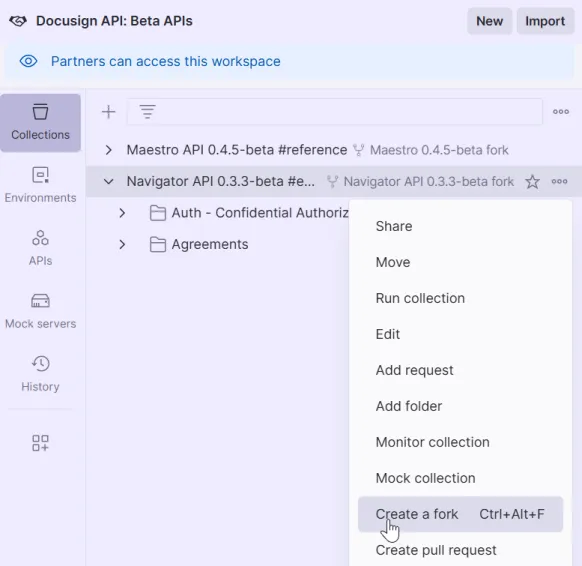
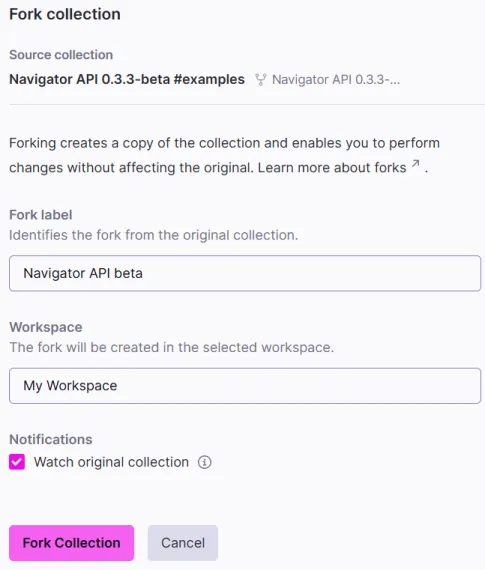
Select the ellipsis to the right of Navigator API [version]-beta #examples, and select Create a fork.
-
Enter a Fork label and select your workspace or your team’s workspace. Docusign recommends leaving Watch original collection selected so that you’ll be notified of any updates.
-
Select Fork Collection.
-
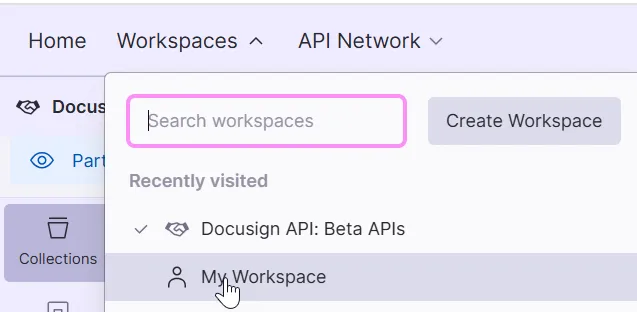
In the Workspaces menu, select your workspace to switch to it from the Docusign workspace.
-
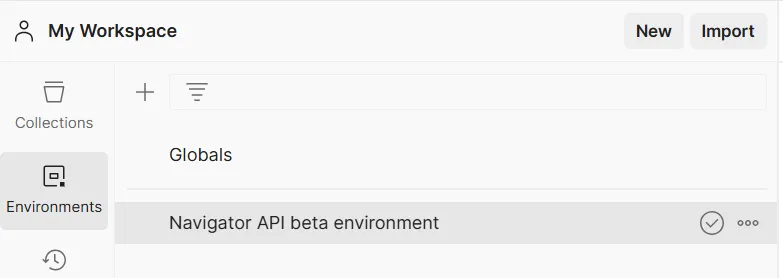
To the right of the workspace name, select New, and then select Environment.
-
Select the ellipsis next to the new environment, select Rename, and then supply a name for the environment.
-
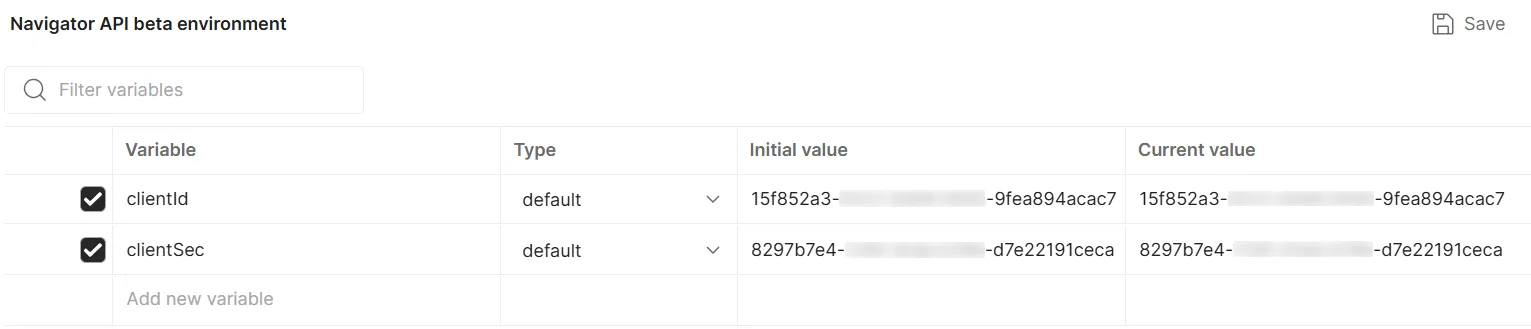
Add these variables with values you obtained when you completed the Create integration in Docusign developer account procedure.
The list will look similar to this:
-
Select Save.
Authenticate and execute Agreement Manager API requests
Once you’ve completed all the one-time setup procedures in the previous sections, follow this procedure any time you want to test Agreement Manager API requests.
To authenticate and execute Agreement Manager API requests:
-
Access your Postman workspace.
-
Select Collections in the Postman left navigation.
-
In the Collections list, select the forked Agreement Manager or Navigator API collection that you created in the previous procedure.
-
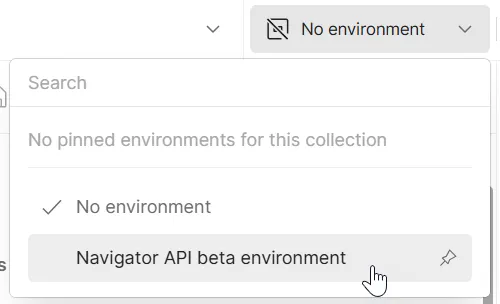
In the environment list in the upper right corner, select the environment you created in the previous procedure.
-
Make sure that the environment name appears selected.
-
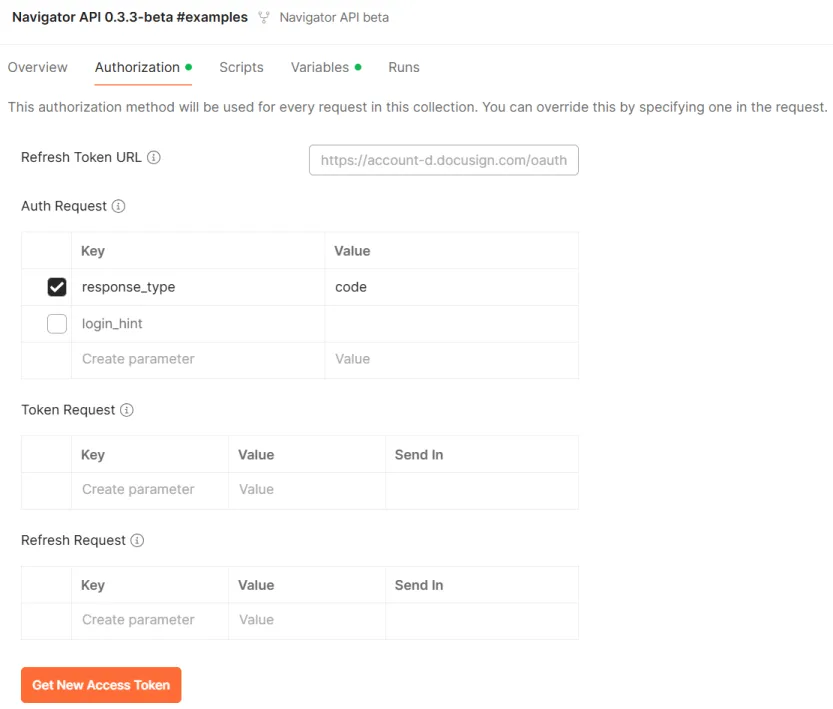
Switch to the Authorization tab.
-
Scroll to the bottom and select Get New Access Token.
-
On the Log in to Docusign window, supply your developer account email, click Next, supply your password, and click Next.
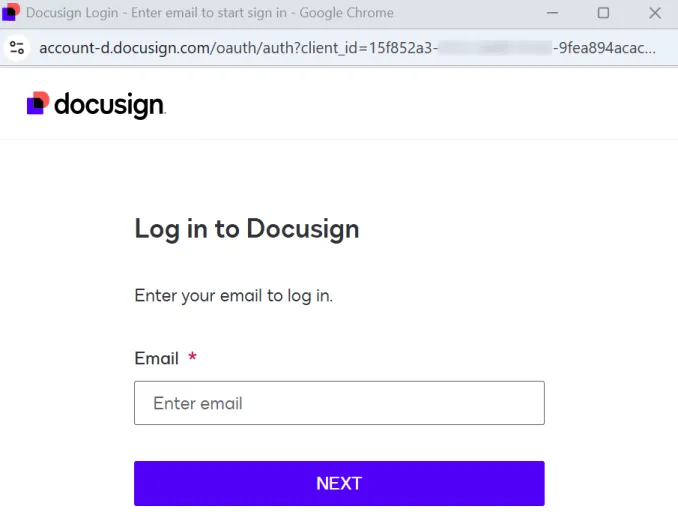
Note: If the window displays the message The redirect URI is not registered properly with Docusign, follow the steps in Create integration in Docusign developer account to add the required URI to your integration and save it. Then try the authentication steps again.
-
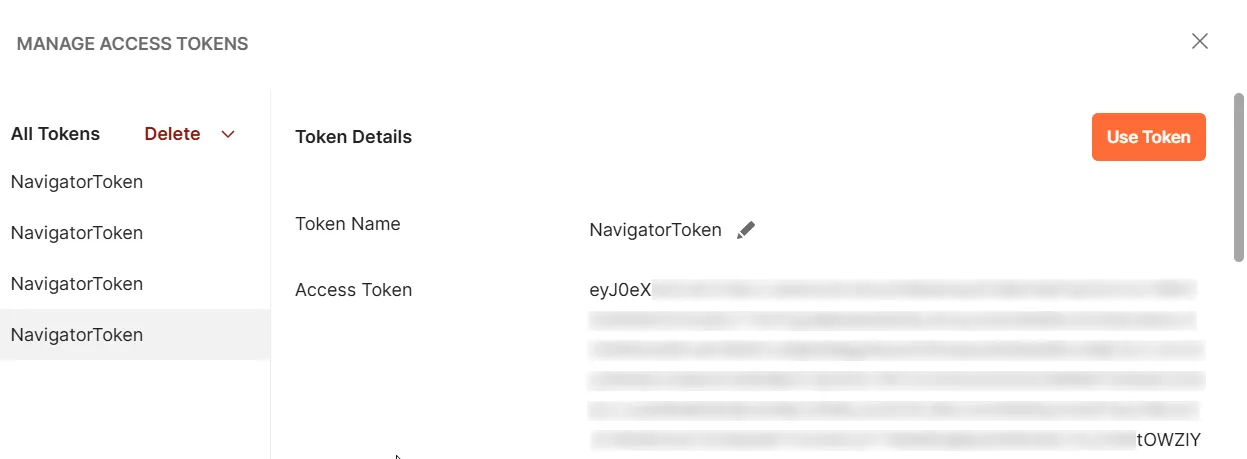
An Authentication Complete window appears, followed by a Manage Access Tokens window. Select Use Token.
-
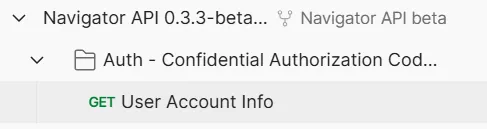
In the Collections list, under your forked collection, expand the Auth folder.
-
Select the User Account Info request.
-
Select Send. The request is executed and a post-request script will populate the account ID associated with your default account as the
accountIdenvironment variable. If you want to use an ID of another account, replace the value ofaccountIdwith the preferred value.
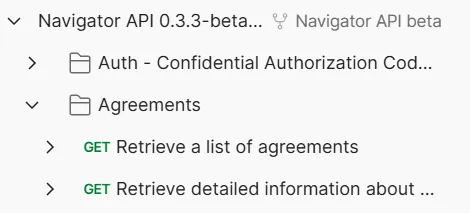
You can now execute the Agreements:getAgreement and Agreements:getAgreementsList requests in the Agreements folder. They will return the sample agreement data in your account.
Submit feedback or request assistance
You can submit feedback about the Agreement Manager API directly in Postman. Docusign is specifically interested in:
- Feedback about how the API does or does not meet the needs of your organization’s use cases
- Ideas for features that would make the API more useful to your organization
- Bug reports. Please provide as much detail as possible, including sample requests and responses where appropriate.
You can also submit questions or support requests directly in Postman.
To submit feedback, questions, or support requests:
-
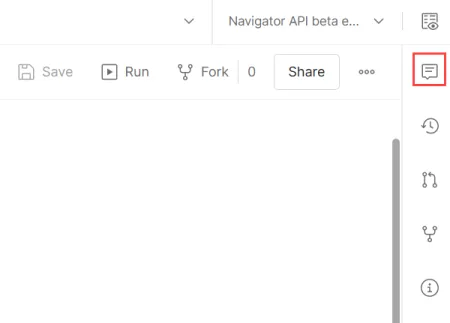
Select the comment icon in the Postman right navigation menu.
-
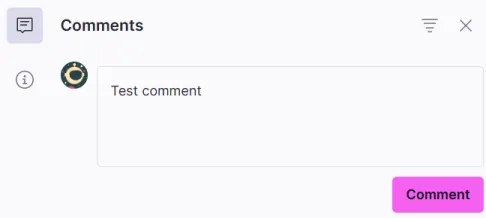
Enter your feedback and select Comment.
-
When Docusign responds, you’ll receive notification at the email address associated with your Postman account.
Next steps
- Review Agreement Manager API use cases.
- See the API Reference for details about request and response format.