
Skip to navigation

How to get a list of agreements

View as Markdown

This topic demonstrates how to get a list of agreements with the Agreement Manager API.

Run this code example from our Quickstart or launcher projects: Bash, C#, Java, Node.js, PowerShell.

Required data

Running the code in this how-to requires this data:

Data elementDescription
{API_ACCOUNT_ID}A GUID value that identifies your account. This value is automatically generated by Docusign for any account you create. Copy the value from the API Account ID field on the Apps and Keys page.
{BASE_PATH}A string value that forms the root of the URL required to make API calls. The base path value in the example code is set to target the developer environment at
https://<domain>/v1
Where <domain> is api-d.docusign.com for the developer environment and api.docusign.com for production.

Step 1. Obtain your OAuth token

To make the API call shown in this how-to, you need a valid OAuth access token. Docusign supports access tokens for three different OAuth grant types: Authorization Code Grant, Implicit Grant, and JSON Web Token (JWT) Grant. Choose the OAuth grant type appropriate for your scenario.

Agreement Manager OAuth access tokens are the same ones used for our eSignature REST API, although you must request one or more Agreement Manager scopes to call the Agreement Manager API. The endpoint calls made in this how-to require that you request the Agreement Manager-specific adm_store_unified_repo_read scope when obtaining your access token.

See Agreement Manager Authentication for details and the full list of Agreement Manager scopes.
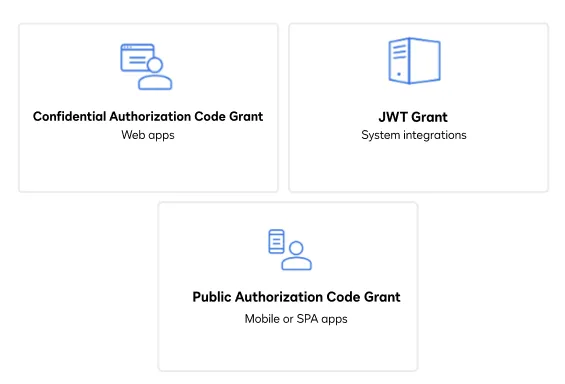
Three icons that represent the three methods a user can use to obtain an OAuth token: JSON Web Token (JWT), Public Authorization Code Grant (ACG), and Confidential Authorization Code grant

Step 2. Construct your API headers

After you have a valid OAuth access token, you are ready to construct the API headers that you will pass to the API call. Construct your headers like this, but make sure to substitute your valid OAuth access token for {ACCESS_TOKEN}.

declare -a Headers=('--header' "Authorization: Bearer ${ACCESS_TOKEN}" \
'--header' "Accept: application/json" \
'--header' "Content-Type: application/json")

Step 3. Call the Agreement Manager API

Now that you have constructed your API headers, make a GET request to the Agreements:getAgreementsList endpoint to get a list of all agreements associated with your user. Here’s how you make the call, but make sure to substitute your API account ID for {ACCOUNT_ID}. The calling user is identified by the access token used to make the API call.

View the source code for this how-to on GitHub: Bash, C#, Java, Node.js, PowerShell.

response=$(mktemp /tmp/response-cw.XXXXXX)
Status=$(curl -w '%{http_code}' -i --ssl-no-revoke --request GET ${base_path}/accounts/${ACCOUNT_ID}/agreements \
"${Headers[@]}" \
--output ${response})

Expected response

If you run this code example from our Quickstart or launcher projects, you should see a JSON response similar to the code shown.

Sample response
{
"data": [
{
"id": "31005b43-xxxx-xxxx-xxxx-ce698f2b19a1",
"file_name": "Lorem Ipsum",
"type": "Miscellaneous agreement",
"category": "Miscellaneous",
"status": "COMPLETE",
"provisions": {
"effective_date": "0001-01-01",
"expiration_date": "0001-01-01",
"execution_date": "0001-01-01",
"assignment_type": "SILENT",
"assignment_termination_rights": "SILENT",
"payment_terms_due_date": "SILENT",
"can_charge_late_payment_fees": false
},
"related_agreement_documents": {},
"languages": [
"en"
],
"source_name": "ESign",
"source_id": "200c7caa-xxxx-xxxx-xxxx-092c75b2d7e9",
"metadata": {
"created_at": "2024-11-05T19:23:45.79375Z",
"modified_at": "2024-11-05T19:27:26.72736Z"
}
},
{
"id": "a8c893b9-xxxx-xxxx-xxxx-333d80e4728f",
"file_name": "Invoice.pdf",
"type": "Miscellaneous agreement",
"category": "Miscellaneous",
"status": "COMPLETE",
"parties": [
{
"id": "b6b55050-xxxx-xxxx-xxxx-ae05bb7f803e",
"name_in_agreement": "Agreement Allison"
},
{
"id": "87614888-xxxx-xxxx-xxxx-b33a4bb4c53a",
"name_in_agreement": "COTTAGE ELECTRIC INC"
}
],
"provisions": {
"effective_date": "2022-01-21",
"expiration_date": "2022-02-10",
"execution_date": "0001-01-01",
"payment_terms_due_date": "OTHER"
},
"related_agreement_documents": {},
"source_name": "UploadCenter",
"source_id": "18d77b9d-xxxx-xxxx-xxxx-604887607b5d",
"source_account_id": "58c5b238-xxxx-xxxx-xxxx-2085e9f577a8",
"metadata": {
"created_at": "2024-10-23T16:23:37.439571Z",
"modified_at": "2024-10-23T16:23:53.736503Z"
}
}
],
"metadata": {
"total_items": 0,
"response_timestamp": "2024-11-05T19:30:00.3945027Z",
"response_duration_ms": 677
}
}

Next steps