
How to get a room with filters
This topic demonstrates how to return rooms filtered by your parameters using the Rooms API. The sample code for this topic filters for all rooms that have had their field data updated within the last 10 days, as shown on the Details tab in the UI.
Run this code example from our Quickstart or launcher projects: Bash, C#, Java, Node.js, PHP, PowerShell, Python, or Ruby.
Required data
Running the code in this how-to requires this data:
Step 1. Obtain your OAuth token
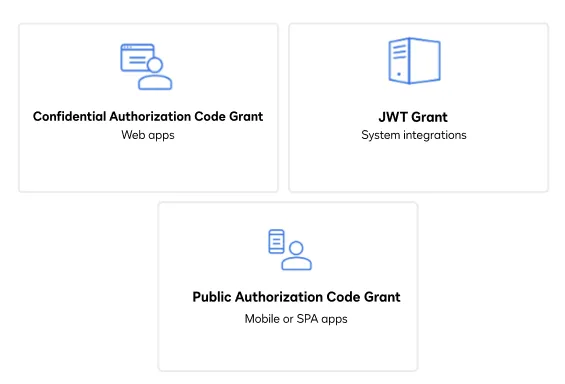
To make the API call shown in this how-to, you need a valid OAuth access token with the dtr.rooms.write scope enabled. Docusign supports access tokens for three different recommended OAuth grant types: Public Authorization Code Grant, Confidential Authorization Code Grant, and JSON Web Token (JWT) Grant. Choose the OAuth grant type appropriate for your scenario.
See Authentication for guidance on your options to get an OAuth token.
Step 2. Construct your API headers
After you have a valid OAuth access token, you are ready to construct the API headers that you will pass to the API call. Construct your headers like this, but make sure to substitute your valid OAuth access token for {ACCESS_TOKEN}.
Step 3. Prepare your request parameters
Next, prepare your request by populating your query parameters. For this how-to, you will use two dates to filter for all rooms with updated field data after a given date that is set dynamically to 10 days in the past.
Date filtering format can be set using either mm-dd-yyyy hh:mm:ss format or mm-dd-yyyy format. When filtering by mm-dd-yyyy, the midnight time of 0:00:00 is used. This example has the end date set forward one day to account for updates occurring on today’s date.
Step 4. Call the Rooms API
Now that you have constructed your API headers and request body, you can, make a GET request to the Rooms API to return a filtered set of rooms. Here’s how you make the call, but make sure to substitute your API account ID for {ACCOUNT_ID}.
Expected response
If you run this code example from our Quickstart or launcher projects, you should see a JSON response similar to the code shown.
Next steps
- Run this code example from our Quickstart or launcher projects: Bash, C#, Java, Node.js, PHP, PowerShell, Python, or Ruby.
- See How to create a room with a template.
- See How to add forms to a room.
- Learn more about Using room templates and task lists.
- See how to Go-Live with a completed app and find the base path for API calls in the production environment.