
How to send a signature request to a notary group
This topic demonstrates how to use the eSignature REST API to send a signature request to a notary group via email. A notary group consists of one notary and up to four signers who are all participating in a remote online notary (RON) session.
Important: In the Required data table and the code, the sender of the envelope is called the SIGNER.
Prerequisites
- The sender’s API account ID must be provisioned for the Notary base URI to join the RON session. For closed beta participants interested in adding Notary API functionality to your production account, contact your Docusign representative.
- The notary must be an active notary in the sender’s Docusign account.
Run this code example from our Quickstart or launcher projects: Bash, PowerShell.
Required data
Running the code in this how-to requires this data:
Step 1. Obtain your OAuth token
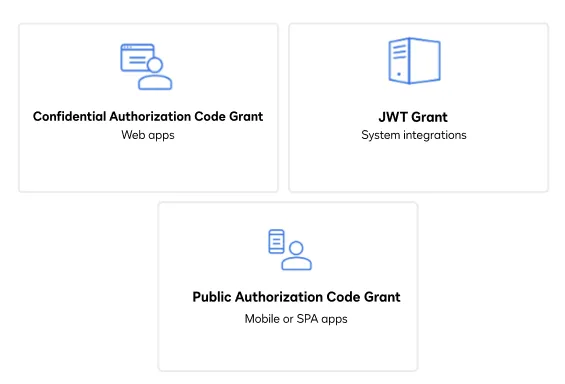
To make the API call shown in this how-to, you need a valid OAuth access token. Docusign supports access tokens for three different recommended OAuth grant types: Public Authorization Code Grant, Confidential Authorization Code Grant, and JSON Web Token (JWT) Grant. Choose the OAuth grant type appropriate for your scenario.
Docusign Notary OAuth access tokens are the same ones used for our eSignature REST API, although you must request four scopes to call the Docusign Notary API endpoints: notary_read, notary_write, organization_read, and signature.
See Authentication for guidance on your options to get an OAuth token.
Step 2. Construct your API headers
After you have a valid OAuth access token, you are ready to construct the API headers that you will pass to the API call. Construct your headers like this, but make sure to substitute your valid OAuth access token for {ACCESS_TOKEN}.
Step 3. Construct the request body
Next, create the request body. The first step in requesting a signature by email is to create a new envelope definition. The accompanying code demonstrates how to:
- Attach a document to your envelope.
- Set notary and signer recipient data.
- Create and assign a notary-specific field to the notary recipient within the document.
- Create and assign signable fields to specific signers within the document.
Note: When sending a request to a notary group, you must set the same value for routingOrder for the notary and the signers.
Make sure to substitute your values for {NOTARY_EMAIL}, {NOTARY_NAME}, {NOTARY_API_ACCOUNT_ID}, {SIGNER_EMAIL}, and {SIGNER_NAME}.
Step 4. Call the eSignature REST API
Now that you have constructed your API headers and request body, you can send the envelope with the Envelopes:create method to the notary and any other recipients you have specified. Here’s how you make the call, but make sure to substitute your API account ID for {ACCOUNT_ID}.
View the source code for this how-to on GitHub: Bash, PowerShell.
Expected response
If you run this code example from our Quickstart or launcher projects, you should see a JSON response similar to the code shown.
In addition, the notary receives an email invite to the audio-visual RON session.
Step 5. The notary joins the remote online notary session
First, the notary must authenticate in their Docusign account in a regular browser window (cannot be incognito). Then the notary selects the “Join Session” link in their email to start the audio-visual session. See Perform Remote Online Notarization for details.
Step 6. The signers join the remote online notary session
When the notary joins the audio-visual session, this triggers invites to the signers. The signers select the “Join Notary Session” link in their email to start the audio-visual session.
Next steps
- Run this code example from our Quickstart or launcher projects: Bash, PowerShell.
- Learn more about remote online notary.
- See Perform Remote Online Notarization for details about the audio-visual session.
- Learn How to invite a notary to your pool.
- Learn How to get a list of enabled jurisdictions.
- See how to Go-Live with a completed app and find the base path for API calls in the production environment.