
Retrieve web form configuration details
The Web Forms API is available in all developer accounts, but only in certain production account plans. Contact Docusign Support or your account manager to find out whether the Web Forms API is available for your production account plan.
When creating web form instances, your application must supply the ID of the web form configuration from which the instances are to be created. The web form configuration determines which form fields will be available to your application for prefilling and retrieving user-entered data. Your application should also check web form configuration status and version information before attempting to create a web form instance to ensure that the instance can be created successfully.
These Web Forms API endpoints return information about web form configurations in your account:
- Configurations:getForm: Returns details about a specific web form configuration, including the form type, components, status, and version.
- Configurations:listForms: Returns information about all web form configurations in your account, including form types, names, IDs, and statuses.
For details about the web form configuration information available with these requests, see:
- Web form configuration ID
- Web form configuration support for remote web form instances
- Web form configuration type
- Web form configuration structure
- Web form configuration status
- Web form configuration version
Web form configuration ID
Each web form configuration is identified by a unique ID, which is a GUID. This ID is required in API requests that create and manage web form instances.
You can retrieve a list of all web form configuration IDs in your account via a Web Forms API Configurations:listForms request or equivalent SDK method call. You can also use this request to search for a web form configuration by name. See Step 3 of How to create and embed a web form instance for an example.
To obtain a web form configuration’s ID from the Web Forms builder:
-
Log in to the eSignature web application.
-
Select Templates from the top navigation.
-
In the left navigation under Web Forms, select My Web Forms or All Web Forms.
-
Locate the web form configuration in the list.
-
Do one of the following:
- Select Download Configuration from the kebab menu in that row to download a JSON file containing form information, including the
idproperty. - Select the Open button to open the web form configuration. The ID appears in the URL.
- Select Download Configuration from the kebab menu in that row to download a JSON file containing form information, including the
Web form configuration type
A web form configuration’s type determines whether an eSignature envelope is generated after a user completes and submits a web form instance created from the configuration.
Responses to the Configurations:getForm request, the Configurations:listForms request, and equivalent SDK method calls include a type property that indicates the configuration type. Possible values are:
hasEsignTemplate: The web form configuration is template-based. The configuration’s web form template determines the format of an eSignature envelope that is created for each user to review and sign after filling out a web form instance.standalone: The web form configuration is standalone. This configuration type is not associated with a web form template, and a web form instance submission does not generate an envelope. This configuration type is also not eligible for remote web form instance delivery.
In addition to the generation of eSignature envelopes, template-based web form configurations provide the following features that are not supported with standalone configurations:
- Routing the envelope that is generated on web form instance submission to additional recipients for review. See Review and Update Recipient Information for details about configuring envelope recipients.
- Envelope custom fields, which can be used for envelope classification and reporting
- Attachment fields, which enable web form instance submitters to upload files
- Records of recipient authentication, which provide an audit trail for envelope recipient authentication
- Ability to deliver the web form instance as remote (delivered as a link via email). For more information, see When to use embedded or remote web form instance delivery.
Web form configuration support for remote web form instances
The Configurations:getForm and Configurations:listForms responses include an allowSending property. When true, the web form configuration can be used to create remote web form instances, which users access via a link in an envelope email. If the response includes an allowSending property set to false or does not include the allowSending property, the web form configuration cannot be used to create remote web form instances.
A web form configuration does not allow the creation of remote web form instances if any of the following is true:
- The web form configuration is standalone. To use the web form configuration with remote web form instances, recreate it in the Web Forms builder as a template-based configuration.
- The web form configuration has an attachment field. Attachment fields are not supported in remote web form instances. To use the web form configuration with remote web form instances, edit the web form configuration and remove the attachment field.
- The web form configuration was created with an older Web Forms release. To use the web form configuration with remote web form instances, recreate it in the Web Forms builder.
Web form configuration structure
The Configurations:getForm request or an equivalent SDK method call returns details about a web form configuration’s structure in the formContent.components object. These details include:
- The pages that make up a web form configuration and their content
- Information about the form fields, including their names, types, default values, and permitted values for dropdowns, radio buttons, and checkboxes. You’ll need this information if your application prefills form fields, and to retrieve user-entered form values.
- Recipient information, including the primary recipient who fills out the web form instance and any additional recipients for the envelope that will be generated if the web form configuration is template-based
Form field definitions
The formContent.components object in a Configurations:getForm response includes a form field definition for each field defined in the web form configuration.
An example form field definition for a text field is shown here.
Properties in form field definitions include:
componentKey: A unique identifier for the field. ThecomponentKeyis referenced in other sections offormContent.components. For example, the sections that define the contents of each web form page use thecomponentKeyto map form fields to pages.componentName: This name is referenced in API requests and SDK method calls when prefilling and retrieving form field values. This value is defined in the API reference name in the Web Forms builder Properties panel.componentType: The type of form field.
Supported componentTypes are:
See Add or Edit Field Properties on a Web Form for descriptions of the different types of form fields.
Identify permitted values for dropdowns, radio buttons, and checkboxes
For the field types Select (dropdown), RadioButtonGroup, and CheckboxGroup, the values that your application prefills must be permitted values for that component as defined in the web form configuration. If an Instances:createInstance request or equivalent SDK method call supplies a prefill value that is not among the permitted values for a component, Docusign returns an error.
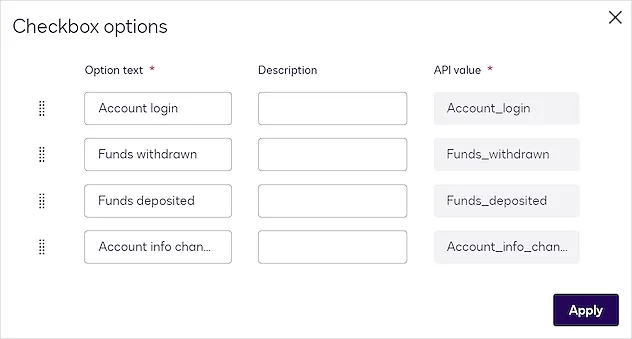
The form field definitions for Select, RadioButtonGroup, and CheckboxGroup fields include the permitted values. Here is an example CheckboxGroup form field definition from a formContent.components object in a Configurations:getForm response. The value properties in the options array contain the values that an application can prefill for the checkbox group. These values are case-sensitive.
Another option for obtaining form field names and permitted values is to open the web form configuration in the Web Forms builder and display the Properties panel for the form fields.
The form field name appears on the Properties panel in the API reference name setting. Below is an example definition in the Web Forms builder for a set of checkboxes. The API reference name alerts is the form field name that an application would use to reference this checkbox group when supplying prefill values or retrieving the user-submitted value.
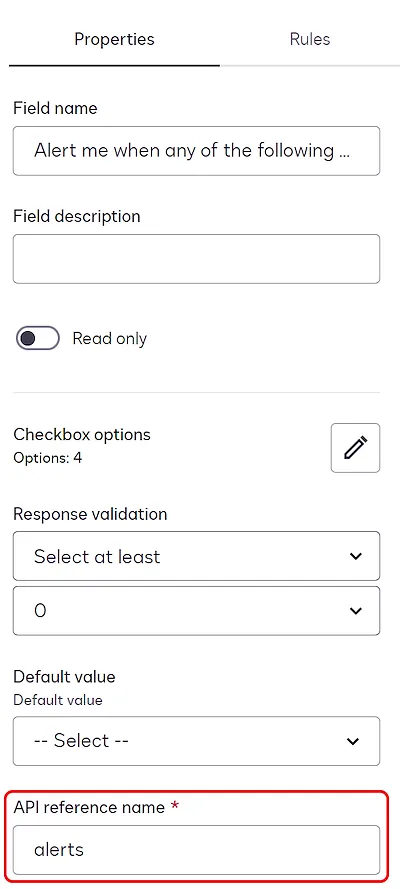 To see the allowed values for a form field, select the pencil icon next to Checkbox options. The API value column on the Checkbox options window lists the prefill values that an application can use. The Properties panel displays similar lists of permitted values for dropdowns and radio buttons.
Envelope custom fields
A web form configuration can include form fields whose values are saved as envelope custom fields. Envelope custom fields can be used for classification and reporting on envelopes generated after users submit web form instances.
Note: Envelope custom fields are supported with template-based web form configurations, but not with standalone web form configurations. See Web form configuration type for details.
For form fields that are saved as envelope custom fields, your integration can:
- Supply a prefill value for the field in the request’s formValues object when creating the web form instance. If the field is required, your integration must supply a prefill value when creating a remote web form instance.
- Retrieve the field value after form instance submission
Envelope custom fields may or may not be visible to users on web form instances. The next section explains how to identify both types of envelope custom fields.
Identify envelope custom fields
On form pages in a web form configuration, most form field types can be designated as envelope custom fields by enabling the Save as envelope custom field option on the Properties panel, as shown here:
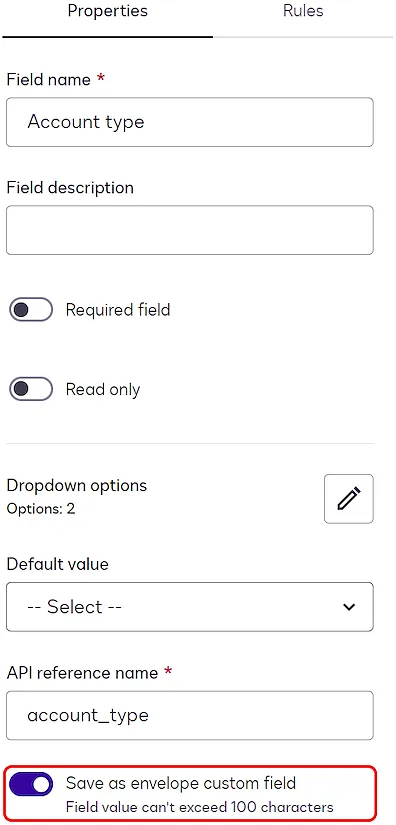 Note: The Save as envelope custom field option is not available for checkboxes and attachment fields.
The response to a Configurations:getForm request or an equivalent SDK method call includes a useEnvelopeCustomField property set to true for any form field that has Save as envelope custom field enabled. This example Select field definition from the formContent.components section of a Configurations:getForm response includes a value of true for useEnvelopeCustomField.
Instead of appearing on a form page in the web form configuration, an envelope custom field can be included on the configuration’s Pre-fill data page. Pre-fill data page fields are not visible to users in web form instances, but your integration can prefill these fields and retrieve their values after form instance submission.
If an envelope custom field is included on the Pre-fill data page and therefore will not be visible to users, the field is referenced in the section of the formContent.components object that defines the Pre-fill data page. The Pre-fill data page definition has a componentType of Step and a stepMode of prefill.
For example, if the Select field whose definition is shown above is not visible to users, its componentKey appears in children array in the Pre-fill data page definition, as shown here:
Form field definitions for active web form configurations
When calling Configurations:getForm or an equivalent SDK method to obtain form field information for a web form configuration, include the query parameter state with a value of active. This returns form field definitions for the active web form configuration. If state is set to draft, the response may reflect form field additions, deletions, or modifications in a draft web form configuration version. Until the draft version is activated, the field updates will not appear in web form instances that are displayed to users. See Web form configuration version for more information.
The formContent.components object in a Configurations:getForm response includes a publishedComponentNames section that lists form field componentNames and componentTypes. However, publishedComponentNames lists all form fields that have ever appeared in an active version of a web form configuration, including fields that have been deleted. Deleted fields are listed in publishedComponentNames even if the Configurations:getForm request includes the query parameter state=active. To determine which form fields exist in the current active web form configuration version, check the form field definitions in the response to a Configurations:getForm request. Unlike publishedComponentNames, the form field definitions include only fields that exist in the active web form configuration, provided that you include the query parameter state=active with the request.
Web form configuration status
A web form configuration has several properties that indicate the status. Your application code should check these statuses before attempting to create a web form instance, to ensure that the configuration is in a state that will allow form instances to be created successfully.
The responses to the Configurations:listForms request and the Configurations:getForm request, and equivalent SDK method calls, include these properties.
-
isPublished:truefor an activated web form configuration orfalsefor a configuration that has never been activated. After a web form configuration has been activated for the first time, this property will always containtrue. If you attempt to create a web form instance from a configuration when this value isfalse, Docusign returns an error. -
isEnabled:truefor a web form configuration that is currently activated orfalsefor a configuration that has never been activated, or has been deactivated. If you attempt to create a web form instance from a configuration when this value isfalse, Docusign returns an error. -
hasDraftChange:truefor a web form configuration that has been edited since the last time the configuration was activated, orfalseif no changes to the configuration have been made since it was last activated. Any changes to the configuration since it was last activated will not appear in web form instances that are created from the configuration. -
formState:draftif the web form configuration has never been activated.activeif the configuration has been activated and has not been changed since it was last activated.If the configuration has been changed since it was last activated, the
formStatevalue depends on the request:draft: returned in response to aConfigurations:getFormrequest with query parameterstate=draft.draftis also returned in response to aConfigurations:listFormsrequest.active: returned in response to aConfigurations:getFormrequest with query parameterstate=active.
See Web form configuration version for a description of configuration state and versioning details that appear in responses to Configurations:getForm and Configurations:listForms requests.
This table lists combinations of web form configuration status values and indicates whether a web form instance can be successfully created from a configuration that has these values.
Web form configuration version
A web form configuration version appears in the versionId property of the response to the Configurations:getForm request or an equivalent SDK method call. The initial version ID when a configuration is created is 1.
If you make changes to an activated web form configuration, Docusign maintains two versions of the configuration until you activate it again:
- The currently active version. This is the version from which web form instances are created. It does not include changes made since the configuration was last activated. The details associated with the currently active version are returned in response to
Configurations:getFormrequests with the query parameterstate=active. The response includes ahasDraftChangesproperty set totrue, aformStateofactive, and aversionIdthat reflects the currently active configuration’s version number. - The draft version. This version is not used to create web form instances. It includes changes made in the Web Forms builder since the last time the configuration was activated. To get details associated with this version, send a
Configurations:getFormrequest with the query parameterstate=draft. The response will include ahasDraftChangesproperty set totrue, aformStateofdraft, and aversionIdthat is greater than the active configuration’s version number by 1.
Values from a Configurations:getForm response for an activated configuration with draft changes where the request includes the query parameter state=draft:
Values from a Configurations:getForm response for the same configuration with draft changes where the request includes the query parameter state=active:
Values from a Configurations:getForm response with the query parameter state=active after the configuration has been activated again and no longer has draft changes. Note that the versionId for the active version of the configuration has been incremented.
The Configurations:getForm request returns a 404 error if the configuration currently has no draft version and the request includes the query parameter state=draft. See Troubleshooting for more information.
The Configurations:listForms request returns a formState of draft for configurations that have draft changes (or have never been activated) and a formState of active for configurations that have no draft changes.
Docusign recommends tracking version numbers for web form configurations to detect whether the active version of a configuration has changed before attempting to create a web form instance from it, because configuration changes can affect your application. For example, form fields may have been added, removed, or modified.
If an updated web form configuration is activated after a web form instance has been created from the configuration, form submission will fail for the instance created from the now-outdated configuration version. For form submission to succeed, your application must reload the instance URL to update the instance to the newest version.
Next steps
- See Prefill web form instance fields for information about populating a web form instance with known information about users.
- See Retrieve submitted web form instance values for information about obtaining user-entered values to write to your system of record.