
Enable ID Evidence storage
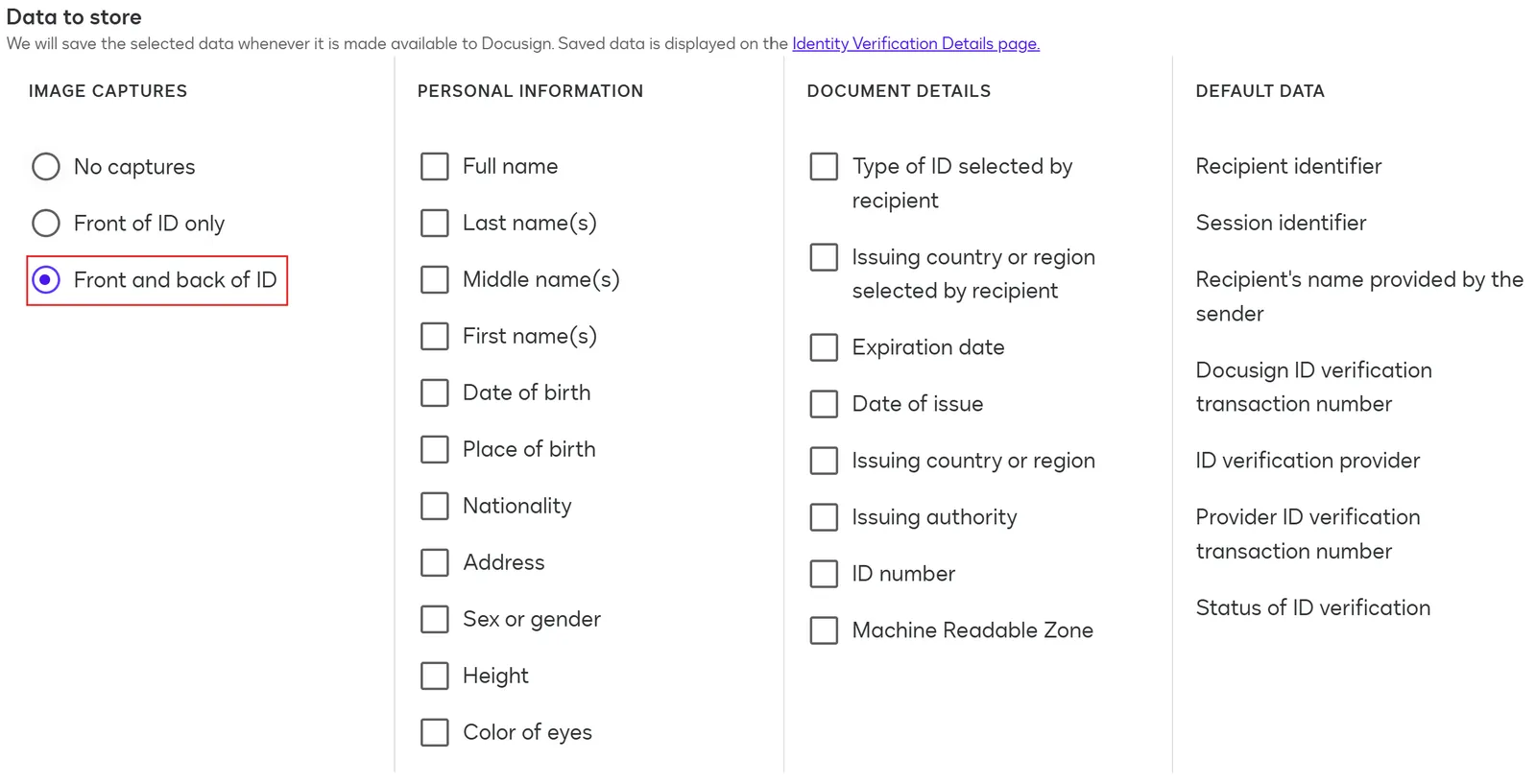
To store images of the government-issued IDs captured by the ID verification (IDV) process for each signer, you must have the Front side of the ID and Back side of the ID options selected.
Verify and edit your IDV configuration
-
In Docusign eSignature Settings, select Identity Verification.
- If you do not see a sidebar link named Identity Verification under eSignature Settings in your Docusign account, you do not have ID Verification (IDV) enabled. See ID verification for information on enabling IDV in your account.
-
Locate your Docusign ID Verification configuration from the list.
- If your Docusign ID Verification configuration has Read-only permission, create a new IDV configuration.
-
Select ACTIONS for the IDV configuration you want to edit and select Edit.
-
Under the Data to save from each Photo ID or Passport verification section, make sure that Front side of the ID and Back side of the ID are selected as shown in the image.
- If they are not selected, select the two boxes as per the image.
-
Select SAVE.
Create a new IDV configuration
- In Docusign eSignature Settings, select Identity Verification.
- Select ADD CONFIGURATION.
- Enter a name (and optional description) for the configuration.
- For the verification method, select Docusign ID Verification from the dropdown menu.
- Under the Data to save from each Photo ID or Passport verification section, select Front side of the ID and Back side of the ID as shown in the image.
- Select SAVE.
- Add your new IDV configuration to a recipient.
Add your new IDV configuration to a recipient
- Start a new envelope and add documents and recipients as usual.
- For the recipient for whom you want to request identity verification, select CUSTOMIZE then select Add identity verification.
- Select your new IDV configuration from the list of Identity Verification methods.
- Finish preparing your envelope as usual and send it.
Next steps
- See the Support article Add Identity Verification Configurations for details about creating IDV configurations.
- See the Support article To add ID verification for a recipient for more information.