
API Explorer
The standalone API Explorer has been replaced by the Try it feature, which is built into every endpoint page in the Docusign API reference. Use Try it to construct API requests, send them to Docusign, and review the responses without leaving the documentation.
Every endpoint method in the API reference documentation includes a Try it button. You can use Try it to send API calls to the Docusign developer environment and review the responses without installing software or configuring a project. All you need is a developer account. When you log in, an access token is generated for you automatically.
Try it sends requests only to the Docusign developer (demo) environment. It can’t be used to make calls against production accounts.
Try it is available in the API reference documentation for Docusign APIs, including:
- Admin
- Agreement Desk
- Agreement Manager
- Click
- CLM
- Connected Fields
- eSignature
- ID Evidence
- Monitor
- Notary
- Rooms
- Trust Records
- Web Forms
- Workflow Builder
- Workspaces
How to use Try it
-
Open the API reference page for the method you want to test, and then select Try it.
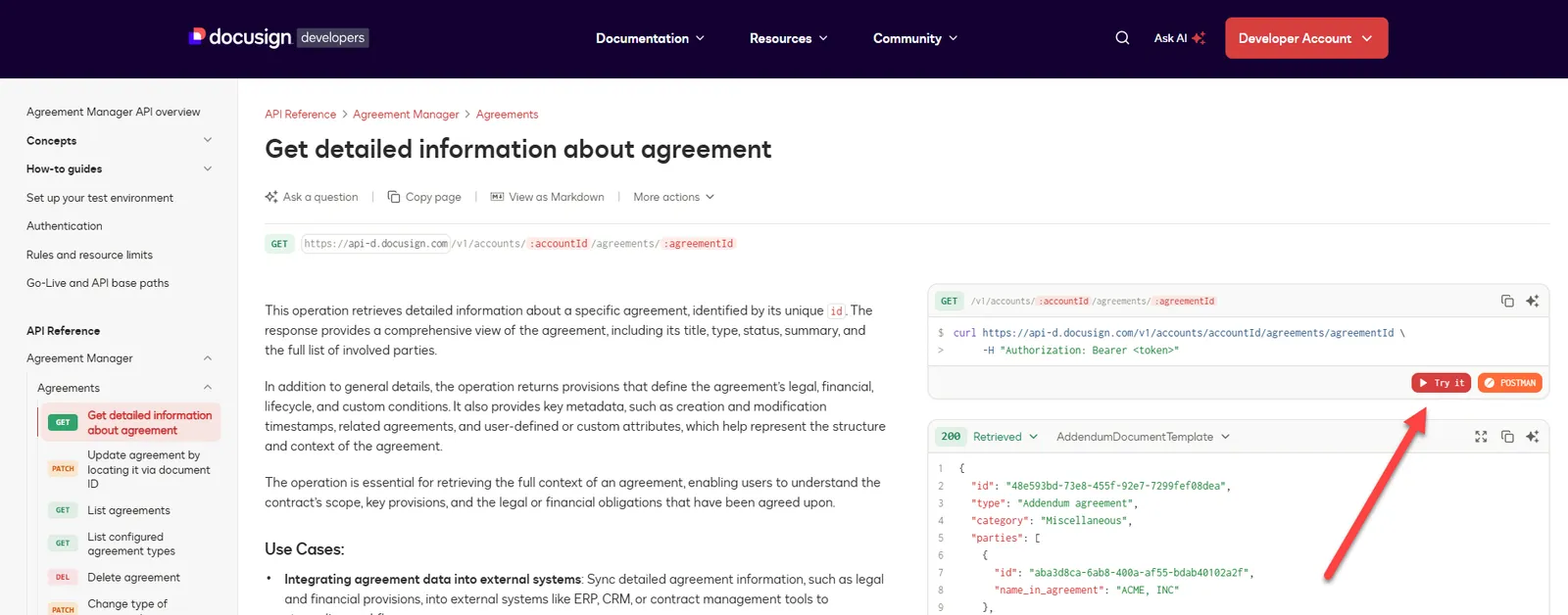
-
Select Login and sign in with your developer account credentials. After you log in, an access token is generated and added to your requests automatically. If you already have an access token, you can select Provide token manually instead.
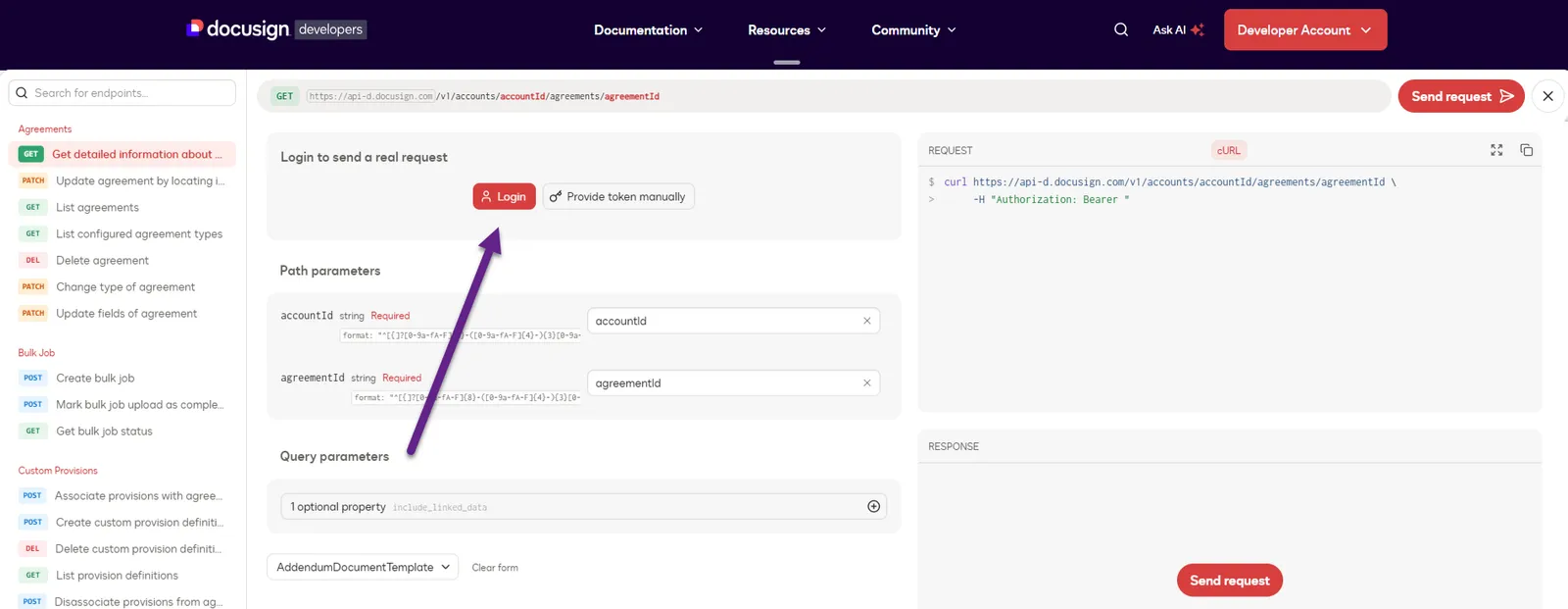
-
Enter values for the required parameters. When you log in, your
accountIdis populated for you automatically, but you need to enter values for any other parameters. If the method has a request body, enter the body properties in the request body section.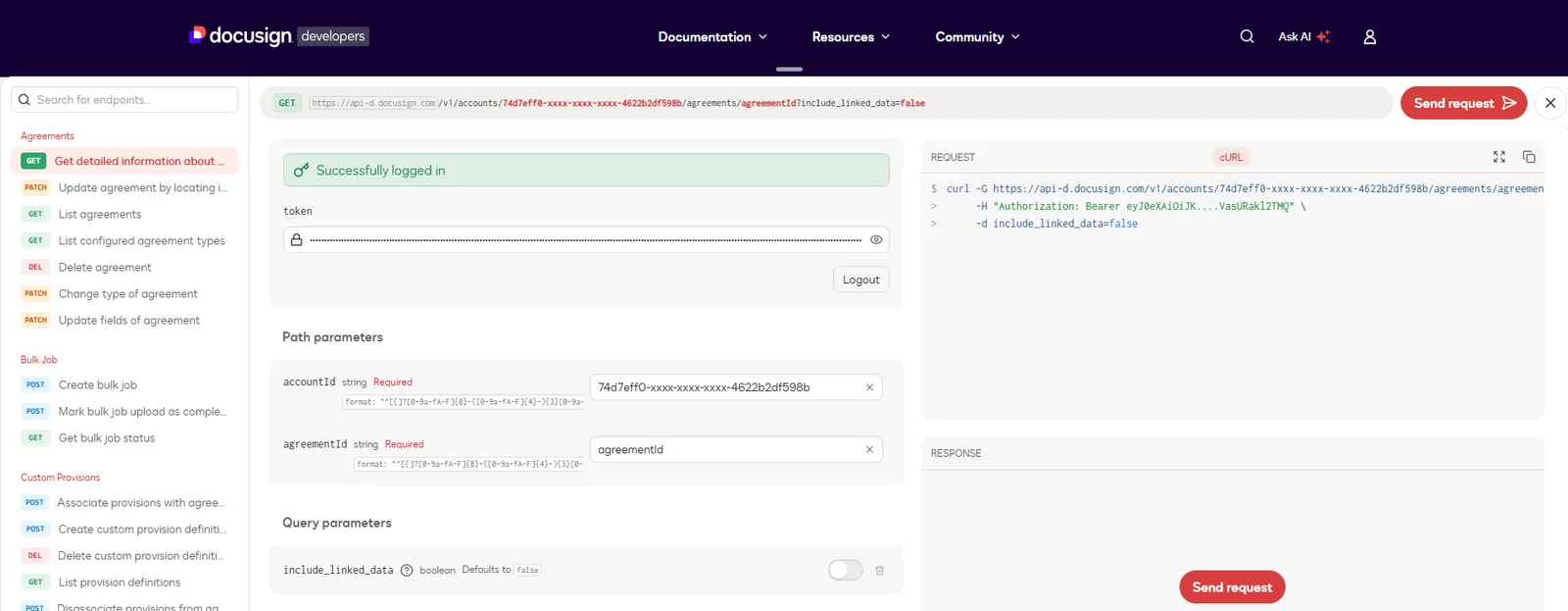
-
Select Send request. The response status, headers, and body are displayed in the response panel.
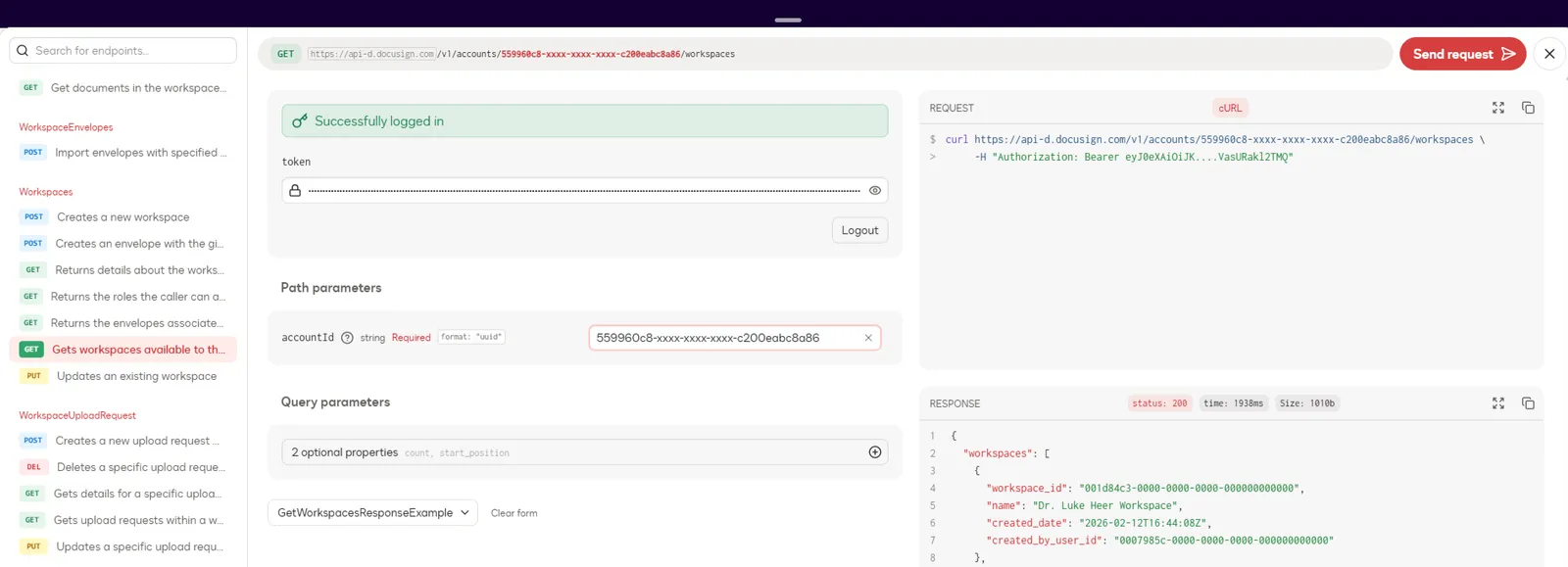
Tip: Each endpoint page also shows code snippets for the request in several languages. After you’ve tested a request, copy the snippet or request body to use in your integration.