
How to retrieve TSP evidence artifacts
This How-to article details the step-by-step process required to retrieve and download third-party Trust Service Provider (TSP) evidence artifacts using the Trust Records API. The current scope is limited to TSP evidence artifacts generated during a Qualified Electronic Signature process.
Prerequisites
-
The initial phase requires triggering a process that produces the identity verification records intended for retrieval. Depending on the specific business requirements, the following method is available:
-
The envelope must contain at least one recipient who has completed the identification process and subsequently signed the document.
The aforementioned signature produces several TSP evidence artifacts. These artifacts can be retrieved using the Trust Records API. The following steps in this article provide a detailed procedure for downloading the evidence files.
Run this code example from our Quickstart or launcher projects: Bash, PowerShell.
Required data
Running the code in this how-to requires this data:
Step 1. Obtain your OAuth token
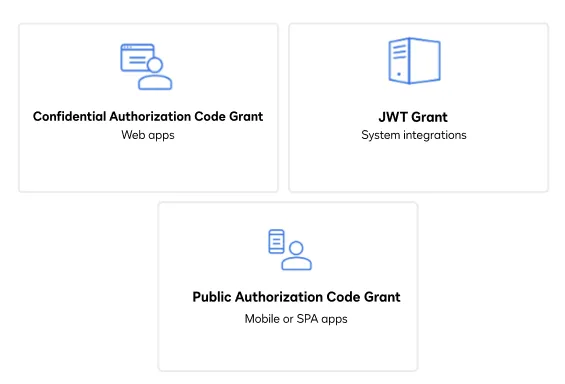
To make the API calls shown in this how-to, you need a valid OAuth access token. Docusign supports access tokens for three different recommended OAuth grant types: Public Authorization Code Grant, Confidential Authorization Code Grant, and JSON Web Token (JWT) Grant. Choose the OAuth grant type appropriate for your scenario.
See Confidential Authorization Code Grant for guidance on your options to get an Confidential Authorization Code Grant OAuth token.
Step 2. Retrieve your recipient ID GUID
TSP evidence artifacts are generated per participant, you need the participant ID to retrieve them.
eSign Envelopes
In eSign envelopes, the participants of interest are the recipients. Get the list of various recipient IDs for the envelope using listRecipients. Then, filter the list to find the IDs of the signers who used a partner service.
Call the listRecipients endpoint with your {API_ACCOUNT_ID} and {IDV_ENVELOPE_ID} to retrieve your recipient ID GUID.
Step 3. Construct your API headers
After you have a valid OAuth access token, you are ready to construct the API headers that you will pass to the API call. Construct your headers like this, but make sure to substitute your valid access token for {ACCESS_TOKEN}.
Step 4. Call the Trust Records API to retrieve evidence artifacts
Now that you have constructed your API headers, call the TrustRecords : GetTrustRecord endpoint with your {API_ACCOUNT_ID} and {RECIPIENT_ID_GUID} to retrieve ID Evidence event data for a recipient.
The outcome of this API call is a list of URLs from which the partner evidence artifacts can be downloaded. Once the list of artifacts has been obtained, they can be downloaded directly using the file_url.
Alternatively, a dedicated API may be utilized as follows by using the fileId and encrypted data available in file_url.
{FILE_ID} and {ENCRYPTED_DATA} is obtained from file_url field as
In addition to the authentication error (401 Unauthorized) previously mentioned, this API may also yield a 404 Not Found error.
This outcome is possible when the {RECIPIENT_ID_GUID} cannot be successfully mapped to an evidence artifact. This situation can arise either because the participant has not executed a process generating an evidence artifact, or the associated envelope has been deleted which consequently removes the evidence artifacts.
The evidence artifacts can also expire after a fixed timeline.
The configured Time-To-Live (TTL) for evidence artifacts varies depending on the specific use cases. For example, signatures using IDnow for GwG have a TTL of 90 days.
Step 5. Call the Trust Records API to download evidence artifact files
Execute the API endpoint to download all the evidence files of artifacts
Note: Query Parameters and API Response
context = Encrypted data
Mandatory parameter containing metadata used by the application to retrieve the file. It should not be modified.
The response is the raw file content returned as a binary stream with appropriate headers:
- Content-Type: The MIME type of the file (e.g., application/pdf, image/jpeg)
- Content-Disposition: attachment; filename=“{fileName}”
View the source code for this how-to on GitHub: Bash, PowerShell
Expected response
If you run this code example from our Quickstart or launcher projects, you should see a JSON response similar to the code shown.
Next steps
- Run this code example from our Quickstart or launcher projects: Bash, PowerShell
- Learn more about Trust Records API
- See how to Go-Live with a completed app and find the base path for API calls in the production environment.