
How to enable Docusign Monitor for your organization
This topic walks you through the process of how you can enable Docusign Monitor for your organization.
Step 1. Create a developer account
If you already have a developer account, move on to step 2.
To create a developer account:
- At the top right of the Developer Center site, select Create account.
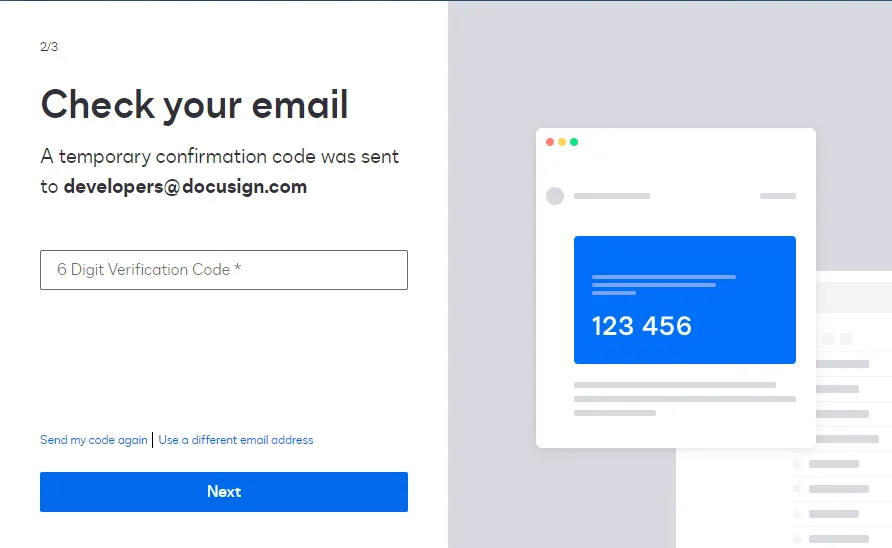
- Enter your information, then use your provided email address to activate your new account.
Step 2. Create an organization
To create an organization and gain access to the Monitor admin tile:
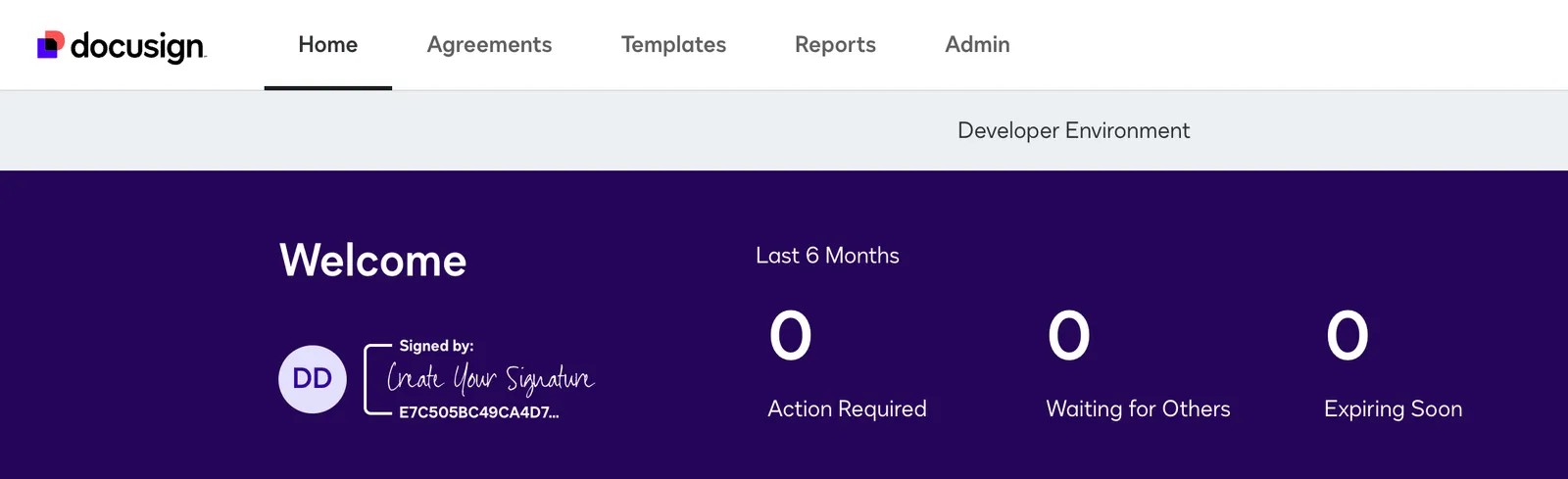
- From the Docusign developer environment, select Admin at the top of the navigation bar.
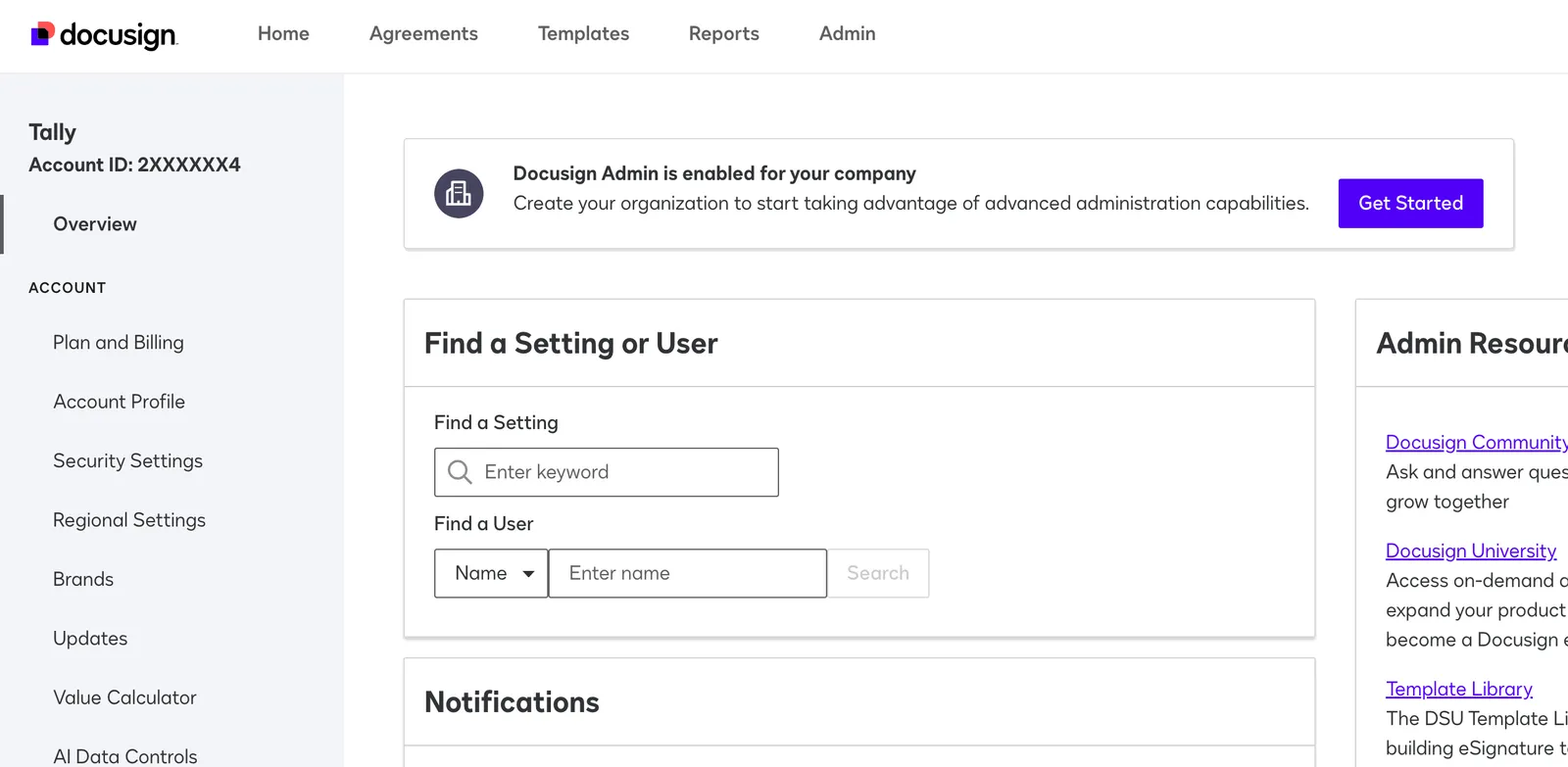
- In the admin tool, select Get Started on the Docusign Admin is enabled for your company banner.
- If you do not already have an organization, choose the accounts to be linked to your new organization, then create the organization.
- All demo accounts have access to the paid version of Monitor, and prod accounts might be entitled to the free version of Monitor.
- In Organization Admin, navigate to Monitor and toggle the status to “Enabled.” If you’re having trouble accessing Monitor, reach out to your support manager or create a case in Docusign Support Center. Please note that the API for SIEM integrations is only available with the paid version of Monitor for prod accounts. Please contact sales if you’re interested in that.
Next steps
- Learn How to get monitoring data.
- Find out more about Docusign Monitor Authentication.
- See Best practices for handling alerts.
- See Go-Live to see the Monitor API endpoint base path for the production environment..