> You are reading the Docusign Developer Documentation. For clean Markdown of any page, append .md to the page URL.
>
> Documentation indexes by section:
> - APIs and SDKs: https://docusign.docs.buildwithfern.com/docs/llms.txt
> - Platform 101: https://docusign.docs.buildwithfern.com/platform/llms.txt
> - Extension Apps: https://docusign.docs.buildwithfern.com/extension-apps/llms.txt
> - Docusign CLI: https://docusign.docs.buildwithfern.com/docusign-cli/llms.txt
>
> Authentication (OAuth, JWT Grant, M2M): https://docusign.docs.buildwithfern.com/platform/auth
> Webhooks and Connect: https://docusign.docs.buildwithfern.com/platform/webhooks
>
> OpenAPI specifications: https://docusign.docs.buildwithfern.com/openapi.json
> MCP server: https://docusign.docs.buildwithfern.com/_mcp/server
# Responsive signing
> Describes the responsive signing feature and describes how it is used by Docusign integrations.
[Docusign responsive signing](https://support.docusign.com/s/document-item?language=en_US\&rsc_301\&bundleId=gbo1643332197980\&topicId=cbv1578456473989.html&_LANG=enus) enables your documents to scale to fit the size of your signer’s mobile device, providing a responsive, web-based signing experience. You have several options for creating responsive documents for mobile devices:
* In [basic responsive signing](/docs/esign-rest-api/esign101/concepts/responsive#basic), you provide a PDF (or other [supported file type](/docs/esign-rest-api/esign101/concepts/documents)) version of the document, and Docusign automatically converts it to a signable HTML document.
* [Advanced responsive signing](/docs/esign-rest-api/esign101/concepts/responsive#advanced) includes options that give you more control over how to display the document:
* [Sending HTML code directly](/docs/esign-rest-api/esign101/concepts/responsive#sendingDirectly) enables you to create your document and tabs in HTML as part of your envelope definition.
* [Smart sections](/docs/esign-rest-api/esign101/concepts/responsive#smartSections) provide features that optimize your document for display on mobile devices, including collapsible sections, rotating tables, and **Continue** buttons. You can use smart sections with documents that Docusign converts to HTML and documents that you create directly in HTML.
Regardless of whether you select basic or advanced responsive signing, the resulting HTML pages and their components are dynamically resized to display well and provide a better signing experience on mobile devices than PDF.
## When to use responsive signing
You can use basic or advanced responsive signing whenever you expect your signers to view your documents on a mobile device, such as a phone or tablet. Documents with the following characteristics can especially benefit from these features:
* **Large blocks of text**: Text wraps naturally. If you convert a document to HTML using basic responsive signing, the conversion process retains the font, color, and size from the original document.
* **Tables with regular, consistent structure**: Columns are preserved and text is adjusted to fit on the screen. The smart sections feature also offers the option to convert multi-column tables to a single column for better readability.
* **Fields**: Fields scale easily when they are placed inline without overlapping.
* **Images**: Images scale to fill the screen without horizontal scrolling.
**Note:** RTL (right-to-left) languages such as Hebrew, Farsi, Arabic, and others are not currently supported in Responsive Signing.
## Basic responsive signing
Basic responsive signing is a feature that you can use to scale and resize documents dynamically for mobile devices by converting PDF or Word documents to HTML. [Other file types](/docs/esign-rest-api/esign101/concepts/documents) are supported, but PDF and Word source documents provide the best results.
When Docusign converts a PDF document into HTML for responsive signing, any existing tabs will be preserved. This enables signers to view it like a web page rather than a PDF.
* [Anchor tabs](/docs/esign-rest-api/esign101/concepts/tabs/auto-place) in the converted document will be preserved in the resulting HTML, anchored to their associated elements.
* Tabs using [absolute (coordinate) positioning](/docs/esign-rest-api/esign101/concepts/tabs/fixed) are also preserved. The specified tab position will be translated into a marker and placed dynamically.
After the responsive HTML signing document has been created, it is stored as an attachment tied to the envelope, which the calling system can retrieve.
Basic responsive signing is disabled by default and must be enabled by an account administrator. For more information, see [Signing Settings](https://support.docusign.com/s/document-item?language=en_US\&rsc_301\&bundleId=pik1583277475390\&topicId=lue1583277359885.html&_LANG=enus) in the Docusign eSignature Admin Guide.
See [How to convert a PDF file into a signable HTML document](/docs/esign-rest-api/how-to/converting-pdf) for a basic responsive signing code example.
## Advanced responsive signing
Although basic responsive signing produces an HTML display that scales to fit a mobile device screen, you may want additional control over how your document’s elements are displayed. Advanced responsive signing offers two options for this: sending HTML directly and smart sections.
The advanced responsive signing options—sending HTML directly and smart sections—are available in all developer accounts, but only in certain production account plans. Contact [Docusign Support](https://support.docusign.com/s/contactSupport) or your account manager to find out whether these features are available for your production account plan.
### Sending HTML directly
Sending HTML directly enables you to create a responsive, mobile-optimized document by defining that document as HTML within your envelope.
When sending HTML directly to create a signable HTML document, you can define tabs by:
* Using HTML blocks including custom Docusign HTML tags that represent various tab types.
* Using conventional eSignature JSON tab properties, along with a `tabLabel` identifier. You then reference the `tabLabel` in the HTML document definition.
See [Setting tabs in HTML documents](/docs/esign-rest-api/esign101/concepts/responsive/setting-tabs) for details about these options.
When sending HTML directly, you cannot use image file links in the HTML document definition. If you want to include images, they must be encoded in Base64 format in the `![]() ` tags, as shown in the example below:
```text
 ```
See [How to create a signable HTML document](/docs/esign-rest-api/how-to/creating-signable-html) for an example of sending HTML directly.
### Smart sections
The smart sections feature provides additional responsive page elements. You can add these elements to documents that Docusign converts to HTML and to documents that you create directly in HTML. Among the elements supported by smart sections are:
* *Collapsible sections* that users can expand and collapse to make better use of the limited space on mobile screens
* *Rotating tables*, which automatically convert multiple columns to a single column for better display on mobile devices
* *Continue buttons* that create stop points in the document and draw the reader’s attention before proceeding to the next section
See [envelopeDefinition.documents.htmlDefinition.displayAnchors.displaySettings.display](/docs/esign-rest-api/reference/envelopes/envelopes/create#schema__envelopedefinition_documents_htmldefinition_displayanchors_displaysettings_display) in the API reference for details about these features.
## Use Preview to evaluate your content
When you want to preview a dynamically sized responsive HTML document, you can use the **Preview** option in eSignature Admin to see how content will appear to your mobile signers in the responsive experience. To use the **Preview** option, create a draft version of an envelope by setting its `status` to `created` in the call to the [Envelopes:create](/docs/esign-rest-api/reference/envelopes/envelopes/create) endpoint or an equivalent SDK method. Then follow these steps to preview the document.
1. Locate the envelope in the [Drafts list](https://apps-d.docusign.com/send/documents?view=draft).
2. Select **Continue**.
3. Select **Next**.
4. Select **Preview**.
5. Use the icons to switch between desktop, tablet, and mobile view.
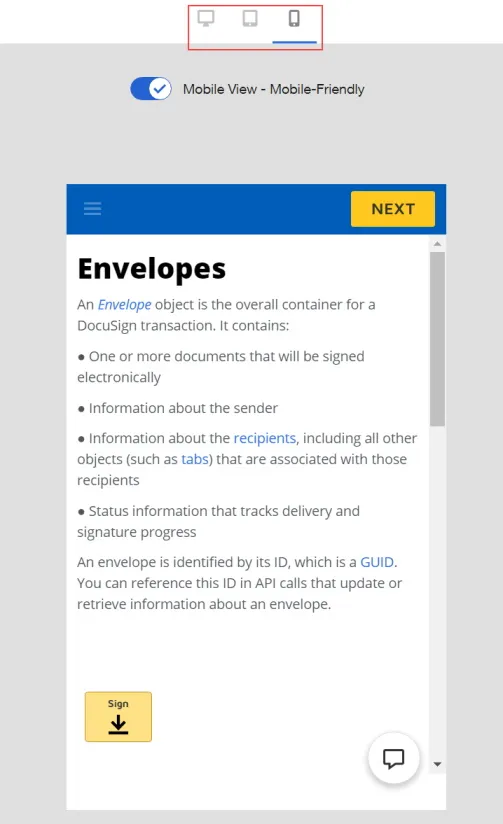
Previewing the tablet or mobile phone screen size will show how Docusign presents responsive content to your signers. In most cases, Docusign fields appear inline, and the document content naturally reflows to fit the dimensions of the screen like a modern web page.
## Troubleshooting and optimizing content for responsive signing and smart sections
For information about common problems that you can encounter when using some document elements with basic and advanced responsive signing, along with guidance on how to optimize that content for mobile devices, see [Designing a seamless responsive esigning experience](https://docs.docusign.com/supportdocs/KM/DocuSign_Designing_a_Seamless_Responsive_Signing_Experience.pdf).
## Next steps
See a [responsive signing video](https://youtu.be/OHVxdCpEgkE).
Working with responsive signing? See code examples on:
* [How to create a signable HTML document](/docs/esign-rest-api/how-to/creating-signable-html)
* [How to convert a PDF file into a signable HTML document](/docs/esign-rest-api/how-to/converting-pdf)
See [htmlDefinition](/docs/esign-rest-api/reference/envelopes/envelopes/create#schema__envelopedefinition_documents_htmldefinition) in the API reference for a list of properties related to responsive signing.
For a demo of basic responsive signing and a walkthrough of the API call that implements it, see the [Responsive Signing](https://myapicalls.sampleapps.docusign.com/scenario/4) scenario in the MyAPICalls sample app.
> Describes the responsive signing feature and describes how it is used by Docusign integrations.
## Docs
- [Setting tabs in HTML documents](https://developers.docusign.com/docs/esign-rest-api/esign101/concepts/responsive/setting-tabs.md): Describes the options and use cases for setting tabs in responsive HTML documents.